
You can install apps without an Apple ID using PWAs, enterprise/MDM, or jailbreaking methods.
I’ve spent years helping people manage iPhones and iPads in homes and workplaces, so I know what works and what’s risky. This guide explains how to install apps without Apple ID in clear, practical steps. You’ll learn safe options like Progressive Web Apps and MDM, trade-offs for third-party stores and jailbreak solutions, and the real security and legal issues to watch for. Read on to find the best method for your needs and avoid common mistakes.
Why Apple ID is usually required
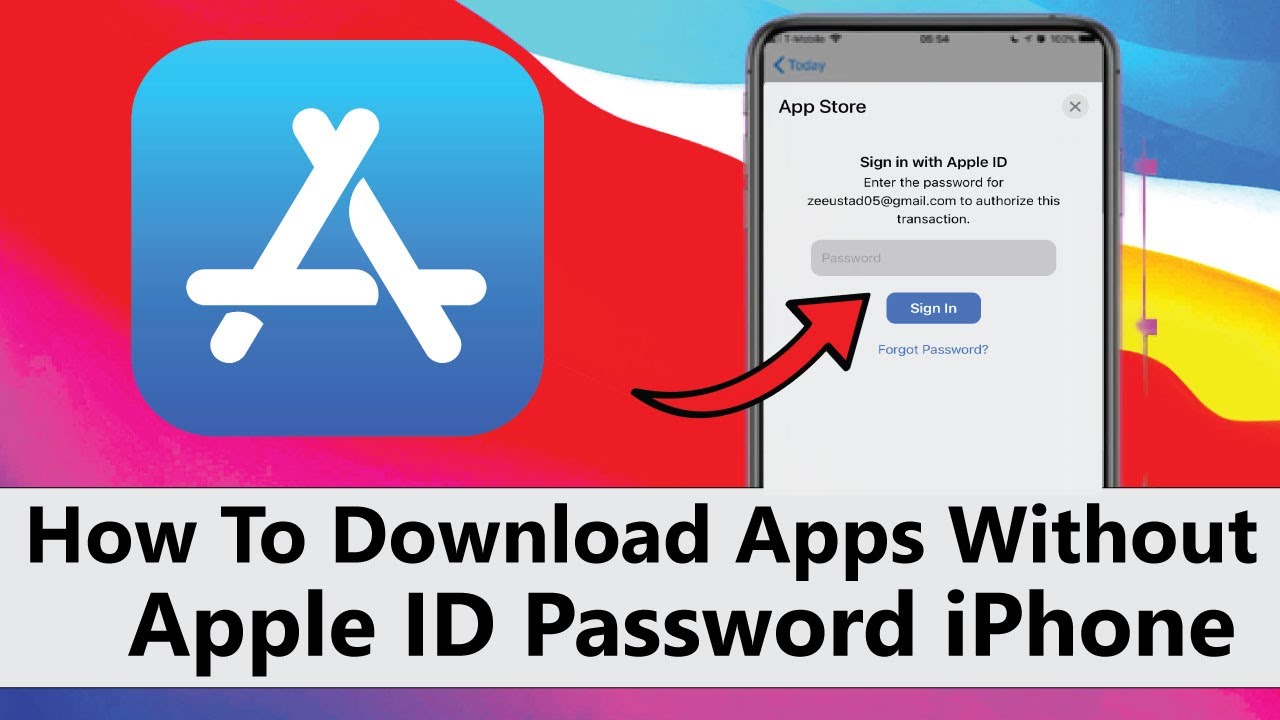
Apple requires an Apple ID to download and update apps from the App Store. This ties purchases, app licenses, device security, and app updates to a user account. It also helps Apple enforce app review rules and protect devices from unverified software.
For people asking how to install apps without Apple ID, that requirement creates friction. There are still legal and technical paths to install apps without an Apple ID, but each method has limits. Understand these limits before you choose an approach.
Legitimate ways to install apps without Apple ID
Below are common, legitimate approaches to how to install apps without Apple ID. Each method solves different needs.
Progressive Web Apps (PWA)
- Install web apps to the home screen via Safari. No Apple ID needed and they work offline in many cases.
Enterprise distribution and MDM (for organizations)
- Companies can push apps to devices without each user using an Apple ID. This is ideal for business or school devices.
Pre-signed enterprise apps and third-party stores
- Some services use enterprise certificates to let users install apps without an Apple ID. These can be convenient but may be revoked.
Jailbreaking and package managers
- A jailbroken device can install apps from alternative stores without an Apple ID. This is powerful but raises security and warranty concerns.
Manually installing signed .ipa files (limited cases)
- If you have a properly signed .ipa, tools can install it without needing the device owner’s Apple ID. Often this requires the app to be signed by a trusted certificate.
Each option answers the question of how to install apps without Apple ID differently. Pick the one that fits your needs, and weigh safety and legality.
Step-by-step: Install a Progressive Web App (PWA)
PWAs are the safest way to install apps without Apple ID for many users.
- Open Safari on your iPhone or iPad.
- Go to the website of the service you want (for example, a web app or game).
- Tap the Share button at the bottom of the screen.
- Choose Add to Home Screen.
- Name the shortcut and tap Add.
The app appears on your Home Screen like a normal app. PWAs do not need the App Store, so they show how to install apps without Apple ID in a safe, supported way. They work best for services that support offline or app-like behavior.
Step-by-step: Use enterprise distribution or MDM (for organizations)
Enterprise apps and MDM are the right solution for businesses and schools that need to install apps without Apple ID.
Admin steps (high level)
- Enroll devices in your MDM solution.
- Upload the enterprise-signed app or configure the App Store app assignment.
- Push the app to devices from the MDM console.
User steps (high level)
- Accept the MDM enrollment profile sent by the admin.
- If prompted, go to Settings > General > Device Management and trust the organization’s profile.
- The app installs automatically or appears on the Home Screen.
This method complies with Apple rules when used by registered organizations. It’s ideal when many devices must run the same internal app without requiring each user to sign in with an Apple ID.

Using third-party app stores and jailbreaking — pros and cons
Third-party app stores and jailbreaking can remove the Apple ID requirement, but they come with real risks.
- How third-party stores work
- Many third-party stores use enterprise certificates to sign apps, letting them install without your Apple ID. These certificates can be revoked at any time.
- How jailbreaking works
- Jailbreaking gives you full control of the device and lets you install apps from alternative repositories without Apple ID. This changes system protections and can open security holes.
Risks and downsides
- Security: Higher risk of malware and data theft.
- Stability: Apps may crash or be pulled when certificates are revoked.
- Warranty and updates: Jailbreaking can void warranty and may break future iOS updates.
- Legality and policy: Using some third-party services may violate Apple’s terms.
If you try these routes, keep backups, avoid sensitive accounts on the device, and accept possible instability.
Security and legal considerations
When exploring how to install apps without Apple ID, security and legality must guide your choice.
- Malicious apps: Unvetted apps can steal data or run background code.
- Certificate revocation: Enterprise-signed apps may stop working if Apple revokes the certificate.
- Privacy: Sharing device access for app installs can expose personal info.
- Terms of service: Some methods may violate Apple’s terms and affect support and warranty.
Best safety steps
- Back up your device before experimenting.
- Use trusted enterprise MDM for work devices.
- Prefer PWAs for consumer needs when possible.
- Avoid sideloaded apps that request broad permissions or payments outside the app.
Be transparent about risks with your team or family before installing apps without an Apple ID.
My personal experience and practical tips
I’ve helped small teams set up MDM profiles and used PWAs for quick app access. I once had an enterprise-signed app stop working after a certificate was revoked. That taught me to always have a fallback plan.
Tips from real use
- Use PWAs for public services that support them; they are low risk and fast to deploy.
- For businesses, invest in MDM and a proper developer or enterprise account. It saves time and reduces risk.
- If you test third-party stores, use a secondary device and avoid storing passwords on it.
- Keep frequent backups so you can restore if something goes wrong.
These lessons cut the typical headaches I saw when teams tried to avoid Apple ID without a plan.
Alternatives and recommended best practices
If you’re asking how to install apps without Apple ID, consider safer alternatives first.
- Create a dedicated Apple ID for installs if privacy is the only concern.
- Ask the app developer for an official enterprise or ad-hoc build if it’s for a team.
- Use App Store family sharing when apps are paid and you want to share purchases legally.
- Consider PWAs or web versions for simple needs that don’t require App Store apps.
Using supported paths reduces risk and keeps devices stable.
Frequently Asked Questions of how to install apps without apple id
Can I install App Store apps without an Apple ID?
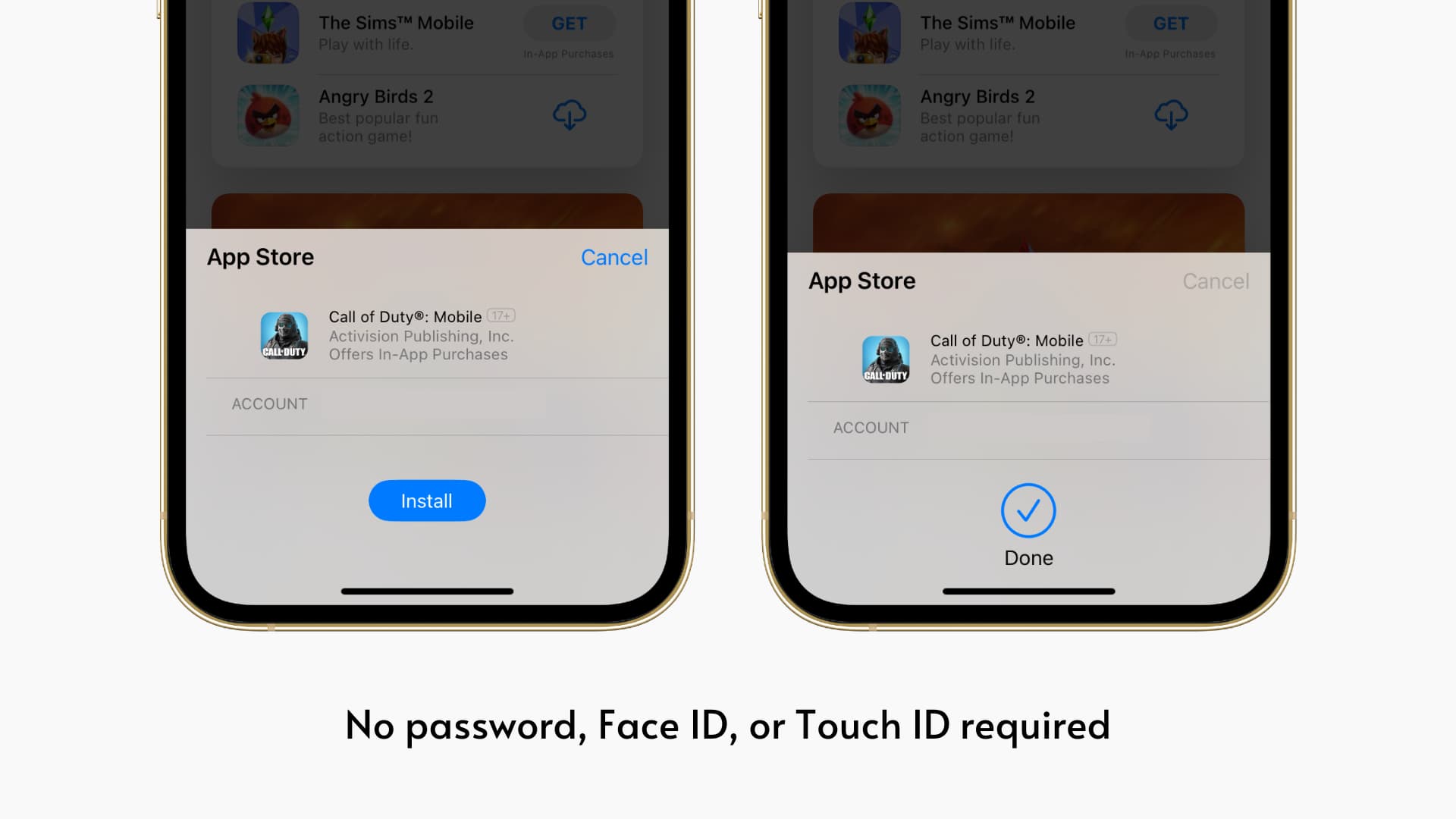
No. The official App Store requires an Apple ID to download and update apps. Use PWAs, MDM, or enterprise distribution for alternatives.
Are third-party app stores safe to use?
Third-party app stores carry risks like malware and revoked certificates. They may work short-term, but they are less secure than the App Store.
Will jailbreaking let me install any app without Apple ID?
Jailbreaking can allow installation from alternative repositories, but it weakens device security and can void warranty. Proceed only if you understand the risks.
Can I use Xcode to install apps without an Apple ID?
Xcode usually requires an Apple ID to sign apps for personal devices. For team or enterprise deployment, a proper developer account is recommended.
What is the safest way to install apps without Apple ID?
Progressive Web Apps and managed MDM deployment are the safest. They avoid Apple ID while keeping the device secure and manageable.
Conclusion
Understanding how to install apps without Apple ID helps you pick the right method for your situation. Progressive Web Apps and MDM are safe, practical choices. Third-party stores and jailbreaking can remove the Apple ID barrier but increase risk and instability.
Choose the approach that balances convenience and security. Try PWAs first, use MDM for workplace needs, and keep backups before experimenting. If this guide helped, leave a comment or subscribe for more practical mobile tips.