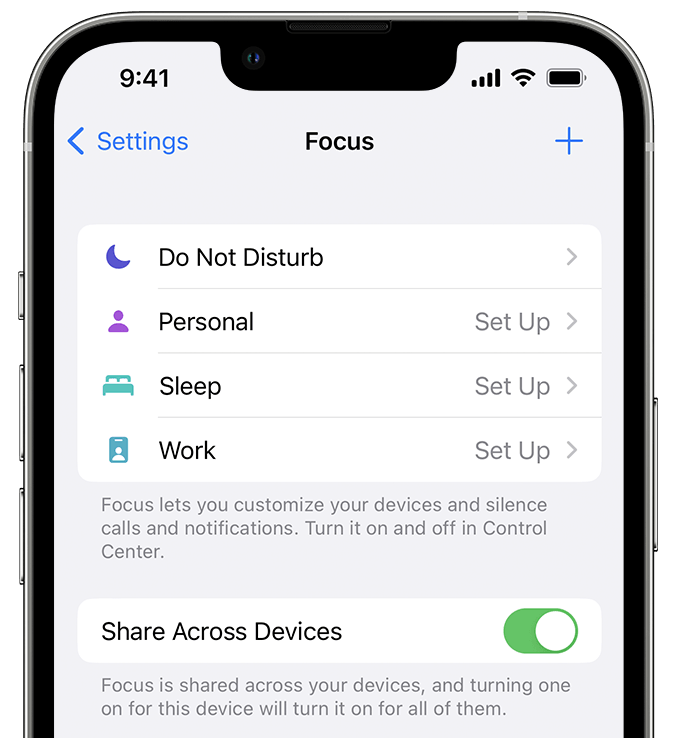
Use Screen Time to block iPhone apps by age, category, or specific apps in minutes.
I’ve helped many users lock down devices for kids, work, or focus. This guide explains how to block iPhone apps step by step, why you might want to, and which methods work best for different needs. You’ll get clear, tested instructions, troubleshooting tips, and real examples from my experience so you can quickly secure any iPhone.
Why block iPhone apps?
Blocking apps on an iPhone keeps kids safe, reduces distractions, and protects company data. Parents use app blocks to limit social media or games. Employers block apps to enforce company policy. Blocking is simple, but knowing the right method matters for lasting control. Use the method that fits your goal—temporary focus, strict parental control, or corporate compliance.
Key methods to block iPhone apps
There are several reliable ways to block apps on an iPhone. Pick Screen Time for most home users. Use MDM (mobile device management) for business-owned phones. Try third-party parental apps for advanced monitoring. Below are the main options and when to use each.
- Screen Time: Best for parents and individuals who want built-in controls.
- Content & Privacy Restrictions: Tightens app installs and settings.
- App Limits and Downtime: Limits how long apps can run.
- Offload or Delete: Removes apps but may be less flexible.
- Third-party parental control apps: Offers remote rules and reports.
- MDM solutions: Use for company-owned devices and strict enforcement.
Use Screen Time to block iPhone apps (step-by-step)
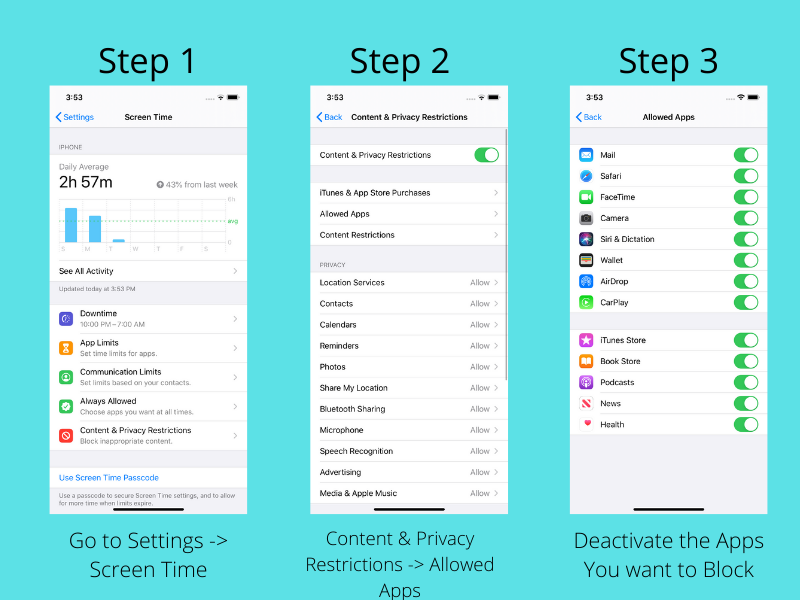
Screen Time is the main Apple tool for blocking apps. It works on iOS 12 and later. Follow these simple steps to block apps or categories.
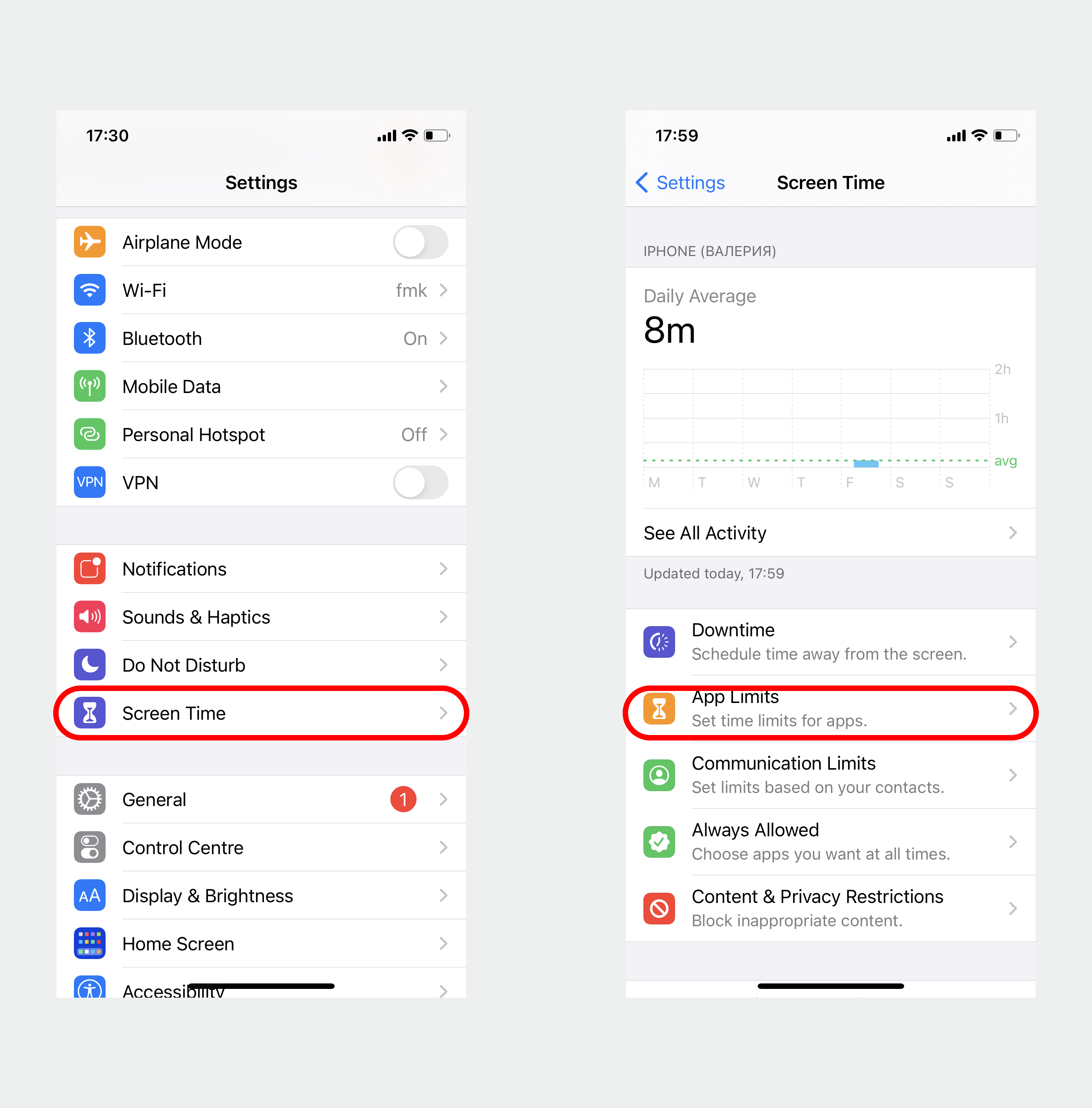
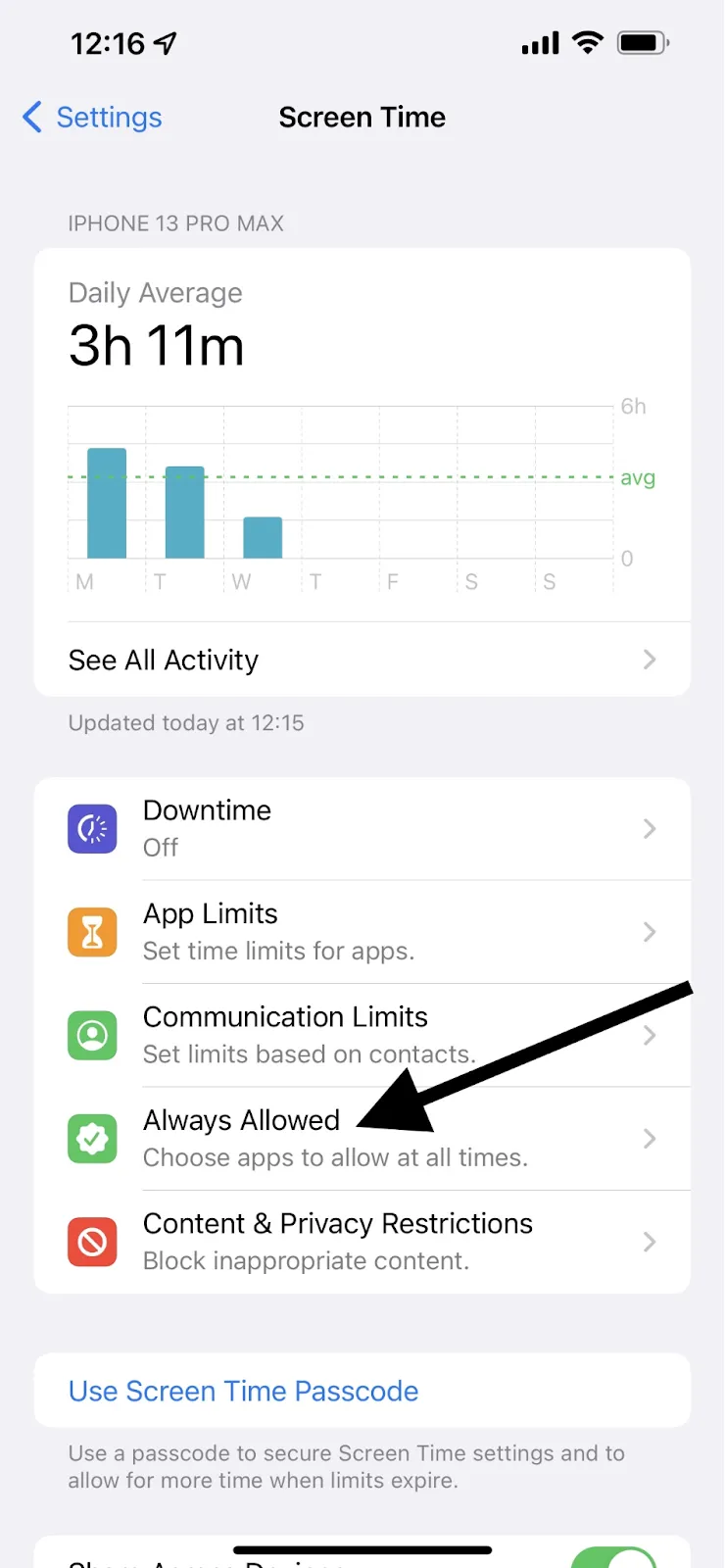
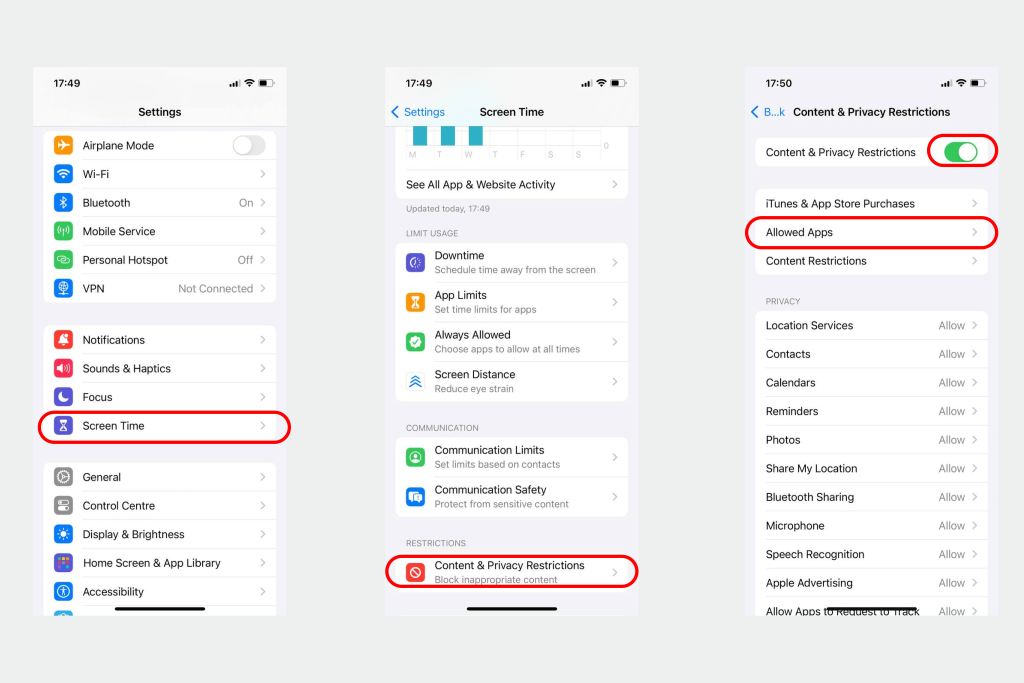
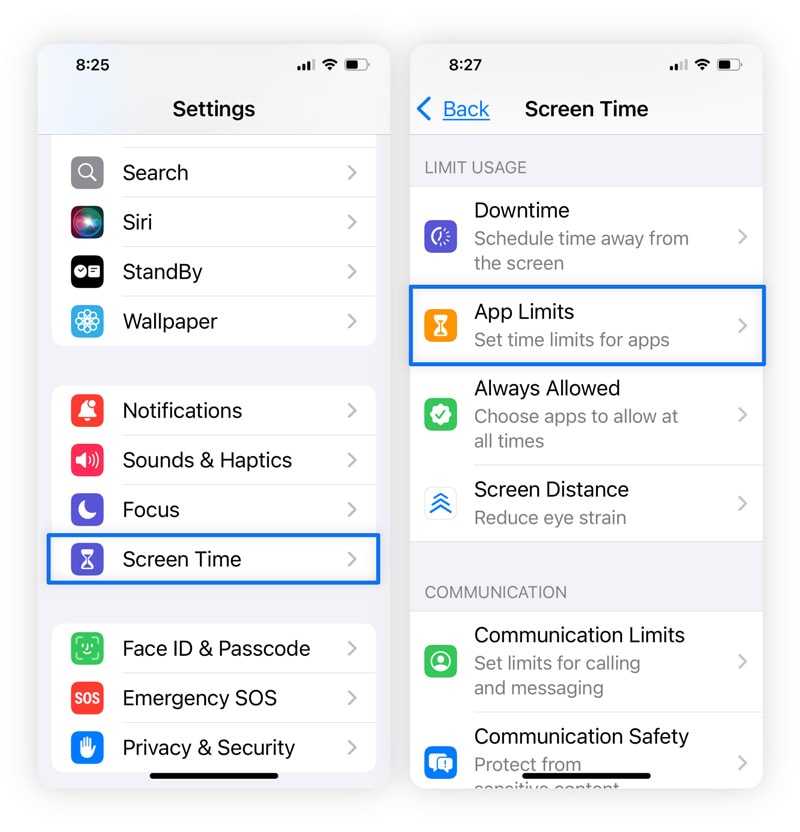
- Open Settings, then tap Screen Time.
- Tap Turn On Screen Time if it’s off, then choose This is My [Device] or This is My Child’s [Device].
- Tap Content & Privacy Restrictions and enable the toggle.
- Tap Allowed Apps to disable entire app groups like Safari or Camera, or go to Content Restrictions to set age limits.
- For specific apps, use App Limits: tap App Limits, Add Limit, choose a category, set 0 hours 0 minutes, and enable Block at End of Limit.
- Set a Screen Time passcode to prevent changes by the user. Use a different code than the device passcode.
Tips when using Screen Time:
- Use Content Restrictions to block apps by age rating.
- Use App Limits plus Block at End of Limit for stricter blocks.
- Use Family Sharing to manage a child’s device from your iPhone.

Block a single app or group of apps
If you want to block one app, use a mix of methods. Some apps can be hidden or limited by category. If the app is tied to a category, blocking the category works. For apps that don’t fall neatly into categories, use these steps.
- Hide apps from the Home Screen: Long-press an app, tap Remove App, then Remove from Home Screen. The app remains installed and can be found in App Library.
- Restrict app installations and deletions: In Content & Privacy Restrictions, disallow Installing Apps and Deleting Apps to keep apps in place.
- Create a Quick Limit: Use App Limits for a single app by choosing the app within its category and setting a minimal time with Block at End of Limit.

Use Family Sharing for parental control
Family Sharing ties your child’s device to your account. It lets you approve downloads and set limits remotely. This approach scales well for households.
- Set up Family Sharing in Settings under your Apple ID.
- Add a child account and enable Ask to Buy so you approve app downloads.
- Manage Screen Time remotely by selecting the child’s device in Screen Time on your phone.
Third-party parental control apps and MDM
Third-party apps add features like location, content filters, and activity logs. MDM is the right choice for businesses.
- Third-party apps: Choose reputable apps with clear privacy policies. They offer remote blocking, web filters, and usage reports.
- MDM solutions: Use MDM to block apps, restrict features, and enforce security on company devices. IT teams deploy profiles and enforce rules centrally.
Limitations:
- Some third-party tools require device enrollment and may need device supervision.
- MDM is overkill for personal use and needs administrative setup.
Troubleshooting common issues
If blocking doesn’t work, check these points. Many problems are simple to fix.
- Screen Time passcode forgotten: You’ll need to reset using your Apple ID or device restore if Screen Time recovery isn’t set.
- App still accessible: Confirm Block at End of Limit is enabled and Screen Time is active for that user.
- App reinstall possible: Disallow Installing Apps in Content & Privacy Restrictions to stop reinstallation.
- Device supervised: Some features require the device to be in supervised mode, common when using MDM.

Benefits and limitations of blocking apps
Blocking apps reduces distractions and enhances security. It helps with focus and parental safety. However, it is not foolproof.
Benefits:
- Fewer distractions and improved focus.
- Age-appropriate content for children.
- Enhanced device security and policy enforcement.
Limitations:
- Tech-savvy users may find workarounds.
- Some essential apps share categories and can be affected by broad rules.
- Screen Time requires a passcode to be effective; guessable codes reduce security.
Personal experience, tips, and mistakes to avoid
I’ve set up parental controls for kids and helped teams lock down work phones. Here are lessons I learned.
- Use a unique Screen Time passcode and store it in a secure manager.
- Start with gentle limits and explain rules to kids; abrupt bans lead to sneaky workarounds.
- Test rules after setup to ensure they block what you expect.
- Avoid using your device passcode as the Screen Time code or kids will learn it.
- For workplace devices, involve IT early and document your MDM policy.
These small habits save time and prevent the need to rebuild settings later.
Related concepts and next steps
Blocking apps ties into broader device management. Learn about these to build a complete approach.
- Guided Access: Limits a device to one app for focused tasks.
- App Offloading: Frees space while keeping app data.
- Content filtering: Blocks explicit websites and content types.
- Device supervision: Gives more control for managed devices.
If you need more control, consider MDM, or reputable parental apps for advanced features.
Frequently Asked Questions of how to block iphone apps
How do I block specific apps on an iPhone?
Use Screen Time, enable Content & Privacy Restrictions, and set App Limits for the app or category. For single apps, hide from Home Screen and set a daily limit with Block at End of Limit.
Can I block apps without Screen Time?
Yes. You can delete or offload apps, hide them from the Home Screen, or use third-party parental apps and MDM solutions to enforce blocks remotely.
Will blocking apps remove them from the device?
Not always. Hiding or limiting usually keeps the app installed. Deleting removes it. Use Content & Privacy Restrictions to stop reinstalling.
How do I stop my child from changing Screen Time settings?
Set a Screen Time passcode that your child does not know and avoid using the device passcode for Screen Time recovery.
Does blocking apps work for all iOS versions?
Most blocking tools work on iOS 12 and later, but features vary by version. Update to the latest iOS for best results and newest controls.
Conclusion
Blocking apps on an iPhone is straightforward when you choose the right tools. Screen Time covers most needs for families and individuals, while MDM and third-party apps help in business or advanced cases. Test settings, use a unique Screen Time passcode, and explain rules clearly for better compliance. Start by setting one small limit today, watch how it helps, and adjust as needed. If this guide helped you, try the steps on your device, share your experience, or subscribe for more practical tips.





