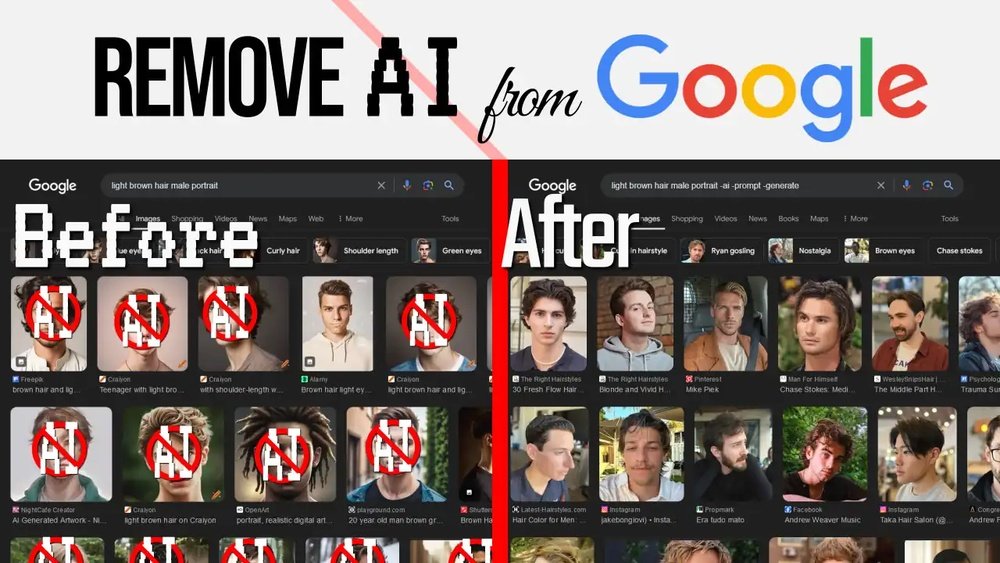
If you’ve noticed AI-generated summaries and suggestions popping up in your Google search results and find them more distracting than helpful, you’re not alone. You might want to take back control and enjoy a cleaner, more straightforward search experience—without those AI overviews cluttering your screen.
This guide will show you exactly how to remove AI from Google Search, step-by-step, whether you’re on desktop or mobile. By following these simple methods, you’ll regain the search results you want, without any unwanted AI interference. Ready to make your Google searches more focused and personalized?
Let’s dive in.
Disable Ai In Google Search Labs
Disabling AI in Google Search Labs allows users to turn off experimental AI features. This option gives control over new AI tools before full release. Users can enjoy a simpler search experience without AI summaries or suggestions.
Google Search Labs is a testing ground for new search functions. It often includes AI-powered features to improve results. Some users may prefer to disable these features for clarity or privacy reasons.
Access Google Search Labs Settings
Open your web browser and sign in to your Google account. Avoid using Incognito mode to ensure settings save correctly. At the top of the Google search page, locate the “Labs” option and click on it.
Locate The Ai In Search Toggle
Inside Labs, find the option labeled “AI in Search.” This toggle controls the AI-powered features in your search results. It is usually set to “On” by default when AI features are active.
Turn Off Ai Features
Click the toggle next to “AI in Search” to switch it off. This action disables AI summaries and suggestions in your search results. Changes take effect immediately, simplifying your search interface.
Confirm Changes And Refresh
After toggling off AI, refresh the Google search page. Check your search results to ensure AI features no longer appear. You can always return to Labs to re-enable AI if desired.
Turn Off Ai Overview On Mobile
Turning off the AI overview on mobile helps simplify your Google Search experience. It removes AI-generated summaries that appear at the top of search results. This can make the search results cleaner and easier to read. The process involves adjusting settings within your Google app or browser on your phone.
Follow these steps to disable the AI overview quickly and regain control over your search results on mobile devices.
Open The Google App On Your Mobile Device
Start by opening the Google app on your phone. Ensure you are signed in to your Google account. Avoid using Incognito mode, as this may limit available settings.
Access The Labs Section In The Google App
At the top of the app, find and tap the “Labs” option. This section contains experimental features, including AI in Search. It allows you to enable or disable new Google search functionalities.
Toggle Off The “ai In Search” Feature
Within Labs, locate the “AI in Search” toggle. Switch it off to remove AI overviews from your search results. This action will stop AI-generated content from showing during your searches.
Restart The Google App For Changes To Take Effect
Close the Google app completely and reopen it. This step ensures the new settings are active. After restarting, perform a new search to confirm AI summaries no longer appear.
Disable Google Assistant On Android
Disabling Google Assistant on Android helps reduce AI-driven features during searches. This step removes AI suggestions and voice commands linked to your Google account. It makes your device more manual and less AI-dependent.
Follow these simple steps to turn off Google Assistant and regain control over your search experience.
Open Google Settings
Start by opening the Settings app on your Android phone. Scroll down and find the Google option. Tap on it to access Google services and preferences.
Access Google Assistant Settings
Inside Google settings, look for the option labeled “Settings for Google apps.” Tap it, then select “Search, Assistant & Voice.” Next, choose “Google Assistant” from the list.
Turn Off Google Assistant
In the Google Assistant menu, find the “General” tab. Toggle off the switch next to “Google Assistant.” This action disables the assistant from activating on your device.
Confirm Assistant Is Disabled
Press the home button or use the voice command to check if Google Assistant responds. It should no longer activate, confirming that the AI feature is off.

Credit: www.pcmag.com
Switch Off Ai Features In Android Settings
Many Android devices come with built-in AI features. These features help with voice commands, smart replies, and more. Some users want to turn off AI to keep their searches simple and private. You can do this by switching off AI features in your Android settings. This stops AI from influencing your Google search results and device behavior.
Open Android Settings
Start by unlocking your phone. Then, find and open the Settings app. It looks like a gear icon. This app controls all your device’s options.
Navigate To Google Services
Scroll down to find the “Google” section. Tap on it to open Google-related settings. This area controls your Google account and services.
Access Ai And Assistant Settings
In the Google menu, look for “Settings for Google apps.” Tap on “Search, Assistant & Voice.” Here, you manage AI-powered tools like Google Assistant.
Turn Off Google Assistant
Inside the Assistant settings, find the option for Google Assistant. Toggle it off to disable voice commands and AI help. This step stops AI from listening and responding to you.
Disable Ai Features In Other Apps
Some phones offer AI features under “Advanced Features” or “Smart Services.” Go back to the main Settings menu. Look for these sections and turn off any AI options you see.
Restart Your Device
After switching off AI features, restart your phone. This ensures all changes take effect. Your Google search results will now show less AI-generated content.
Remove Ai Mode From Google Chrome
Removing AI mode from Google Chrome helps you control your search experience. Google integrates AI features to enhance results. Some users prefer simpler, AI-free searches. Disabling AI mode in Chrome is straightforward. Follow clear steps to turn off AI-powered features. This guide focuses on removing AI mode from Google Chrome.
Access Chrome Flags To Disable Ai Features
Start by opening Google Chrome on your computer. In the address bar, type chrome://flags and press Enter. This page shows experimental features in Chrome. Use the search box to find AI-related flags. Look for terms like “AI,” “Search,” or “Google.” Flags control hidden features that affect browsing and search behavior.
Turn Off Ai-related Flags
Once you find AI flags, click the dropdown menu next to each. Select Disabled to turn off these features. Disabling AI flags stops Chrome from using AI in searches. After changing flags, Chrome asks to restart. Click Relaunch to apply changes. Your browser now runs without those AI modes.
Clear Browsing Data To Remove Ai Cache
Clearing browsing data helps remove stored AI elements. Open Chrome settings by clicking the three dots in the top right. Go to Privacy and security then select Clear browsing data. Choose Cached images and files and Cookies and other site data. Click Clear data to finish. This step ensures no AI data stays in your browser.
Disable Google Search Ai In Labs (if Available)
Google sometimes offers an AI toggle in Search Labs. Visit Google Search Labs in Chrome. Look for any AI-related experiments or features. Toggle off any AI search options you see. This disables AI directly in Google Search. Not all users have access to these Labs at all times.
Turn Off Ai In Samsung Galaxy Phones
Turning off AI features on Samsung Galaxy phones helps control AI-driven suggestions. It reduces AI influence on your device’s behavior. Samsung uses AI in apps and system functions for personalized experiences.
You can disable these AI features in settings. This stops AI from running in the background and affecting your phone. Follow simple steps to turn off AI on Samsung Galaxy phones.
Disable Bixby Voice Assistant
Bixby is Samsung’s AI voice assistant. It listens for commands and offers help. To turn it off, open Settings, then tap on Bixby Voice. Toggle the switch off to disable Bixby voice features.
Turn Off Ai Suggestions In Settings
Samsung offers AI suggestions in many apps and menus. To stop these, go to Settings, then Advanced Features. Find options like “Smart Suggestions” or “AI Recommendations” and toggle them off.
Disable Google Assistant On Samsung Phones
Google Assistant is another AI assistant pre-installed on Samsung phones. Open the Google app, tap your profile icon, and go to Settings. Select Google Assistant and turn off the assistant from the options.
Disable Apple Intelligence On Iphone
Disabling Apple Intelligence on your iPhone helps reduce AI-driven suggestions and results. This feature uses AI to offer smarter search and app suggestions. Turning it off can simplify your search experience and limit AI influence.
Follow these steps to disable Apple Intelligence quickly and easily on your iPhone.
Open Iphone Settings
Tap the Settings app on your iPhone home screen. This is where you control all device options.
Navigate To Siri & Search
Scroll down and select “Siri & Search.” Apple Intelligence features are managed here.
Disable Suggestions And Intelligence
Find options like “Suggestions in Search,” “Suggestions in Look Up,” and “Suggestions on Lock Screen.”
Toggle each option off to stop AI-driven suggestions from appearing during searches.
Turn Off Siri & Dictation
Consider disabling Siri and Dictation to reduce AI processing on your device. This stops voice-based AI features.
Toggle off “Listen for ‘Hey Siri'” and “Press Side Button for Siri.”
Manage App-specific Intelligence
Scroll to individual apps under “Siri & Search.”
Disable “Learn from this App” and “Show Suggestions” for apps you want to exclude from AI suggestions.

Credit: www.pcmag.com
Manage Ai Settings In Google App
Managing AI settings in the Google app lets you control how AI features appear during searches. This helps you reduce or remove AI-generated content from your results. The Google app gives options to customize AI tools and assistants that influence your search experience.
You can turn off certain AI features like Google Assistant or AI suggestions. This section explains simple steps to adjust these settings on your device. Follow the instructions to make your Google Search show less AI content.
Open Google App Settings
Start by opening the Google app on your smartphone. Tap your profile picture at the top right corner. Choose “Settings” from the menu. This opens the main settings page where AI options are located.
Disable Google Assistant
In the Settings menu, find and tap “Google Assistant.” Scroll to the Assistant tab. Select your device under “Assistant devices.” Turn off the toggle for Google Assistant. This stops AI voice commands and responses.
Turn Off Ai Features In Labs
Return to the main Settings page in the Google app. Tap “Labs” if available. Look for “AI in Search” or similar options. Toggle off the AI feature to disable AI-generated content in search results.
Adjust Search Personalization
Go back to the Settings menu and select “Search.” Find “Personal results” or “Search personalization.” Turn off these options to reduce AI-based suggestions and customized content.
Turn Off Ai In Camera Apps
Many camera apps use AI to enhance photos automatically. This can change your pictures without your control. Turning off AI features gives you original photo quality. It also helps you avoid AI-generated content in your images.
Disabling AI in camera apps is simple and quick. It lets you keep full control over your photos. This step is important if you want to remove AI influence from your device.
Accessing Camera Settings
Open your camera app on your phone. Look for the settings icon, often a gear symbol. Tap it to open camera settings. This menu controls all camera features, including AI options.
Finding Ai Features
Scroll through the settings to find AI-related options. These may be called “AI enhancement,” “Scene optimizer,” or “Smart features.” Each app names AI tools differently. Look for anything that mentions AI or automatic adjustments.
Disabling Ai Options
Once you find AI features, tap to turn them off. Usually, a toggle switch or checkbox disables AI. Switch it to off or uncheck the box. This stops the app from using AI on photos.
Saving Your Settings
After turning off AI, close the settings menu. Your camera app now takes photos without AI changes. Test by taking a picture and checking the results. You should see natural images without AI effects.

Credit: smart.dhgate.com
Clear Browser Data To Reset Ai Features
Clearing browser data helps reset AI features in Google Search quickly. This method removes stored information that AI uses to customize your experience. It stops AI from showing personalized or AI-powered search results based on past activity.
Resetting AI features by clearing browser data improves privacy and search control. It removes cookies, cache, and history linked to AI functions. This step works well for desktop and mobile browsers.
Clear Cache To Remove Ai Customizations
Cache stores temporary files from websites, including AI data. Clearing cache deletes these files and resets AI settings. It stops AI from using old data to influence search results.
In Chrome, go to Settings > Privacy & Security > Clear Browsing Data. Choose “Cached images and files” and clear them. Restart your browser for changes to take effect.
Delete Cookies To Stop Ai Tracking
Cookies save your preferences and track your activities. AI uses cookies to learn from your behavior and adjust searches. Deleting cookies removes this tracking data.
Open browser settings and select “Clear browsing data.” Check “Cookies and other site data” to delete them. This action disconnects AI features from your profile.
Clear Browsing History To Reset Ai Memory
Browsing history shows the pages you visited. AI uses this to predict your interests. Clearing history removes this memory and resets AI responses.
Access your browser’s clear data option. Select “Browsing history” and confirm removal. This step helps AI forget past searches and suggestions.
Use Incognito Mode To Avoid Ai Data Storage
Incognito mode prevents browsers from saving data like cookies and history. Using it stops AI from collecting data during your search sessions. It offers a clean slate every time you search.
Open a new incognito window in your browser. Search on Google without saving data that affects AI features. Close the window to discard all session data.
Frequently Asked Questions
How Do I Turn Off Google Ai Search?
To turn off Google AI Search, open your browser, sign in, tap Labs at the top, then toggle off “AI in Search. “
How Do I Disable Ai On My Phone?
Disable AI on your phone by turning off specific features in app settings. For Android, disable Google Assistant under Settings > Google > Search, Assistant & Voice. On Samsung, toggle off AI in Settings > Advanced Features > Advanced Intelligence.
For iPhone, disable Siri and related AI options in Settings.
Is There A Way To Revert To The Old Google Search?
No official option exists to revert to the old Google search interface. You can disable AI features in Google Labs settings. Adjust individual app settings to turn off AI functions like Google Assistant.
Can I Disable Ai Overview Permanently?
You cannot permanently disable AI overview in Google Search. Toggle AI features off individually in settings for temporary control.
What Is Ai In Google Search?
AI in Google Search means using smart technology to improve search results.
Can I Remove Ai Features From Google Search?
Yes, you can turn off some AI features in Google Search settings.
How Do I Disable Ai In Google Search On Desktop?
Go to Google Labs and toggle off the “AI in Search” option.
How To Turn Off Ai On Google Search Mobile App?
Open Google app settings and turn off AI or assistant features.
Does Disabling Ai Affect Google Search Results Accuracy?
Disabling AI may reduce personalized and smart search suggestions.
Can I Remove Ai-generated Overviews From Search Results?
Yes, turning off AI in Labs hides AI-generated summary boxes.
Conclusion
Removing AI from Google Search can improve your browsing experience. You control what appears in your search results. Simply follow the easy steps to disable AI features. Adjust your settings on desktop or mobile devices. Turn off AI overviews and assistant tools you do not want.
This keeps your searches simple and focused. Stay in control of your online information. Keep checking for updates as Google changes its features. Your privacy and comfort come first in searching. Take action today to customize your Google Search.





