Open File Explorer, enable hidden items, then navigate to C:\Program Files\WindowsApps (requires ownership).
I’ve worked with Windows systems for years and helped many users safely explore and manage app files. This guide on how to access Windows apps folder explains every practical method, permission step, and safety tip you need. Read on to learn clear, tested steps and avoid common mistakes when you try to access the Windows Apps folder.

Why access the Windows Apps folder?
Accessing the Windows Apps folder lets you inspect, troubleshoot, or back up files for Microsoft Store apps and system-installed packages. It helps when an app fails, when you need to replace resources, or when you’re developing and testing apps. Knowing how to access Windows Apps folder is also useful for advanced cleanup and for recovering settings or data stuck in an app bundle.
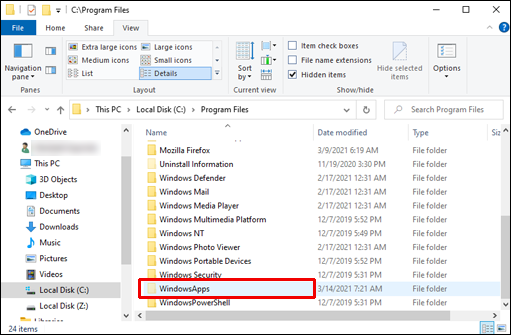
Where the Windows Apps folder is located
Windows uses a few locations for apps and app data. Common paths you may need are:
- C:\Program Files\WindowsApps — main store app packages and resources for system and user apps.
- C:\Users<username>\AppData\Local\Packages — per-user app data and settings for Store apps.
- C:\Program Files and C:\Program Files (x86) — classic desktop apps (not Store apps).
The WindowsApps folder is hidden and owned by TrustedInstaller by default. To access it you must change view settings and often take ownership or use elevated tools. Understanding these locations helps you pick the correct method when you need to access Windows Apps folder.

How to access Windows Apps folder — step-by-step methods
Below are safe, common ways to access WindowsApps. Pick one based on comfort level and need.
Method 1: Quick access via File Explorer
- Open File Explorer.
- Click View, then show Hidden items.
- Navigate to C:\Program Files\WindowsApps.
- If access is denied, proceed to take ownership or use an elevated prompt.
This method is the most direct when you simply need to browse files. If you can’t enter, continue with the commands below.
Method 2: Use Run or File Explorer address bar
- Press Windows + R.
- Type C:\Program Files\WindowsApps and press Enter.
- If blocked, Windows will show a permissions error, meaning you need to change ownership.
This is fast for seasoned users. It still requires permission if TrustedInstaller owns the folder.
Method 3: Use PowerShell or Command Prompt (elevated)
- Open Start, type PowerShell, right-click and choose Run as administrator.
- To view folder listing run: Get-ChildItem "C:\Program Files\WindowsApps" -Force.
- To copy or export info, use commands such as robocopy or xcopy with admin privileges.
PowerShell can list contents even when Explorer blocks access, though some actions still need ownership.
Method 4: Use an elevated file manager or take temporary ownership
- Right-click the WindowsApps folder, choose Properties, then Security tab.
- Click Advanced, then Change next to Owner. Enter your user and apply.
- Grant your user Full Control, apply changes, then open the folder.
- After finishing, restore the original owner (TrustedInstaller) to keep system protections.
Taking ownership is powerful. Do it sparingly and revert the owner after your work to reduce risk.

Take ownership and permissions safely
When Windows blocks access, ownership and ACL changes fix it. Use these steps carefully.
- Use Takeown command to become owner temporarily:
- Open an elevated Command Prompt.
- Run: takeown /f "C:\Program Files\WindowsApps" /r /d y
- Use Icacls to grant yourself access:
- In the same prompt run: icacls "C:\Program Files\WindowsApps" /grant %username%:(F) /t
- After finishing your work, restore protections:
- Reset permissions or set owner back to TrustedInstaller to avoid security risks.
Mistakes to avoid: don’t leave Full Control for everyday accounts, and don’t delete system files unless you’re sure. Always back up files before making changes.

Common tasks and examples when you access Windows Apps folder
Here are practical tasks you might perform after you access Windows Apps folder.
- Extract images or media files from an app package to customize or inspect resources.
- Back up app data stored under C:\Users<username>\AppData\Local\Packages before reinstall.
- Replace a corrupt asset file for a problem app (test in a safe environment).
- Inspect manifest or version files to resolve update conflicts.
- Uninstall leftover packages that the Store won’t remove by using PowerShell Remove-AppxPackage.
Personal note: I once recovered a user’s app data by copying the LocalState folder from a WindowsApps package into a new install. It worked well because I first backed up everything and restored ownership after finishing.

Troubleshooting and safety tips
If you hit errors, these checks usually solve them.
- Permission denied — run PowerShell or CMD as administrator and retry.
- Folder not visible — enable Hidden items and Protected OS files in View options.
- Modifying breaks an app — restore from a backup and reassign ownership back to TrustedInstaller.
- Error removing packages — use PowerShell with Get-AppxPackage and Remove-AppxPackage for the right package name.
- Risk management — always back up, avoid deleting unknown files, and restore original owners after edits.
These steps minimize risk and keep Windows updates working. If unsure, test changes on a non-critical system first.
Frequently Asked Questions of how to access windows apps folder
What is the WindowsApps folder and why is it hidden?
The WindowsApps folder stores Microsoft Store app packages and resources. It is hidden and secured to prevent accidental changes that could break apps or the system.
Do I need admin rights to access WindowsApps?
Yes, you generally need administrative rights and often ownership changes to access C:\Program Files\WindowsApps. Some read-only queries may work from elevated PowerShell.
Will changing ownership of WindowsApps break Windows updates?
If you leave incorrect permissions or remove system owners, updates can fail. Always restore the owner to TrustedInstaller and reset permissions after your work.
Can I delete files inside WindowsApps to free space?
Deleting files can corrupt apps or the Store. Use official uninstall methods or clean up with Storage settings to free space safely instead of manual deletion.
How do I safely revert ownership after making changes?
Use icacls or the folder Properties > Advanced > Owner to set the owner back to NT SERVICE\TrustedInstaller. Verify permissions and reboot if needed.
Conclusion
Accessing the Windows Apps folder empowers you to troubleshoot, back up, and inspect app resources when needed. Use the step-by-step methods above, prioritize safety by backing up and restoring ownership, and choose the least intrusive approach that solves your problem. Try one method in a test environment, then apply it to your main PC—leave a comment if a step didn’t work for you, and consider subscribing for more practical Windows tips.





