If you’ve ever received a file with the .ai extension, you might have wondered how to open it without Adobe Illustrator. Maybe you don’t have Illustrator installed, or you just need a quick way to view or edit the content.
The good news is, you don’t have to be stuck or buy expensive software to access these files. In this guide, you’ll discover simple, effective methods to open. ai files using free tools, online services, and alternative graphic programs. By the end, you’ll be able to handle your.
ai files with ease—whether it’s for work, school, or personal projects. Keep reading, and unlock the secrets to opening. ai files right now!

Credit: www.psdvault.com
What Are .ai Files
.AI files are a type of graphic file created by Adobe Illustrator. They store vector images, which means the images can be scaled without losing quality. Designers use .AI files for logos, icons, and complex illustrations. These files contain shapes, colors, and text, all saved in a way that keeps the image sharp and clear.
.AI files are different from regular image files like JPEG or PNG. Instead of pixels, they use mathematical paths to define the image. This allows for easy editing and resizing. Because of this, .AI files are popular in graphic design and printing industries.
What Software Uses .ai Files?
Adobe Illustrator is the main program that creates and edits .AI files. It offers full support for all features in the files. Other programs may open .AI files but often with limited editing options. This is because .AI files use Adobe’s unique format.
Are .ai Files Compatible With Other Programs?
Some programs can open .AI files if they have PDF compatibility. For example, Inkscape and CorelDRAW can open many .AI files. Photoshop and GIMP can open them but convert to raster images. This means you lose the ability to edit vectors fully.
Why Are .ai Files Important?
.AI files keep images sharp at any size. This is key for printing on different materials. They also keep layers and editable text intact. This makes it easier for designers to update graphics. The files work well in professional design workflows.
Credit: www.youtube.com
Using Adobe Illustrator
Adobe Illustrator is the primary software for opening and editing .ai files. These files are vector graphics created and saved by Illustrator. The program offers full support for all features in .ai files, ensuring smooth editing and exporting.
Using Adobe Illustrator to open .ai files keeps all layers, colors, and effects intact. The software is designed specifically for this format. This makes it the best choice for designers and artists working with vector graphics.
How To Open .ai Files In Adobe Illustrator
First, launch Adobe Illustrator on your computer. Then, click on “File” in the top menu. Choose “Open” from the dropdown list. Navigate to the folder where your .ai file is saved. Select the file and click “Open”. The file will appear on your workspace.
Editing .ai Files In Illustrator
Once the file is open, you can edit any part of the design. Use the selection tool to move objects. Change colors with the color picker. Add or remove shapes using the toolbar. Illustrator keeps all changes vector-based, which means no loss in quality.
Saving Changes In .ai Format
After editing, save your work by clicking “File” and then “Save”. The changes will update the original .ai file. To keep a backup, use “Save As” to create a new file name. This way, you preserve the original version and the edited one.
Rename .ai To .pdf
Renaming a .AI file to .PDF is a simple trick that helps open the file without Adobe Illustrator. This method works only if the .AI file was saved with PDF compatibility. Many .AI files include PDF data inside, making this rename technique effective.
By changing the file extension, you allow common PDF viewers to read the file. This approach is quick and needs no special software installation. It offers an easy way to view .AI files on any device.
How To Rename .ai File To .pdf
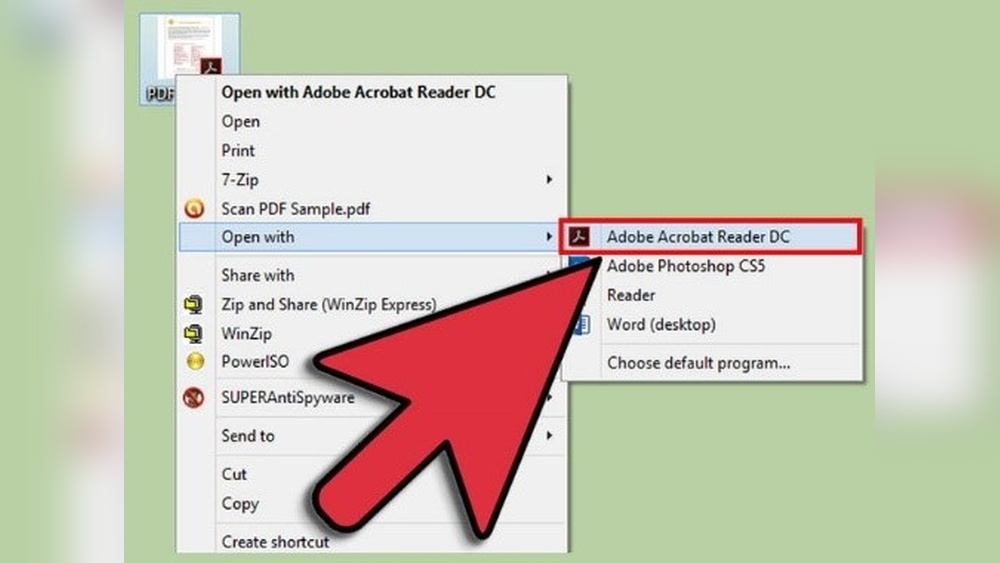
First, locate the .AI file on your computer. Right-click the file and choose “Rename.” Change the extension from .ai to .pdf. Confirm the change if your system asks for permission. Now, the file is ready to open in any PDF viewer.
Open The Renamed File With Pdf Viewer
Double-click the renamed file. It will open in your default PDF reader. Popular programs include Adobe Reader and Foxit Reader. You can view the design as a regular PDF document. This method does not allow editing the vector elements.
Limitations Of Renaming .ai To .pdf
This method only works if the .AI file contains embedded PDF data. Complex Illustrator features may not appear correctly. You cannot edit the file as a vector graphic in a PDF viewer. For full editing, Adobe Illustrator or other vector editors are needed.
Open With Pdf Viewers
Opening .ai files with PDF viewers is a simple way to access your designs without Adobe Illustrator. Many .ai files are saved with PDF compatibility. This means you can view them like any PDF document.
PDF viewers do not allow full editing of .ai files. But they let you see and share the artwork easily. This method works best for quick previews or basic use.
Rename The File Extension
Change the file extension from .ai to .pdf. This step helps your computer recognize the file as a PDF. It makes opening the file in a PDF viewer possible.
Open With A Pdf Viewer
Use programs like Adobe Reader or Foxit Reader to open the renamed file. These viewers display the file content clearly. This method works only if the .ai file was saved with PDF compatibility enabled.
Extract Content From The Pdf
Some PDF viewers allow you to extract images or elements from the file. You can save these parts for other projects. This option is handy for using specific graphics without the full .ai file.
Inkscape For .ai Files
Inkscape is a free, open-source vector graphics editor that can open many .AI files. It offers a good alternative to Adobe Illustrator for basic editing and viewing of these files. Inkscape supports common vector formats and can import .AI files saved with PDF compatibility.
This software runs on Windows, macOS, and Linux, making it accessible to many users. It is user-friendly and suitable for beginners and casual users.
How To Open .ai Files In Inkscape
First, launch Inkscape on your computer. Then, go to the “File” menu and select “Open.” Choose your .AI file from the folder where it is saved. Inkscape will import the file if it was saved with PDF compatibility.
Limitations Of Using Inkscape For .ai Files
Inkscape may not support all advanced features of .AI files, such as complex effects or layers. Some elements might look different or be missing after import. For simple vector graphics, Inkscape usually works well.
Editing .ai Files In Inkscape
Once the file is open, you can edit paths, colors, and shapes. Use Inkscape’s tools to adjust the design as needed. After editing, save your work in Inkscape’s native SVG format or export it to other formats.

Credit: www.wikihow.tech
Gimp And Photoshop Options
GIMP and Photoshop offer practical ways to open .ai files without Adobe Illustrator. Both programs handle these files differently but provide access to the artwork inside. While they do not support full vector editing, they allow you to work with the design as an image. This section explains how to use GIMP and Photoshop to open .ai files effectively.
Opening .ai Files In Gimp
GIMP imports .ai files by converting them into raster images. This means the design becomes a flat image made of pixels. To keep good quality, open the file at a large size. GIMP supports many file formats, but it cannot edit vector shapes inside .ai files.
To open a .ai file, simply use the “Open” option and select your file. GIMP will rasterize the file and display it as an image. You can then edit, crop, or apply filters to the artwork. This method is useful for basic editing and exporting images from .ai files.
Opening .ai Files In Photoshop
Photoshop opens .ai files as rasterized images too. It offers options to set the resolution when importing the file. Higher resolution gives better image quality but uses more memory. Like GIMP, Photoshop cannot edit vector paths from the .ai file.
To open a .ai file, choose “Open” and select your file. Photoshop will ask for import settings. Adjust the resolution and color mode as needed. The file opens as a pixel-based image, ready for photo editing or digital painting.
Coreldraw And Affinity Designer
CorelDRAW and Affinity Designer are popular alternatives to Adobe Illustrator. Both programs support vector graphics editing and can open .ai files with some limitations. They offer affordable options for users who need to work with .ai files but do not have Illustrator.
These tools can import .ai files saved with PDF compatibility. This allows basic editing and exporting to other formats. Understanding how to open .ai files in these programs helps you access your designs without Adobe software.
Opening .ai Files In Coreldraw
CorelDRAW can open .ai files saved with PDF compatibility enabled. To open a file, simply use the File > Open menu and select the .ai file.
CorelDRAW imports vector paths and shapes, allowing you to edit them. Some complex effects or layers may not transfer correctly. You might need to adjust colors or fonts after importing.
Saving your work in CorelDRAW’s native formats preserves all edits. You can also export your design back to .ai or other formats like PDF and SVG.
Using Affinity Designer To Open .ai Files
Affinity Designer imports .ai files that include PDF data. Use File > Open to choose your .ai file. The program converts the content into editable vector layers.
Some advanced Illustrator features might not appear correctly. You can still edit shapes, text, and colors easily. Affinity Designer offers a smooth experience for basic and intermediate vector work.
Export options include PDF, SVG, and EPS, making it easy to share files. Affinity Designer is a cost-effective choice for handling .ai files without Illustrator.
Online Viewing Services
Online viewing services provide a quick and easy way to open .ai files without installing software. These tools let you see the content of your .ai files directly in a web browser. No need to download or buy Adobe Illustrator or other programs.
Online viewers support many common .ai file features. They load your file instantly and show vectors, shapes, and colors clearly. This method suits users who want to check or share designs fast. Some services also offer simple editing options like zoom, rotate, or export.
How Online Viewing Services Work
Most online viewers ask you to upload your .ai file to their website. The tool then processes the file and displays it on screen. This process is secure and keeps your data private. You can view the file on any device with internet access.
Popular Online Ai File Viewers
Several websites offer free .ai file viewing. Examples include Photopea, Vectr, and Gravit Designer. These platforms support vector graphics and provide a smooth viewing experience. They also allow exporting to formats like PNG or SVG for easy sharing.
Benefits Of Using Online Viewers
No installation needed saves time and storage space. Online services work on Windows, Mac, and mobile devices. Uploading files is simple and fast, perfect for quick previews. These services also allow sharing designs with clients or teammates easily.
Online Conversion Tools
Online conversion tools offer a simple way to open .ai files without Adobe Illustrator. These tools convert .ai files into more common formats like PNG, SVG, or PDF. Users can then view or edit the files using standard software. This method requires no installation or advanced skills.
Most online converters work through a web browser. Upload the .ai file, select the output format, and download the converted file. The process is quick and accessible from any device connected to the internet.
Online tools are useful for basic needs. They are not ideal for detailed editing or preserving all design features. Still, they allow easy access to .ai content for many users.
How To Use Online Conversion Tools
Choose a reliable online converter website. Upload your .ai file using the provided upload button. Pick the format you want, such as PDF or SVG. Click the convert button and wait a few moments. Download the file once conversion finishes. Open it with any compatible program.
Popular Online Conversion Tools
Several websites offer free .ai file conversion. CloudConvert, Zamzar, and Convertio are common choices. These platforms support multiple output formats. They handle small to medium file sizes easily. Each site has clear instructions and fast conversion speeds.
Benefits Of Online Conversion Tools
No software installation is required. Works on Windows, Mac, and mobile devices. Quick file conversion with no complex settings. Easy for beginners to understand and use. Allows access to .ai files without Illustrator.
Tips For Editing Without Illustrator
Editing .ai files without Adobe Illustrator is possible with some smart tools.
These tips help you make changes without needing Illustrator software.
Using Pdf Viewers To Access .ai Files
Rename your .ai file extension to .pdf first.
Open the file in Adobe Reader or another PDF viewer.
This works if the .ai file was saved with PDF compatibility.
You can extract images and simple graphics for editing.
Editing With Inkscape
Inkscape is a free program that opens many .ai files.
It works well for basic vector editing tasks.
Complex effects or layers may not load correctly.
Try simplifying the file for better results in Inkscape.
Raster Editing Using Gimp Or Photoshop
GIMP and Photoshop open .ai files as raster images.
This means the file becomes pixels, losing vector quality.
Import at high resolution to keep the image clear.
Good for editing colors, cropping, or adding effects.
Coreldraw As A Professional Alternative
CorelDRAW can open and edit .ai files directly.
It supports many vector features similar to Illustrator.
This option suits users who want more control without Illustrator.
Check if your CorelDRAW version supports the .ai file format.
Online Tools For Quick Edits
Use online converters to change .ai files to other formats.
Some websites allow direct editing of .ai files online.
These tools are useful for small changes or previews.
Be cautious with file privacy when uploading online.
Frequently Asked Questions
What Program Opens An Ai File?
Adobe Illustrator primarily opens AI files. Other programs like Inkscape, CorelDRAW, and Photoshop can open them with limited editing. Renaming AI files to. pdf allows viewing in PDF readers if saved with PDF compatibility. Online converters also help to view or convert AI files.
How Can I Open .ai Files Without Illustrator?
Open. AI files without Illustrator by renaming them to. PDF and using a PDF viewer. Use free programs like Inkscape or online converters to view or edit. Some apps may rasterize the image, losing vector quality.
How Do I Open An Ai File As A Pdf?
Rename the AI file extension to. pdf if saved with PDF compatibility. Then, open it using Adobe Reader or any PDF viewer. Alternatively, use graphic programs like Inkscape or CorelDRAW to open and edit AI files.
How Can I Convert A .ai File To A Jpeg?
Open the. AI file in Adobe Illustrator or use free tools like Inkscape or online converters. Export or save as JPEG format.
What Programs Can Open .ai Files Besides Adobe Illustrator?
Inkscape, CorelDRAW, Affinity Designer, GIMP, and Photoshop can open. AI files with some limitations.
Can I Open .ai Files Without Adobe Illustrator?
Yes, by renaming the file extension to. pdf and using a PDF viewer or alternative graphic software.
How Do I Open .ai Files Using A Pdf Viewer?
Change the file extension from. ai to. pdf, then open it with Adobe Reader or Foxit Reader.
Will I Lose Quality Opening .ai Files In Other Software?
Some programs rasterize. AI files, causing loss of vector quality and detail.
Can I Edit .ai Files Without Illustrator?
Light editing is possible in some apps, but full vector editing needs Adobe Illustrator.
Is Inkscape Good For Opening .ai Files?
Inkscape opens many. AI files but may struggle with complex vector features.
Conclusion
Opening. ai files does not always require Adobe Illustrator. You can rename the file extension to. pdf and open it with a PDF reader if it supports PDF compatibility. Free programs like Inkscape can also open many. ai files, though some details may not appear perfectly.
For pixel-based editing, try GIMP or Photoshop, but expect a loss of vector quality. Online tools offer quick previews and format conversions without installing software. Choose the method that best fits your needs and available tools. This keeps your workflow simple and effective.





