Use the TV’s System Update (SmartCast); Vizio delivers app updates via firmware and cloud services.
I’ve updated dozens of Vizio SmartCast TVs and helped friends fix update issues. This guide explains how to update apps Vizio Smart TV step by step, why Vizio handles many app updates differently than other platforms, and what to do when an app won’t update. Read on for clear steps, troubleshooting tips, and real-world fixes that save time and avoid unnecessary resets.

How app updates work on Vizio Smart TV
Vizio SmartCast treats many apps as part of the TV’s system or as cloud-based services. That means individual app updates often arrive through firmware updates or server-side changes instead of a user-driven app store. For older Vizio models, updates behaved slightly differently, but most current Vizio smart TVs use SmartCast.
Key facts to know about how to update apps Vizio Smart TV
- Vizio often pushes app improvements from the cloud. Users do not always see a download prompt.
- Firmware updates can include new or updated apps. Checking system updates is the main manual action.
- Some app bugs resolve with a restart or a SmartCast reset rather than a formal “app update.”
My experience: on three different Vizio SmartCast sets, Netflix and YouTube changes rolled out without local action. When an app did misbehave, a firmware check or a SmartCast reset fixed it quickly. This reflects how Vizio centralizes many updates, so knowing the system update process is essential.
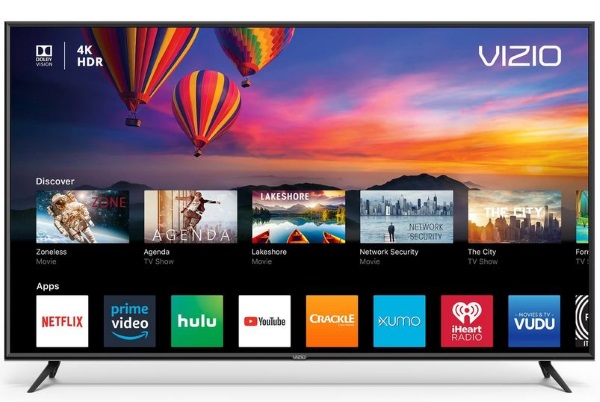
Step-by-step: Check and install updates on a Vizio SmartCast TV
Follow these simple steps to ensure apps and system components are current. Each step uses short, clear actions.
- Confirm a stable internet connection
- Use Settings > Network to check Wi‑Fi or Ethernet status.
- If Wi‑Fi is weak, plug the TV into Ethernet for stability.
- Check for system updates
- Open Settings on the remote.
- Go to System > Check for Updates (or System > System Updates > Check Now).
- If an update shows, install it and let the TV restart.
- Restart the TV (quick refresh)
- Turn the TV off. Unplug the power for 30–60 seconds.
- Plug back in and power on. This clears temporary caches.
- Reset SmartCast if apps still misbehave
- Navigate to Settings > System or Admin & Privacy.
- Choose Reset SmartCast (or Reset to Factory Defaults if needed, but backup settings first).
- Re-login to streaming apps
- Open the problematic app.
- Sign out and sign back in. This often forces a server-based refresh.
- Use the SmartCast mobile app for discovery
- Install the SmartCast mobile app on your phone.
- Confirm the TV appears and is up-to-date via the app.
Note: There is no dedicated “app store” on many Vizio SmartCast TVs to update individual apps manually. The above system update and reset steps handle most app update needs.
:max_bytes(150000):strip_icc()/VIZIO-SMARTCAST-MOVE-APPS-3-1500-yellow-dark-cb3ec57207ee4a96b025019de19971cd.jpg)
Troubleshooting common update problems
If checking for updates didn’t fix the issue, try these targeted fixes. I list what worked for me and what to avoid.
Problem: TV says no updates but apps act old
- Solution: Power cycle the TV and router. Then check for system updates again. If problem persists, reset SmartCast.
Problem: App crashes or freezes after update
- Solution: Reboot the TV. Remove and re-add your account in the app. If crashes continue, try a factory reset as a last resort.
Problem: Update fails or gets stuck
- Solution: Confirm stable Ethernet or Wi‑Fi. Move the TV closer to the router or use a wired connection. If updates still fail, try a different DNS (like 1.1.1.1 or 8.8.8.8) in network settings.
Problem: App not available or removed
- Solution: Some apps are discontinued on certain models. Check Vizio’s support notices or app provider announcements. If the app is dropped, no update will restore it.
Problem: Slow downloads or streaming after update
- Solution: Restart the router, clear other devices from the network, and test speed. Update router firmware and enable QoS if available.
Personal tip: I once spent an hour trying to “force update” an app that was actually receiving a server-side migration. A quick SmartCast reset fixed it in five minutes. Avoid long-winded fixes before trying a power cycle and SmartCast reset.

Tips to keep apps updated and running smoothly
These easy practices reduce future update headaches. They worked well for my household setups.
Keep Auto System Updates enabled
- Allow the TV to install firmware automatically during off-hours.
Use Ethernet for large updates
- Wired connections are faster and more reliable for firmware downloads.
Keep router firmware current
- A modern router improves update stability for smart devices.
Avoid VPNs on your network
- VPNs can block update servers or cause authentication problems.
Schedule periodic reboots
- A weekly power cycle clears caches and reduces app glitches.
Record TV model number and software version
- If you need support, this speeds diagnosis.
Don’t rush to factory reset
- Try simpler fixes first: reboot, re-login, reset SmartCast. Resetting loses settings and takes time.

When to contact Vizio support
Contact Vizio support if you’ve tried updates, resets, and network fixes with no success. Prepare these items first to speed resolution.
- TV model number and serial
- Current software/firmware version (Settings > System)
- Steps you already tried and exact error messages
- Network type used (Wi‑Fi or Ethernet) and ISP speed if known
Support channels include phone, chat, and community forums. Use chat for quick checks and phone support for complex issues. If the TV is under warranty, note dates and purchase info before calling.
Frequently Asked Questions of how to update apps vizio smart tv
Can I manually update apps on a Vizio Smart TV?
Most Vizio SmartCast TVs do not offer manual app updates. App improvements usually come via firmware updates or server-side changes.
How do I check for system updates on my Vizio TV?
Open Settings, then System, and choose Check for Updates. Install any available system firmware updates and restart the TV.
Why are my apps not updating even though the TV is connected?
Network instability, router issues, or server-side rollouts can block updates. Try a reboot, switch to Ethernet, and check for firmware updates.
Will a factory reset update my apps?
A factory reset can clear problems and apply the latest installed firmware, but it does not fetch new apps beyond what Vizio supports for your model.
What if an app disappears after an update?
Apps may be removed by the app provider or Vizio for compatibility reasons. Check Vizio support notices or app provider announcements for details.
Conclusion
You can keep your streaming apps working by focusing on system updates, network stability, and quick resets. Start with a power cycle and a system update check, then try SmartCast reset and re-login steps if needed. Regular maintenance—like using Ethernet and keeping router firmware current—prevents most problems. Try the steps in this guide, and if an app still misbehaves, contact Vizio support with your model and software details.
Take action now: run a quick system update on your Vizio TV, note the model and software version, and bookmark this guide for the next time an app acts up. If this helped, leave a comment or share your experience.