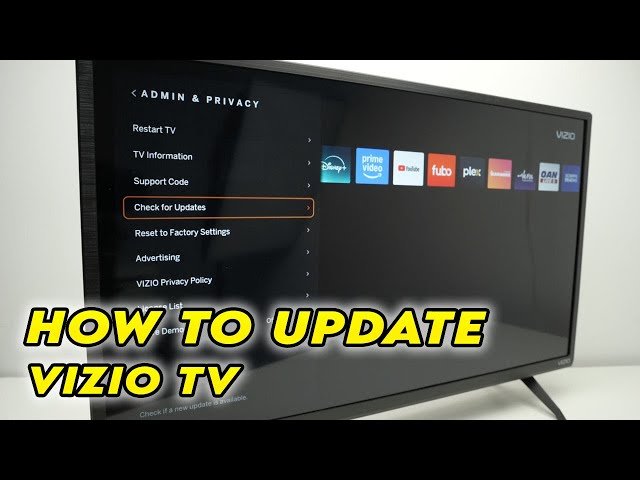
Update Vizio SmartCast apps via TV firmware (System > Check for Updates) or SmartCast Mobile.
I’ve spent years fixing TVs and apps, and I know the frustration when streaming apps lag or disappear. This guide explains how to update apps on smart tv vizio clearly and simply. You’ll learn the correct steps, why updates matter, common problems, and practical fixes I’ve tested. Read on to keep your Vizio apps current and streaming smoothly.

Why updating apps matters for Vizio TVs
Keeping apps updated improves performance and security. App updates fix bugs, restore broken features, and add new streaming options. On Vizio Smart TVs, app updates often come bundled with system firmware updates. That means knowing how to update apps on smart tv vizio is mostly about updating the TV software and managing app behavior.
Updating reduces crashes and buffering. It also keeps login and DRM systems working. If you skip updates, some apps may stop working or show old content.
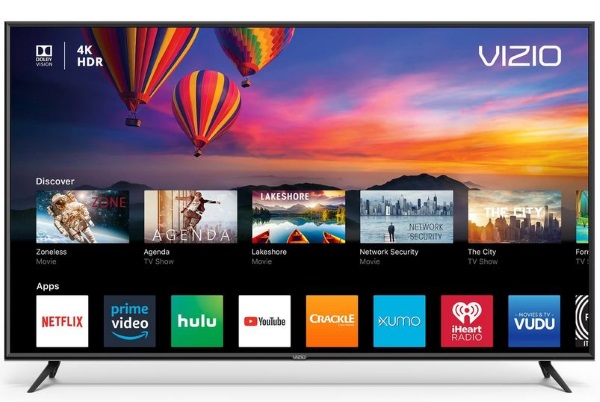
How to update apps on Smart TV Vizio: step-by-step
Below are clear steps you can follow. The exact menu labels can vary by model and year, but the process is similar.
- Ensure a stable internet connection
- Connect your Vizio TV to a reliable Wi-Fi or wired network.
- Test by opening a browser app or streaming a short clip.
- Check for system/firmware updates
- Press Menu or Home on the remote.
- Go to System, then Check for Updates or System Update.
- If an update appears, install it and wait for the TV to restart.
- Restart the TV after updates
- Power the TV off and unplug it for 30 seconds, then plug it back in.
- Restarting completes updates and clears temporary caches.
- Re-open affected apps
- Launch the app to let it refresh after the update.
- Sign back in if required.
- Reinstall an app if it behaves badly
- If an app still misbehaves, remove it from the app list (if available) and reinstall it from the app catalog or SmartCast.
- Use the SmartCast Mobile app as a backup
- Cast to your TV from the SmartCast Mobile app or your phone’s streaming apps if the TV app lags.
These steps explain how to update apps on smart tv vizio in practical terms. If the TV shows no firmware update, app-level updates are likely managed server-side, so reinstall or reset steps help.
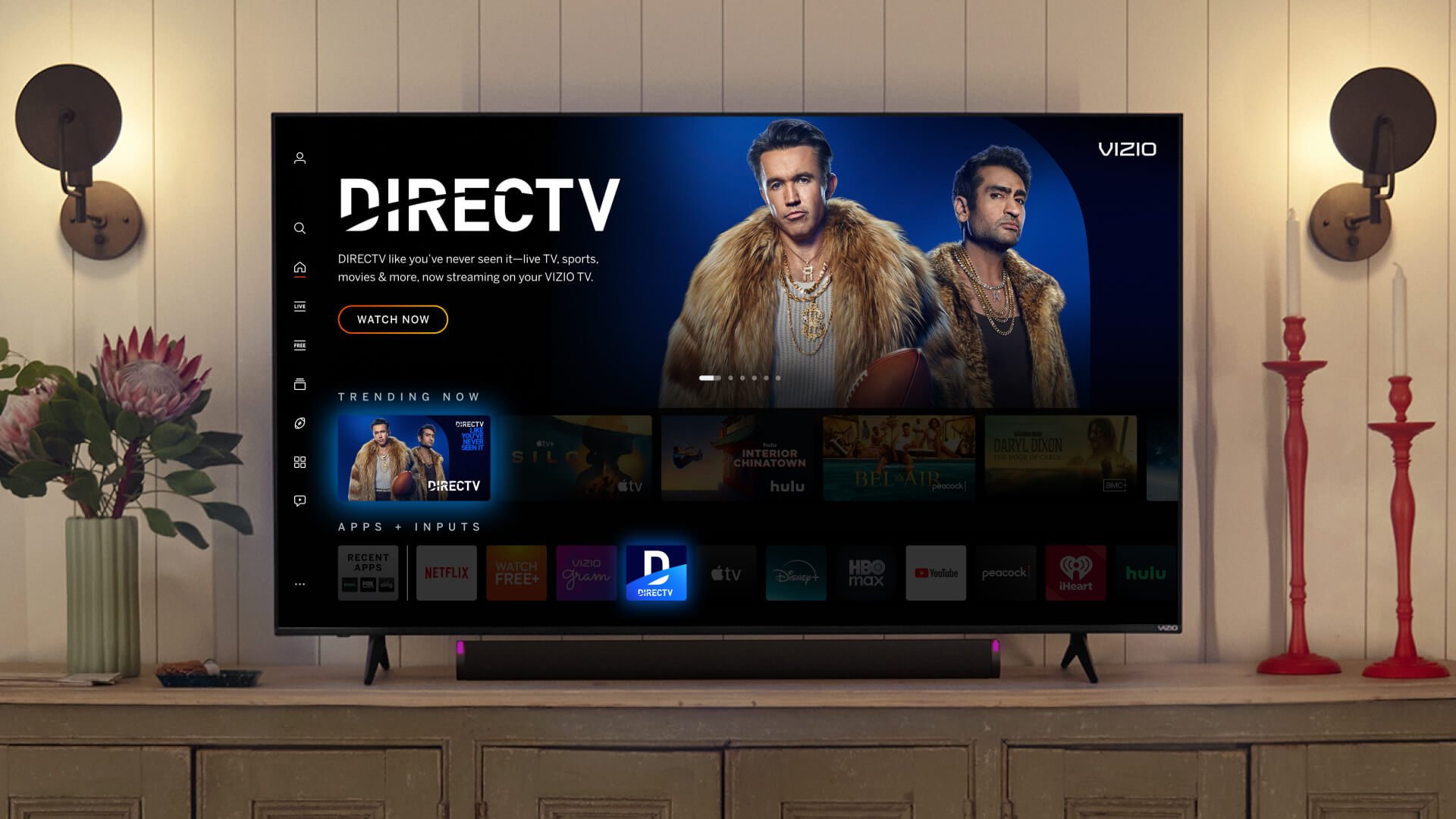
Update using SmartCast Mobile and casting options
SmartCast Mobile can help when the TV app is outdated. Casting uses your phone’s app version, which often updates more frequently.
- Install the SmartCast Mobile app on your phone or tablet.
- Connect the phone and TV to the same network.
- Tap the cast icon in a supported app and choose your Vizio TV.
- Use casting while you troubleshoot the TV app.
Casting is a fast workaround. It keeps you streaming while you wait for official updates or fixes from Vizio.

Troubleshooting common issues when updating apps
Here are fixes I use when updates don’t work or apps crash.
- No update option visible
– Make sure your TV model supports SmartCast updates. Older models may be discontinued.- Check your network and try again later.
- App still crashes after update
- Remove the app’s data by reinstalling it if possible.
- Do a power cycle: unplug 30 seconds and restart.
- App missing from app list
- The provider may have pulled support. Look for web-casting or use an external streaming device.
- Firmware update fails or stalls
- Try a wired Ethernet connection or reset network settings.
- If it still fails, a factory reset may help as a last resort.
From experience, the most effective fix is a firmware update plus a power cycle. That solves most app update problems.

Best practices and tips
Follow these habits to avoid app problems on Vizio TVs.
- Keep your TV online overnight occasionally
- Many firmware updates install automatically when the TV is idle and online.
- Use a wired Ethernet connection for large updates
- Wired connections reduce interruptions.
- Back up your account details
- Note app logins before reinstalling apps.
- Check support notices
- App providers may announce outages or version drops.
- Consider a streaming stick if your Vizio is old
- An inexpensive streaming device can replace outdated TV apps.
These steps make the process of how to update apps on smart tv vizio smoother and less stressful.

Limitations: what Vizio TVs can and can’t do
Be aware of platform limits so you set proper expectations.
- No per-app update control
- Many Vizio models don’t let you update individual apps; updates come via system firmware.
- Vendor support ends
- Older TVs may stop receiving firmware and app support.
- App behavior varies by provider
- App updates are often controlled by streaming services as well as Vizio.
Knowing these limits helps you decide whether to troubleshoot, wait, or add a streaming device.
People also ask
Do Vizio apps update automatically?
Yes. Many Vizio apps update automatically when Vizio releases firmware updates or when apps refresh on the server side.
What if an app is missing after an update?
If an app disappears, it may be removed by the provider or incompatible with your TV. Try reinstalling or use casting as a workaround.
Can I force an app update on Vizio?
You generally cannot force app-level updates. Updating the TV firmware and power cycling is the practical way to force app refreshes.
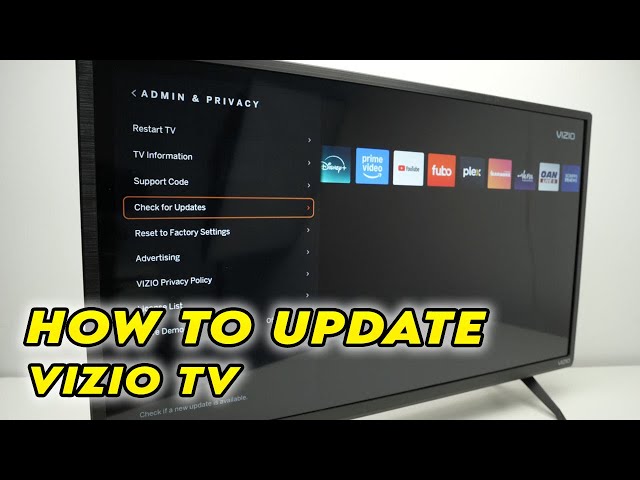
Frequently Asked Questions of how to update apps on smart tv vizio
How do I manually update apps on a Vizio SmartCast TV?
You usually update apps by checking for a system firmware update under System > Check for Updates. App updates are tied to firmware releases.
Why won’t my Vizio app update?
Network issues, discontinued app support, or a stalled firmware update can prevent updates. Try restarting, checking the network, or reinstalling the app.
Will a factory reset fix app update problems?
A factory reset can clear persistent issues, but it erases settings. Use it only if other troubleshooting fails.
Can older Vizio TVs still get app updates?
Some older models lose support over time. If firmware updates stop, app updates likely stop as well.
Is using a streaming stick better than updating Vizio apps?
If your Vizio is old or updates are infrequent, a streaming stick gives faster app updates and more app choices.
Conclusion
Updating apps keeps streaming smooth and secure. Check your network, update the TV firmware, restart, and reinstall apps when needed. If updates stop or apps are removed, casting or adding a streaming device are good fallback options. Try the steps here, and you’ll likely fix most problems quickly. If this helped, subscribe, share your experience, or leave a comment with your TV model and issue so I can help further.