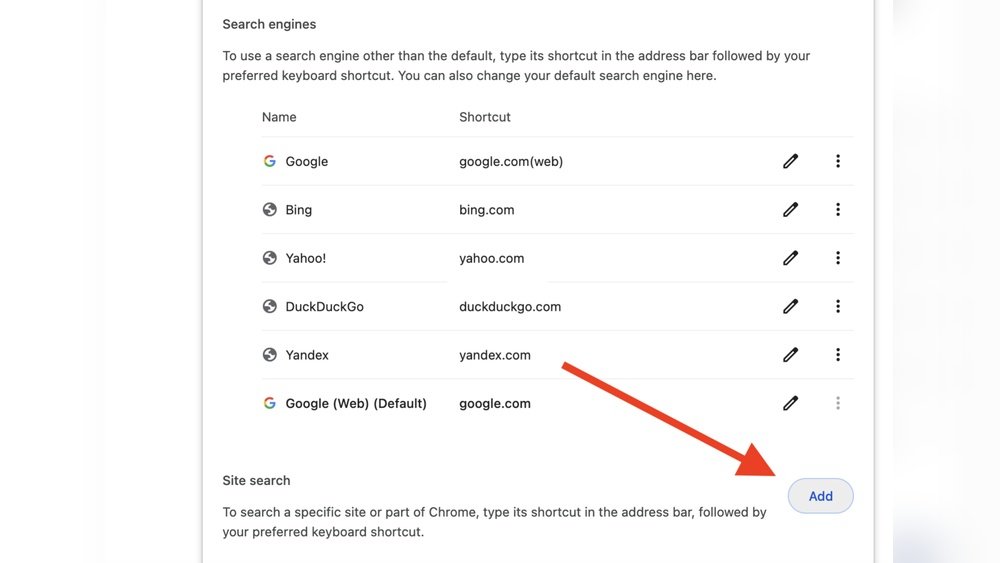
Are you tired of seeing AI-generated summaries every time you search on Google? You might be wondering, “Can you turn off Google AI?”
The answer isn’t as simple as flipping a switch, but there are definitely ways to reduce or disable those AI features that can feel overwhelming or unnecessary. Whether you want a cleaner search experience or prefer to rely on traditional results, this guide will show you practical steps you can take right now to control how much AI influences your Google searches.
Keep reading to discover easy tricks and settings you can adjust to make Google work the way you want.
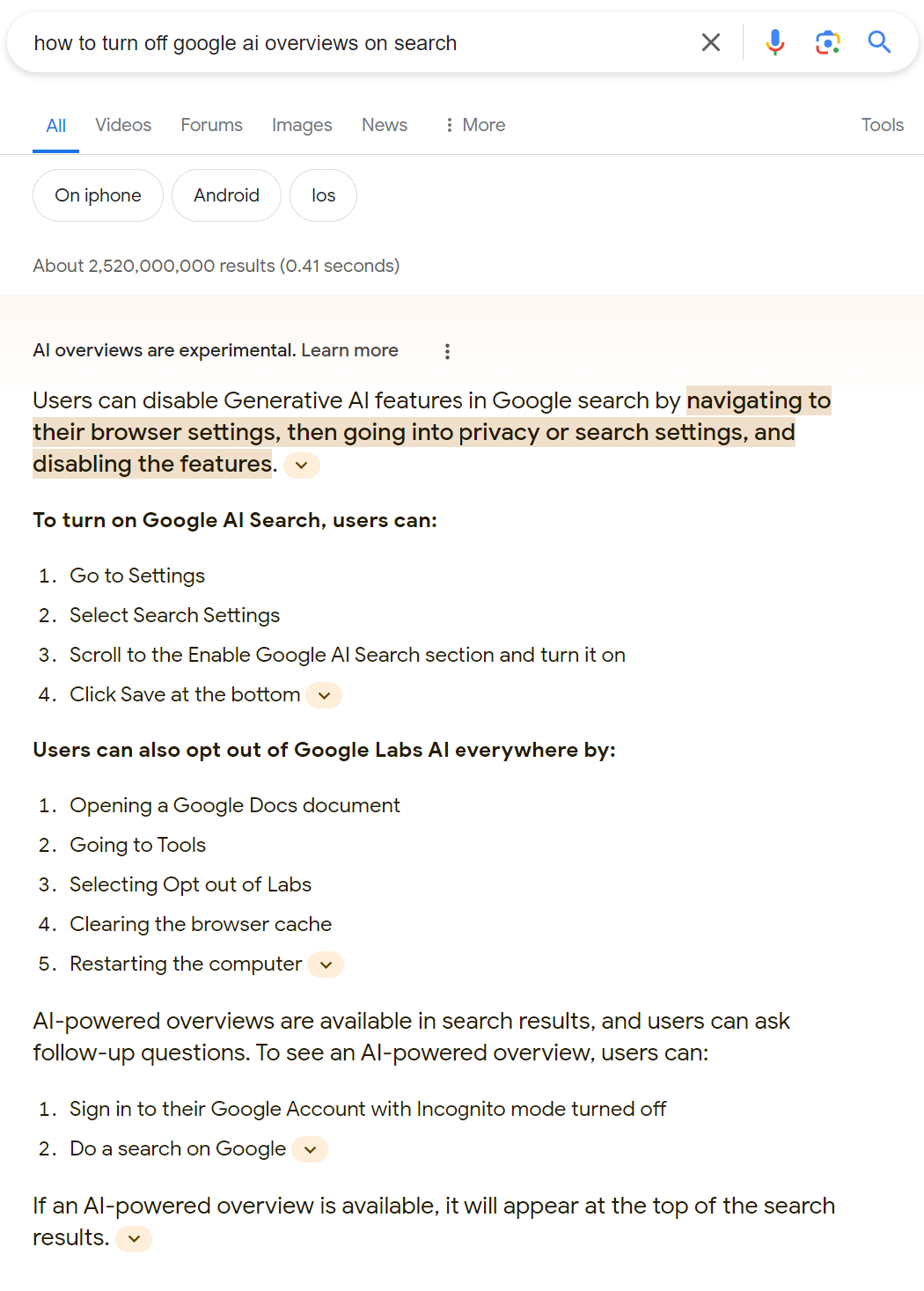
Credit: support.google.com
Google Ai Features Explained
Google uses artificial intelligence to improve many services. These AI features help provide faster, smarter results. They analyze data to understand user intent better. AI also powers tools like smart replies, voice assistants, and image recognition.
Understanding these features helps you decide how to use or disable them. Some AI functions run in the background while others show visible effects. Here are key Google AI features explained clearly.
Ai In Google Search
Google uses AI to create quick summaries for search queries. This helps users get essential information faster. The AI overview appears above regular search results. It is generated by analyzing many web pages at once.
While helpful, some users prefer to see only traditional links. Google allows filtering results to hide these AI summaries.
Smart Replies And Suggestions
Google AI offers smart replies in emails and messages. It suggests short responses based on the conversation. This saves time when replying on phones or computers. AI also suggests search queries or corrections for typos.
Google Assistant And Voice Ai
Google Assistant uses AI to understand voice commands. It can answer questions, set reminders, and control smart devices. The AI learns user preferences to improve over time. This makes interactions feel more natural and helpful.
Image And Video Recognition
Google AI can identify objects, places, and text in images. This helps with searching photos and translating text in pictures. Video AI can also suggest clips or highlight important moments automatically.
Ai In Google Maps
Google Maps uses AI to predict traffic and suggest routes. It learns from user data and real-time conditions. AI also helps find nearby places based on your habits and preferences.
Disabling Ai Mode In Search Labs
Disabling AI Mode in Search Labs offers users more control over their search experience. Google’s AI features aim to enhance results but may not suit everyone’s preferences. Thankfully, Google allows toggling AI features off through Search Labs settings.
This option helps users return to a simpler, traditional search interface. The steps are straightforward and do not require advanced skills. Follow the instructions below to disable AI Mode in Search Labs quickly.
Accessing Search Labs In The Google App
Open the Google app on your device. Look for the “Labs” icon at the top of the screen. Tap the icon to enter the experimental features area. This section controls new tools like AI Mode.
Locating Ai Mode Settings
Inside Labs, find the option labeled “AI in Search” or “AI Overviews and more.” If you do not see it immediately, tap the three dots menu and select “Manage.” This menu reveals hidden settings for search customization.
Turning Off Ai Mode
Toggle the switch next to “AI Mode” to the off position. This disables AI-generated summaries and interactive results in your searches. Changes take effect immediately, refreshing the search layout to the classic style.
Alternative Method On Android Devices
On some Android phones, navigate to Settings > Search > Google Play services. Select “Customize Pixel Search Box.” Here, toggle off the “AI Mode” option. This stops AI features from appearing in the search box on your home screen.
Using The Web Filter To Hide Ai
Using the web filter to hide AI on Google search is a simple way to reduce AI content. This method lets you see regular search results without AI summaries. It works well for users who prefer classic search listings.
The web filter removes the AI-generated overview that appears at the top. You can access this filter easily on desktop and mobile devices. It helps keep your search experience familiar and straightforward.
How To Use The Web Filter On Google Search
After you perform a Google search, look near the top of the results page. You will see different filters like “All,” “Images,” and “Videos.” Find and click the “Web” filter to hide AI content.
If “Web” is not visible, click on the “More” option. This will show additional filters where you can find “Web.” Selecting this filter removes the AI overview from your search results.
Browser Extensions To Hide Ai Overviews
Some browser extensions can block AI summaries on Google search. Search for extensions like “Hide Google AI Overviews” in the Chrome Web Store or Firefox Add-ons. These tools automatically remove AI-generated text.
Once installed, the extension works quietly in the background. It keeps your search results free from AI content without extra steps. This option is useful for users who want a clean search page every time.
Disabling Ai Features In The Google App
The Google app offers some settings to turn off AI features. Open the app and tap the “Labs” icon at the top. Then access the three dots menu and select “Manage.”
Look for options like “AI Overviews and more” or “AI in Search.” Toggle these settings off to reduce AI content. On some devices, you can find a similar toggle under Settings > Search > Google Play services.
Using Search Modifiers To Block Ai Overviews
Add special codes at the end of your search query to block AI summaries. Codes like -AR or h-AR tell Google not to show AI overviews. This method works for one search at a time.
It is a quick way to see classic results without AI text. Use this trick when you want to avoid AI content for specific searches only.

Credit: mashable.com
Browser Extensions To Remove Ai Overviews
Browser extensions offer a simple way to remove AI overviews from Google search results. These tools block or hide the AI-generated summaries that appear above the traditional links. Many users prefer a clean search interface without AI suggestions.
Extensions work automatically once installed. They detect the AI overview sections and remove them from the page. This gives users back the classic Google search experience.
How To Find Extensions That Remove Ai Overviews
Search your browser’s extension store for terms like “Hide Google AI Overviews” or “Bye Bye, Google AI”. These extensions are available for popular browsers like Chrome and Firefox. Read user reviews to ensure the tool works well and updates regularly.
Steps To Install And Use Ai-blocking Extensions
Click “Add to Chrome” or “Add to Firefox” to install the chosen extension. After installation, it usually activates immediately. Refresh your Google search page to see the changes. The AI overview should no longer appear above your search results.
Benefits Of Using Browser Extensions To Remove Ai Overviews
Extensions give control over how search results look. They reduce distractions caused by AI summaries. These tools can improve loading speed by blocking extra content. Users who prefer simple lists find extensions very helpful.
Turning Off Ai In Google App Settings
Google integrates AI features to improve search results and app interactions.
Some users prefer to limit or disable these AI functions for privacy or clarity.
Turning off AI in Google app settings can reduce AI-generated summaries.
It does not fully remove AI but helps control its presence in searches.
Accessing Google App Settings
Open the Google app on your Android or iOS device.
Tap your profile picture or the three dots menu at the top right.
Select “Settings” from the dropdown menu to open app preferences.
Disabling Ai Features In Labs Or Search Settings
Look for a “Labs” section or “Search” settings inside the app.
Find options named “AI Overviews,” “AI in Search,” or “AI Mode.”
Toggle these options off to reduce AI-generated content.
Alternative Methods To Limit Ai On Google
Use the “Web” filter after a search to hide AI summaries.
Try browser extensions that block AI overviews in search results.
Adding “-AR” or “h-AR” at the end of queries may prevent AI summaries.
Temporary Solutions With Chrome Flags
Temporary solutions with Chrome flags offer a quick way to manage Google AI features. Chrome flags are experimental settings within the browser. They allow users to enable or disable specific functions that are not yet fully released. Using Chrome flags can help reduce AI elements in Google search temporarily. This method does not guarantee a permanent fix but can improve your browsing experience.
What Are Chrome Flags?
Chrome flags are hidden settings in the Chrome browser. They control new or experimental features. These flags are not part of the regular browser options. Users can access them by typing chrome://flags in the address bar. Flags allow testing and tweaking features like AI responses or search enhancements.
How To Access Chrome Flags
Open Google Chrome on your desktop. Type chrome://flags in the address bar. Press Enter to open the flags page. You will see a list of experimental features. Use the search box to find AI-related flags. Be careful when changing flags, as they may affect browser stability.
Disabling Ai Features Using Chrome Flags
Search for flags related to AI or search enhancements. Common flags include “AI search features” or “Search Generative Experience.” Set these flags to “Disabled” to turn off AI functions temporarily. After changing flags, restart Chrome to apply the changes. This will hide or reduce AI-generated results in Google search.
Limitations Of Chrome Flags
Chrome flags are not permanent solutions. Google may remove or change these flags anytime. Disabling AI features with flags may affect other browser functions. Flags only affect the current browser profile. You may need to repeat the process on other devices or profiles.
Search Query Tricks To Bypass Ai Summaries
Google AI summaries appear at the top of search results to provide quick answers. Some users prefer the traditional list of links instead. Using specific search query tricks can help skip these AI-generated summaries. These tricks make Google show classic search results without AI interruption.
These methods are simple and require no special tools. They work across desktop and mobile devices. Try them to improve your search experience and get the results you want.
Use The “web” Filter To Hide Ai Summaries
After typing your query, look for the “Web” filter near the top of the results page. Click on it to hide the AI summary. This shows the regular list of links only. If you don’t see “Web,” click on “More” to find it. This is an easy way to bypass AI summaries without changing your query.
Add Special Keywords To Your Search
Add -AR or h-AR at the end of your search phrase. This tells Google not to show the AI overview. The search results will appear as usual, without the AI box. This trick works well on both desktop and mobile searches.
Use Browser Extensions To Remove Ai Summaries
Install extensions like “Hide Google AI Overviews” from the Chrome Web Store or Firefox Add-ons. These tools automatically block AI-generated summaries. They keep your search results clean and focused on traditional links. Extensions are useful if you want a permanent solution without changing search habits.
Disable Ai Features In Google App Settings
Open the Google app and tap the “Labs” icon or menu. Find “Manage” and toggle off options like “AI Overviews” or “AI in Search.” Some Android devices have similar settings under Settings > Search > Google Play services. Turning off “AI Mode” reduces AI influence in your searches.
Limitations Of Disabling Google Ai
Disabling Google AI may sound simple, but it comes with several limitations. Google integrates AI deeply into its services to improve user experience. Turning off these features is often partial or temporary. This section explains why fully disabling Google AI can be challenging and what to expect.
Limited Control Over Ai Features
Google AI operates across many platforms and apps. Users can disable some AI options, but not all. Many AI functions are built into core services like search and recommendations. This makes complete control difficult for users.
Impact On Search Experience
Turning off AI can reduce helpful features in Google Search. AI helps deliver faster, more relevant results. Without AI, search results may be less personalized and slower. Some AI-generated summaries and suggestions may no longer appear.
Settings May Vary By Device
AI disable options differ between devices and apps. Some settings exist only in mobile apps or specific browsers. On desktop, options might be limited or require browser extensions. Users may not find the same controls everywhere.
Possible Need For Third-party Tools
To hide AI features fully, users often rely on browser extensions. These tools remove AI-generated content but may not be perfect. Extensions can affect browser performance or cause other issues. Trustworthy extensions are crucial for safety.
Ai Features Can Return Automatically
Google updates its services frequently. AI features may re-enable after updates or changes. Users might need to toggle settings repeatedly. This cycle makes permanent disabling challenging.
Alternatives To Google Search Without Ai
Many users want search results without AI features. Alternatives to Google search without AI offer simple and clear results. These options focus on traditional search methods without AI summaries or suggestions.
Choosing the right search engine can help avoid AI-driven content. Below are some popular alternatives that keep search results straightforward.
Duckduckgo: Privacy-focused And Ai-free
DuckDuckGo does not use AI to shape search results. It focuses on privacy and shows neutral links. Users get clean results without AI-generated snippets or answers.
This search engine protects your data and avoids tracking. It is easy to use and respects user privacy.
Bing: Classic Search With Ai Control
Bing offers a traditional search experience with some AI features. You can limit AI content by adjusting settings. Using Bing without AI is possible by disabling chat and AI answers.
This allows users to see standard search results without AI interference.
Startpage: Google Results Without Ai
Startpage provides Google-powered results but without AI enhancements. It acts as a privacy-friendly proxy to Google. Users get clean results without AI summaries or recommendations.
Startpage is ideal for those who want Google results but no AI additions.
Qwant: European Search Engine Without Ai Focus
Qwant delivers search results without AI-driven content. It respects privacy and offers neutral links. The platform avoids AI summaries and focuses on straightforward results.
Qwant is a good choice for users wanting a simple search experience.
Brave Search: Independent And Ai-minimized
Brave Search emphasizes user control and minimal AI use. It provides transparent results without AI summaries or highlights. Users can browse without AI influencing their search outcome.
Brave Search is growing in popularity for those avoiding AI in searches.
Future Of Ai Control In Google Services
The future of AI control in Google services is evolving rapidly. Users want more say over how AI impacts their experience. Google recognizes this demand and works on offering better control options.
AI powers many Google features, from search to recommendations. Giving users the ability to turn AI features on or off will be a key focus. This ensures users can customize their experience based on their preferences.
Privacy and transparency will shape the future of AI controls. Google aims to provide clear settings that explain what AI does. Users should easily find and adjust these settings without confusion.
Enhanced User Settings For Ai Features
Google plans to introduce more detailed settings for AI-powered tools. Users will control which AI functions activate during searches or app use. This allows for a personalized and comfortable experience.
Ai Transparency And User Education
Google will focus on educating users about AI roles in services. Clear explanations will help users understand AI-generated results and suggestions. This builds trust and encourages informed choices.
Options To Disable Or Limit Ai
Future updates may include options to disable AI in certain services. This helps users who prefer traditional search results or minimal AI interaction. Limiting AI does not mean losing all smart features.
Balancing Ai Innovation With User Control
Google aims to balance AI advancements with user freedom. AI will improve services without overwhelming user control. Users can enjoy smart features while keeping control over AI use.
:max_bytes(150000):strip_icc()/hide-google-ai-overview-063757b8931b4a97b9fa614a08428abb.png)
Credit: www.lifewire.com
Frequently Asked Questions
Can I Opt Out Of Using Ai On Google?
You can reduce AI features on Google by selecting the “Web” filter or disabling “AI in Search” in Google app settings. Use browser extensions to hide AI summaries. Complete AI removal isn’t always possible, but these steps minimize AI-generated content in your search results.
How Do You Cancel Google Ai?
To cancel Google AI, disable “AI Mode” in Google Search Labs or app settings. Use the “Web” filter or browser extensions to hide AI summaries.
How To Google Without Ai?
To Google without AI, select the “Web” filter after searching. Use browser extensions to hide AI summaries. Disable “AI in Search” in Google app settings or Search Labs. Add “-AR” to queries to block AI overviews. Complete AI removal may require switching search engines.
Can I Turn Off Ai On My Phone?
You can disable AI features on some phones via app settings or Google Search Labs. Use browser extensions or filters to reduce AI content. Complete AI removal isn’t always possible, but toggling off AI in apps or using the “Web” filter limits AI-generated results effectively.
Can You Completely Turn Off Google Ai In Search Results?
Google AI cannot be fully turned off, but you can limit its presence with filters and settings.
How Do I Disable Ai-generated Summaries On Google?
Use the “Web” filter or install browser extensions to hide AI-generated summaries in results.
Is There A Setting To Turn Off Ai In The Google App?
Yes, toggle off “AI in Search” or “AI Overviews” under the Google app’s Labs or Settings.
Can I Prevent Ai Overviews On Specific Google Searches?
Add “-AR” or “h-AR” at the end of your search to block AI overview for that query.
Are Browser Extensions Effective To Remove Google Ai Features?
Yes, extensions like “Hide Google AI Overviews” remove AI summaries automatically from search results.
Does Disabling Ai Affect Google’s Core Search Functions?
Disabling AI features only hides summaries; traditional search links and results remain unchanged.
Conclusion
You can reduce Google AI features but not fully turn them off. Use filters like “Web” to hide AI summaries during searches. Browser extensions also help remove AI overviews automatically. In the Google app, toggle off AI options in “Labs” or settings.
Adding specific terms to your query can block AI-generated content. Complete removal of Google AI is not always possible yet. These steps give you more control over your search experience. Keep checking for updates as Google may change AI settings.
Your search results can feel simpler with these easy tricks.





