Are you ready to unlock a world of amazing apps on your Raspberry Pi? Installing Pi Apps is the easiest way to access hundreds of useful tools, games, and software—all in one place.
Whether you’re a beginner or an experienced user, this simple guide will show you exactly how to get Pi Apps up and running on your device. Imagine having a smooth, hassle-free app store designed just for your Raspberry Pi, where installing your favorite programs takes just a few clicks or commands.
Keep reading, and you’ll discover step-by-step instructions that anyone can follow to transform your Raspberry Pi experience today!
Preparing Your Raspberry Pi
Preparing your Raspberry Pi is the first step to install Pi Apps smoothly. A well-prepared device ensures fewer errors and better performance. This section covers essential tasks to get your Pi ready.
Check System Requirements
Verify your Raspberry Pi model supports Pi Apps. Most models from Raspberry Pi 3 and later work well. Ensure you have at least 8GB of free storage space. A stable internet connection is necessary for downloading apps. Also, confirm your power supply is reliable to avoid interruptions.
Update Raspberry Pi Os
Keeping your Raspberry Pi OS updated helps run Pi Apps without issues. Open the terminal and enter sudo apt update to refresh package lists. Then run sudo apt upgrade -y to install the latest updates. This process fixes bugs and improves system security. Restart your device after the update completes to apply changes.

Credit: www.youtube.com
Installing Pi-apps
Installing Pi-Apps is a simple process that adds an app store to your Raspberry Pi. This store lets you access many apps, tools, and games easily. The installation only takes a few steps using the terminal. Follow the instructions below to get started quickly.
Open Terminal
First, open the terminal on your Raspberry Pi. You can find it in the main menu under Accessories. The terminal lets you enter commands to control your device. This step is essential for installing Pi-Apps smoothly.
Run Installation Command
Next, copy and paste the following command into the terminal:
wget -qO- https://raw.githubusercontent.com/Botspot/pi-apps/master/install | bashPress Enter to start the installation. The script will download all necessary files and set up Pi-Apps. Wait for the process to finish. After completion, you will see a new Pi-Apps icon on your desktop. Click it to open the app store and explore available applications.
Launching Pi-apps
Launching Pi-Apps is simple and fast. This app store lets you open many useful programs on your Raspberry Pi. After installation, you can start Pi-Apps in two main ways. Both methods help you quickly access your favorite apps. Choose the one that fits your style best.
Access Via Menu
Find Pi-Apps in the main menu under Accessories. Click the Raspberry Pi icon on the top left of your screen. Then go to Accessories and select Pi-Apps from the list. The app store window will open, showing many apps ready to use. This method is quick and works well if you prefer menus.
Using Desktop Icon
Look for the Pi-Apps icon on your desktop after installation. Double-click this icon to launch the app store immediately. This way is very easy and fast, especially for users who like shortcuts. If the icon is missing, restart your system or reinstall Pi-Apps. This method saves time and keeps your desktop organized.
Credit: pi-apps.io
Browsing And Installing Apps
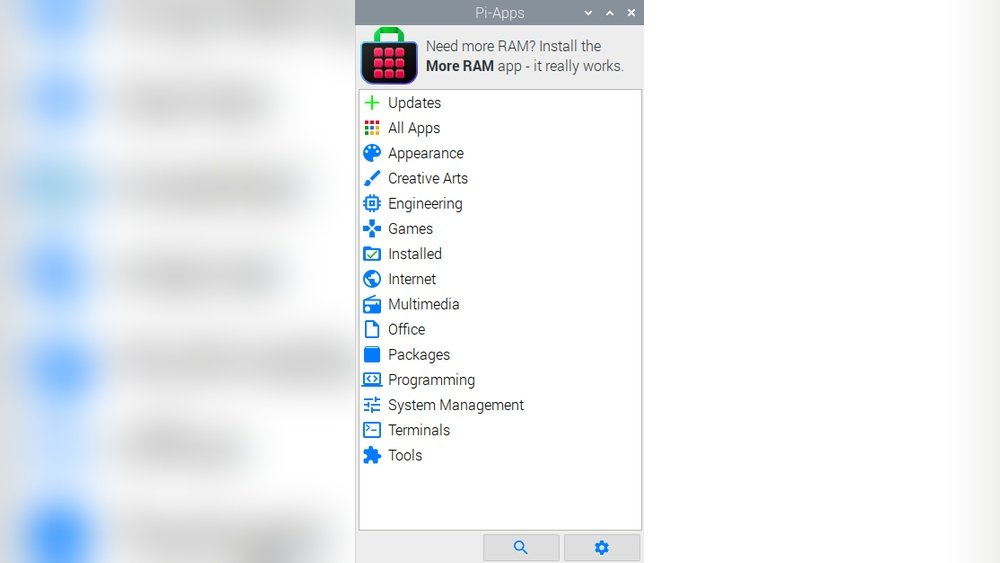
Browsing and installing apps on Pi-Apps is simple and user-friendly. The app store organizes software into clear sections. This setup helps users find their desired apps quickly. The process requires minimal steps and no complex commands.
Users can explore categories or use the search feature to locate apps. Installing an app takes just a few clicks. This section explains how to navigate categories, search for apps, and install them effectively.
Navigating Categories
Pi-Apps groups applications into categories such as games, utilities, and development tools. Categories appear on the main screen after launching Pi-Apps. Click any category to see the available apps inside. This method helps users discover apps by type or function. Browsing categories is a fast way to explore popular or new apps.
Searching For Apps
Pi-Apps includes a search bar at the top of the interface. Type keywords related to the app you want. The search results update instantly as you type. This feature saves time and effort. It works well for users who know the exact app name or purpose. Searching ensures you find specific apps without scrolling through categories.
Installing Selected Apps
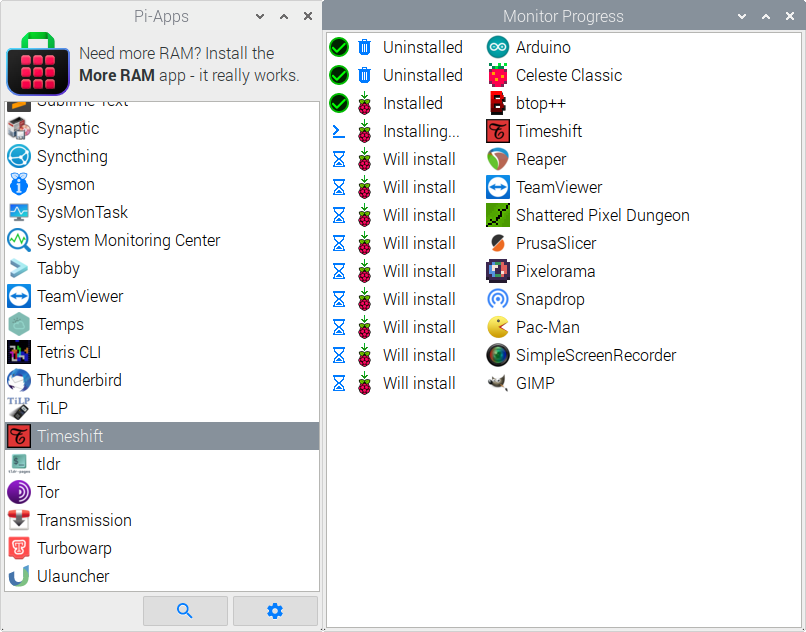
After finding an app, select it to open its details page. This page shows a brief description and version info. Click the “Install” button to start downloading the app. Pi-Apps handles the installation automatically. Users see progress updates during installation. After completion, the app is ready to use from the Raspberry Pi menu.
Updating And Managing Apps
Keeping your Pi Apps updated and well-managed ensures smooth performance. Updates bring new features and fix bugs. Managing apps helps free up space and improve your device’s speed.
Checking For Updates
Open the Pi Apps interface on your Raspberry Pi. Look for the update button or option. Click it to check if any apps need updating. The system will show available updates. Select the apps you want to update. Click the update button to start the process. Wait until all updates finish installing. Restart your device if needed to apply changes.
Removing Unwanted Apps
Open the Pi Apps store or manager on your device. Find the list of installed apps. Browse and select apps you no longer need. Click the remove or uninstall button. Confirm your choice to delete the app. This frees space and keeps your system clean. Check regularly to remove unused apps and keep your Pi running smoothly.
Uninstalling Pi-apps
Uninstalling Pi-Apps is a simple process that helps you keep your Raspberry Pi clean. Removing the app store frees up space and avoids clutter. It is important to uninstall Pi-Apps correctly to prevent leftover files.
This section covers how to uninstall Pi-Apps using terminal commands. It also shows how to clean up any residual files after removal.
Using Terminal Command
Open the terminal on your Raspberry Pi. Type the command rm -rf ~/pi-apps and press Enter. This command deletes the Pi-Apps folder and all its contents.
Next, remove the launcher by typing rm ~/.local/share/applications/pi-apps.desktop. Press Enter to delete the menu shortcut. These steps fully uninstall Pi-Apps from your system.
Cleaning Up Residual Files
Some files may remain after uninstallation. Check your home directory for any hidden Pi-Apps files. Use ls -a ~ to list all files, including hidden ones.
Delete any leftover configuration files related to Pi-Apps with the rm command. This ensures no clutter stays behind. Finally, reboot your Raspberry Pi to complete the cleanup process.
Credit: www.kevsrobots.com
Frequently Asked Questions
How To Start Pi Apps?
Open the terminal on your Raspberry Pi. Type pi-apps and press Enter. Alternatively, find Pi-Apps under Accessories in the Start menu. You can also run it from the ~/pi-apps/gui directory.
Does Pi.os Have An App Store?
Pi. os uses Pi-Apps, an open-source app store for Raspberry Pi. Install it via terminal with a simple command. It offers easy browsing and installation of many apps.
How To Put Apps On A Raspberry Pi?
Open the terminal on your Raspberry Pi. Run the command: wget -qO- https://raw. githubusercontent. com/Botspot/pi-apps/master/install | bash. This installs Pi-Apps, an app store to browse and install applications easily. Launch Pi-Apps from the menu or desktop icon to add apps.
Are Pi Apps Free?
Pi Apps are completely free to use and open-source. Donations are optional but not required.
What Is Pi Apps On Raspberry Pi?
Pi Apps is a free app store for Raspberry Pi. It offers many pre-configured apps and tools. Users can easily browse and install software.
How Do I Install Pi Apps On Raspberry Pi?
Open the terminal and run this command:
wget -qO- https://raw.githubusercontent.com/Botspot/pi-apps/master/install | bash
The script installs Pi Apps automatically.
Can I Install Pi Apps Without The Terminal?
Pi Apps installation requires terminal commands. The terminal runs the installation script. No graphical installer is available yet.
Are Pi Apps Free To Use?
Yes, Pi Apps is completely free and open-source. Donations are welcome but not required. Users get full access without cost.
How To Start Pi Apps After Installation?
Open the start menu, select Accessories, then click Pi-Apps. You can also run pi-apps in the terminal. Another way is running ~/pi-apps/gui.
Does Pi Apps Work On All Raspberry Pi Os Versions?
Pi Apps works best on older Raspbian versions. Some newer OS versions may have compatibility issues. Keep your OS updated for best results.
Conclusion
Installing Pi Apps on your Raspberry Pi is simple and fast. Just open the terminal and run the install command. The script handles everything, including dependencies. After installation, find Pi Apps in the menu or on your desktop. You can browse and install many useful applications easily.
If you want to remove Pi Apps later, run the uninstall command. Enjoy exploring new apps and tools on your Raspberry Pi with ease.





