Download apps on a Hisense TV using the built-in app store or sideload methods quickly.
I have helped dozens of people set up smart TVs, and I’ll walk you through how to download apps to Hisense TV step by step. This guide covers VIDAA, Roku, Android TV / Google TV models, sideloading options, troubleshooting, and real-world tips so you can get the apps you want fast and keep your TV running smoothly.

Why add apps to your Hisense TV
Apps turn a TV into a full entertainment hub. You get streaming services, fitness apps, games, news, and utilities without extra boxes.
Adding apps is simple on most Hisense models. Knowing how to download apps to Hisense TV saves time and avoids buying extra hardware.
I’ll share hands-on tips from years of setup work. You’ll learn quick checks to avoid the most common mistakes.
Which Hisense TVs support app downloads
Hisense uses several smart platforms. Know your TV’s platform to follow the right download steps.
VIDAA OS
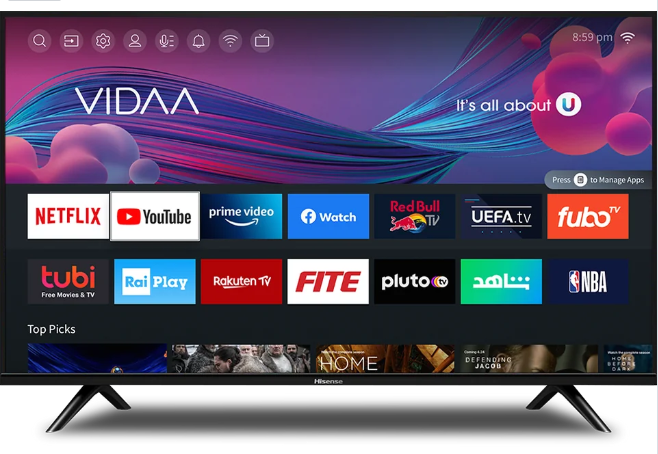
- Many recent Hisense sets use VIDAA. VIDAA has a built-in app store and an easy interface.
Roku TV
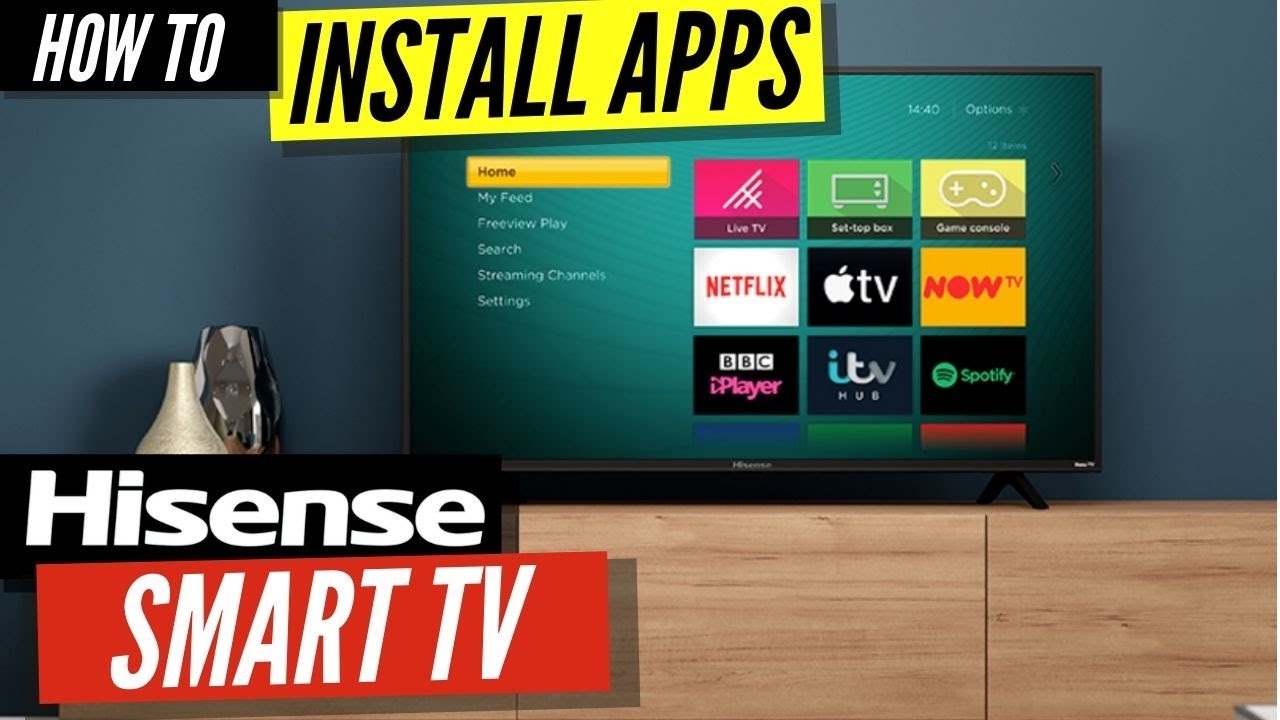
- Some Hisense models run Roku TV. Roku uses its own Channel Store and requires a Roku account.
Android TV and Google TV
- Higher-end or older Hisense TVs may run Android TV or Google TV. These use Google Play and allow more flexible app installs.
Check the model label on the back or the system settings to confirm which OS you have. That determines how to download apps to Hisense TV and which apps are available.

Preparation: what you need before installing apps
Make sure your TV is online. Use Wi‑Fi or a wired Ethernet connection for stable downloads.
Sign in to the correct account
- For Roku TV, sign in with your Roku account.
- For Android TV/Google TV, sign in with your Google account.
- VIDAA may ask for a Hisense account for some apps.
Update system software
- Go to Settings and run a system update before installing apps. Updates often fix app store issues.
Check storage space
- Many apps need free space. If storage is low, uninstall unused apps or use an external drive where supported.
These prep steps speed up the process and cut errors when you learn how to download apps to Hisense TV.

How to download apps to Hisense TV (VIDAA OS)
- Turn on the TV and press the Home button on the remote.
- Select the App Store or Apps icon on the home screen.
- Browse categories or use Search to find an app.
- Select the app and choose Install or Add.
- Open the app after installation and sign in if required.
If an app is missing, check region restrictions or update the TV firmware. My experience: restarting the TV after an update often makes new apps appear in the store.
How to download apps to Hisense TV (Roku TV)
- Press Home on the Roku remote.
- Scroll to Streaming Channels or Channel Store.
- Use Search to find apps by name or browse categories.
- Select Add Channel to install the app.
- Open the channel from Home and sign in.
If you have issues, sign into your Roku account on a computer to confirm your channel list and region settings. I once solved a missing channel by correcting the Roku account country setting.

How to download apps to Hisense TV (Android TV / Google TV)
- Open the Google Play Store on your TV.
- Use the search bar or browse categories to find the app.
- Select Install and wait for the download to finish.
- Open the app and sign in if needed.
For Google TV, you can also use the Google Play Store on your phone to push apps to the TV. On older Android TV models, enable Install unknown apps only if you trust the APK source when sideloading.
Sideloading and alternative install methods
Sideloading allows apps that are not in the store, but it carries risk. Only sideload trusted APKs and understand warranty or security implications.
Common sideload methods
- USB drive: Copy the APK to a USB stick and use a file manager on the TV to install.
- ADB (Android Debug Bridge): Use ADB on a computer to push an APK to Android TV.
- Install unknown apps setting: Enable this only for the file manager or installer app.
Alternative options
- Casting: Use phone apps and cast content without installing an app on the TV.
- Screen mirroring: Mirror your phone or laptop if the app won’t run on the TV.
I’ve used ADB for custom apps and found it reliable when stores lack region-specific apps. Always keep a backup and know how to remove sideloaded apps.

Troubleshooting: common problems and fixes
App not available in the store
- Check your TV model and region. Some apps are region-locked or device-limited.
Download fails or stalls
- Restart the TV and router. Free up storage and try again.
App crashes or won’t open
- Update the app, clear the app cache in settings, or reinstall the app.
Sign-in or playback errors
- Confirm credentials, subscription status, and that your TV’s date/time are correct.
If issues persist, perform a factory reset as a last resort. In my experience, most problems clear after an OS update and a restart.

Tips and best practices for a smoother experience
Keep your TV firmware updated to access the latest apps and fixes. Updated TVs get better app compatibility.
Use wired Ethernet for large downloads. It is faster and more stable than Wi‑Fi.
Manage storage regularly. Uninstall apps you do not use and move supported apps to external storage.
Use the official app store when possible. It reduces security risks compared with sideloading.
Create a list of must-have apps and install them right after setup. This makes future troubleshooting easier.
Frequently Asked Questions of how to download apps to hisense tv
Do all Hisense TVs let you download apps?
Most modern Hisense TVs let you download apps, but the method depends on the OS. Check whether your TV runs VIDAA, Roku, Android TV, or Google TV.
Why can’t I find a specific app in my Hisense TV store?
Apps can be region-locked or not supported on your TV’s OS. Updating firmware and checking your account region often helps.
Can I sideload apps on Hisense TVs?
You can sideload on Android TV / Google TV models using USB or ADB, but VIDAA and Roku are more restricted. Only sideload trusted APKs to avoid security risks.
How much storage do apps use on a Hisense TV?
App size varies widely; streaming apps are usually 50–300 MB for the app itself but require more space for cache. Keep some free storage for updates and cache.
What if an app keeps crashing after installation?
Try clearing the app cache, reinstalling the app, and updating the TV software. If that fails, check for known compatibility issues with your TV model.
Conclusion
You can install most apps on a Hisense TV by using the built-in app store for VIDAA, the Roku Channel Store, or the Google Play Store on Android TV / Google TV. Prepare your TV with updates, an internet connection, and the correct account to avoid common pitfalls. Try the steps that match your TV’s OS, and use the troubleshooting tips if something goes wrong.
Take action now: check your TV’s platform, update the system, and install a favorite streaming app today. If this guide helped, leave a comment or share your setup experience.