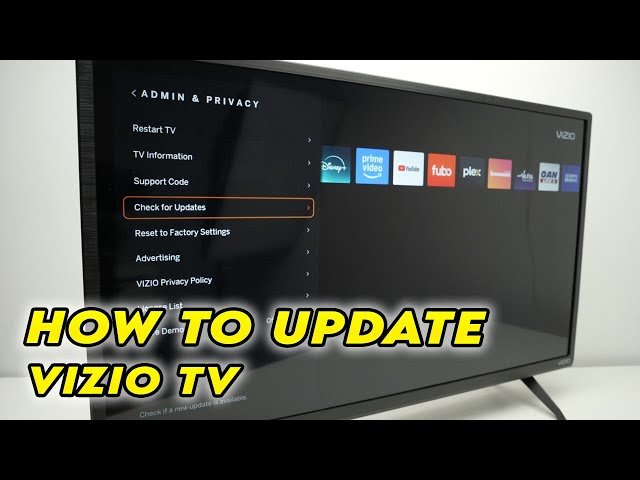
Update Vizio TV apps quickly via SmartCast: Settings > System > Check for Updates, or remove and reinstall apps.
I’ve spent years fixing streaming glitches and keeping TVs running smoothly, so this guide on how to update apps on a Vizio TV walks you through every step. You’ll get simple, tested steps for SmartCast TVs, tips for older models, troubleshooting, and practical advice I learned the hard way so your apps stay fast and secure.
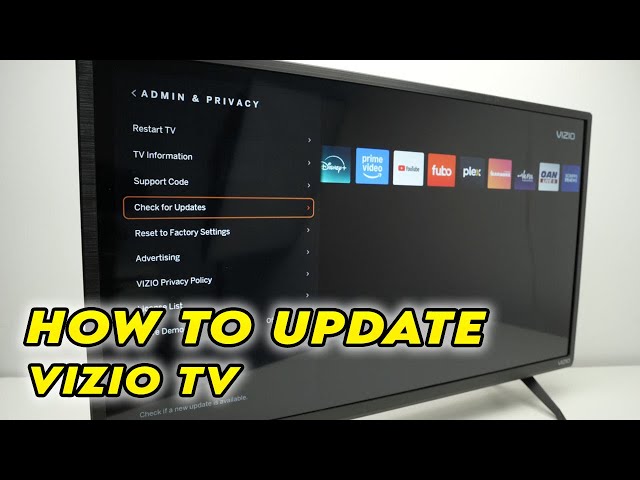
How Vizio TVs handle app updates
Vizio SmartCast TVs manage app updates mostly through the system software. Core app updates often come bundled with SmartCast firmware updates. Some apps also refresh content in the cloud, which avoids frequent local updates.
Key points to know:
- SmartCast version controls many app behaviors and compatibility.
- Individual app updates may be hidden behind system updates.
- Older Vizio models may not support app updates the same way as newer SmartCast TVs.
My experience: I once chased a streaming bug that turned out to be an outdated SmartCast build. Updating the TV firmware fixed several apps at once. That taught me to check firmware first when apps misbehave.
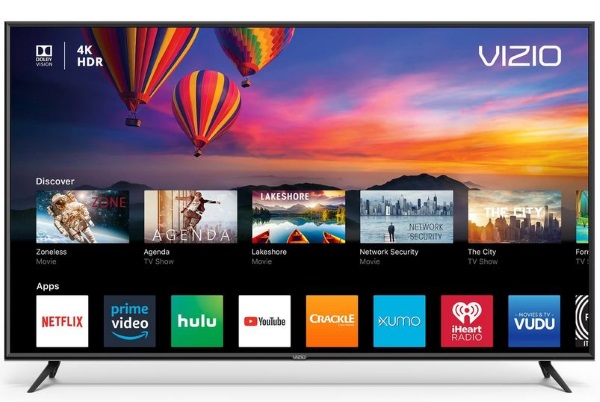
Step-by-step: How to update apps on a Vizio TV (SmartCast)
Follow these clear steps to update apps on a Vizio TV that runs SmartCast. Keep your remote handy.
- Check network and power
- Make sure the TV is connected to Wi‑Fi or Ethernet.
- Keep the TV powered on during updates to avoid corruption.
- Update Vizio SmartCast firmware
- Press the V button or Home on your remote.
- Select Settings, then System, then Check for Updates.
- If an update is available, choose Install and wait. The TV will restart.
- Restart the TV after firmware updates
- Turn the TV off and on, or unplug for 10 seconds and plug back in.
- A fresh reboot helps the system register new app versions.
- Force an app refresh or reinstall
- Open the app that’s problematic.
- If it hangs, go to Apps from Home, highlight the app, then press and hold OK (or use the options menu) to uninstall or remove.
- Reinstall the app from the SmartCast app list.
- Confirm app function
- Launch each updated app and test streaming or login features.
- Sign back into any apps if required.
Tips from my tests:
- I found firmware updates fixed multiple app crashes at once.
- Reinstalling a single app often fixed loading errors quickly.

Manual update and reinstallation methods for problematic apps
If the normal route doesn’t work, try these manual approaches. They are small, safe steps.
Factory restart (soft reset)
- Settings > System > Reset & Admin > Soft Power Cycle or Restart.
- This clears temporary caches without removing apps.
Full reset (use with caution)
- Settings > System > Reset & Admin > Reset to Factory Defaults.
- This removes all apps and accounts. Back up passwords first.
Remove and reinstall specific apps
- From Home, go to the Apps page.
- Select the app, press the options key, then Remove or Uninstall.
- Re-add the app from the app catalog.
Use a mobile casting workaround
- If an app won’t update or is missing, cast from your phone or tablet.
- This avoids waiting for an app update on the TV and keeps watching while you solve the issue.
Personal lesson: I only use factory reset as last resort. It’s effective but time-consuming because you must re-login to services.

Troubleshooting common issues when updating apps on a Vizio TV
Here are specific problems and fixes I’ve used repeatedly.
App won’t update or install
- Check internet: run a quick speed test on another device.
- Reboot router and TV. If needed, switch from 5 GHz to 2.4 GHz or use Ethernet.
Update fails repeatedly
- Confirm the TV has enough free memory by removing unused apps.
- Check SmartCast firmware; update it first. Then try app reinstall.
App is outdated and missing features
- Some older Vizio models no longer receive app updates. Consider a streaming stick or box.
- Alternatively, cast from a phone or tablet to get the latest app functionality.
App crashes after update
- Clear app cache by removing and reinstalling the app.
- If problems persist, roll back is not possible; contact Vizio support for bug reports.
Account or login problems after reinstall
- Reset your password on another device first.
- Then log in on the TV. Two-step verification can block logins until set up.
Network-related errors
- Restart your modem and router.
- Set DNS manually to a public DNS to test connectivity.

Tips to keep apps updated and your Vizio TV running well
Preventive habits save time. Use these tips to avoid future update headaches.
- Keep SmartCast current: check for firmware monthly.
- Use a reliable network: prefer wired Ethernet for stability.
- Remove unused apps: more free space helps updates install cleanly.
- Schedule restarts: restart your TV weekly to clear caches.
- Use casting as a backup: phone or tablet casting fills gaps.
- Track app change notes: some apps announce major updates that need system firmware.
My tip: I add a calendar reminder every quarter to check firmware and uninstall unused apps. It prevents surprises during movie night.
Quick PAA-style questions
What if the Vizio TV says no updates available but apps still fail?
- If no system updates show, try removing and reinstalling the app. If issues remain, a soft reset or contacting support is next.
Can I update apps without internet?
- No. App updates and firmware downloads require an internet connection. Cast from another device to stream while offline.
Will a factory reset force app updates?
- A factory reset restores factory firmware and clears apps. After reset, check for the latest firmware and then reinstall apps to get updated versions.

Frequently Asked Questions of how to update apps on a vizio tv
How do I check for firmware updates on my Vizio TV?
Go to Home, then Settings, then System. Select Check for Updates. If firmware is available, install it and allow the TV to restart.
Why are some apps not available on my Vizio TV?
App availability depends on SmartCast support and app developer agreements. Older models may lose app support over time, so casting or a streaming stick can help.
How can I reinstall a broken app on a Vizio TV?
From the Home Apps page, select the app, choose Remove or Uninstall, then reinstall it from the app catalog. Restart the TV if needed before reinstalling.
Will updating SmartCast also update my apps on a Vizio TV?
Updating SmartCast often enables newer app versions and compatibility. Many app fixes come bundled with firmware updates, so update SmartCast first.
What if an app keeps crashing after an update?
Try removing and reinstalling the app, restart the TV, and ensure your internet is stable. If it still crashes, contact the app developer or Vizio support.
Conclusion
Keeping apps current on a Vizio TV improves performance, adds features, and reduces security risks. Start by updating SmartCast, keep your network stable, and reinstall problem apps when needed. Small routines like quarterly checks and uninstalling unused apps prevent most issues.
Take action today: check your TV’s firmware, remove any unused apps, and set a reminder to review updates regularly. If this guide helped, leave a comment or share your fix—your experience might help someone else.