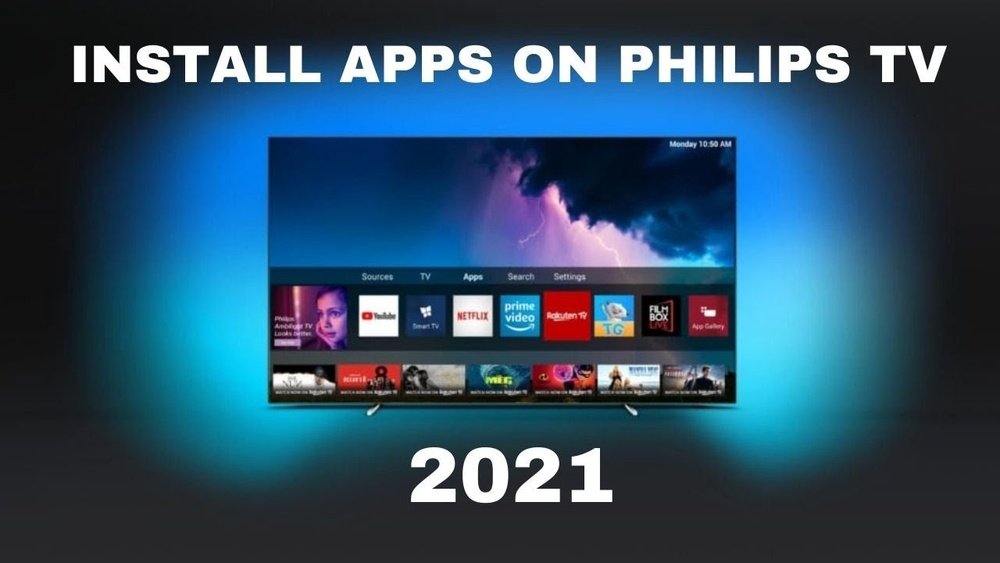
Are you ready to unlock the full potential of your Philips Smart TV? Installing apps on your Philips Smart TV can transform your viewing experience, giving you access to streaming services, games, and useful tools right on your big screen.
Whether you want to catch up on your favorite shows, listen to music, or explore new entertainment options, knowing how to add apps is the first step. In this guide, you’ll discover simple, step-by-step instructions tailored to your Philips TV model.
Keep reading to learn exactly how to install apps quickly and easily—so you can start enjoying more of what you love without any hassle.
Philips Tv Models And Os Types
Philips offers a variety of smart TV models, each with different operating systems (OS). These OS types affect how apps are installed and which apps are available. Understanding your Philips TV’s OS helps you install apps easily and know what to expect. Most Philips smart TVs run either Android TV or Saphi OS. Each system has its own app store and features.
Android Tv Vs Saphi Os
Android TV is Google’s platform used by many Philips models. It supports a wide range of apps from the Google Play Store. The interface is user-friendly and allows easy searching and app management. You can sign in with your Google account to download apps.
Saphi OS is Philips’ own system. It is simpler and uses a limited App Gallery. Saphi is based on Linux and focuses on essential apps only. You cannot add apps outside the official list. The interface is basic but easy to navigate.
Differences In App Availability
Android TV offers thousands of apps. Popular apps like Netflix, YouTube, and Spotify are available. Games and streaming apps also have wide support. Updates and new apps arrive frequently.
Saphi OS has fewer apps. Only essential streaming and utility apps are included. Some popular apps may be missing. This limits app choices and customization. Users should check app availability before purchase.
Credit: www.philips.co.uk
Connecting Your Tv To The Internet
Connecting your Philips Smart TV to the internet is the first step to installing apps. A stable connection helps the TV access app stores and download applications smoothly. You can connect your TV using Wi-Fi or an Ethernet cable. Both methods have their benefits and work well with Philips Smart TVs.
Wi-fi Setup
Turn on your Philips Smart TV and open the Settings menu. Find the Network or Internet option and select it. Choose the Wi-Fi setup to search for available wireless networks. Pick your home Wi-Fi network from the list. Enter your Wi-Fi password carefully and confirm. The TV will connect to the internet once the password is accepted. A Wi-Fi connection allows you to place the TV anywhere within the wireless signal range.
Ethernet Connection
Locate the Ethernet port on the back of your Philips TV. Connect one end of an Ethernet cable to the TV. Plug the other end into your router or modem. The TV should detect the wired connection automatically. Ethernet offers a stable and faster connection compared to Wi-Fi. It is ideal for streaming apps and downloading large files without interruption.
Installing Apps On Android-based Philips Tvs
Installing apps on Android-based Philips TVs enhances your viewing experience. These TVs run on the Android operating system, giving access to many popular apps. The process is straightforward and similar to using an Android smartphone.
Start by connecting your Philips TV to the internet. This step is essential for downloading and updating apps from the Google Play Store. The interface is user-friendly, designed for easy navigation.
Accessing Google Play Store
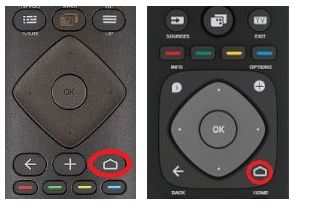
Press the Home button on your Philips remote control. This opens the main menu. Locate and select the Google Play Store icon. The store contains many apps suited for your smart TV.
Signing into a Google account might be required. This grants access to the full range of apps and personalized recommendations. Without signing in, app installation may be limited.
Searching And Installing Apps
Use the search bar in the Google Play Store to find specific apps. Enter the app name using the on-screen keyboard. Browse categories to discover new or popular apps.
Select the app you want to install. Click the Install button and wait for the download to complete. After installation, open the app from your home screen to start using it.
Installing Apps On Saphi Os Philips Tvs
Installing apps on Saphi OS Philips TVs offers a simple way to expand your entertainment options. Saphi OS is a custom system designed by Philips for their smart TVs. It provides an App Gallery where you can find and install apps directly on your TV. This system is easy to use, but it has some restrictions compared to other platforms.
Understanding how to navigate the App Gallery and the limits of Saphi OS helps you get the most from your Philips smart TV. Below, you will find key steps and important points about installing apps on these TVs.
Navigating The App Gallery
Start by pressing the Home button on your Philips TV remote. This opens the main menu. Look for the “Apps” or “Smart TV” option and select it. You will enter the App Gallery, where you can browse available apps. Use the arrow keys to scroll through the list or categories. When you find an app you want, highlight it and press “OK” to view details.
To install, select the “Install” button and wait for the download to finish. The app will appear on your home screen for easy access. The process is quick and user-friendly, making it easy to add new apps without any hassle.
Limitations Of Saphi App Store
The Saphi App Gallery offers fewer apps than Android or other smart TV platforms. Many popular apps may not be available. You cannot add apps from outside the App Gallery. This means no manual APK installations or external app stores.
Saphi OS does not support apps requiring Google Play Services. Some streaming and gaming apps might be missing. Updates to apps depend on Philips and the app developers, so delays can happen.
Despite these limits, the App Gallery covers essential apps like YouTube, Netflix, and some local streaming services. For more advanced app needs, consider a streaming device alongside your Philips TV.
Troubleshooting App Installation Issues
Installing apps on your Philips Smart TV can sometimes face interruptions. Troubleshooting app installation issues helps you identify and fix common problems fast. This ensures you enjoy your favorite apps without delay. Below are key areas to check during troubleshooting.
Account Sign-in Problems
Many apps require a signed-in account to download or use them. Check if you are logged into your Philips Smart TV with the correct account. Incorrect credentials or expired passwords block app downloads. Reset your password or sign out and sign back in. Also, verify your internet connection is stable during sign-in.
Storage And Firmware Updates
Low storage space often stops apps from installing. Philips Smart TVs have limited memory for apps and updates. Delete unused apps or files to free up space. Check your TV’s firmware version. Outdated firmware can cause app compatibility issues. Update your TV software through the settings menu to ensure smooth app installation.

Credit: www.youtube.com
Alternative Methods For App Access
Alternative methods for accessing apps on your Philips Smart TV help bypass limitations. These methods work well if the built-in app store lacks your favorite apps. They expand your options and improve your TV experience. Two popular ways include using external streaming devices and manual app installation.
Using External Streaming Devices
External streaming devices connect easily to your Philips Smart TV. Devices like Roku, Amazon Fire Stick, or Google Chromecast offer many apps. They come with their own app stores and user interfaces. Just plug the device into your TV’s HDMI port. Use the remote that comes with the streaming device to browse and install apps. This method does not depend on your TV’s operating system. It provides access to apps not available on Philips app stores. Streaming devices often receive more frequent updates and have better app support.
Manual App Installation Options
Manual app installation lets you add apps not found in the official store. It usually involves downloading app files from trusted sources. You can install apps via USB flash drive or through a web browser on your TV. This method is more common on Philips TVs with Android OS. First, enable installation from unknown sources in the TV’s settings. Copy the app file to a USB drive and plug it into the TV. Then open the file manager app to locate and install the app. Be cautious to use only safe and compatible apps. Manual installation can expand your app choices beyond the default list.

Credit: tv-sound-monitors.philips.com
Frequently Asked Questions
Can I Add Apps To My Philips Smart Tv?
Yes, you can add apps to your Philips smart TV. Use the built-in app store—Google Play Store for Android TVs or App Gallery for Saphi TVs—to browse and install apps directly. Some Saphi models limit apps to the preloaded store, but external devices can expand options.
Why Does My Philips Tv Not Have An App Store?
Your Philips TV may lack an App Store because it uses Saphi OS, a proprietary system with a limited app selection. Only pre-approved apps are available, unlike Android-based Philips TVs with Google Play Store access.
How Do I Manually Install Apps On My Smart Tv?
Connect your smart TV to the internet. Open the app store or gallery on your TV. Search or browse for your desired app. Select the app and click Install. Sign in if required. Some TVs allow only preloaded apps; use external devices for more options.
How To Install Google Play Store On Philips Smart Tv?
Press the Home button on your Philips Smart TV. Navigate to the Google Play Store. Sign in with your Google account. Search and select the app you want. Click Install to download and add apps to your TV.
Can I Add New Apps To My Philips Smart Tv?
Yes, you can add apps using the Philips App Gallery or Google Play Store. The available apps depend on your TV’s operating system.
How Do I Install Apps On Philips Android Tv?
Press the Home button, open Google Play Store, search for the app, and select Install. Your TV must be connected to the internet.
Why Doesn’t My Philips Tv Show An App Store?
Some Philips TVs use Saphi OS, which has a limited App Gallery, not a full app store. This restricts app availability.
Can I Install Apps Not Listed On Philips Saphi Tv?
No, Saphi TV only allows installing apps from its built-in App Gallery. Installing external apps is not supported.
How To Update Apps On My Philips Smart Tv?
Go to the App Store or App Gallery, find the app, and select Update if available. Keep your TV connected online.
What Should I Do If An App Won’t Install?
Check your internet connection and sign in to your account if required. Restart the TV and try again.
Conclusion
Installing apps on your Philips Smart TV is simple and quick. Just follow the steps for your TV’s operating system. Remember to connect your TV to the internet first. Use the built-in app store to find and install your favorite apps.
Keep your TV software updated for smooth performance. If apps are missing, external devices can help. Enjoy more entertainment options right on your TV screen. Now, you can easily add apps and enhance your viewing experience.





