Move apps to your SD card on Android using Settings or adoptable storage.
I’ve spent years helping people clear phone storage and optimize Android devices. This guide on how to put apps on SD card Android shows simple steps, real tips, and clear limits so you can free space without breaking your phone. Read on to learn both the easy move-to-SD method and the adoptable storage option, plus troubleshooting and hands-on advice from my experience.
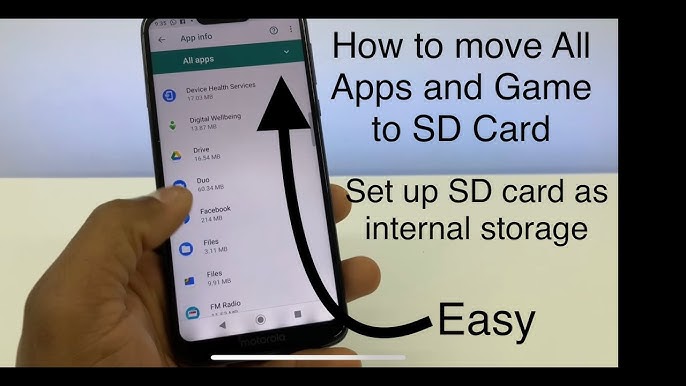
Can you put apps on an SD card?
Yes, many Android phones let you move some apps to an SD card, but support varies by Android version and manufacturer. Older and many midrange phones support moving parts of apps to portable SD storage. Newer Android versions prefer internal storage and offer adoptable storage, which makes the SD card act like internal memory.

Before you start: what you need
Prepare a good SD card and check your phone settings before trying to move apps. Use at least Class 10 or UHS-1 cards for speed and reliability. Back up important data and free a bit of internal storage to avoid install issues.
- SD card: Class 10 or higher recommended for app use.
- Free internal space: keep a few hundred MB free for system tasks.
- Backup: back up app data or use cloud sync to prevent loss.
- Note: some apps (system apps, preinstalled apps) cannot move to SD.

Two ways to put apps on SD card Android
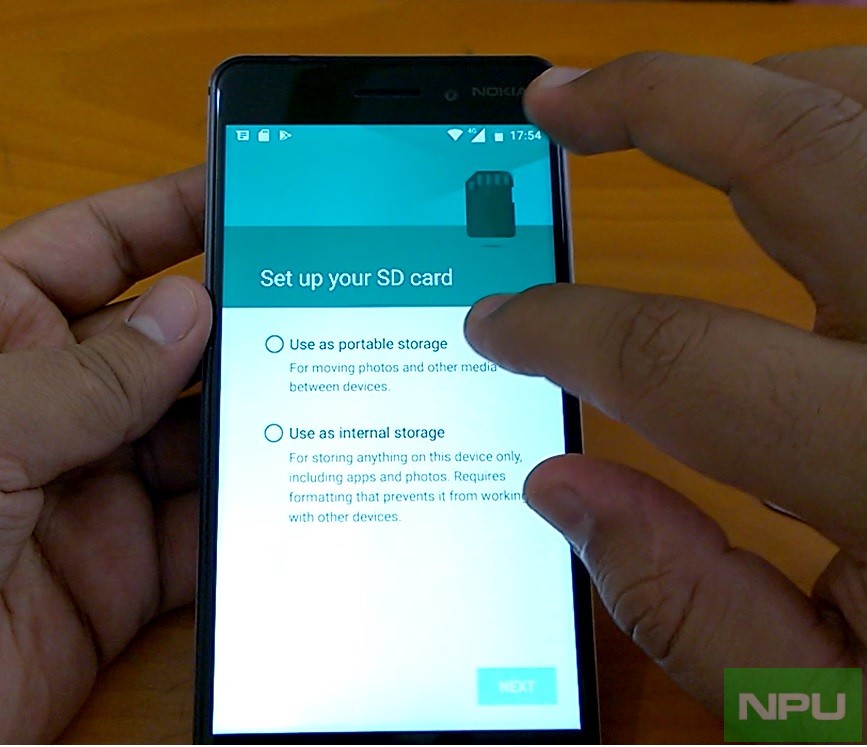
There are two main methods: moving apps to portable SD (partial move) and formatting the SD card as internal (adoptable storage). Each method has pros and cons depending on speed, portability, and security.
- Move to SD (portable)
- Format SD as internal (adoptable storage)
Move to SD keeps the card portable but only moves parts of the app and some data. Adoptable storage lets Android treat the SD as internal memory so apps install directly to it, but that card is tied to the phone. Choose based on whether you want to use the SD in other devices.
Step-by-step: Move apps to SD card (portable storage)
This method is simple and safe for most users. It moves parts of an app and some data but not all apps support it.
- Open Settings on your phone.
- Tap Apps or Apps & notifications.
- Pick the app you want to move.
- Tap Storage.
- Tap Change (if available) and choose SD card.
- Confirm and wait for the move to finish.
If Change is not shown, the app can’t be moved via this method. Games and large apps sometimes block moving. Moving saves space but may slow the app if the card is slow.

Step-by-step: Format SD card as internal (Adoptable Storage)
Adoptable storage makes the SD card function like built-in storage. This is best when your phone has low internal storage and you plan to keep the card in that phone.
- Insert the SD card and open Settings.
- Tap Storage.
- Select the SD card, then tap the three-dot menu and choose Storage settings.
- Choose Format as internal or Format as internal storage.
- Confirm and let Android format and encrypt the card.
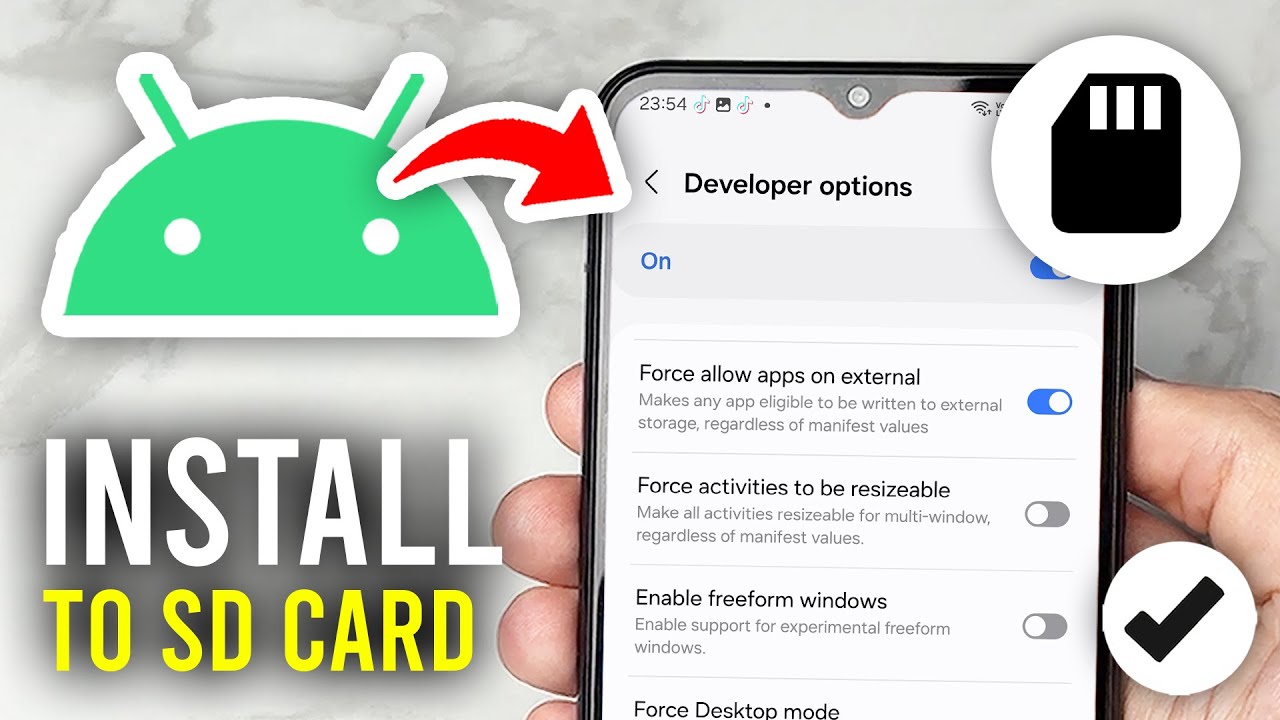
- After formatting, move apps to the SD via Settings > Apps > Storage > Change.
Warning: Formatting as internal erases the card and links it to that device. The SD card won’t work in other phones unless reformatted. Use a fast, reliable card to avoid crashes and data loss.

Limitations and things to know
Moving apps to SD card Android has limits and trade-offs you should know before proceeding. Not all apps are movable. Widgets, services, and system apps often stay on internal memory.
- Performance: slow SD cards can slow app launch and updates.
- Compatibility: some apps refuse to move for security or stability.
- Removal risk: removing the SD card can break apps or cause data loss.
- Updates: apps on adoptable storage update normally, but portable moves can complicate updates.
- Encryption: adoptable storage is encrypted; losing the phone or card can risk data access.

Troubleshooting common issues
If moving apps fails, try simple fixes first. Rebooting, using a different SD card, or clearing cache often helps.
- App still on internal: check if the app supports move. Try uninstalling and reinstalling after making the SD card internal.
- Slow apps after move: use a faster SD card or move the app back to internal storage.
- Storage not recognized: reinsert the SD card, try another phone, or format it (after backup).
- Error during move: free up some internal storage and retry; reboot first.
Personal tips and real-life experience
I once used a cheap SD card to expand a budget phone and the phone became slow and unstable. Upgrading to a good UHS-1 card fixed freezes and made apps usable. My rule: spend a little more on the card than on a cheap temporary fix.
- Test a card before long-term use.
- Move less critical apps first to see the speed impact.
- Keep backups and use cloud sync for critical app data.
These small practices saved me time and data loss on multiple devices.
Frequently Asked Questions of how to put apps on sd card android
How do I know if my phone supports moving apps to SD?
Open Settings > Apps > choose an app > Storage. If you see Change and SD card as an option, you can move that app. If the option is missing, the app or phone does not support moving it.
Will apps run slower on an SD card?
Yes, apps may run slower on slow SD cards. Use Class 10 or UHS-1 cards and test app behavior after moving to avoid sluggish performance.
Is it safe to format my SD card as internal storage?
Formatting as internal is safe but it erases the card and ties it to that phone. Back up first and use a fast, reliable card to avoid data loss.
Can I move every app to the SD card?
No. System apps, some preinstalled apps, and apps that require specific storage for security often cannot be moved. Game engines and services may also block moves.
What happens if I remove the SD card with apps on it?
If you remove an SD card with apps on it, those apps may stop working and could cause crashes or data loss. Adoptable storage is encrypted and will not work on other devices.
Conclusion
To wrap up, moving apps to SD card Android can free space and extend device life when done right. Decide between portable moves and adoptable storage based on speed, portability, and risk. Try moving nonessential apps first, use a high-quality SD card, and keep backups to stay safe. If this guide helped, leave a comment, try the steps on your device, or subscribe for more practical Android tips.





