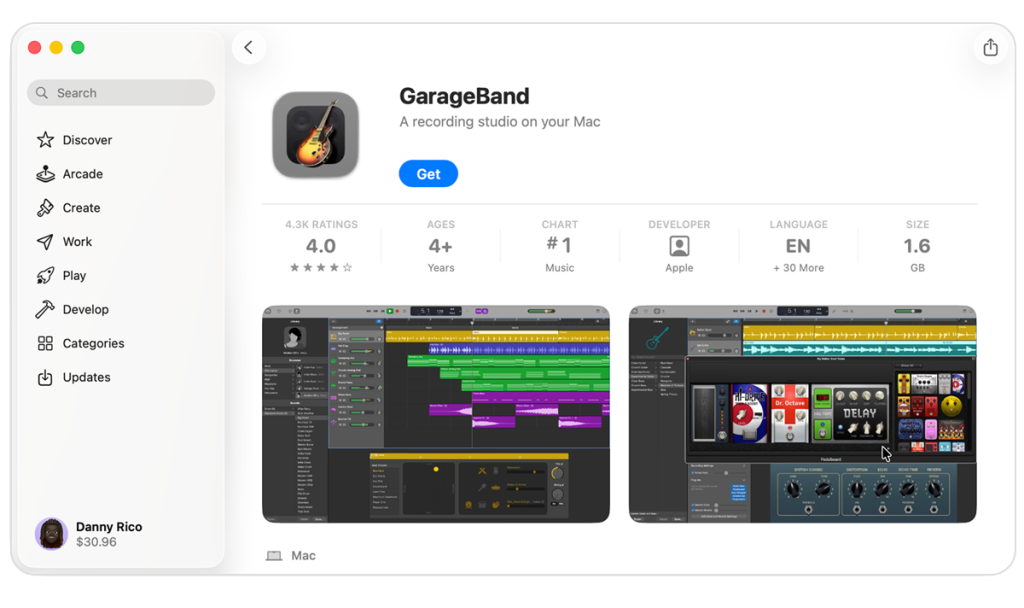
You generally cannot run Mac apps directly on Windows without using a Mac environment or cloud service.
I’ve helped people bridge platforms for years. This guide explains how to download Mac apps on Windows safely and legally. I cover technical limits, legal rules, and multiple practical methods. Read on to learn step-by-step ways to run, test, or access macOS apps from a Windows PC.
Why you might want to download Mac apps on Windows
Many users need a Mac-only app for work, design, or testing. You might own a Windows PC but must use software that ships only for macOS. Developers also test macOS builds from Windows. This article shows options from simplest to advanced. It helps you decide which path fits your needs, budget, and risk tolerance.

Can you run Mac apps on Windows? Technical and legal reality
Mac apps are built for macOS and use different frameworks. A Mac .app bundle will not run natively on Windows. The macOS system files and APIs are different from Windows. Apple's license also restricts running macOS on non-Apple hardware. That makes direct downloads and installs impractical or legally risky.
Safe and legal methods to access Mac apps on Windows
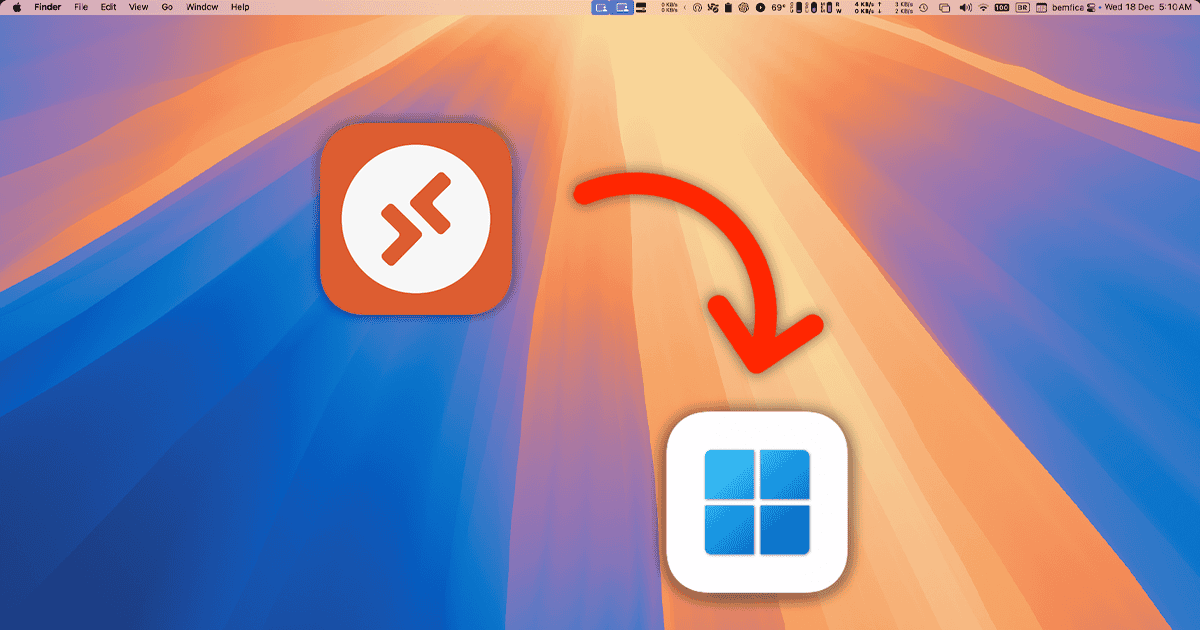
Here are realistic, legal ways to run macOS apps from Windows. Pick the method that fits your skill, cost limits, and compliance needs.
- Use a cloud Mac rental service to access macOS from your browser or remote desktop.
- Rent or buy a physical Mac and connect by remote desktop.
- Use a friend’s or company Mac via screen share or remote access.
- Install a macOS virtual machine on Apple hardware only. This stays within Apple’s license.
- Find official Windows or web versions of the Mac app as a simple alternative.
Each method balances cost, speed, and legality. For most people, a cloud Mac service or remote access is the best choice. These let you download mac apps on windows by using macOS remotely without breaking rules.
Step-by-step: Using a cloud Mac service to download Mac apps on Windows
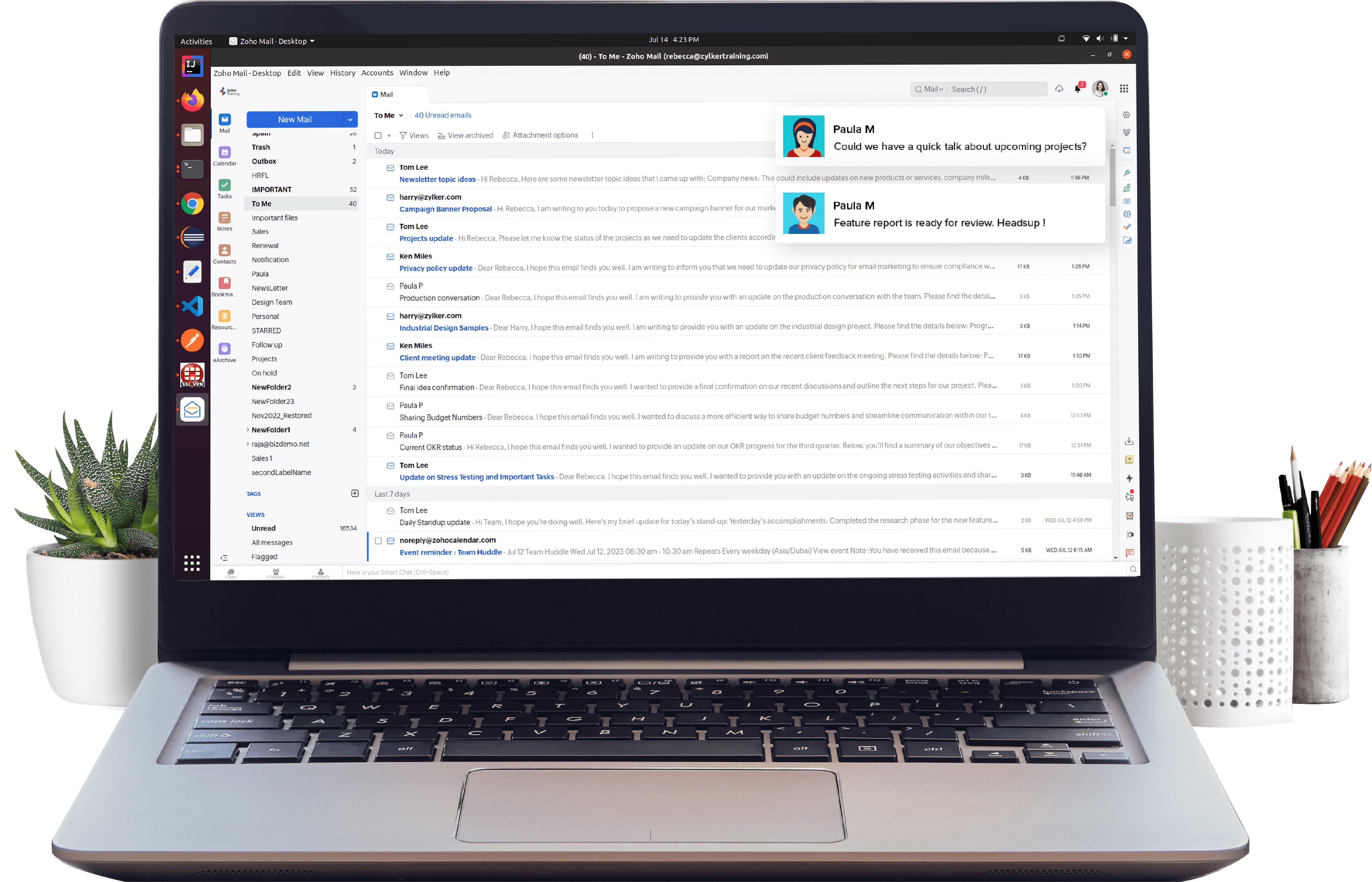
Cloud Mac services are legal and fast. They let you use macOS through a browser or remote desktop. This is my recommended route for most users who want to download Mac apps on Windows.
- Choose a cloud Mac provider that offers interactive GUI access and meets your budget.
- Sign up and pick a plan. Many providers have short-term hourly plans.
- Connect using the provider’s web client or a remote desktop app.
- After you see the macOS desktop, open Safari or the Mac App Store.
- Sign in with an Apple ID if required.
- Download and install the Mac app like you would on a normal Mac.
- Test the app and save files to cloud storage or transfer them to your Windows PC.
This method gives you a real macOS environment. It works for apps that need Apple frameworks, hardware features, or App Store validation. It also avoids legal gray zones tied to installing macOS on PC hardware.
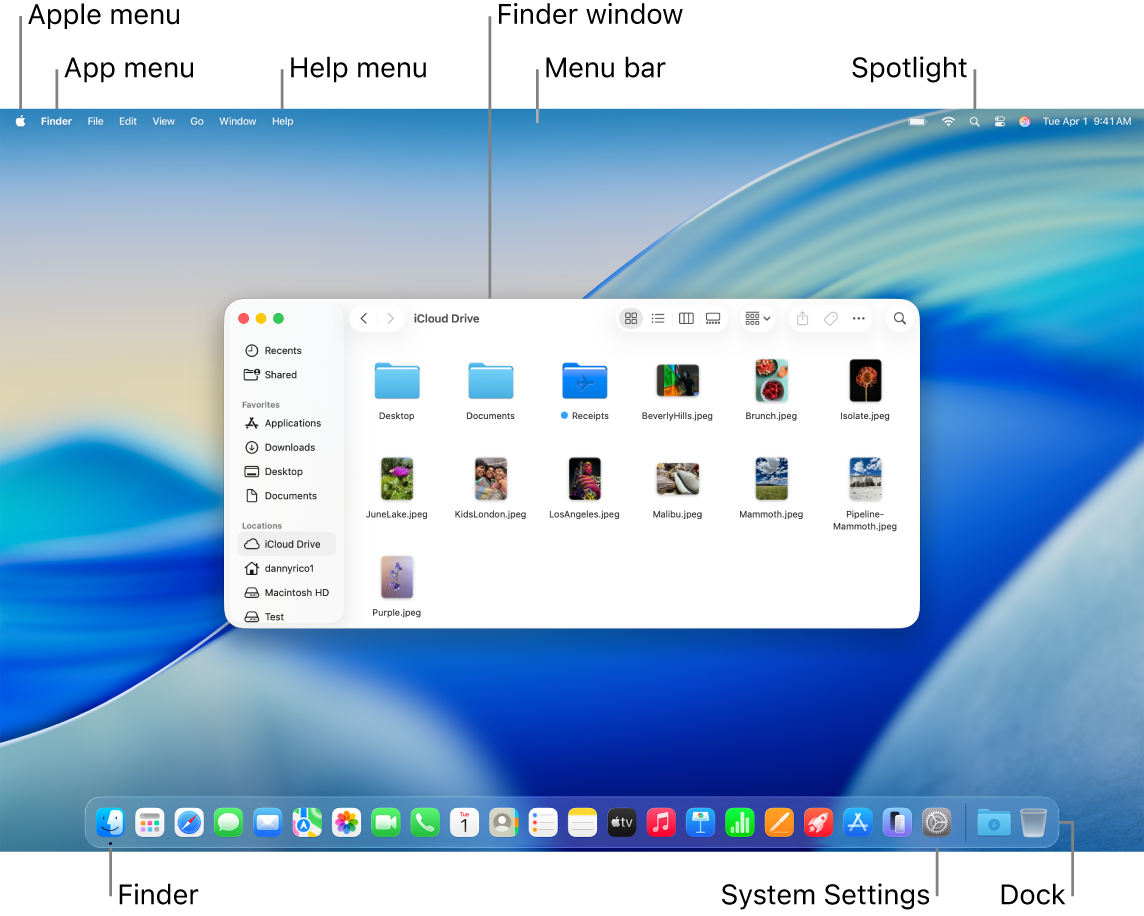
Alternative: Remote access to a physical Mac
If you own or can borrow a Mac, remote access is low cost and secure. It also lets you download Mac apps on Windows with native performance.
- Set up screen sharing or remote desktop on the Mac.
- Use a VPN or secure tunnel if you connect over the internet.
- Log in from Windows and control the Mac as if you were there.
- Install apps on the Mac. Use cloud file sync to move data back to Windows.
This setup is great for occasional use. It keeps everything legal and supports performance-heavy apps like video editors.

Virtual machines and Hackintosh: pros, cons, and cautions
Some guides show how to run macOS in a VM on Windows or build a Hackintosh. These paths can work but carry risks.
- Virtual machines on non-Apple hardware usually breach Apple’s EULA.
- Hackintosh installs are complex and fragile. They may break with macOS updates.
- Many VM hacks need special tools and driver patches. These can be unstable.
- Security and updates are less reliable in unofficial setups.
If you have access to Apple hardware, run macOS VMs there. This follows Apple rules and gives a stable VM for developers. For most Windows users, this is not practical.
Finding Windows or web equivalents to Mac apps
Often the easiest fix is to find an equivalent app that runs on Windows. This avoids remote or cloud setups.
- Check if the app vendor offers a Windows build.
- See if a web version is available that runs in a browser.
- Look for cross-platform tools or open-source alternatives.
- Use file converters or export options to work across systems.
Searching for an equivalent can save time and money. It also avoids compatibility and legal issues when you try to download Mac apps on Windows.
Troubleshooting common problems
When you try to access Mac apps from Windows, a few issues often appear.
- Connection lag: Try a wired network, lower screen resolution, or a nearby server region.
- Licensing or App Store errors: Make sure the Apple ID is valid and authorized for the app.
- File transfer hiccups: Use cloud drives or SFTP to move files reliably.
- Hardware feature limits: Some Mac apps need Apple-only hardware. Check app docs first.
If you see unexpected errors, log them and check the provider’s help pages. Many issues are network or account related and resolve quickly.
Performance, cost, and security considerations
Plan for cost and privacy when you download Mac apps on Windows via remote or cloud.
- Cost: Cloud Macs charge hourly or monthly. Compare rates and GPU options.
- Speed: Remote sessions depend on the network. Faster internet gives better UX.
- Security: Use encrypted connections and strong passwords. Consider two-factor auth.
- Data privacy: Check provider data policies before storing sensitive files.
Weigh these factors against the value of the Mac app. For short tasks, an hourly cloud Mac can be cheaper than buying hardware.
Personal experience and practical tips
I have set up remote Macs for designers and developers. A few lessons stood out.
- Test an app in a short cloud session before committing to a long plan.
- If you need GPU speed, pick a provider with hardware acceleration.
- Keep a synced cloud folder. It makes file moves painless.
- Don’t ignore legal limits. I avoid Hackintosh solutions for client work.
These steps saved time and reduced surprises. They help you reliably download Mac apps on Windows without losing work or trust.
Frequently Asked Questions of how to download mac apps on windows
Can I open a Mac .app file on Windows?
No. A Mac .app bundle is built for macOS and will not run natively on Windows. You need a macOS environment, such as a cloud Mac or a remote physical Mac, to run it.
Is it legal to run macOS on a Windows PC?
Apple's license limits macOS to Apple-branded hardware. Running macOS on non-Apple hardware can violate the license. Using a cloud Mac or an actual Mac is the legal route.
What is the easiest way to use Mac apps on Windows?
Using a cloud Mac rental or remote access to a real Mac is the easiest and safest way to use Mac apps from Windows. These options provide a real macOS environment without hardware changes.
Can I buy a Mac just to run a single app?
Yes. Buying a used or low-cost Mac Mini is often a one-time solution. It gives reliable access and keeps you within Apple's license. It may cost less over time than repeated cloud fees for heavy use.
Are there free options to test Mac apps from Windows?
Some cloud services offer free trials or short demo hours. Also, borrowing a friend’s Mac or using a company Mac via remote access can be a free option for short tests.
Conclusion
You can’t run Mac apps natively on Windows, but you can access them. Cloud Macs, remote Macs, and cross-platform alternatives are the safest and most practical choices. Pick the method that matches your budget, legal comfort, and workflow. Try a short cloud session today, test the app you need, and move forward with the best long-term setup for your work. Leave a comment to share your use case or ask which option fits you best.





