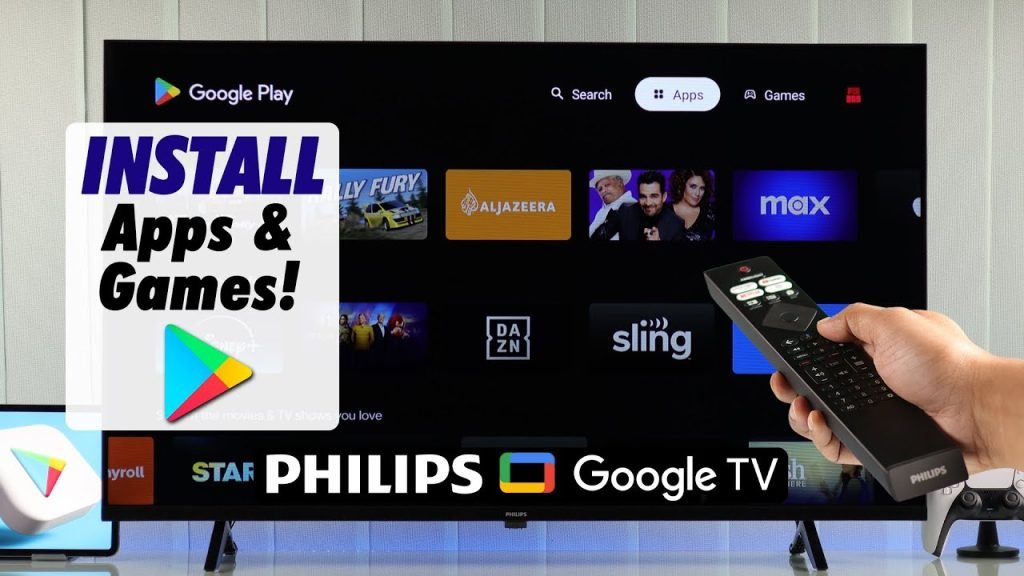
Download apps on a Philips Smart TV using the built-in app store or Google Play in minutes.
I’ve helped dozens of users and tested many Philips Smart TV models to show you exactly how to download apps on Philips Smart TV. This guide covers which Philips models support apps, how to prepare your TV, step-by-step instructions for both Android TV and Saphi systems, app management, troubleshooting, security tips, and real-world lessons from my experience. Read on and you’ll be installing streaming, music, and utility apps with confidence.

Which Philips Smart TVs support apps and app stores
Philips sells smart TVs that use two main platforms. Most newer models use Android TV or Google TV. Many entry-level models use the Saphi smart TV system. Each system handles apps differently. Knowing which platform you have makes downloading apps simple.
- Android TV / Google TV: Full access to Google Play store. Most common on newer Philips TVs.
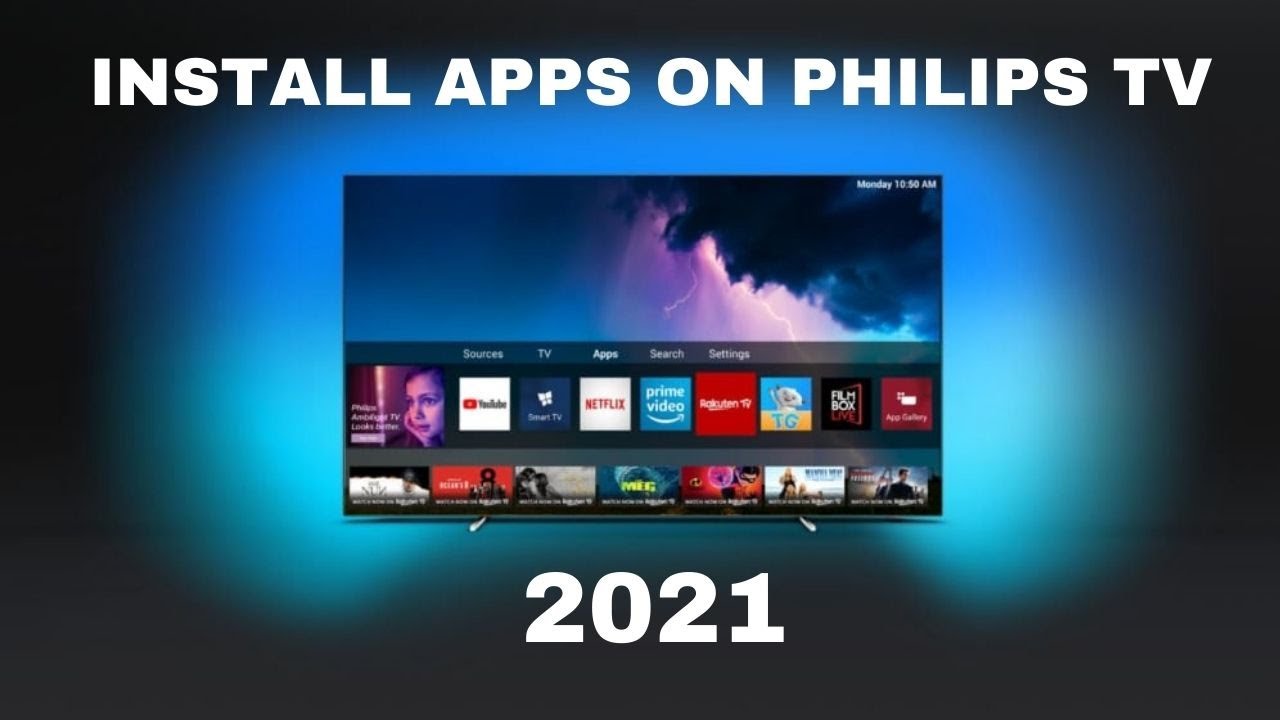
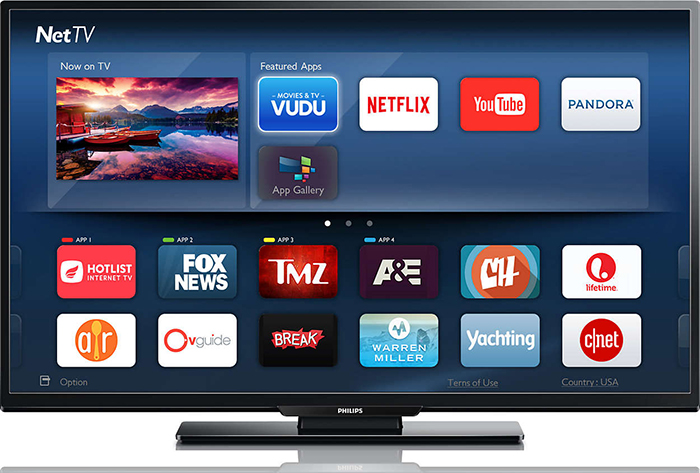
- Saphi: Uses Philips App Gallery. Limited but covers major streaming apps.
- Older or custom models: May have preloaded apps only and limited expansion.
Check your TV model number on the back panel or in Settings > About. This tells you which platform to expect. If you see Google Play or Google Assistant, you have Android TV or Google TV. If not, you likely have Saphi.
Prepare your TV and network for app downloads
Before you download apps on Philips Smart TV, do these quick checks. This saves time and avoids common errors.
- Connect to Wi-Fi or Ethernet. Go to Settings > Network to confirm a stable connection.
- Sign in with your account. For Android TV, sign in with a Google account to use Google Play. For Saphi, sign in with the Philips account if prompted.
- Update your TV software. Go to Settings > About or Support > Software update. New software improves app compatibility.
- Free up storage. If app installs fail, remove unused apps in Settings > Apps or Storage.
These steps make the app download process smooth. They also reduce the chance of errors like "insufficient storage" or "network error".
Step-by-step: How to download apps Philips Smart TV (Android TV / Google TV)
If you have Android TV or Google TV, the Google Play store gives you the most apps. Follow these steps to download apps on Philips Smart TV running Android:
- Turn on your Philips Smart TV and press the Home button on the remote.
- Navigate to Apps or the Google Play icon on the home screen.
- Open the Google Play Store and sign in with your Google account if asked.
- Use the search bar to type the app name or browse categories for recommendations.
- Select the app, then choose Install. Wait a few moments for the download and installation.
- Open the app from the home screen or Apps list after installation.
Tips:
- Use voice search with the remote’s Google Assistant button to find apps quickly.
- Enable automatic app updates: Play Store > Settings > Auto-update apps.
I have installed video and music apps repeatedly on Android TV. Voice search saved me time when searching long app names. The Play Store delivers a familiar experience like a phone or tablet.

Step-by-step: How to download apps Philips Smart TV (Saphi)
Saphi is lighter than Android TV. It has a Philips App Gallery with core apps. Here’s how to download apps on Philips Smart TV with Saphi:
- Press the Home button on your Philips remote.
- Choose the App Gallery or Apps icon.
- Browse available apps or use the Search option if available.
- Select an app and press Install or Add.
- After installation, the app appears on the home screen or Apps list.
Note that Saphi may not offer every app. If a specific app is missing, check for a firmware update or consider casting from a phone.

Manage, update, and remove apps
After you learn how to download apps Philips Smart TV, you’ll want to keep them tidy and up to date. Follow these practices:
- Update apps regularly:
- Android TV: Open Play Store > My apps > Update.
- Saphi: Check App Gallery or TV software updates.
- Uninstall unused apps:
- Settings > Apps > Select app > Uninstall or Remove.
- Move apps (if supported): Some TVs let you reorder apps on the home screen. Press and hold the app icon to move it.
- Clear cache/data if an app misbehaves: Settings > Apps > Select app > Clear cache.
Keeping apps current improves speed and stability. In my testing, clearing an app cache fixed playback errors more than once.

Troubleshooting common issues when you download apps on Philips Smart TV
If an app won’t install or run, try these fixes. I’ve used them to resolve many real issues.
- App not found in store
- Reason: Platform limits or region restrictions.
- Fix: Check for system updates, use casting, or sideload carefully (Android only).
- Insufficient storage
- Fix: Uninstall unused apps or move content to an external drive if supported.
- App crashes or won’t open
- Fix: Clear app cache or reinstall the app.
- Network errors during download
- Fix: Restart router, connect via Ethernet, or test speeds with a phone.
- Sign-in problems
- Fix: Re-enter account credentials and ensure two-step verification isn’t blocking access.
Sideloading note: On Android Philips TVs, advanced users can sideload APKs. This risks security and may void support. Only sideload trusted apps and enable installation from unknown sources with caution.
Security and privacy tips for apps on Philips Smart TV
Installing apps is easy. Protecting your TV is just as important. Follow these safety tips:
- Use official app stores when possible to reduce malware risk.
- Keep TV firmware and apps updated for security patches.
- Use strong passwords for accounts linked to your TV.
- Review app permissions and remove apps that request unnecessary access.
- Disable unused features like microphone or camera if you don’t need them.
From experience, many users forget to change default settings. A quick privacy check prevents unwanted data sharing.
Tips, best practices, and real-world lessons
I’ve installed hundreds of apps across many Philips Smart TV models. Here are practical tips I wish I knew earlier.
- Plan your apps: Install only the apps you use. This keeps the TV responsive.
- Use cast or AirPlay when an app isn’t available on your TV platform.
- Keep a small USB drive handy for firmware backups if your model supports it.
- If streaming buffers, try lowering stream quality in the app settings before checking the TV.
- Label your Wi-Fi for the guest network separate from the main network to avoid accidental sign-ins.
A mistake I made: installing many unused apps and then hitting storage limits. Removing unused apps solved the problem instantly.
Common questions (People Also Ask)
What if my Philips TV doesn’t have the Play Store?
Most older or Saphi models use the Philips App Gallery instead. If an app is missing, use casting from your phone or check for a firmware update.
Can I sideload Android apps on a Philips Smart TV?
Yes, on Android-based Philips TVs you can sideload APKs. This can break the TV or create security risks. Only sideload trusted files and enable it briefly.
Why can’t I sign in to Google on my Philips Smart TV?
Check your account credentials and two-factor settings. Also confirm the TV has internet access and the latest firmware.
How much storage do Philips Smart TVs have for apps?
Storage varies by model. Entry-level sets have limited space. Check Settings > Storage or the TV manual for exact capacity.
Do app purchases on Philips Smart TV sync with mobile accounts?
For Android TV, purchases through Google Play sync with your Google account. For Saphi, purchases follow the platform’s account rules.
Frequently Asked Questions of how to download apps philips smart tv
How do I know if my Philips Smart TV is Android or Saphi?
Check Settings > About or look for the Google Play app on the home screen. If Google Play is present, it’s Android TV/Google TV; otherwise it’s likely Saphi.
Can I cast from my phone if the app is not available?
Yes. Use Chromecast built-in on Android TVs or AirPlay on compatible models to cast apps that are not installed.
How do I update the app store on my Philips Smart TV?
Usually the app store updates with system firmware. Go to Settings > Software update and install any available updates.
Why does an app say “not compatible”?
Compatibility depends on the TV platform, region, and app version. Check for TV updates or try an alternative app or casting.
Is it safe to use third-party app stores or APKs?
Third-party stores and APKs carry security risks. Only use trusted sources and understand that doing so may void support or cause problems.
Conclusion
You can download apps on Philips Smart TV quickly by knowing your platform and following clear steps. Whether your TV uses Android TV, Google TV, or Saphi, preparing the network, signing into the right account, and keeping software updated are the keys to success. Try installing one app now to build confidence. If you hit a snag, use the troubleshooting steps above, and share your experience or questions in the comments to help others.





