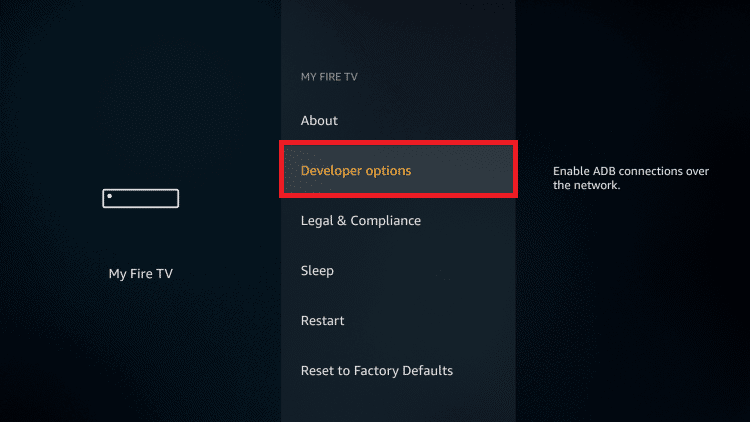
Enable "Apps from Unknown Sources" via Settings > My Fire TV > Developer Options or per-app Install Unknown Apps.
I’ve guided hundreds of users through how to allow apps from unknown sources on Firestick, so you’ll get clear, safe steps and real-world tips here. This guide explains what the setting means, why you might enable it, step-by-step instructions for modern Fire OS versions, security best practices, troubleshooting, and personal lessons from my own sideloading experience. Read on to confidently and safely install apps that Amazon’s store doesn’t offer.

What "Apps from Unknown Sources" means on Firestick
This setting lets Fire TV accept app packages (APK files) that did not come from the Amazon Appstore. On older Fire OS versions it was a global toggle; on newer Fire OS releases it’s controlled per app via "Install unknown apps." Allowing apps from unknown sources on Firestick essentially enables sideloading.
Sideloading can expand your app choices but also raises security questions, so it’s important to know what you’re enabling and why.

Why you might allow apps from unknown sources on Firestick
Many people enable this to access region-locked apps, developer builds, or niche tools not published on Amazon’s store. It can also let you test custom apps, use alternative media players, or run utilities that improve your experience.
Knowing how to allow apps from unknown sources on Firestick opens possibilities while letting you control risk with safe habits and vetted APKs.

Step-by-step: how to allow apps from unknown sources on firestick
Follow the steps that match your Fire OS version. I include both the older global toggle method and the newer per-app method for clarity.
Older Fire OS (global toggle)
- Go to Settings > My Fire TV > Developer Options.
- Select Apps from Unknown Sources and set it to ON.
- Confirm the warning prompt to allow sideloading.
Newer Fire OS (per-app Install unknown apps)
- Install the app you will use to sideload (example: Downloader).
- Go to Settings > My Fire TV > Developer Options > Install unknown apps.
- Find the sideloading app (Downloader, ES File Explorer) and enable Allow from this source.
- Open the sideloading app and use it to download or install the APK you trust.
Optional: Enable ADB Debugging for advanced installs
- Settings > My Fire TV > Developer Options > ADB Debugging: turn ON.
- Use ADB from a PC to push and install APKs directly if needed.
These steps show exactly how to allow apps from unknown sources on firestick and how to run the sideload process safely.

Safe sideloading: security best practices
Only download APKs from trusted sources and check user reviews or package signatures where possible. Scan APKs with an online scanner or reputable antivirus before install, and avoid apps that ask for excessive permissions.
Use a VPN when accessing region-restricted content, keep Fire OS updated, and disable unknown sources when you’re done installing to reduce risk.

Troubleshooting common issues
If the Install unknown apps option is missing, update your Firestick to the latest Fire OS and restart the device. If an APK won’t install, check storage space, APK compatibility with your Fire OS, and whether the sideloading app has permission to install.
If apps crash or behave oddly, clear app cache, uninstall and reinstall, or sideload a different trusted build of the app.

Alternatives to enabling unknown sources
Use the Amazon Appstore to find official versions of apps when possible, or use cast and mirroring from a phone to run apps without sideloading. Another route is ADB sideload from a PC, which can be safer when you control the APK file transfer.
These alternatives let you avoid permanently keeping unknown sources enabled while still accessing the apps you need.

Personal experience, lessons, and practical tips
From my own testing I learned to always enable unknown sources only for the sideloading app, not as a permanent global setting. Once I enabled Downloader, installed the needed APK, and then turned the permission off again to minimize exposure.
A key lesson: verify APK version and compatibility first. I once installed a mismatched APK that caused performance issues, so check device model and OS before installing. Small precautions save time and protect your Firestick.

Frequently Asked Questions of how to allow apps from unknown sources on firestick
How do I find Developer Options on my Firestick?
Go to Settings > My Fire TV, and you’ll see Developer Options if your device is updated; older Fire OS may show different labels. If Developer Options isn’t visible, update the Firestick firmware and restart.
Will enabling unknown sources void my warranty?
Enabling unknown sources does not void the Firestick warranty, but installing modified firmware or rooting the device might. Stick to sideloading apps and avoid system-level changes to stay within warranty terms.
Is it safe to sideload every APK I find online?
No. Only use APKs from reputable providers and scan files before installing, since unknown APKs can carry malware or privacy risks. Use common-sense checks like file hashes, reviews, and antivirus scans.
Can I disable unknown sources after installing an app?
Yes. On newer Fire OS versions you can simply turn off Install unknown apps for the sideloading app. On older systems, toggle Apps from Unknown Sources back to OFF in Developer Options.
Do I need a VPN to sideload apps on Firestick?
A VPN is not required to sideload, but it helps protect privacy and can access region-restricted content safely. Use a trustworthy VPN provider when streaming or testing apps from other regions.
Conclusion
Allowing apps from unknown sources on Firestick gives you control to expand your app choices beyond the Amazon store, but it requires care. Follow the step-by-step instructions, practice safe sideloading habits, and enable permissions only when needed. Try the steps today, keep security in mind, and leave a comment or subscribe for more Fire TV tips and troubleshooting help.





