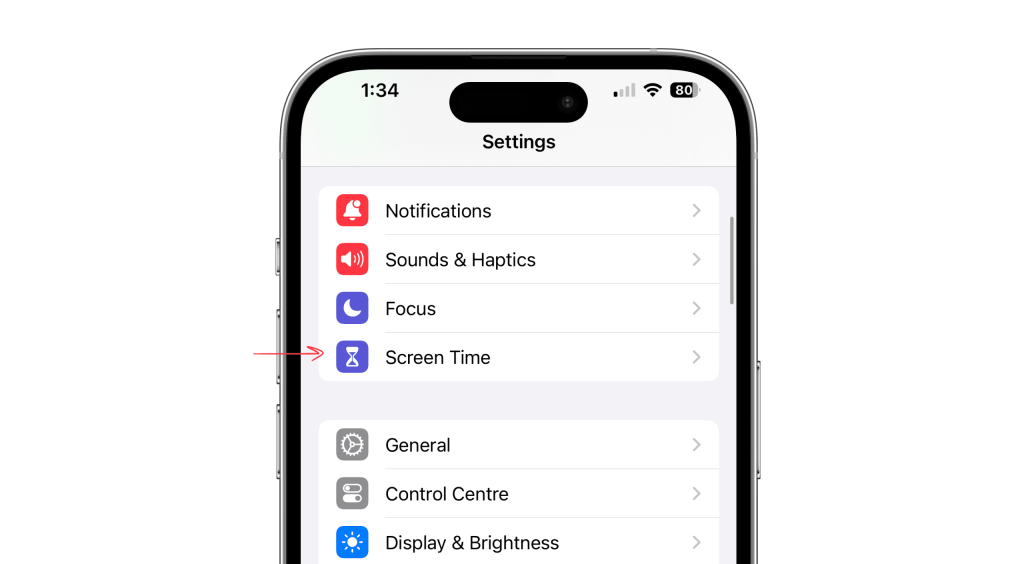
Use iPhone Screen Time, Downtime, App Limits, or Focus to block apps at chosen hours quickly.
I have helped dozens of people and parents set limits on devices. This guide shows clear steps, real tips, and what to expect when you learn how to block apps at certain times iphone. I explain built-in settings, parental controls, Guided Access, third-party options, and common issues. Read on to get practical, tested instructions you can use right away.

Why block apps at certain times on iPhone?
Blocking apps at set times helps your focus. It helps reduce distractions during work, study, sleep, or family time. It also helps parents enforce screen rules for kids.
When you learn how to block apps at certain times iphone you gain control over habit loops. You lower impulsive checks. You create predictable tech-free windows. This leads to better sleep and more focused work.
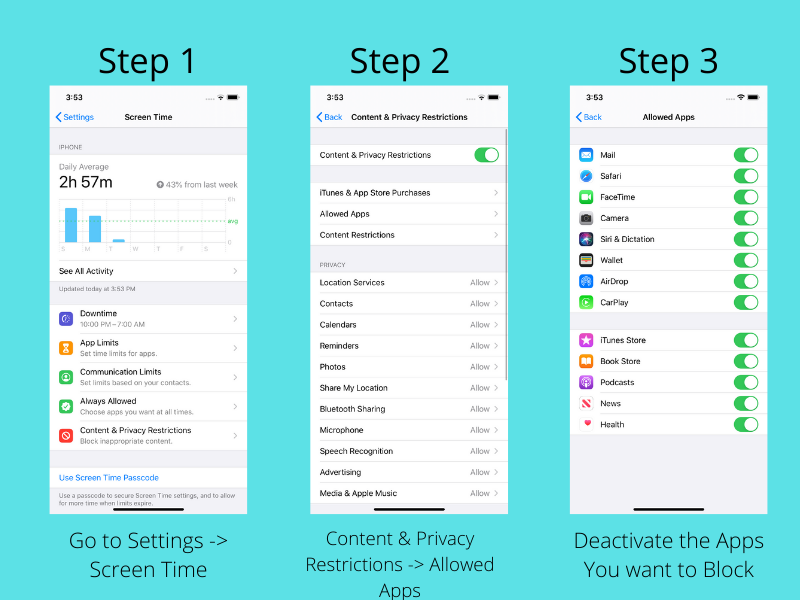
Built-in method: Use Screen Time step-by-step
Screen Time is the easiest built-in way to block apps. It works on iOS and does not need extra downloads. Follow these simple steps.
- Open Settings and tap Screen Time.
- Tap Turn On Screen Time if it is off. Tap Continue and choose This is My iPhone or This is My Child’s iPhone.
- Tap App Limits to set daily limits by category or specific apps. Tap Add Limit, choose apps, set hours and minutes, then tap Add.
- Tap Downtime to schedule a block window. During Downtime only calls and apps you allow are available.
- Tap Always Allowed to choose apps that remain usable during Downtime or when an App Limit ends.
- Set a Screen Time Passcode to prevent changes by children or others.
Examples:
- Block social apps from 9 AM to 5 PM for work.
- Set Downtime from 10 PM to 7 AM to limit late-night browsing.
Pros:
- Built into iPhone and free.
- Works across apps and categories.
- Family Sharing lets parents manage kids remotely.
Cons:
- Savvy users can bypass limits if they know the passcode or allow apps.
- Some system processes or notifications still appear.
How I used it:
I set App Limits for my social apps during the workday. I found that short, consistent blocks reduced impulse checks. I recommend setting a Screen Time passcode you don’t keep on your desk.

Use Focus modes to silence apps and notifications
Focus modes control notifications and home screen appearance. They do not fully block third-party apps, but they reduce interruptions.
- Open Settings and tap Focus.
- Create a custom Focus or edit an existing one (Work, Sleep, Personal).
- Under Allowed Notifications, choose people and apps that can break through.
- Under Home Screen, hide pages or show only approved apps.
- Schedule the Focus for specific times, locations, or app use.
When to use Focus:
- When you want fewer notifications but need some apps accessible.
- For meeting windows or study sessions.
Limitations:
- Focus hides apps and silences alerts but does not prevent opening an app if the user wants to. Use Focus plus Screen Time for stronger control.

Family Sharing and parental controls for kids
If you manage a child’s device, Family Sharing + Screen Time gives remote control and reports.
- Set up Family Sharing in Settings.
- Add a child account and enable Ask to Buy if needed.
- From your device, open Screen Time, tap the child’s name, and set Downtime and App Limits remotely.
- Approve or deny requests when the child asks for more time.
Tips:
- Use clear rules with kids so limits feel fair.
- Review weekly Screen Time reports as a family.
Benefits:
- Remote management and request handling.
- Age-appropriate restrictions and content filters.

Guided Access and single-app control
Guided Access locks the iPhone into a single app. It’s ideal for short sessions like tests, presentations, or kids’ use.
- Open Settings > Accessibility > Guided Access.
- Turn on Guided Access and set a passcode.
- Start the app, triple-click the side button, and adjust options.
- Tap Start to lock the device to that app.
Use cases:
- A parent giving a child 20 minutes with a homework app.
- Preventing accidental app switches during a task.
Limitations:
- Not designed for long schedules. It’s a manual, temporary lock.
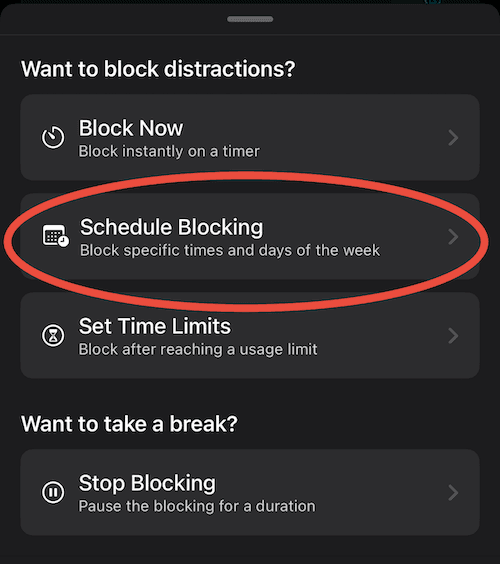
Third-party apps and MDM solutions
App Store apps cannot fully block other apps system-wide. For full control in schools or businesses, use Mobile Device Management (MDM).
- Consumer-focused apps can track and limit, but they need device permissions.
- MDM tools let administrators push policies, restrict app installs, and enforce schedules.
- MDM requires setup and is typically used by schools and companies.
Keep in mind:
- Apple’s rules limit what third-party apps can do on non-supervised devices.
- For strong enforcement at scale, use supervised mode via Apple Configurator or an MDM provider.

Practical tips, troubleshooting, and personal experience
I’ve set these limits for family and teams. Here are lessons that help.
- Start small. Test a 30-minute block before locking long hours.
- Use a passcode you won’t forget. Store it in a password manager if needed.
- Combine tools. Use Screen Time for hard limits and Focus for quiet notifications.
- Explain rules to family members or coworkers. Buy-in reduces frustration.
- If limits don’t apply, check for software updates and restart the phone.
Can I block core apps like Messages or Phone?
You cannot fully block Phone or Messages with Screen Time, but you can limit their use via Downtime and Allowed Apps. Emergency calls and system features may still work.
Why do apps work around limits sometimes?
If Screen Time passcode is known or Always Allowed includes the app, limits fail. Also, some app updates may reset settings. Recheck configurations and passcode security.
Does Guided Access work for scheduled blocks?
Guided Access is manual. It does not schedule blocks. Use Screen Time for scheduled enforcement.

Frequently Asked Questions of how to block apps at certain times iphone
How do I schedule app blocking on iPhone?
Use Screen Time. Set Downtime for a daily window and App Limits for specific apps or categories. Add a Screen Time passcode to prevent changes.
Can I block specific apps only on weekdays?
Yes. When you set an App Limit, choose Customize Days and set hours for Monday through Friday. Repeat for weekends if needed.
How do parents manage app limits remotely?
Set up Family Sharing and add your child. From your device, open Screen Time, tap the child’s name, and configure Downtime and App Limits remotely.
Will blocking apps affect notifications?
Blocking with Downtime or Focus reduces notifications. App notifications are silenced unless you allow them in Settings. Calls may still come through based on exceptions.
Can I bypass app limits without a passcode?
You can request more time and, with the passcode, grant exceptions. Without the passcode, limits are enforced. Make sure the passcode is secure.
Do app limits work across multiple Apple devices?
Yes. If devices use the same Apple ID and Screen Time is turned on, limits sync across devices. For children, using the child’s Apple ID ensures consistent rules.
Conclusion
Blocking apps at set times on iPhone is doable. Use Screen Time for scheduled limits, Focus for quiet hours, Guided Access for single-app sessions, and Family Sharing to manage kids. Combine tools to match your needs. Try a one-week plan and adjust as you learn what works. Start now: set a 30-minute test Downtime tonight and see how it feels. Share your experience or ask a question below — I’d love to help.





