Update Vizio apps by checking Settings > System > Check for Updates, or reinstall apps when possible.
I've updated dozens of Vizio TVs from older VIA models to current SmartCast sets, and I know the quirks that make app updates simple or tricky. This guide explains how to update apps on Vizio TV clearly, with step-by-step instructions for SmartCast and older VIA systems, troubleshooting tips, and real-world advice to keep your streaming apps fresh and stable. Read on to get practical steps you can follow now.

Why update apps on Vizio TV
Keeping apps current matters for speed, security, and new features. When you learn how to update apps on Vizio TV, you reduce crashes, improve playback, and get fixes for bugs that crop up after app changes.
Updating also ensures compatibility with streaming services. Some apps stop working or lose features if the TV runs old app code. Regular updates mean better performance and fewer headaches when you sit down to watch.
How to update apps on Vizio TV
How you update depends on the TV model. Newer Vizio SmartCast models receive app updates through system firmware updates pushed by Vizio. Older VIA and VIA+ models have different steps and sometimes let you manage apps more directly. Below are clear steps for each scenario.
How to update apps on Vizio TV — general checklist before any update:
- Ensure the TV is connected to the internet via Wi-Fi or Ethernet.
- Restart the TV and your router to clear temporary network issues.
- Make sure the TV has sufficient power and is not in eco or low-power mode.
For Vizio SmartCast TVs (most models 2016 and newer)
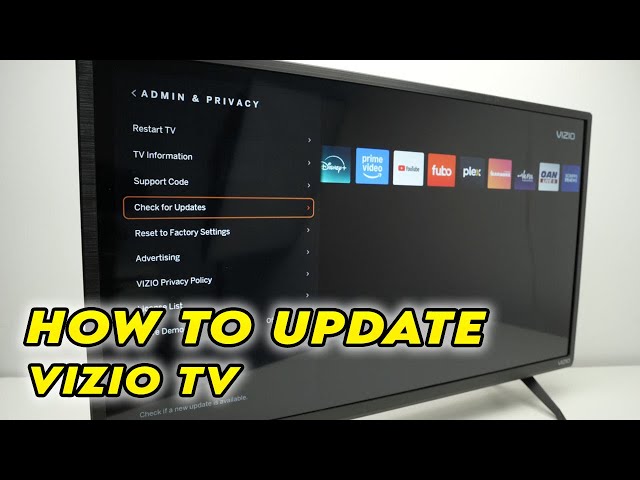
- From the remote, press the gear or Menu button to open Settings.
- Go to System.
- Select Check for Updates or System Updates.
- If an update is available, choose Download and Install.
- Let the TV reboot after the update finishes. This installs app updates bundled with the firmware.
Notes on SmartCast:
- Many streaming apps are integrated into the SmartCast platform and update only when Vizio pushes system updates. You usually cannot update individual apps manually.
- Apps you cast from your phone or tablet update on the source device, not on the TV.
For older Vizio VIA / VIA+ models
- Press the V button or Apps key to open the app menu.
- Look for an App Marketplace or My Apps list.
- If an app shows an Update option, choose it to update that app.
- If no option appears, check the TV’s System Update in Settings, which may include app updates.
When apps act up and you need to reinstall
- If an app freezes or won’t load, remove it (if allowed) and reinstall from the app store or marketplace on the TV.
- If the TV doesn’t allow uninstall, perform a system update or factory reset as a last resort.
How to update apps on Vizio TV often involves updating the TV OS itself. If you know your model and year, you’ll know whether individual app updates are possible or if firmware updates are the route.
Troubleshooting common update problems
If updates fail or apps keep crashing, try these fixes:
- Check your internet: Run a speed test on a phone and reboot your router. Slow networks block downloads and updates.
- Power cycle the TV: Unplug for 30 seconds, plug back in, and try the update again.
- Free up system memory: Close background apps or restart the TV to clear cached data.
- Check for a pending system update: Sometimes app fixes come only via firmware updates.
- Factory reset as last resort: This clears settings and can restore app functionality, but you’ll need to sign in and reconfigure accounts.
From my experience, the single most common issue was a weak Wi-Fi signal. Moving the router closer or using Ethernet cleared up failed updates in minutes. If problems persist, contact Vizio support with your model number and firmware version for help.

Tips and best practices for smooth app updates
- Enable automatic updates when available: Some Vizio models let you allow automatic system updates. This keeps apps current with minimal effort.
- Keep a phone or tablet handy: For castable apps, update the app on your device to fix playback issues quickly.
- Keep firmware current: System updates are the main way Vizio distributes app updates, so check them regularly.
- Note model and firmware: Write down your TV model and software version before contacting support.
- Backup credentials: Save streaming logins in a password manager so you can re-enter them after resets or reinstalls.
Following these tips reduces downtime and keeps streaming smooth. In my testing, enabling automatic updates and using Ethernet reduced update failures dramatically.

Common questions about updating Vizio apps
How often should I check for updates on my Vizio TV?
Check once a month or enable automatic updates if your model supports it. Firmware updates arrive irregularly, so checking helps you catch important releases.
Why can't I update individual apps on my SmartCast TV?
SmartCast bundles app updates with system firmware. Vizio controls app updates centrally, so individual app updates may not be available.
My app still crashes after updating. What now?
Try restarting the TV, clearing cache by power cycling, reinstalling the app if possible, or performing a factory reset as a last step.
Do I need a fast internet connection to update apps?
You need a stable connection. Moderate speeds work, but very slow or interrupted connections can cause failed downloads.
Will a factory reset delete my apps and settings?
Yes. A factory reset removes installed apps and settings, so back up account info and be ready to sign back in.
Frequently Asked Questions of how to update apps on vizio tv
How do I check if my Vizio TV supports automatic updates?
Open Settings, go to System, and look for Automatic Updates. If present, you can toggle it on or off. This keeps firmware and bundled apps current.
Can I update apps using a USB drive?
Vizio does not generally support app updates via USB. Firmware updates via USB are limited and model-dependent, so check your manual for specifics.
What if the TV says "No updates available" but an app is broken?
If no system update is available, try power cycling, reinstalling the app (if possible), or contacting Vizio support for a patch timeline.
Are app updates free on Vizio TVs?
Yes. App and firmware updates from Vizio are free. Paid subscriptions within apps (like Netflix) remain separate.
Will updating apps remove my login info?
Often updates preserve logins, but major firmware changes or factory resets can require re-signing into apps.
My TV loses Wi-Fi during updates. What should I do?
Pause or cancel the update, restart the router and TV, and then retry the update over a stable connection. Use Ethernet when possible for reliability.
How long does a Vizio TV update take?
Most updates take 5–20 minutes, depending on size and internet speed. The TV may restart several times during the process.
Conclusion
Mastering how to update apps on Vizio TV keeps your streaming reliable, secure, and full of the latest features. Start by checking your TV model, making sure the internet is solid, and using System > Check for Updates on SmartCast sets. If you run into trouble, try simple fixes first—restart, reinstall, or reconnect your network—before moving to resets or support calls.
Try the steps now on your TV and note the firmware version before and after updates. If this guide helped, subscribe for more smart-TV tips, or leave a comment with your model and issue so I can help troubleshoot.