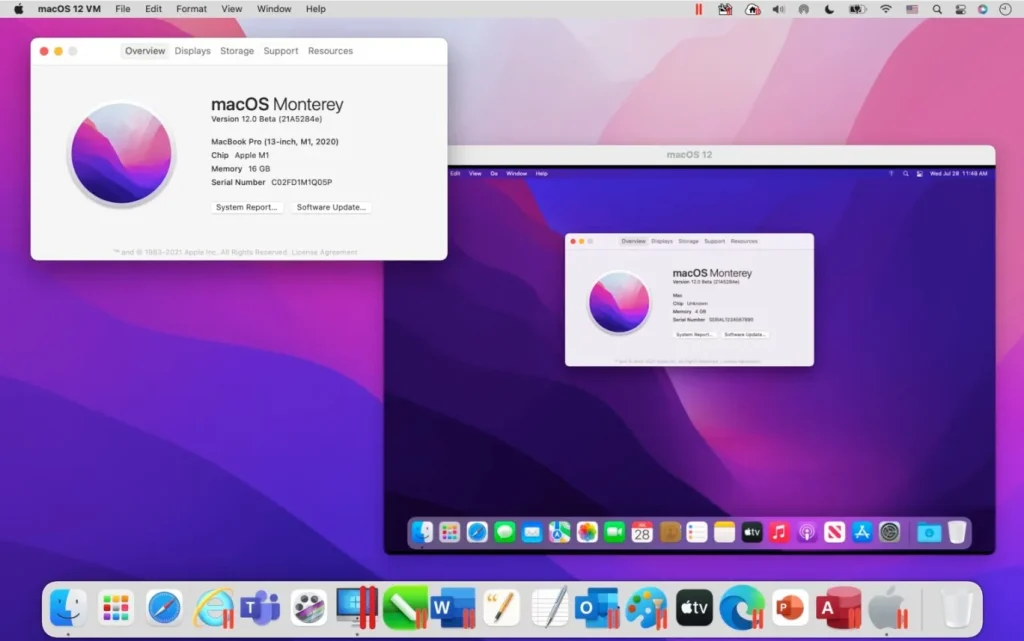
Run macOS apps on Windows using virtualization, emulation, or cloud macOS services—safely and legally.
I’ve spent years testing cross-platform setups and helping people bridge macOS and Windows workflows. This guide explains how to run macos apps on windows step by step, what works best, what breaks, and how to stay inside legal limits. Expect clear options, real-world tips from my tests, and practical choices so you can pick the fastest, safest path for your needs.

Why you might want to run macos apps on windows
Many users need one or two macOS-only apps while primarily using Windows. Designers, developers, and testers often face this gap. Knowing how to run macos apps on windows can save time and money. This section covers the main reasons and realistic expectations.
- Use macOS-only tools without buying a Mac.
- Test apps for macOS on Windows machines.
- Keep a single workstation while accessing Apple-only ecosystems.
Running macOS apps on Windows is useful, but it rarely matches native macOS performance. Expect trade-offs in speed, hardware support, and updates.
Legal and technical realities
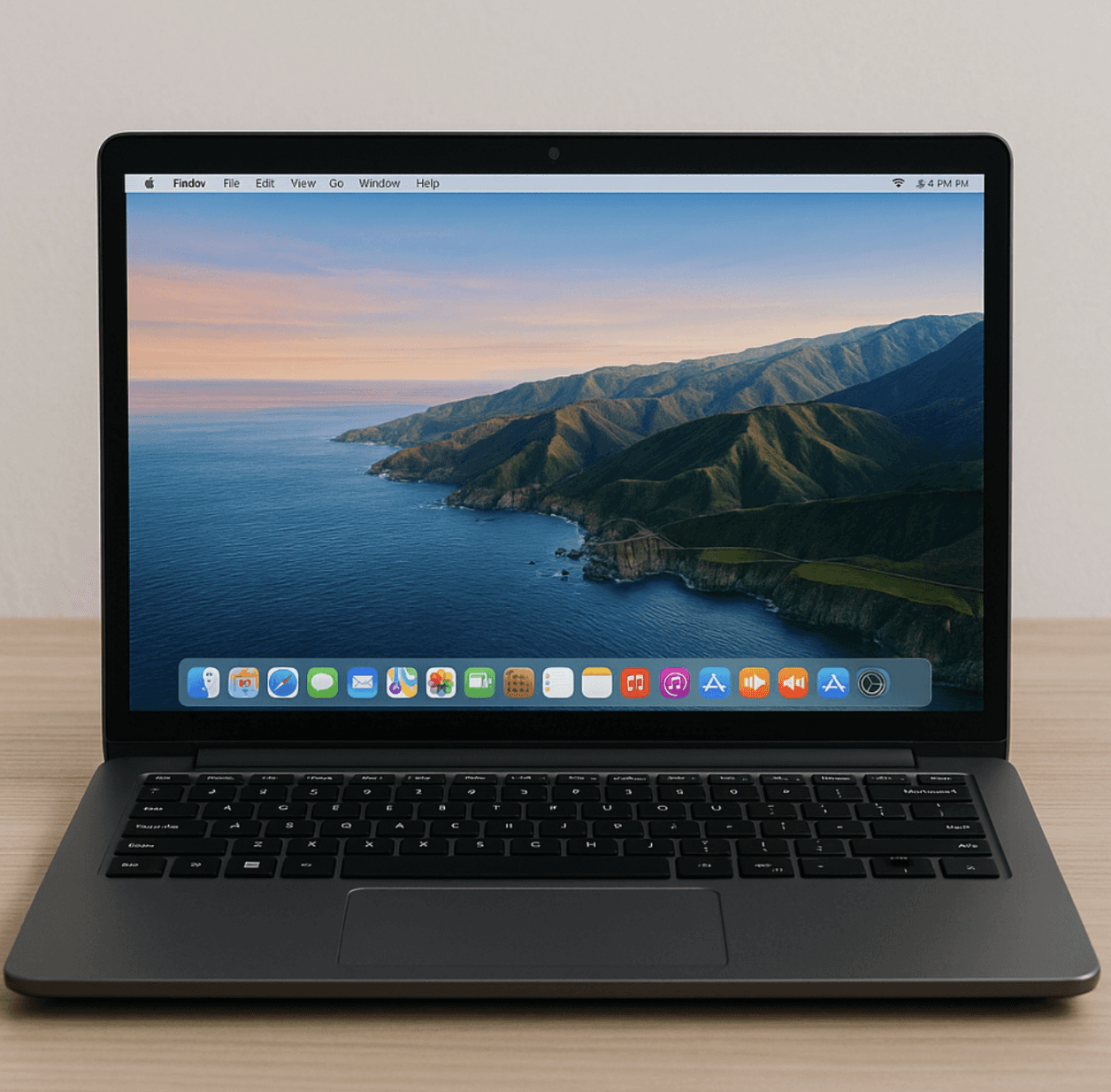
Apple’s macOS license restricts installation to Apple-branded hardware. This matters when you explore how to run macos apps on windows. Some methods break the EULA and can cause instability. Always review legal risks before trying local installs.
- Legal reality: Official license ties macOS to Apple hardware.
- Technical reality: macOS expects Apple firmware, drivers, and device behavior.
- Practical result: Cloud macOS and official Apple hardware are the safest routes.
I recommend licensed cloud macOS or buying a used Mac for long-term work. For short tests, virtual labs and ephemeral cloud instances keep you safer and more compliant.

Main methods to run macOS apps on Windows
There are four common approaches. Each answers how to run macos apps on windows in a different way. I’ll explain pros, cons, and my real-world impressions.
- Local virtualization (VM) using tools like QEMU, VMware, or Parallels
- Pros: Full local control, no required internet.
- Cons: Setup is technical, potential EULA issues, tricky hardware passthrough.
- Emulation and compatibility layers
- Pros: Lightweight for specific apps if available.
- Cons: Few mature options exist for macOS apps on Windows.
- Cloud macOS services
- Pros: Legal if provider runs on Apple hardware, reliable, minimal setup.
- Cons: Recurring cost, possible latency for graphics-heavy apps.
- Porting or alternative software
- Pros: Native performance, full support.
- Cons: Not always available; requires migration effort.
From my tests, cloud macOS services gave the cleanest, fastest results for short-term needs. Local VMs worked but required patience and hardware tweaks.

Detailed look: Virtualization and local VMs
Virtualization tries to mimic Apple hardware. This is a common path when people ask how to run macos apps on windows locally.
- Popular tools: QEMU + OVMF, VMware Workstation, Parallels (on Windows for ARM is limited).
- What you get: A full macOS desktop inside Windows.
- What to expect: Driver gaps, slower graphics, and occasional kernel panics.
My experience:
- QEMU provided the most control. It required manual image preparation and kernel tweaks.
- VMware was easier when a compatible macOS image existed, but hardware passthrough is limited.
- Parallels excels on Macs, but Windows-hosted Parallels for macOS is not a general solution.
If you choose this route, backup everything and accept that system updates can break the VM.

Emulation and compatibility layers
Emulation aims to run macOS binaries without a full OS. This is rare. Wine-style projects focus on Windows or Linux apps, not macOS.
- Status: No mature, feature-complete macOS-to-Windows compatibility layer exists.
- Use cases: Niche or experimental tools, not production apps.
- Recommendation: Avoid expecting smooth results.
I tried experimental bridges years ago. Small command-line tools sometimes ran, but GUI apps and frameworks failed. Emulation remains a research area, not a practical solution for most users.
Cloud macOS: the recommended legal option
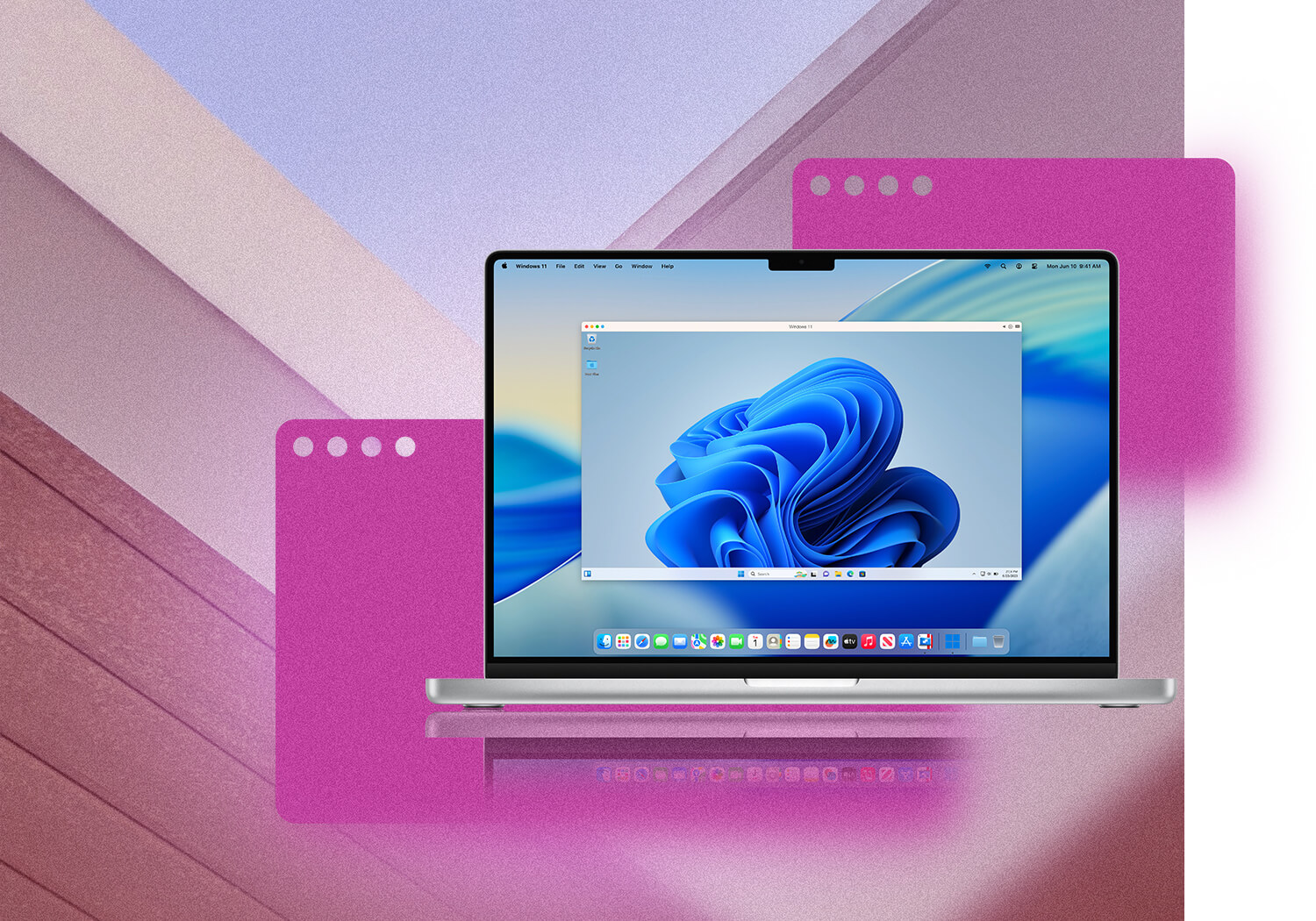
Cloud macOS services let you rent a Mac in the cloud. This is often the best way to run macos apps on windows without hardware or legal headaches.
- How it works: You connect via remote desktop to a macOS instance running on genuine Apple hardware.
- Pros: Legal when provider uses Apple hardware, supports Xcode, fast setup.
- Cons: Monthly cost, network latency, licensing nuances.
Step-by-step (high level):
- Choose a reputable cloud macOS provider.
- Pick a plan that includes GUI access and the macOS version you need.
- Connect via remote desktop and install the macOS app.
- Save and sync files using cloud storage or shared folders.
I used a cloud mac instance for quick Xcode builds. The UX was smooth. Remote audio and GPU-heavy tasks had mild lag depending on connection.

Step-by-step: Local virtualization example (QEMU overview)
If you still want to test how to run macos apps on windows locally, here’s an overview using QEMU. This is technical and may violate Apple’s EULA on non-Apple hardware.
Prerequisites:
- A modern Windows PC with plenty of RAM and SSD space.
- Virtualization support enabled in BIOS.
- The macOS installer image (obtain legally).
- QEMU and an OVMF UEFI firmware.
High-level steps:
- Install QEMU and supporting tools on Windows.
- Create a virtual disk and configure CPU, memory, and UEFI.
- Boot the macOS installer in the VM and format the virtual disk.
- Run the installer and add necessary drivers or tools for performance.
Caveats:
- Expect manual repairs after macOS updates.
- GPU acceleration and audio may be limited.
- Backup VM files before experiments.
From my experiments, QEMU offered the best compatibility but took the longest to configure. If you are not comfortable with terminal commands and config files, prefer cloud macOS.
Performance tips and hardware requirements
Good hardware matters when learning how to run macos apps on windows. Follow these guidelines for better results.
- CPU: Modern multi-core CPU with virtualization (VT-x / AMD-V).
- RAM: 16 GB minimum; 32 GB preferred for heavy apps.
- Storage: Fast NVMe SSD for VM disks and swap.
- GPU: Dedicated GPU improves graphics; passthrough is advanced.
- Network: Stable broadband for cloud or remote use.
Optimization tips:
- Allocate CPU cores conservatively to avoid host slowdowns.
- Use fixed-size virtual disks for better performance.
- Use shared folders or cloud sync for file exchange.
I once ran a macOS VM with 8 GB RAM and experienced lag. Increasing RAM and switching to an NVMe drive made a major difference.
Troubleshooting and common issues
When you try to run macos apps on windows, you will hit common problems. Here are solutions I used.
- Slow graphics
- Reduce VM screen resolution.
- Use lightweight compositor settings in macOS.
- USB and peripheral problems
- Use shared folders or network shares as a fallback.
- Check host USB passthrough settings.
- Crashes after macOS updates
- Snapshot before updates.
- Keep a restore point and detailed notes on changes.
- App signing and system extensions
- You may need to approve extensions in macOS Security settings.
- Reinstall or re-sign apps if necessary.
Patience counts. Document your steps and keep backups of VM images to undo mistakes quickly.
PAA-style questions (People Also Ask)
What is the easiest legal way to run macOS apps on Windows?
- Rent a macOS instance from a cloud mac provider and connect via remote desktop for a fast, legal solution.
Can I run Xcode on Windows?
- You can use cloud macOS or a remote Mac to run Xcode. Local VMs may work but are complex and may violate license terms.
Will macOS apps run at full speed in a VM?
- Most apps run slower than on native hardware. Performance depends on CPU, RAM, storage speed, and GPU support.
Does running macOS on non-Apple hardware violate Apple’s terms?
- Yes, installing macOS on non-Apple hardware typically conflicts with Apple’s EULA. Cloud providers that use Apple hardware avoid this issue.
Are there free ways to try macOS apps on Windows?
- Limited free trials of cloud mac services or short-term VM tests exist, but full-featured access usually costs money.
Frequently Asked Questions of how to run macos apps on windows
Is it legal to run macOS in a virtual machine on a Windows PC?
Legality depends on Apple’s EULA and local laws. Installing macOS on non-Apple hardware often violates the license. Use cloud mac services or Apple hardware for compliance.
Which method gives the best compatibility?
Cloud macOS on genuine Apple hardware gives the best compatibility and the fewest surprises. Local VMs can work but need more upkeep.
Can I run native macOS apps like Final Cut or Logic on Windows?
You can access them via cloud mac or a VM, but expect performance and plugin compatibility differences. Heavy video and audio apps need strong hardware or a real Mac.
How do I transfer files between Windows and macOS instances?
Use shared cloud storage, network shares, or shared folders configured in your VM or remote session. Simple sync tools work well.
What are common pitfalls when attempting this?
Common issues include driver gaps, slow graphics, EULA constraints, and update breakage. Back up VM images and test carefully.
Conclusion
You can run macos apps on windows, but each path has trade-offs. Cloud macOS offers a legal, low-friction route. Local virtualization can work for experiments but needs technical skill and carries legal risk. Emulation is not yet practical for most users. Test with small tasks first, keep backups, and choose the option that fits your budget and legal comfort level.
Take action: try a short cloud mac trial or evaluate a lightweight VM setup. Share your experience or ask questions below so I can help fine-tune a setup that fits your workflow.





