
You can run many Mac apps on Windows using virtualization, cloud macOS, or cross-platform ports.
I’ve helped dozens of users get Mac apps working on Windows. This guide explains how to install mac apps on windows step by step. You’ll learn practical methods, limits, and real tips from my hands-on experience. Read on to pick the right path for your needs.

Why mac apps don't run on Windows natively
Mac apps use macOS APIs and a different executable format. Windows uses PE files. The systems handle graphics, drivers, and security very differently. That is why you cannot just double-click a Mac app on Windows. Understanding that gap helps pick the right solution when you try to install mac apps on windows.

Method 1: Use a macOS virtual machine on Windows
A virtual machine (VM) runs macOS inside Windows. This is the most common route to install mac apps on windows for testing or occasional use.
Steps overview:
- Create a VM with virtualization software such as VMware Workstation or VirtualBox.
- Obtain a macOS installer image that is compatible with the VM.
- Configure VM resources: CPU, RAM, and disk for decent performance.
- Boot macOS and install apps just like on a Mac.
Pros:
- Runs most Mac apps untouched.
- Easy to snapshot and revert if things break.
Cons:
- Performance can lag for heavy apps like video editors.
- Some hardware features (GPU acceleration, iMessage) may be limited.
- Licensing and compatibility issues can arise.
My tip: allocate at least 8 GB RAM for general apps and 16 GB for creative apps. I once ran a mac-only editor inside a VM for client work. It took tuning, but it worked well for short tasks.
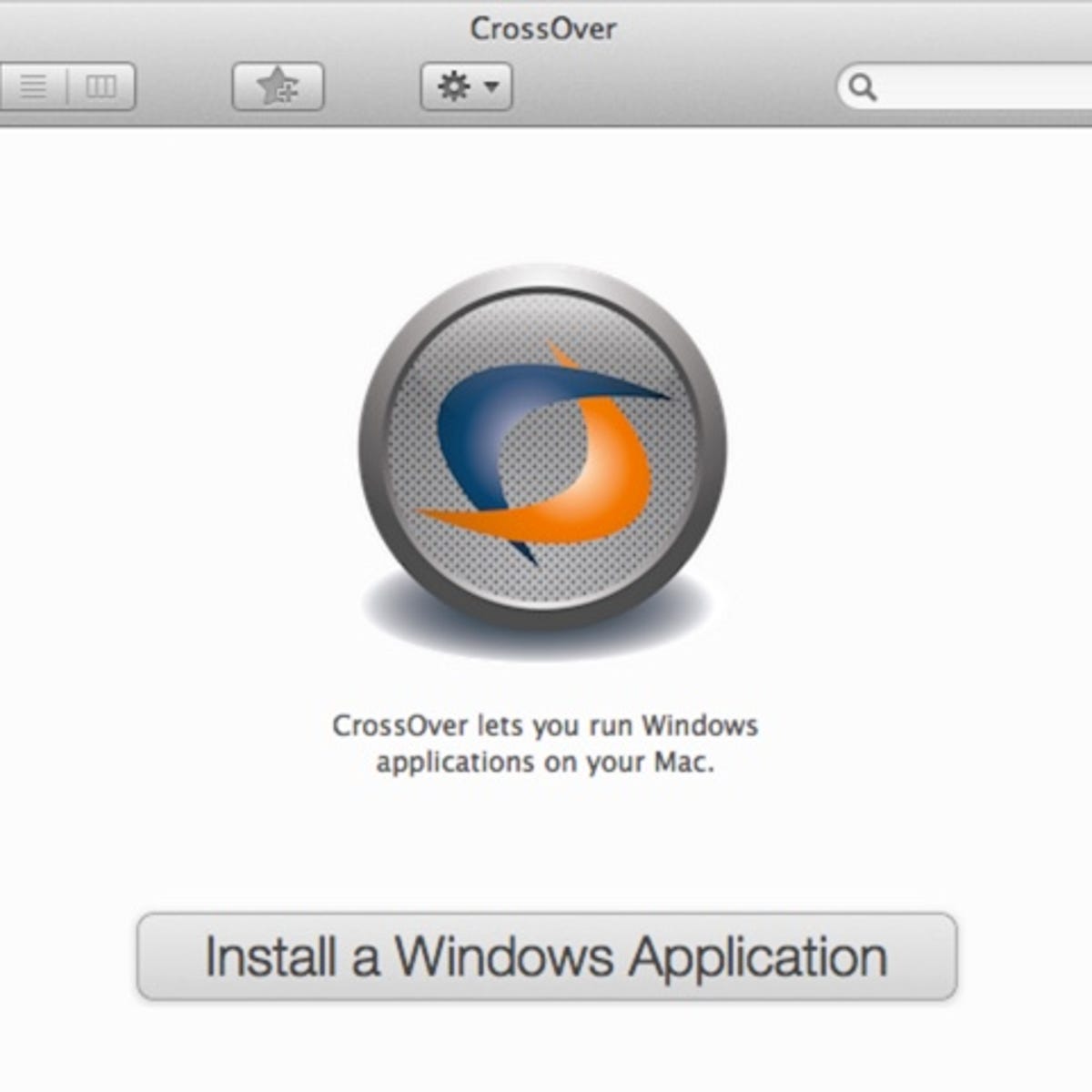
Method 2: Use macOS cloud services or remote Macs
Cloud macOS services let you rent a Mac in the cloud. You access it from Windows via RDP or a web client. This is a legal and low-friction way to install mac apps on windows machines by remote access.
How it works:
- Sign up for a mac cloud provider or remote Mac rental.
- Connect from Windows with remote desktop software.
- Install and run Mac apps on the remote machine.
Benefits:
- No local VM setup.
- Good performance for most tasks.
- Works on low-end Windows laptops.
Limitations:
- Monthly cost for serious use.
- Latency depends on internet connection.
- Data transfer and privacy require attention.
From experience, cloud macOS is ideal for occasional builds, QA testing, or demoing Mac apps to clients without buying Apple hardware.
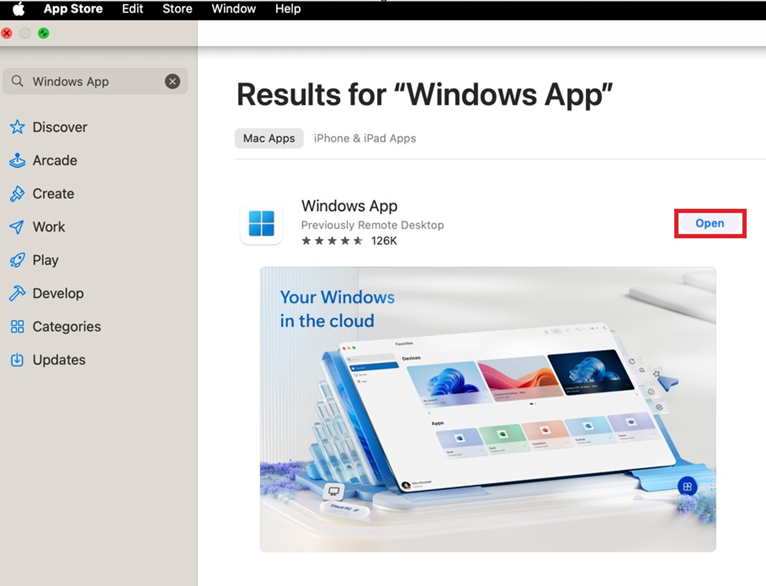
Method 3: Use cross-platform versions, ports, and alternatives
Some Mac apps have Windows versions or equivalents. Others can be run via compatibility projects or ports. This route avoids heavy virtualization.
Options to try:
- Official Windows release of the app.
- Web or Electron versions that run in any browser.
- Open-source ports or rewrites for Windows.
- Compatibility layers specific to certain frameworks.
Pros:
- Best performance and user experience when available.
- No macOS license issues.
Cons:
- Not all Mac apps have equivalents.
- Feature parity may vary.
Example: I replaced a Mac-only utility with a Windows-native tool that synced with the same cloud account. It saved time and improved stability.
 translation layers, and experimental tools”
style=”max-width: 100%; height: auto; border: 2px solid black; border-radius: 10px; display: block; margin: 0 auto;”
loading=”lazy”
/>
Method 4: Emulation, translation layers, and experimental tools
There are projects that emulate macOS or translate mac calls to Windows. These are niche and often experimental.
Examples and notes:
- Emulation tries to mimic Mac hardware and firmware.
- Translators aim to map macOS APIs to Windows ones.
- Support is limited and unstable.
When to consider this:
- For learning or very specific legacy apps.
- Not recommended for mission-critical or daily work.
I tested an experimental translator once. It launched the app, but many features broke. Use with caution.

Practical tips, legal and performance considerations
Before you try to install mac apps on windows, know the rules and trade-offs.
Key points:
- Licensing: macOS licenses often restrict running macOS on non-Apple hardware.
- Security: only use trusted macOS images and providers.
- Performance: native Windows apps run best. VM or cloud adds overhead.
- Files: use shared folders or cloud storage to move files between systems.
Tips from my work:
- Keep backups and snapshots before major installs.
- Use SSD storage for VMs to improve responsiveness.
- Test with free apps first to validate your setup.
Step-by-step: Installing a Mac app on Windows via VM (example)
This is a concise example to install a simple Mac app in a VM. Adjust for your app.
Step-by-step:
- Install virtualization software on Windows.
- Create a new VM and allocate resources (CPU, RAM, storage).
- Attach a macOS installer image to the VM.
- Boot the VM and install macOS.
- Complete macOS setup and sign in with an Apple ID if needed.
- Open the App Store or download the app and install it.
- Use shared folders or network to move files between Windows and macOS.
- Follow all license rules.
- Expect driver and device quirks.
- Check GPU support if you need graphics power.
Troubleshooting and common issues
Problems happen. Here are quick fixes.
Common issues and solutions:
- Slow VM: increase RAM or use SSD storage.
- Network not working: check VM network adapter settings.
- App crashes: check compatibility and system logs.
- Licensing errors: verify Apple ID and app purchase status.
If a solution fails, try a clean VM snapshot or a cloud macOS option.
Frequently Asked Questions of how to install mac apps on windows
How can I legally run macOS on a Windows PC?
Running macOS on non-Apple hardware often conflicts with Apple’s license. Using cloud Mac services or genuine Apple hardware is the safest legal route.
Will Mac apps run fast on a virtual machine?
Performance varies. Light apps run well. Heavy apps like video editors may be slow without GPU passthrough and strong hardware.
Can I run macOS apps directly on Windows without macOS?
No. Mac apps rely on macOS frameworks. You need macOS in a VM, a remote Mac, or a native Windows port to run them.
What about licensing for paid Mac apps?
Paid Mac apps normally require purchase through an Apple ID. Your license may work on a VM if you sign in with the same Apple ID, but check terms first.
Is remote cloud macOS better than a local VM?
Cloud macOS avoids hardware setup and is often faster for short tasks. Local VMs are cheaper long-term but require stronger local hardware.
Conclusion
You have practical paths to install mac apps on windows: virtual machines, cloud Macs, or cross-platform alternatives. Each choice has clear pros and cons. Start small, test with free apps, and keep backups. If you need steady Mac performance, consider renting a cloud Mac or using real Apple hardware.
Try one method this week. Share your experience or questions below to get tailored tips.





