
Install apps on Ubuntu using Ubuntu Software, apt, snap, Flatpak, dpkg, or AppImage in minutes.
I’ve installed hundreds of apps on Ubuntu over the years. This guide shows clear steps, real tips, and safe choices on how to install apps on ubuntu. Read on to learn GUI and terminal methods, know when to use each, and avoid common traps.
Why install apps on Ubuntu?
Installing apps on Ubuntu lets you add tools for work, study, and fun. Ubuntu has strong package systems and many safe sources. Knowing how to install apps on ubuntu helps you pick fast, secure ways to get software that fits your needs.

Main ways to install apps on Ubuntu
There are several ways to install apps on Ubuntu. Use a GUI tool for ease. Use the terminal for speed and control. Each method has pros and cons depending on the app and your comfort level. Here’s how to install apps on ubuntu using the most common methods.

Ubuntu Software (GUI)
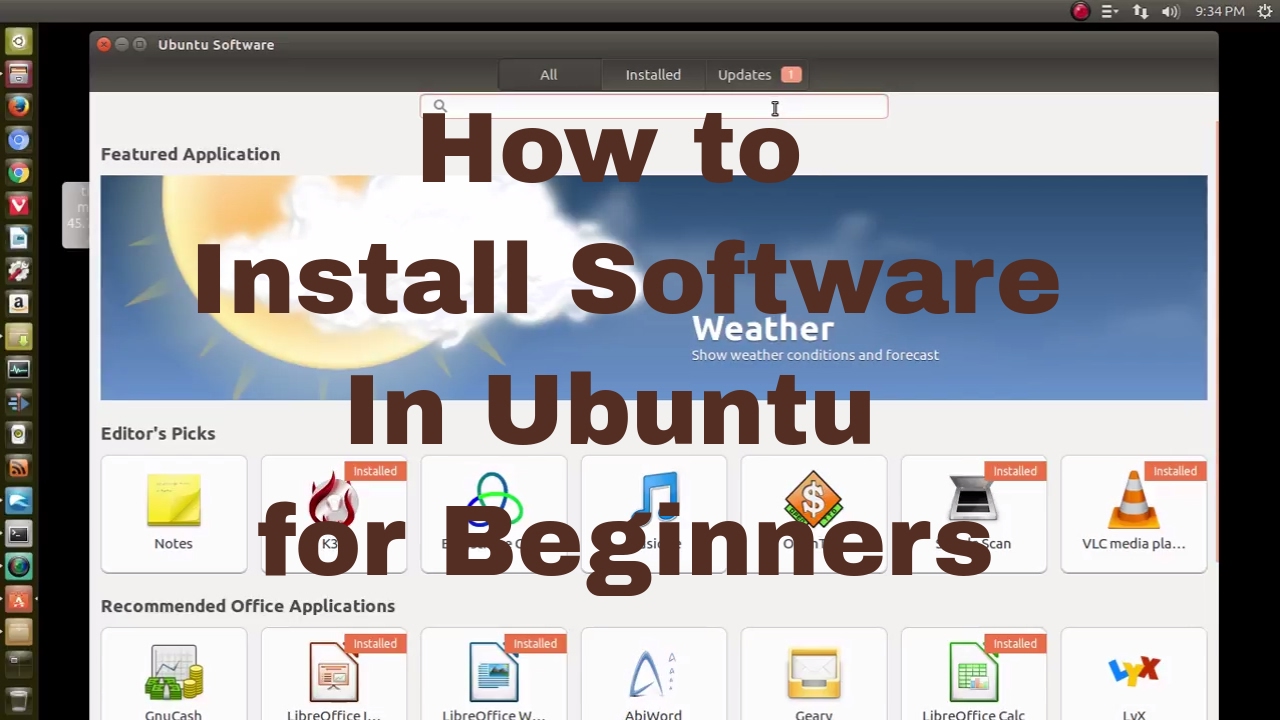
Ubuntu Software is the easiest way for most users. It is a store-like app with search and reviews.
- Open Ubuntu Software from the dock or Activities.
- Search for the app name.
- Click Install and enter your password if prompted.
- Launch from the Applications menu when done.
This method is friendly for beginners and safe for typical needs.
apt (Advanced Package Tool, terminal)
apt is the classic Debian-based package manager. It’s fast and reliable for system packages.
- Update indexes: sudo apt update
- Install a package: sudo apt install packagename
- Remove a package: sudo apt remove packagename
- Clean unused files: sudo apt autoremove
Use apt when you want a lean install or when a package is in Ubuntu’s repositories. Learning apt is a core skill for how to install apps on ubuntu via terminal.
snap (containerized apps)
Snap packages bundle dependencies. They work across Ubuntu versions and are maintained by developers or Canonical.
- Install: sudo snap install packagename
- List snaps: snap list
- Remove a snap: sudo snap remove packagename
Snap is handy for apps that need newer libraries or for getting the latest versions quickly.
Flatpak (alternative sandboxed apps)
Flatpak is an independent sandbox system. You often use it when an app isn’t available as a snap or in apt.
- Install Flatpak support: sudo apt install flatpak
- Add Flathub repo: flatpak remote-add –if-not-exists flathub https://flathub.org/repo/flathub.flatpakrepo
- Install app: flatpak install flathub org.example.App
- Run app: flatpak run org.example.App
Flatpak is popular for desktop apps and isolates them from the system.
dpkg and .deb files
Some vendors provide .deb files. dpkg handles manual Debian packages.
- Download the .deb file.
- Install: sudo dpkg -i package.deb
- Fix missing deps: sudo apt -f install
Use this for vendor-provided packages not in standard repos. Be careful about dependencies.
AppImage (self-contained executable)
AppImage files are single executables. They run without install steps.
- Download the AppImage file.
- Make it executable: chmod +x AppImageName.AppImage
- Run it: ./AppImageName.AppImage
AppImage is great for trying apps quickly. It leaves no residue on the system.
Build from source
When no package exists, you can build apps from source. This gives control but takes effort.
- Install build tools: sudo apt install build-essential
- Follow project README to configure, build, and install.
- Use checkinstall when possible to create a package.
Building from source teaches you more about how Linux software fits together. It’s part of mastering how to install apps on ubuntu for niche tools.
Quick PAA-style questions
What if an app is not in the Software app?
- Add a trusted repo, use apt, snap, Flatpak, or download a .deb or AppImage from the vendor. Verify signatures when possible.
Should I prefer apt, snap, or Flatpak?
- Use apt for system packages, snap or Flatpak when you need the latest desktop app or sandboxing. Each has trade-offs in size and integration.
Can I run Windows apps on Ubuntu?
- Yes, with tools such as Wine or a virtual machine. Expect mixed compatibility and some configuration.
Troubleshooting common issues
Update and caches fix many problems. Start here when an install fails.
- Update lists: sudo apt update
- Fix broken packages: sudo apt –fix-broken install
- Clear cached packages: sudo apt clean
- Reinstall a package: sudo apt install –reinstall packagename
If a snap fails, check snap logs. For .deb errors, run dpkg then apt -f install. If an app won’t start, run it from the terminal to see error messages. These steps show practical fixes for how to install apps on ubuntu when things go wrong.

Best practices and security
Think safety every time you install software. Use official repos when you can.
- Prefer Ubuntu Software or apt for core tools.
- Verify PGP or SHA256 checksums for downloads.
- Avoid random PPAs unless trusted.
- Keep the system updated: sudo apt update && sudo apt upgrade
- Remove unused apps: sudo apt autoremove
Use sandboxed formats (snap, Flatpak) for untrusted apps. These tips reduce risk and keep your system healthy while you learn how to install apps on ubuntu safely.

My experience: lessons and tips
I once installed a complex development suite with mixed snaps and apt packages. The result had duplicated libraries and odd behavior. I learned to:
- Pick one package system per app when possible.
- Read vendor install notes first.
- Use containers or virtual machines for risky software.
- Keep backups before major installs.
A small habit of reading install steps saved me hours more than once. These tips come from real work and make how to install apps on ubuntu less stressful.

Frequently Asked Questions of how to install apps on ubuntu
How do I install a program with apt?
Run sudo apt update then sudo apt install packagename. This downloads the package from Ubuntu’s repositories and installs it.
Can I install Windows apps on Ubuntu?
You can use Wine or a virtual machine. Not all Windows apps work well under Wine, so test and expect tweaks.
What is the safest way to install apps?
Use Ubuntu Software or apt from official repos. Verify downloads and use sandboxed formats like snap or Flatpak when possible.
How do I remove an app I installed?
For apt apps use sudo apt remove packagename and sudo apt autoremove. For snaps use sudo snap remove packagename.
Why does sudo apt install fail with unmet dependencies?
This happens when a package needs other packages that are missing. Run sudo apt –fix-broken install and then try again.
How do I install a .deb file?
Download the .deb, then run sudo dpkg -i package.deb. Fix missing dependencies with sudo apt -f install.
Conclusion
You now know clear, safe ways on how to install apps on ubuntu. Use Ubuntu Software for ease, apt for control, and snaps or Flatpak for sandboxed apps. Start small, read install notes, and back up before big changes. Try one method today and notice how your workflow improves.
Explore more tools, share your wins in the comments, or subscribe for more Ubuntu tips.





