Use built-in shortcuts or Terminal commands to hide apps quickly and securely on mac.
I’ve helped many Mac users and tested methods to hide apps on mac across versions of macOS. This guide explains step-by-step ways to hide apps on mac, when to use each method, and safety tips from my own experience so you can protect privacy and keep a tidy workspace.
Why you might want to hide apps on Mac
Hiding apps can protect privacy, reduce clutter, and keep sensitive work out of sight. You may want to hide apps on mac when sharing your screen, working in public, or preventing casual access by family members.
Common reasons include:
- Protecting private chats or files from view.
- Reducing distractions during focused work.
- Keeping a clean Dock and desktop for presentations.
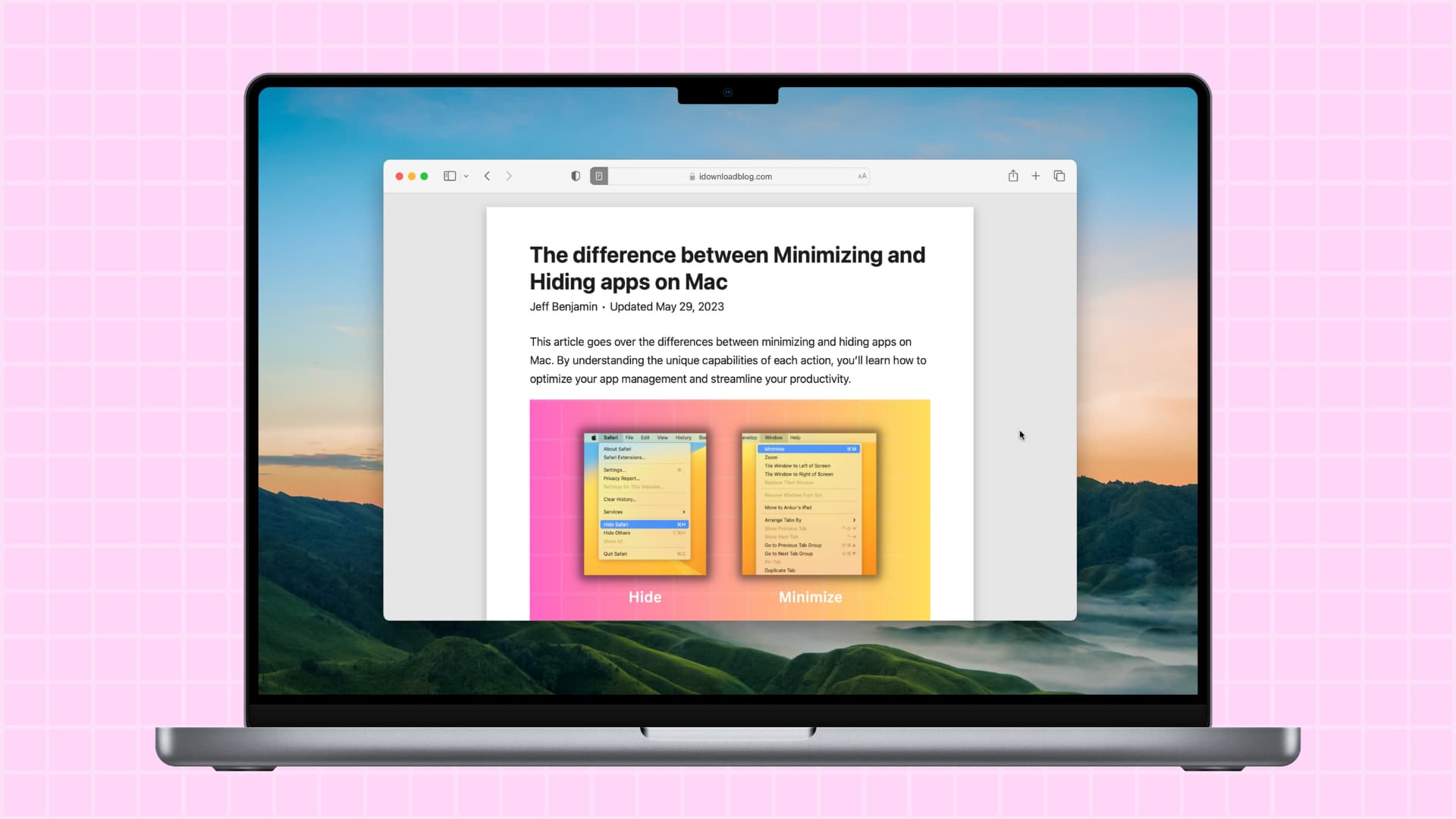
From experience, hiding apps on mac is often faster than quitting them. Hiding keeps apps ready to use while removing them from view. Use the method that fits your goal: hide app windows, hide the app file, or block access entirely.
Quick built-in shortcuts to hide apps on Mac
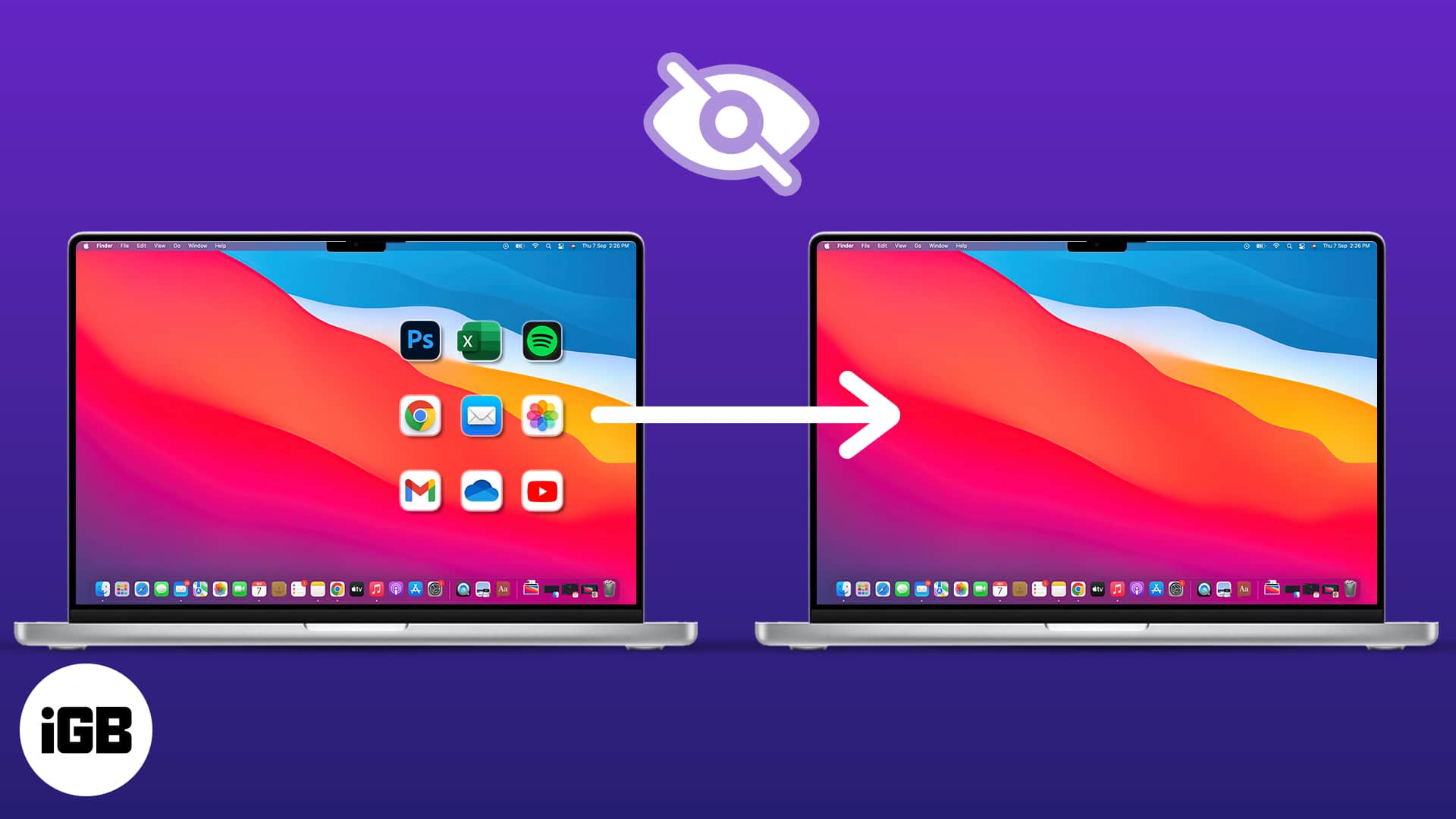
macOS has simple keyboard shortcuts to hide app windows. These work well when you need to hide apps on mac instantly.
Steps and shortcuts:
- Press Command-H to hide the active app window.
- Press Option-Command-H to hide all other apps except the one in front.
- Press Command-M to minimize the active window to the Dock.
- Right-click an app icon in the Dock and choose Quit to close it fully.
These shortcuts are fast and safe. They do not remove app files or settings. If you need to hide apps on mac so they are invisible in Finder or Launchpad, read the Terminal and Screen Time sections below.

Hide app icons and files using Terminal
To hide the actual app icon or folder from Finder and Launchpad, use the Terminal. This is useful when you want to hide apps on mac from casual browsing.
How to hide an app with chflags:
- Open Terminal (Applications > Utilities > Terminal).
- Run: sudo chflags hidden "/Applications/App Name.app"
- Enter your admin password when prompted.
To unhide the app:
- Run: sudo chflags nohidden "/Applications/App Name.app"
Important safety notes:
- Use the exact app name and path. Quotation marks help with spaces.
- Hiding an app this way only affects Finder visibility. The app still runs and appears in Activity Monitor.
- Hiding system apps may break functionality. Test with noncritical apps first.
I used chflags to hide a seldom-used app folder for a client. It worked well, but I kept a note of hidden app names so nothing was lost.

Use Screen Time (Parental Controls) to restrict or hide apps
Screen Time can block or limit access to apps. This is great for hiding apps on mac from kids or limiting distractions.
How to use Screen Time:
- Open System Settings > Screen Time.
- Choose App Limits or Content & Privacy.
- Use App Limits to block categories or set time limits.
- Use Content & Privacy to restrict specific apps by age rating or app type.
Benefits:
- Blocks access rather than just hiding icons.
- Works across user accounts if configured by an admin.
Limitations:
- Not designed to fully remove apps from Launchpad or Finder.
- Advanced users can sometimes bypass limits if they know admin credentials.
In my work setting, Screen Time helped block social apps during focus hours. It’s a reliable non-technical way to hide apps on mac from certain users.
Third-party apps and utilities to hide apps on Mac
There are apps that help hide or lock apps more fully than built-in tools. Use vetted tools and check reviews to protect security.
Common types:
- App lockers that require a password to open an app.
- App hiders that move apps into secure containers.
- Utilities that hide icons from the Dock or menu bar.
Pros:
- More features than macOS defaults.
- Often easier for non-technical users.
Cons:
- Trust and security are critical. Only use reputable vendors.
- Some tools may require Accessibility or Full Disk Access permissions.
When I tested a popular app locker, it worked well but required Full Disk Access. That made me check vendor reputation before use. If you decide to use third-party software to hide apps on mac, read permissions and privacy policies first.

Advanced: make an app run without a Dock icon (agent apps)
For power users, you can convert an app to run as an agent so it does not show in the Dock or Force Quit menu. This is advanced and not recommended for most users.
Basic approach:
- Open the app bundle (right-click > Show Package Contents).
- Edit Info.plist to add or set LSUIElement to 1.
- Save changes and restart the app.
Warnings:
- Editing app bundles can break updates and code signing.
- System updates or app updates may revert changes.
- Backup the app before editing and only do this for apps you control.
I used this technique in a controlled lab to keep a helper app hidden. It worked but required reapplying after updates. It’s a powerful way to hide apps on mac, but only for advanced users who accept the risks.
Practical tips, best practices, and mistakes to avoid
Use short, safe steps to hide apps on mac without causing trouble. Here are lessons from real use.
Best practices:
- Use Command-H for quick hiding during presentations.
- Use chflags for moderate hiding from Finder, and keep a note of hidden apps.
- Use Screen Time to block access for other users.
- Test changes on a noncritical app before modifying system apps.
Common mistakes:
- Editing system app bundles and breaking functionality.
- Forgetting hidden app names and losing track of installations.
- Installing untrusted third-party tools without vetting.
Personal tip: keep a simple plain-text list of any app you hide using Terminal. That saved me one time when a team member couldn’t find a tool we had hidden.

People also ask
Can I hide apps on mac without deleting them?
Yes. Keyboard shortcuts hide windows, and Terminal commands can hide app icons. These methods keep the app installed and ready to use.
Will hiding an app stop notifications?
Not always. Hiding an app window does not stop background notifications; adjust Notification settings to silence alerts. To fully stop alerts, open System Settings > Notifications for that app.
Is it safe to hide apps on mac using Terminal?
Yes, if you run safe commands like chflags. Avoid changing system files or code-signed bundles without backups. Always test on a nonessential app first.

Frequently Asked Questions of how to hide apps on mac
How do I hide an app quickly while sharing my screen?
Press Command-H to hide the active app window immediately. Use Option-Command-H to hide all other apps at once.
Can I hide apps from Launchpad?
You can hide apps from Finder with chflags, which also removes them from Launchpad in many cases. Some system or store apps may still appear and need other steps.
How do I unhide an app I hid with Terminal?
Run sudo chflags nohidden "/Applications/App Name.app" in Terminal and press Enter. The app will reappear in Finder and Launchpad.
Are there apps that lock or hide other apps?
Yes, third-party app lockers and hiders exist. Choose well-reviewed software and check permissions to avoid security risks.
Will hiding an app delete my data?
Hiding an app does not delete it or its data. Hiding only changes visibility or access controls, not the app’s files unless you manually remove them.
Conclusion
Hiding apps on mac can be quick or deep depending on your needs. Use Command-H for fast privacy, chflags for Finder-level hiding, Screen Time for blocking access, and trusted third-party tools for extra control. Start with safe methods, back up before making advanced changes, and track any hidden apps so you don’t lose them. Try one method today to tidy your workspace, and share your experience or questions below — I’ll help troubleshoot.





