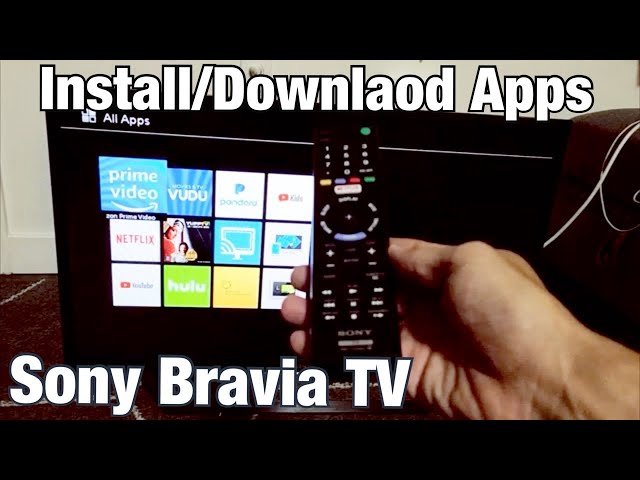
Open the Google Play Store on your Sony Smart TV, search the app name, and select Install.
I’ve helped dozens of friends and clients set up their streaming gear, and I’ll walk you through exactly how to add apps in sony smart tv step by step. This guide covers modern Sony Google TV models and older Android TV units, explains common pitfalls, shares practical tips from my experience, and gives fast troubleshooting so you can stream without fuss.
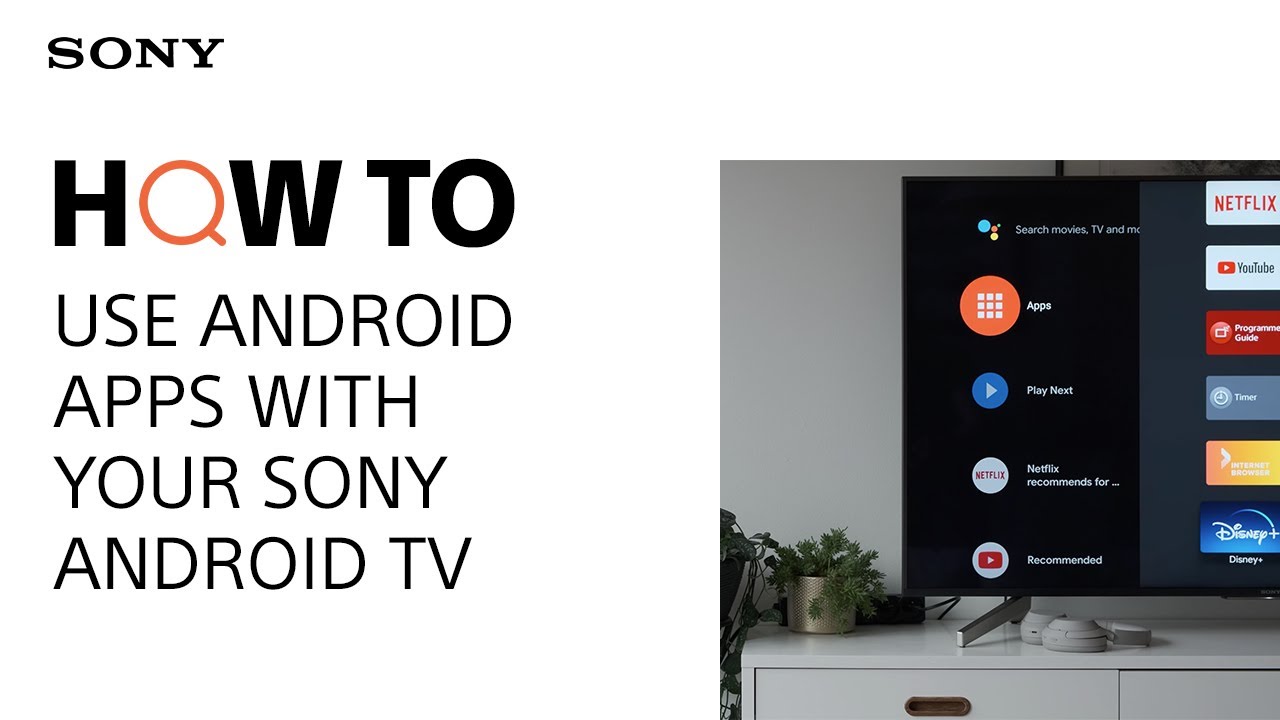
Why add apps to your Sony Smart TV
Adding apps expands what your TV can do. You get streaming services, games, news, music, and utilities without extra boxes.
Apps make the TV personal. You can turn a basic set into a streaming hub, cast screen content, or run niche services. Knowing how to add apps in sony smart tv helps you control updates, manage storage, and improve daily use.
From my experience, adding the right apps first saves time. I usually install my main streaming apps, a browser, and a casting tool. That covers most needs quickly.

What you need before you add apps
Prepare these items so the process is smooth.
- A Sony Smart TV connected to the internet via Wi-Fi or Ethernet.
- A Google account for Google TV or Android TV models.
- Enough free storage on the TV. Apps need space to install and update.
- The TV remote or voice remote that controls the TV interface.
I once tried to add a large app on an older Sony TV with low storage. The install failed until I cleared unused apps. Freeing space made the process instant.

How to add apps in sony smart tv — step-by-step for Google TV (newer models)
If your Sony TV runs Google TV, follow these steps.
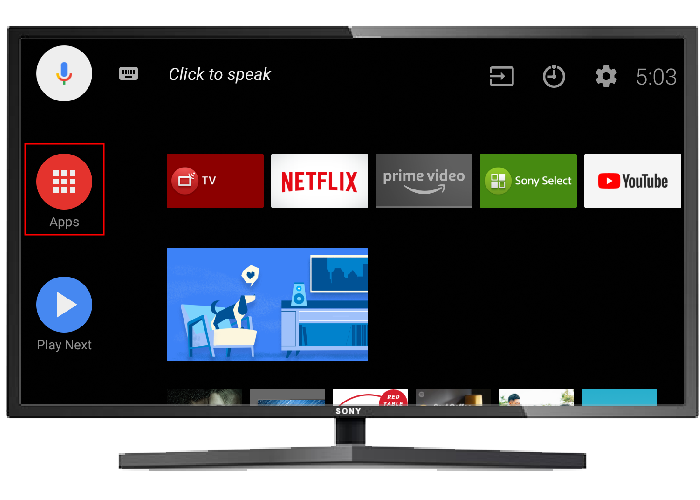
- Turn on the TV and press the Home button on the remote to open the main menu.
- Navigate to Apps or the Apps row on the Home screen.
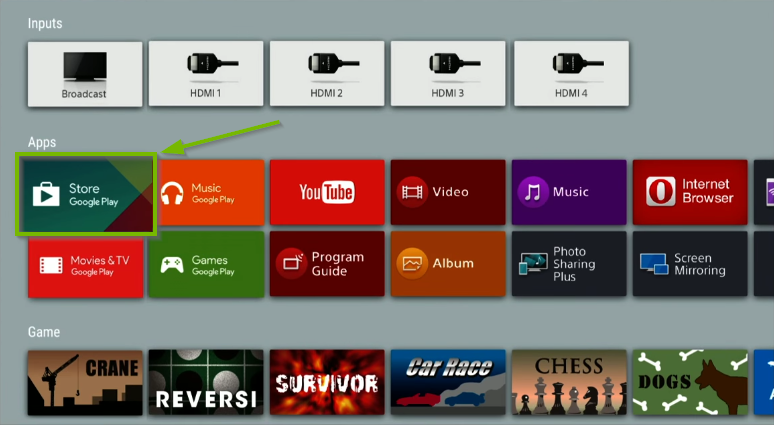
- Select Google Play Store to open the store interface.
- Use the search icon to type the app name or browse categories for recommendations.
- Choose the app from results and select Install. Wait until the app finishes downloading.
- Open the app from the Home screen or Apps list and sign in if required.
Tip: Use voice search on the remote by saying the app name. That speeds up finding and installing apps.
How to add apps in sony smart tv with a Google account is straightforward. If you don’t have a Google account, create one on your phone or computer first, then sign in on the TV.
How to add apps in sony smart tv — step-by-step for older Android TV models
Older Sony TVs that run Android TV use a similar flow with slight menu differences.
- Press Home on the remote to access the Home screen.
- Go to Apps and open Google Play Store.
- Browse or use the search field at the top to find the app.
- Select Install and wait for the download to finish.
- Launch the app and complete any sign-in or setup steps.
If you see an Unknown Sources setting, avoid installing APKs from outside Google Play unless you trust the source. Sticking to Google Play keeps the TV secure.

How to add apps in sony smart tv using casting or mobile install
Sometimes you want to add an app from your phone or cast content without installing on the TV.
- On your phone, open the Google Play Store and find the app.
- If the app supports TV install, you may see an “Install on device” option. Choose your Sony TV from the device list.
- Confirm the install on your TV; the app will download and install remotely.
- To cast, open the app on the phone and use the Cast icon to send content to your Sony TV.
This approach is handy when typing on TV is slow. From experience, remote install works well for family members who know the app name but not the TV interface.
Managing apps and storage on Sony Smart TV
After you learn how to add apps in sony smart tv, you’ll want to manage them.
- Check installed apps in Settings > Apps to see storage use and last opened time.
- Uninstall apps you don’t use to free up space.
- Move app data where supported or clear cache for performance issues.
- Keep automatic updates on to get security and feature updates.
I once left auto-updates off and missed an important fix. Enabling updates kept apps stable and saved me troubleshooting later.

Troubleshooting common problems
If an app won’t install or run, try these fixes.
- Ensure internet is stable. Restart the router if needed.
- Sign out and back in to your Google account on the TV.
- Restart the TV: a simple power cycle often resolves installation errors.
- Clear Google Play Store cache and data in Settings > Apps.
- Check for a system software update in Settings and install it.
If you still face problems, factory reset is a last resort. Back up any important TV settings before doing that.
Security and privacy tips
Adding third-party apps can increase risk. Follow these safety steps.
- Install apps from official Google Play Store whenever possible.
- Review app permissions before installing; avoid apps that request unrelated access.
- Keep the TV’s system software updated for security patches.
- Use strong passwords and enable two-factor authentication on accounts used in apps.
Be cautious with apps outside the Play Store. I once tried a streaming APK that caused ads and privacy concerns. Removing it fixed the issue.
Practical examples and real-life scenarios
Here are common examples of adding apps and what to expect.
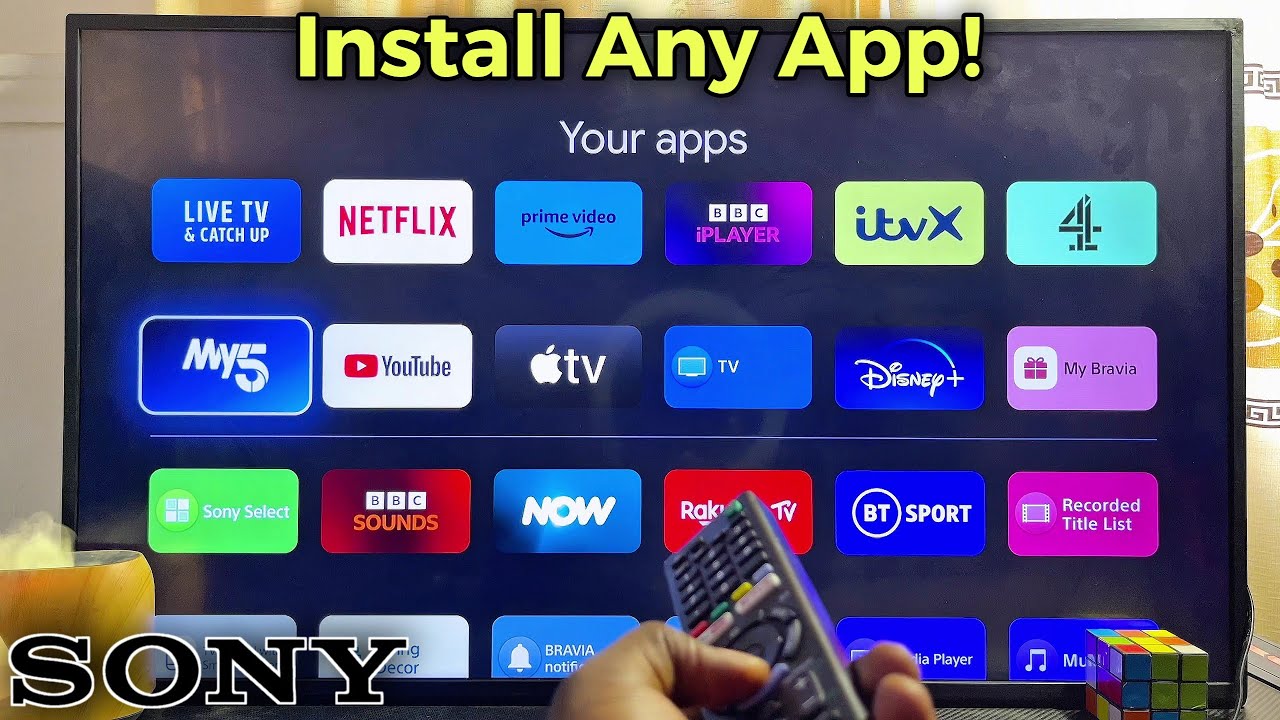
- Adding Netflix or Disney+: Search and install from Play Store, then sign in with your account.
- Installing a free weather or news app: Useful for quick updates on the Home screen.
- Adding a game: Some games need gamepad support; check compatibility before installing.
- Installing a VPN app: Useful for privacy, but check if the TV model supports VPNs directly.
A friend installed a media server app to stream his home videos. He had to increase TV storage by using external USB for smoother playback.
Tips and best practices
These small habits improve the experience.
- Keep your main apps on the first Home row for quick access.
- Use voice search for faster app discovery.
- Check app reviews and ratings briefly before installing.
- Regularly remove unused apps to keep the TV responsive.
From my test setups, prioritizing a few core apps keeps the TV fast and family-friendly.
Frequently Asked Questions of how to add apps in sony smart tv
How do I find the Google Play Store on my Sony Smart TV?
Open the Home screen and look for the Apps row or the Google Play Store icon. If you don’t see it, check Settings or the All Apps section.
Can I install apps without a Google account?
Most Google TV and Android TV apps require a Google account for Play Store access. Some apps offer web sign-in or casting without a Google account.
What if my TV says there’s not enough storage?
Uninstall unused apps and clear cache. If needed, remove app data or use an external USB drive for media files.
How long does it take to install an app?
Install time depends on app size and internet speed; most streaming apps install in under a few minutes on a good connection.
Are all phone apps available for Sony Smart TV?
No. TV apps are different from phone apps. Look for TV-optimized versions in the Play Store or use casting if the TV app isn’t available.
Conclusion
You now have clear, practical steps for how to add apps in sony smart tv across Google TV and older Android TV models. Start by ensuring internet access and a Google account, then find apps in the Play Store, install, and manage them for best performance. Try installing one or two essential apps today to make your TV more useful and personalized. If this guide helped, leave a comment, ask a question, or subscribe for more smart TV tips and tricks.