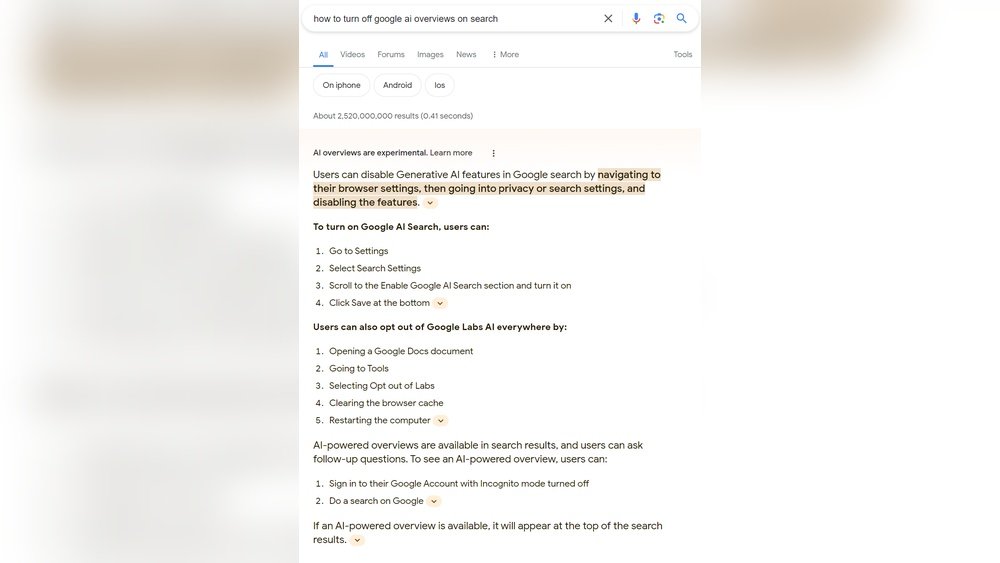
Are you tired of seeing AI-generated overviews popping up every time you search on Google? If these AI summaries clutter your search results or don’t match what you’re looking for, you’re not alone.
The good news is, you don’t have to accept them as a permanent part of your browsing experience. You’ll discover simple and effective ways to block or minimize AI overviews from your search results. Whether you want a cleaner interface or prefer traditional search listings, these easy-to-follow tips will help you take control of what shows up when you search.
Keep reading to learn how to customize your searches and get the results you truly want.
Disable Ai In Google Labs
Disabling AI in Google Labs stops AI-generated summaries from showing in search results. This feature offers a way to control your search experience. It removes AI Overviews that sometimes clutter results.
Turning off AI in Google Labs is simple. It works on both desktop and mobile versions of Google Search. This method helps users who want a cleaner and more traditional search interface.
Access Google Search Labs
Open your browser and go to the Google Search Labs page. You can also find Labs inside the Google app settings. Labs is where Google tests new features before full release.
Find The Ai In Search Option
Look for the “AI in Search” toggle. It controls whether AI summaries appear in your search results. The toggle is easy to spot and clearly labeled.
Toggle Off Ai In Search
Click or tap the toggle to disable AI in Search. This action stops AI Overviews from appearing. The change applies immediately and works on all your devices linked to the same Google account.
Confirm Your Settings
After toggling off, refresh your search page. Check if AI summaries no longer appear in your results. This confirms that the AI feature is disabled successfully.
Use Url Parameters To Block Ai
Using URL parameters to block AI overviews in search results offers a quick, effective method. This technique changes the search URL to prevent AI-generated summaries from appearing. It works on both desktop and mobile browsers without extra tools.
URL parameters act like instructions in the web address. They tell the search engine what to show or hide. By adding specific parameters, users can control the presence of AI content in their search results. This method is simple and reversible, making it ideal for those who want control without complex setups.
What Are Url Parameters?
URL parameters are extra codes added to a web address after a question mark. They modify how the webpage loads or what content it displays. For example, adding ?ai=0 could tell a search engine not to show AI summaries.
These parameters help customize search results. They are easy to add and remove from the URL bar. Anyone can use them without needing technical skills.
How To Use Url Parameters To Block Ai Overviews
To block AI overviews, add a specific parameter to your search URL. For Google, try adding -AI at the end of your search query. This often prevents AI summaries from showing.
Another option is appending a parameter like ?ai=off or ?noai=1, depending on the search engine’s supported codes. Experiment with these to find the one that works best.
Benefits Of Using Url Parameters
This method requires no installation or extra software. It works instantly on any device. Users keep full control over their search experience.
URL parameters can be combined with other settings, like disabling AI in search labs or using browser extensions. This layered approach enhances blocking AI content.
Apply Search Operators
Applying search operators can help block AI overviews from your search results. Search operators are special commands added to your query. They tell the search engine to include or exclude certain types of results. Using these operators keeps your search focused and free from AI-generated summaries.
Using The Minus (-) Operator To Exclude Ai Overviews
Add -AI at the end of your search query. This operator excludes results containing the word “AI.” It stops AI overview snippets from appearing in your results. For example, searching technology trends -AI removes AI summaries from the search.
Combining Operators For More Precise Searches
Mix the minus operator with quotes for exact phrases. For instance, "AI overview" -AI targets pages with the phrase but blocks AI-generated content. This method narrows your results to what you want without AI interference.
Using Site Operators To Avoid Ai On Specific Websites
Use site: to search within trusted sites. Pair it with -AI to exclude AI content on other sites. For example, site:example.com -AI searches example.com only and blocks AI overviews from other sources.
Set Up Custom Search Engines
Setting up custom search engines helps control what appears in your search results. You can create a search engine that blocks AI overview content. This method offers a tailored search experience without AI-generated summaries.
Custom search engines filter results based on your preferences. They exclude specific content or sources automatically. This way, you avoid AI overview snippets in your searches.
Creating A Custom Search Engine
Visit the Google Custom Search Engine site. Click on “Add” to start a new search engine. Enter websites you trust or want to include. Avoid sites that generate AI overviews.
Name your search engine clearly. This helps you identify it later. Choose the language and region settings to match your needs.
Configuring Search Engine Settings
Adjust the control panel settings to block unwanted content. Use the “Sites to exclude” option to block AI overview sources. You can also prioritize sites that do not use AI summaries.
Enable search refinements to improve filtering. This helps remove AI overview results from your searches consistently.
Setting Your Custom Search Engine As Default
Go to your browser’s search engine settings. Add your custom search engine by pasting its URL. Set it as the default search engine for all queries.
This step ensures all your searches avoid AI overview content. You get clean search results without AI-generated blocks.
Manage Chrome Search Settings
Chrome offers simple ways to control your search experience. You can adjust settings to block AI overview features from showing up. This helps keep your search results clean and focused.
Changing search settings in Chrome is quick and does not need special skills. It works well for users who want to avoid AI-generated summaries or suggestions.
Access Chrome Search Engine Settings
Open Chrome and click the three dots at the top right corner. Select “Settings” from the menu. Then, find the section labeled “Search engine.”
Here, you can see which search engine Chrome uses by default. You can also manage other search engines or add new ones.
Add A Custom Search Engine To Block Ai Overview
In the “Search engine” section, click on “Manage search engines and site search.” Scroll down to “Site search” and click “Add.”
Enter a name like “No AI Google.” For the URL, use a Google search URL with a parameter that blocks AI, for example: https://www.google.com/search?q=%s+-AI.
Save this new engine and set it as your default. Now, your searches will avoid showing AI overviews.
Disable Ai Features Via Google Search Labs
Visit the Google Search Labs page directly in your browser. Look for the “AI in Search” toggle. Switch it off to disable AI-generated content in searches.
This option works on both desktop and mobile devices. It offers a more permanent way to stop AI overviews from appearing in your results.
Adjust Mobile Browser Settings
Adjusting your mobile browser settings helps control what shows up during searches. This step can reduce or block AI overview results on your device. Most mobile browsers allow simple tweaks to search preferences.
Changing these settings makes your search experience cleaner and less cluttered. You control how search results appear without extra AI-generated summaries.
Accessing Mobile Browser Settings
Open your mobile browser and find the menu icon, usually three dots or lines. Tap it to open the options list. Look for the “Settings” option and select it. This area controls how the browser behaves, including search features.
Modifying Search Engine Preferences
Within settings, find the section labeled “Search engine” or similar. Tap it to view available search engines. Choose “Google Web” or your preferred option without AI features. This choice limits AI overview results from appearing in your searches.
Disabling Ai Features In Google Search
Go to Google.com using your mobile browser. Perform a search and tap the three-dot menu on the results page. Select “Settings,” then find “Search Labs.” Toggle off the option labeled “AI in Search” or any AI-related feature. This stops AI summaries from showing in your search results.
Try Alternative Browsers
Trying alternative browsers can help block AI overview from search results. Different browsers handle search features in unique ways. Some browsers may not support AI-generated summaries or block them by default. This gives you more control over what appears in your search results.
Switching browsers is simple and requires no technical skills. You can test several to find one that suits your preferences. Using an alternative browser also improves privacy and reduces tracking.
Use Browsers With Built-in Privacy Features
Browsers like Firefox and Brave focus on privacy. They often block unwanted content and trackers automatically. This includes AI-generated elements in search results. These browsers provide settings to control what loads on pages.
Try Lightweight Browsers Without Ai Support
Lightweight browsers such as Vivaldi or Opera may not support all AI features. They offer simpler browsing experiences. This can prevent AI overviews from appearing. These browsers also allow custom search engine settings.
Test Browsers On Different Devices
AI overview behavior can vary by device and browser. Test alternative browsers on desktop, tablet, or mobile. Choose the one that blocks AI summaries best. This ensures consistent search results without AI interference.
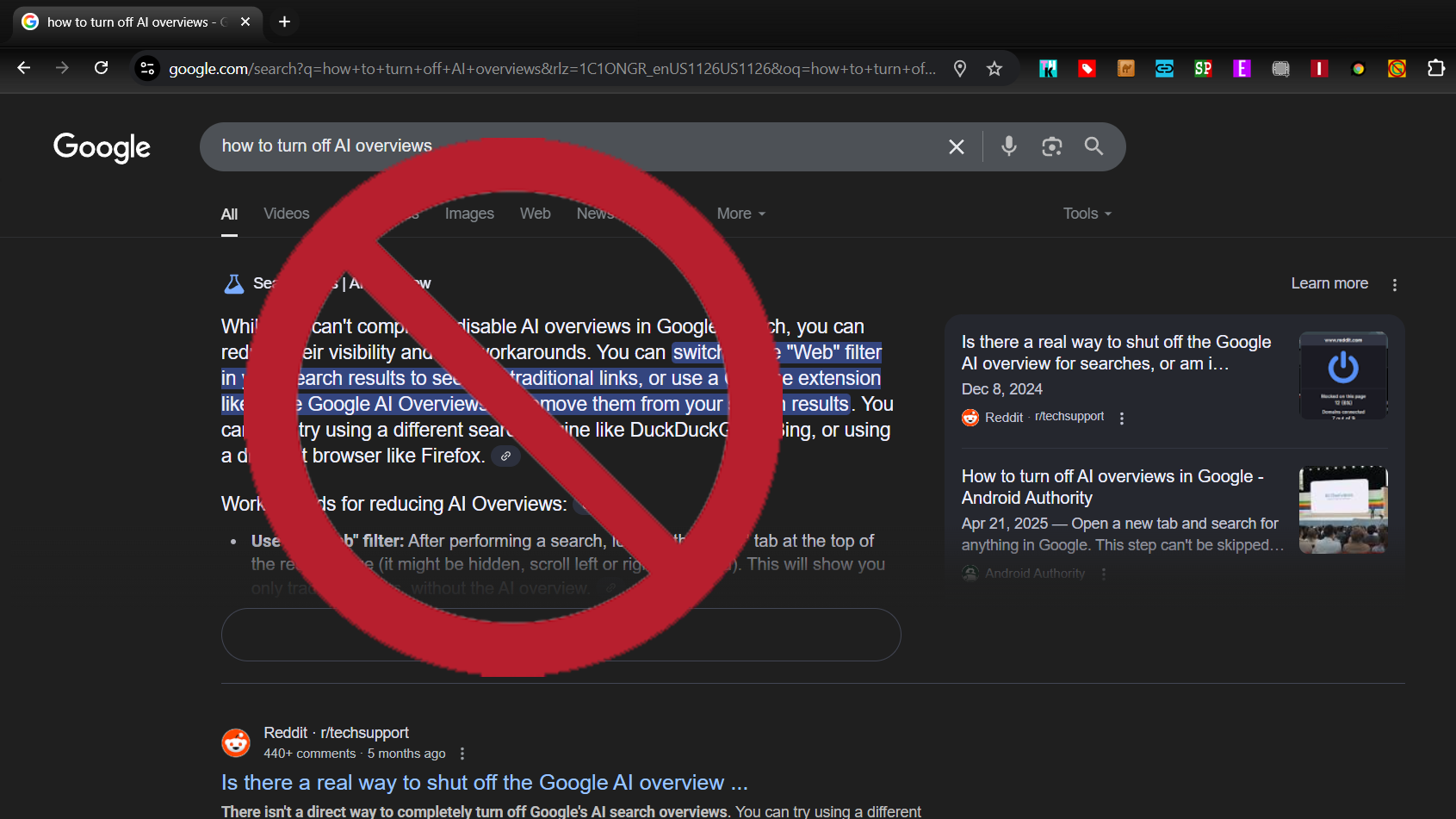
Credit: www.tomshardware.com
Install Browser Extensions
Installing browser extensions offers a simple way to block AI overviews from search results. Extensions work directly within your browser to filter or hide unwanted content automatically. This method needs little technical skill and gives quick results.
Browser extensions are small software tools you add to your browser. They can change how web pages look or behave. Some extensions focus on privacy or content control, including blocking AI-generated summaries in search results.
Choose The Right Extension
Pick an extension designed to block AI overviews or similar content. Read user reviews to ensure it works well and is safe. Popular choices often appear in Chrome Web Store or Firefox Add-ons.
How To Install Browser Extensions
Open your browser’s extension store. Search for the extension by name or keyword. Click “Add to Browser” or “Install.” Follow prompts to complete installation. Restart the browser if needed.
Configure Extension Settings
After installation, check the extension’s options. Enable blocking of AI overview features. Adjust settings to suit your preferences for search result filtering. Some extensions allow you to whitelist trusted sites.
Keep Extensions Updated
Regularly update your extensions to maintain effectiveness. Updates fix bugs and improve blocking features. Most browsers update extensions automatically, but check manually if needed.
Use The Web Filter Option
Using the web filter option helps block AI overview from search results effectively. This method controls the type of content that appears during online searches. It filters out unwanted AI-generated summaries or insights.
Web filters work by restricting certain keywords or URLs. They prevent AI overview snippets from showing up in your search feed. This keeps your search results clean and focused on your needs.
How To Access The Web Filter Settings
Open your browser settings or search engine preferences. Look for a section called “Web Filter” or “Content Filter.” This area allows you to add rules to block specific content types.
Setting Up Filters To Block Ai Overview
Add keywords related to AI overview into the filter list. Terms like “AI summary,” “AI overview,” or “generated by AI” can be blocked. The filter stops these from appearing in your search results.
Using Browser Extensions For Web Filtering
Install browser extensions designed to filter web content. These tools offer easy ways to block AI overview snippets. They work alongside your filter settings for better control.
Benefits Of Using Web Filters
Web filters improve your search experience by removing unwanted AI content. They speed up finding relevant information. They also reduce distractions from AI-generated summaries.
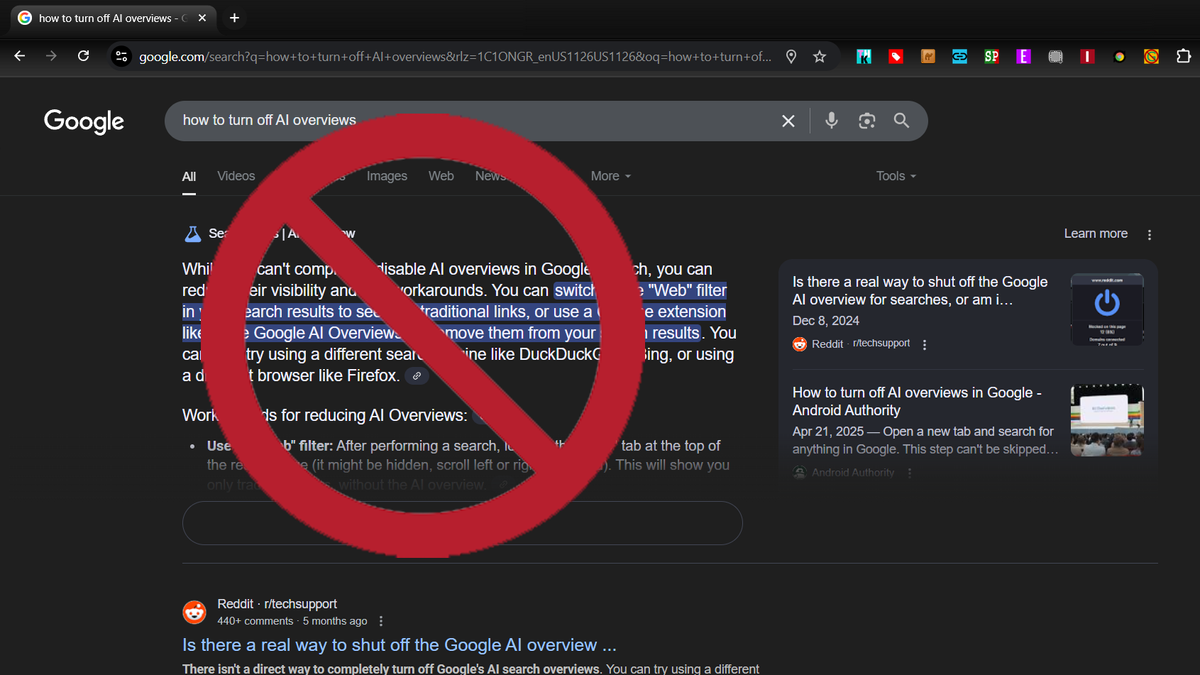
Credit: www.tomshardware.com
Understand Limitations Of Blocking
Blocking AI overview from search results sounds simple but has limits. Understanding these limits helps set clear expectations. No method can guarantee 100% blocking. AI content may still appear in some form.
Search engines update frequently. Blocking tools might stop working after updates. Some AI results are deeply integrated into search algorithms. These results cannot be fully removed by user settings or extensions.
Partial Blocking Is Often The Best Outcome
Most blocking methods reduce AI overviews, not erase them. You may still see AI content occasionally. Methods like URL parameters or search operators help but are not foolproof. They work only in specific cases or browsers.
Browser Extensions Have Their Limits
Extensions can block AI content on desktop browsers. They do not work on mobile apps or other devices. Extensions may slow browsing or cause conflicts with other tools. Users must keep them updated to maintain effectiveness.
Changing Search Settings Doesn’t Guarantee Full Blocking
Disabling AI features in search settings helps reduce AI overviews. Some AI results are still shown because they improve search quality. Settings only control visible features, not backend AI processes. Complete control over AI search results is not available.
Alternative Browsers Might Show Different Results
Switching browsers can change how AI content appears. Some browsers block or filter AI results better than others. This depends on browser design and integration with search engines. Using different browsers offers partial control over AI content.

Credit: smart.dhgate.com
Frequently Asked Questions
How Do I Turn Off Ai Overview In Google Search?
To turn off AI overview in Google Search, disable “AI in Search” in Google Search Labs. Use the Chrome extension “Bye-Bye Google AI” or add “-AI” to queries. Alternatively, switch browsers or set a custom search engine to avoid AI summaries.
Can I Disable Ai Overview Permanently?
You cannot disable AI Overview permanently in Google Search. Toggle off “AI in Search” in Google Labs for temporary control.
How To Get Rid Of Google Ai Overview Reddit?
To remove Google AI overview on Reddit, disable “AI in Search” in Google Labs or use the Chrome extension “Bye-Bye Google AI. ” Alternatively, add “-AI” to search queries or switch to a different browser to avoid AI summaries.
How Do I Shut Off Meta Ai Search?
To shut off Meta AI search, disable “AI in Search” in Google Search Labs or use a browser extension like “Bye-Bye Google AI. ” Alternatively, add “-AI” to queries or switch to a non-Chrome browser to avoid AI overviews.
What Is Ai Overview In Google Searches?
AI Overview is a summary generated by AI that appears at the top of Google search results.
Why Do Some Users Want To Block Ai Overview?
Users may want to avoid AI summaries to see original search results without AI influence.
How Can I Disable Ai Overview Via Url Parameters?
Add specific URL parameters to your Google search URL to prevent AI Overview from showing.
What Search Operator Blocks Ai Overview In Google?
Adding “-AI” at the end of your search query can stop AI Overview from appearing.
Can I Turn Off Ai Overview In Google Search Labs?
Yes, go to Google Search Labs and toggle off the “AI in Search” option.
Are There Browser Settings To Block Ai Overview?
Yes, you can manage search engines in Chrome settings and set a custom search engine.
Conclusion
Blocking AI Overview from search results is simple with these steps. Adjust your Google Search settings or use URL parameters to remove AI summaries. Browser extensions offer another quick solution to block AI content. Switching to different browsers can sometimes avoid AI Overviews too.
Try these methods and choose what fits your needs best. Staying in control of your search experience is easier than you think. Keep your searches clear and focused without unwanted AI content.