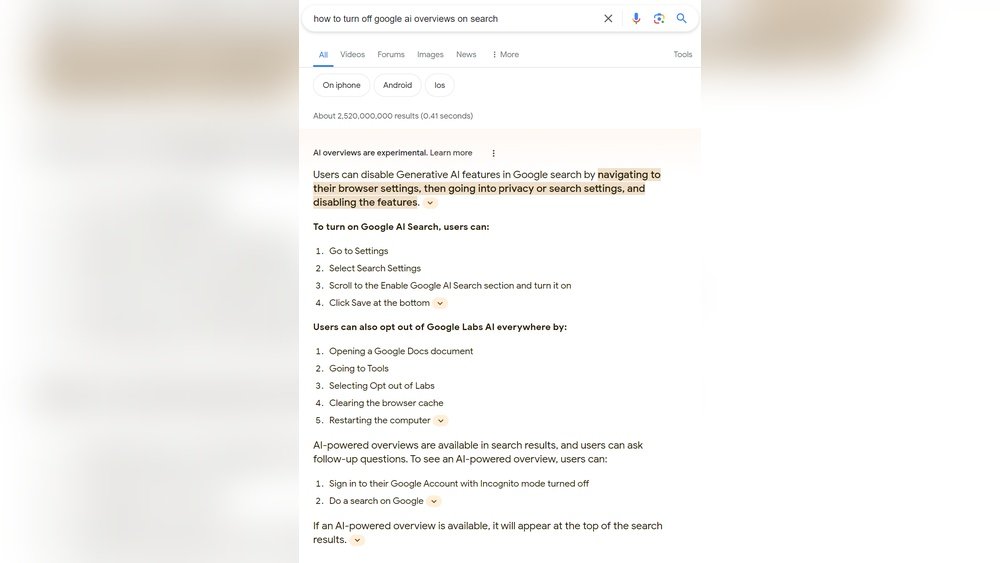
Are you tired of seeing AI-generated summaries every time you search on Google? Maybe you prefer the classic list of links instead of those quick AI overviews popping up at the top.
The good news is, you don’t have to put up with it if it’s not your style. You’ll discover simple, step-by-step ways to turn off or bypass the AI overview feature on Google—whether you’re using a desktop or a mobile device.
Keep reading, and you’ll learn how to take control of your search results and get back to the straightforward answers you want.
:max_bytes(150000):strip_icc()/hide-google-ai-overview-063757b8931b4a97b9fa614a08428abb.png)
Credit: www.lifewire.com
Disable Ai In Google Labs
Disabling AI in Google Labs lets you control AI features in your search. Google Labs offers experimental tools that you can enable or disable. Turning off AI here stops AI-generated summaries from showing in search results.
This helps you see traditional search links without AI influence. The process is quick and simple on both desktop and mobile devices.
Access Google Labs Settings
Open Google Search in your browser. Look for the Labs icon, shaped like a beaker. It usually appears at the top right or left of the page. Click this icon to open Google Labs.
Turn Off Ai In Search
Inside Google Labs, find the option labeled “AI in Search.” Click “Manage” to view this setting. Toggle the switch to the off position. This disables AI-generated overviews in your search results.
Confirm Ai Features Are Disabled
After turning off AI, perform a new Google search. Check if AI summaries still appear. If you only see regular web links, the AI feature is off. If AI content still shows, revisit Google Labs and toggle the setting again.
Use Web Filter For Search Results
Using a web filter for search results helps control what appears on your Google search page. It limits AI-generated summaries and shows traditional links instead. This method gives you a clearer view of the original web pages.
Web filters are easy to use and do not require technical skills. They help avoid distractions caused by AI overviews. You get direct access to full content from reliable sources.
Access The Web Filter Option
After searching on Google, look below the search bar. Find the “Web” filter button. If it is not visible, click “More” to find it. Selecting “Web” changes results to standard links only.
Set Web Filter As Default
To avoid AI summaries every time, make “Web” your default filter. Go to Google Search settings. Choose “Search engine” and pick “Google Web.” This keeps results in the classic format permanently.
Use Browser Extensions To Block Ai Content
Install browser add-ons like “Bye Bye, Google AI” to filter AI summaries. These tools block AI-generated results automatically. They keep your search experience focused on real web pages.
Install Browser Extensions
Adjusting Google Search settings helps control what appears in your search results. You can turn off AI Overview and see only traditional links. This makes your search experience simpler and clearer.
Changing these settings takes just a few clicks on your desktop or mobile device. Follow the steps below to customize Google Search to your preference.
Access Google Search Settings
Open Google Search on your device and sign in if needed. Click on the settings icon, usually found in the top right corner. This opens a menu where you can find Search Settings.
Disable Ai Features In Labs
Look for the “Labs” option in the settings menu. Labs contains experimental Google features. Find the “AI in Search” toggle and switch it off to disable AI overviews.
Set Default Filter To Web Results
After searching, click the “Web” filter below the search bar. If not visible, select “More” and choose “Web”. This shows standard web links instead of AI summaries.
Save Your Settings
Scroll down and click “Save” to apply your changes. Your searches will now avoid AI-generated summaries and focus on classic results.
Adjust Google Search Settings
Turning off AI features on mobile devices can improve your Google search experience. It removes AI-generated summaries and shows traditional results instead. This guide explains how to disable AI overview on smartphones and tablets.
Open Google Search On Your Mobile Browser
Start by launching your mobile browser. Visit the Google Search website. Make sure you are signed in to your Google account. This step is necessary to access the settings.
Access The Labs Or Experimental Features
Look for the Labs icon on the Google Search page. It usually looks like a small beaker or flask. Tap this icon to open experimental features. This area controls new options like AI in search.
Toggle Off “ai In Search”
Find the setting labeled “AI in Search” or similar. Switch it off by tapping the toggle button. This action disables AI-generated overviews from appearing in your search results.
Use The “web” Filter For Search Results
After turning off AI, perform a search. Look for the “Web” filter below the search bar. If it is not visible, tap “More” and select “Web” from the list. This filter shows regular search results without AI summaries.
Consider Browser Extensions To Block Ai Content
Some browsers support extensions that block AI content. Search for extensions like “Bye Bye, Google AI.” Install and enable the extension to remove AI features from your search results automatically.
Turn Off Ai On Mobile Devices
Switching to traditional search views helps you avoid AI-generated summaries. It shows regular web links and snippets instead. This way, you get search results the old-fashioned way.
This method is simple and works well on both desktop and mobile devices. It gives you more control over what you see on Google Search.
Use The Web Filter After Searching
After you perform a search on Google, look below the search bar. Click the “Web” filter to switch from AI overviews to classic results. If you do not see “Web,” click “More” and select it from the list. This changes the display to show only web links and short descriptions.
Turn Off Ai In Google Labs
On your desktop or mobile browser, open Google Search. Find the “Labs” icon, which looks like a beaker, at the top of the page. Click it, then go to “Manage.” Toggle off the option labeled “AI in Search.” This will stop AI summaries from appearing in your results.
Install Browser Extensions To Block Ai Content
You can add extensions like “Bye Bye, Google AI” to your browser. These tools block AI-generated content and force traditional search views. They work well on browsers like Chrome and Firefox.
Set Google Web As Your Default Search Engine On Mobile
On Android, open a browser and visit TenBlueLinks.org. Search for anything on Google, then open Settings. Go to “Search engine” and select “Google Web.” This switches your search to show regular web results without AI overviews.

Credit: mashable.com
Switch To Traditional Search Views
Managing the visibility of AI Overview on Google helps control your search experience. You can choose to see traditional links or AI-generated summaries. Adjusting these settings improves how you receive information.
This section explains how to manage AI Overview visibility with simple steps. It covers turning off AI features and selecting preferred search results.
Access Google Search Labs
Open Google Search on your desktop or mobile device. Look for the “Labs” icon, shaped like a beaker, at the top corner. Click it to open experimental features.
Inside Labs, find the option labeled “AI in Search.” Toggle it off to disable AI Overview in search results.
Switch To Traditional Web Results
After searching, find the filter bar under the search box. Click the “Web” filter to show only classic search links.
If “Web” is not visible, click “More” and select “Web” from the menu. This hides AI-generated content and displays standard results.
Use Browser Extensions To Block Ai Content
Install a browser extension like “Bye Bye, Google AI” to block AI overviews automatically. These extensions filter out AI content from Google searches.
This method works on popular browsers and offers an easy way to manage AI visibility without changing Google settings.
Manage Ai Overview Visibility
Using Incognito Mode is a simple way to limit AI features on Google. It helps stop Google from using your search history and personal data to generate AI overviews. This mode creates a private browsing session that does not save your activity.
Incognito Mode can reduce AI-generated summaries because Google treats it like a new user. It does not link your searches to your Google account. This means fewer personalized AI features appear in your search results.
How To Open Incognito Mode
Open your browser and look for the menu icon. On Chrome, click the three dots in the top right corner. Select “New Incognito Window” from the menu. A new window will open with a dark background. You can start searching without using your saved data.
Benefits Of Using Incognito Mode
Incognito Mode stops Google from using cookies and cache. It keeps your browsing data private from your device and Google. This helps avoid AI features that use your previous searches. You get more neutral and traditional search results.
Limitations Of Incognito Mode
Incognito Mode does not block all AI features on Google. Some AI tools may still show based on general data. It also does not protect you from tracking by websites other than Google. Use it mainly to reduce AI overviews linked to your account.
Tips For Better Privacy
Combine Incognito Mode with clearing cookies and cache regularly. Avoid signing into your Google account while browsing. Adjust search settings to disable AI features when possible. These steps help keep AI-generated content to a minimum.
Use Incognito Mode To Limit Ai Features
Choosing a default search engine without AI features helps avoid AI-generated summaries. It gives control over the search results you see. This can improve focus and reduce distractions.
Many search engines offer a traditional search experience. You can set these as your default instead of AI-powered ones. This step ensures results show standard links and snippets only.
Selecting A Default Search Engine On Google Chrome
Open Google Chrome settings. Click on “Search engine” from the menu. Choose “Manage search engines and site search.” Find a search engine without AI features. Click the three dots next to it and select “Make default.”
Changing Default Search Engine In Firefox
Go to Firefox settings. Select “Search” in the sidebar. Under “Default Search Engine,” pick a non-AI option. This change applies to all searches from the address bar.
Setting Default Search Engine On Microsoft Edge
Open Edge and go to settings. Choose “Privacy, search, and services.” Scroll to “Address bar and search.” Click “Manage search engines.” Pick a non-AI search engine and set it as default.
Using Browser Extensions To Avoid Ai Results
Install extensions that block AI summaries. Extensions like “Bye Bye, Google AI” filter search results. They show only classic web links, improving search clarity.
Select Default Search Engines Without Ai
Muting or hiding AI features on platforms related to Google helps reduce distractions. It keeps your search experience simple and focused.
Many users prefer traditional search results without AI summaries. Several platforms allow easy toggling of AI features off.
How To Disable Ai Overviews On Google Search
Open Google Search on your desktop or mobile browser. Click the “Labs” icon shaped like a beaker. Find the “AI in Search” option and toggle it off. This stops AI-generated summaries from appearing in your results.
Using Filters To Show Only Web Results
After searching, look under the search bar for the “Web” filter. If it’s hidden, click “More” and select “Web.” This switch forces Google to display regular links only, excluding AI content.
Browser Extensions To Block Ai Features
Install extensions like “Bye Bye, Google AI” on your browser. These tools filter out AI-generated content from search pages. They provide a cleaner browsing experience without AI interruptions.
Adjusting Settings On Mobile Devices
On Android, open your browser and visit TenBlueLinks.org. Search for any term, then go to Settings > Search engine. Choose “Google Web” to avoid AI summaries. This setting shows normal search results by default.

Credit: smart.dhgate.com
Frequently Asked Questions
How Do I Get Rid Of The Ai Overview On Google?
Open Google Search, click the “Labs” icon, go to “Manage,” and toggle off “AI in Search. ” Alternatively, select the “Web” filter after searching to view traditional links without AI Overviews.
How Do I Cancel My Google Ai Overview?
You cannot fully cancel Google AI Overview as it is a core feature. Use the “Web” filter after searching to see only text-based links without AI summaries.
How Do I Shut Off Meta Ai Search?
You cannot fully shut off Meta AI Search. Use settings or filters to limit AI-generated results and see traditional links instead.
What Is The Extension To Remove Ai Overview?
Use the browser extension “Bye Bye, Google AI” to remove AI Overview from Google search results quickly and easily.
What Is Ai Overview In Google Search?
AI Overview shows a brief summary generated by AI at the top of Google results.
Why Would I Want To Turn Off Ai Overview On Google?
Some users prefer traditional search links without AI-generated summaries for clarity.
How Can I Disable Ai Overview On Desktop Google Search?
Click the Labs icon, go to Manage, and toggle off “AI in Search. ”
Can I Turn Off Ai Overview On My Mobile Device?
Yes, use browser settings or switch to “Google Web” in search engine options.
Does Turning Off Ai Overview Affect Search Accuracy?
No, you still get regular search results with links and snippets.
How To See Only Traditional Web Results After A Google Search?
Click the “Web” filter under the search bar to remove AI summaries.
Conclusion
Turning off AI Overview on Google is simple and quick. Just follow the steps carefully. Use the Labs feature or switch to the “Web” filter to see regular search results. Browser extensions can also help remove AI summaries. This way, you get pure links without AI content.
Control your search experience as you prefer. Keep these tips handy for easy access anytime. Stay informed and browse with ease every time you search on Google.