Are you tired of relying solely on Google Docs for your writing and collaboration needs? Maybe you’re looking for more features, better offline access, or just a fresh experience.
Whatever your reason, exploring Google Docs alternatives can open up a world of possibilities that fit your unique style and workflow. You’ll discover top options that offer powerful tools, smooth collaboration, and even AI assistance to boost your productivity. Ready to find the perfect match for your documents?
Keep reading to uncover the best Google Docs alternatives tailored just for you.
Top Alternatives To Google Docs
Google Docs is popular for online document editing. Still, many alternatives offer unique features and different experiences. These options suit various needs and preferences. Choosing the right tool depends on your workflow and device.
Below are some of the top alternatives to Google Docs. Each one provides easy collaboration and strong editing tools. They work well for individuals and teams.
Microsoft Word Online is a cloud-based word processor. It allows real-time collaboration through OneDrive. Users can comment, track changes, and co-author documents together. It supports offline access via OneDrive sync. Many templates and formatting options are available. AI features like Microsoft Copilot assist with writing and summarizing. This tool is ideal for those familiar with Microsoft Office.
Zoho Writer offers a clean interface for document creation. It supports real-time collaboration with commenting and editing. The platform includes offline editing and strong privacy controls. Zoho Writer works well on mobile and desktop devices. It integrates with other Zoho apps for smooth workflow. Its simple design helps users focus on writing.
OnlyOffice combines document editing with project management. It supports collaborative editing and detailed version history. OnlyOffice offers a desktop and online editor. It is compatible with Microsoft Office formats. This tool suits teams needing document and task collaboration. Its robust security features protect sensitive information.
Dropbox Paper is a minimalist workspace for documents and notes. It supports real-time collaboration and multimedia embedding. Users can assign tasks and comment on content easily. Dropbox Paper syncs with Dropbox cloud storage. It works well for brainstorming and simple project plans. The interface is user-friendly and distraction-free.
Quip combines documents, spreadsheets, and chat in one place. It enables teams to collaborate instantly and keep conversations organized. Quip offers task lists and calendar integration. It works offline and syncs changes when online. This tool suits teams needing a mix of documents and communication. The interface is simple and clear.
Microsoft Word Online
Microsoft Word Online is a popular web-based word processor. It offers a familiar interface similar to the desktop version. Users can create, edit, and share documents easily. It works well for both personal and professional use. Microsoft Word Online integrates tightly with Microsoft 365 and OneDrive for cloud storage. This makes document management simple and efficient.
Collaboration Features
Microsoft Word Online supports real-time co-authoring. Multiple users can work on the same document simultaneously. It allows commenting and tracking changes clearly. Team members see updates instantly without delays. This helps improve teamwork and speeds up project completion.
Storage And Offline Access
Documents save automatically to OneDrive, Microsoft’s cloud storage. Users access files from any device with internet. Offline access is possible through OneDrive sync. This feature enables editing without internet connection. Changes sync back once online, ensuring files stay updated.
Ai Integration
Microsoft Word Online includes AI-powered tools called Microsoft Copilot. It assists with writing, summarizing, and editing tasks. These features help improve document quality and save time. AI integration requires a Microsoft 365 subscription. It supports clearer and faster content creation.
Zoho Writer
Zoho Writer is a cloud-based word processor that stands out as a solid alternative to Google Docs. It offers a clean interface and powerful features for writing and collaboration. Users can create, edit, and share documents effortlessly without software installation. Zoho Writer also integrates well with other Zoho apps and popular cloud services.
Real-time Editing
Zoho Writer supports real-time collaboration. Multiple users can edit a document simultaneously. Changes appear instantly for all participants. This feature helps teams work together smoothly. Commenting and chat options improve communication during editing.
Template Variety
The platform offers a wide range of templates. These cover business, education, and personal needs. Templates save time and provide professional designs. Users can customize templates to fit their style. This helps create polished documents quickly.
Platform Compatibility
Zoho Writer works on various devices and browsers. It supports Windows, Mac, Linux, and mobile platforms. No matter the device, users get a consistent experience. Offline editing is also possible with the right setup. This flexibility suits users in different environments.
Dropbox Paper
Dropbox Paper offers a simple and clean workspace for writing and team collaboration. It blends document creation with project management in one tool. The interface is minimal, reducing distractions during work. Teams can organize ideas, share notes, and manage tasks easily. Its integration with Dropbox storage makes file access seamless. Dropbox Paper suits users seeking a balanced alternative to Google Docs.
Task Management Tools
Dropbox Paper includes built-in task management features. Users can assign tasks directly inside documents. Each task gets a checkbox for easy tracking. Deadlines can be set to keep projects on schedule. The task list updates in real time for all team members. This feature helps teams stay organized without leaving the document.
Media Integration
Dropbox Paper supports rich media integration. Images, videos, and audio files can be added quickly. It also allows embedding content from platforms like YouTube and Spotify. This helps make documents more engaging and informative. Media content appears cleanly within the text flow. It improves communication by combining text and visuals effectively.
Collaboration Experience
Collaboration in Dropbox Paper is smooth and intuitive. Multiple users can edit documents at the same time. Comments and annotations appear in real time. Users can mention team members to draw attention to specific points. Version history lets teams review past changes easily. These features make group work transparent and efficient.
Onlyoffice
OnlyOffice is a versatile online office suite that offers a strong alternative to Google Docs. It combines document editing, spreadsheets, and presentations in one platform. OnlyOffice focuses on collaboration and productivity with tools suitable for individuals and businesses.
This platform supports real-time editing and sharing, making teamwork smooth and efficient. Users can work on files simultaneously with clear version control. OnlyOffice also integrates well with various cloud storage services.
Office Suite Integration
OnlyOffice works with popular cloud services like Nextcloud, ownCloud, and Seafile. It also supports integration with Microsoft Office formats. This allows users to open and save documents in formats like DOCX, XLSX, and PPTX.
The platform fits easily into existing workflows. Users can edit files stored on different cloud drives without switching apps. OnlyOffice also offers plugins to enhance compatibility with other tools.
Security Features
OnlyOffice prioritizes document security and user privacy. It uses SSL encryption to protect data during transmission. Files stored on servers are encrypted as well.
Access rights can be controlled for each user or group. This limits who can view, edit, or comment on documents. Two-factor authentication adds an extra layer of protection for accounts.
Customization Options
OnlyOffice allows users to customize the interface to fit their needs. Themes and layout settings can be adjusted for comfort and ease of use. The platform also supports adding custom branding for businesses.
Developers can extend OnlyOffice’s features with APIs and plugins. This flexibility helps teams tailor the suite to their workflow. Users appreciate the ability to personalize their workspace.
Credit: www.nuclino.com
Quip
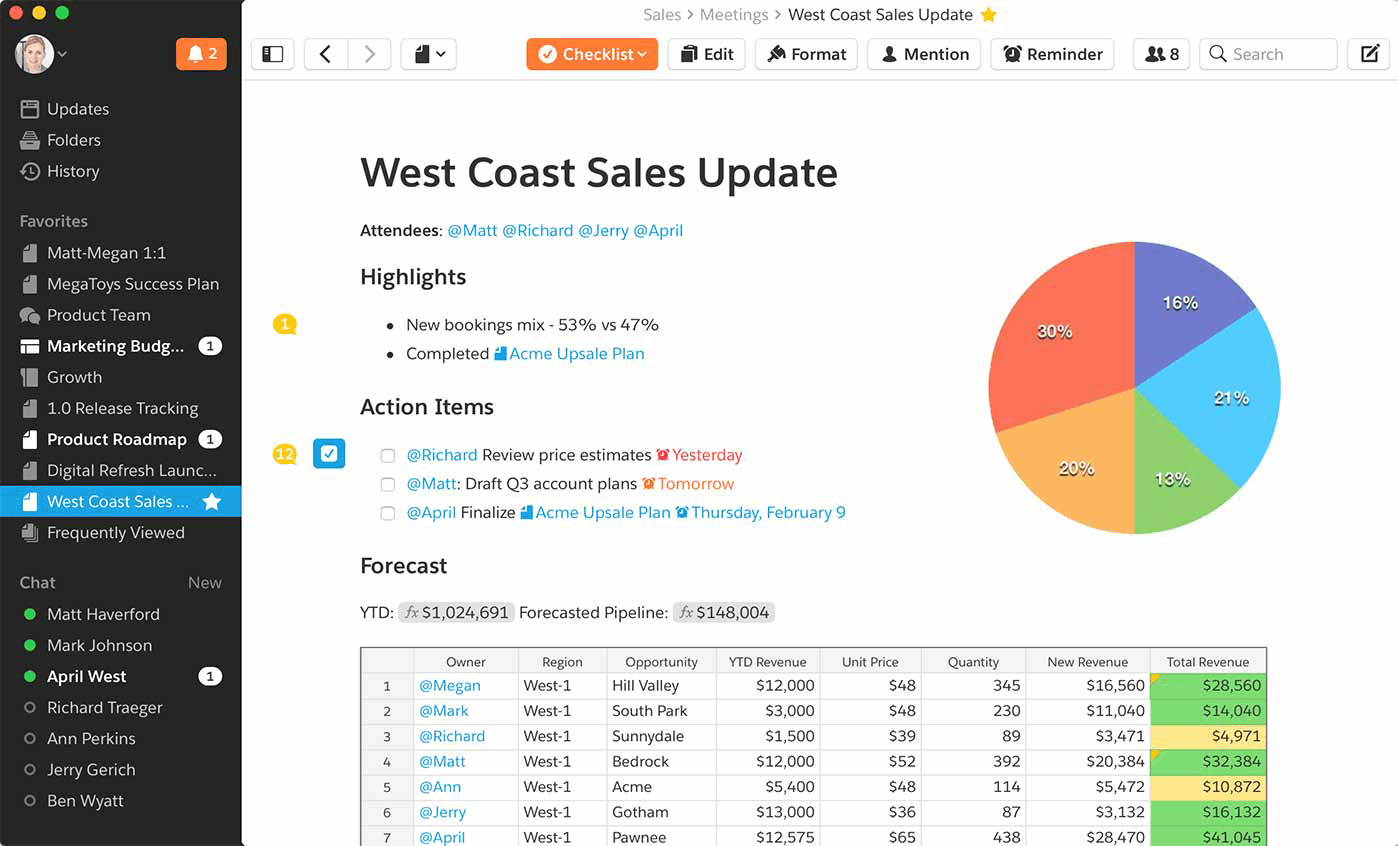
Quip is a collaborative tool designed for teams to create, share, and manage documents easily. It combines documents, spreadsheets, and chat in a single workspace. This makes teamwork smoother and faster without switching apps. Many businesses use Quip to keep everyone on the same page.
Chat And Document Sync
Quip allows users to chat directly within documents. This keeps conversations close to the work. Comments and edits update in real-time. Everyone sees changes instantly. This feature reduces email back-and-forth and speeds up decisions.
Mobile Accessibility
Quip works well on smartphones and tablets. Its mobile app offers full editing and chatting features. Users can access files anytime, anywhere. Offline mode lets users work without internet. Changes sync automatically once online again.
Project Management
Quip includes simple project management tools. Users can create task lists and assign duties. Progress updates appear in real-time for all members. This helps teams track deadlines and responsibilities. It turns documents into action plans easily.
Notion
Notion is a versatile platform that blends note-taking, task management, and database functions. It offers more than just document editing, making it a strong alternative to Google Docs. Users can create, organize, and share content all in one place.
All-in-one Workspace
Notion combines notes, documents, tasks, and databases into a single workspace. This setup helps keep everything organized and accessible. Users avoid switching between multiple apps. The interface is clean and easy to use for beginners.
Collaboration And Sharing
Teams can work together on pages in real-time. Comments and mentions make communication simple. Sharing options allow control over who can view or edit content. This keeps projects transparent and teamwork smooth.
Templates And Databases
Notion offers many templates for notes, projects, and tracking. Databases help users manage information with tables, lists, and boards. These tools make organizing complex data easier. Customization lets users tailor pages to their needs.
Etherpad
Etherpad is a simple, web-based text editor designed for real-time collaboration. It lets multiple users work on the same document simultaneously. The platform is open source and easy to use, making it a popular choice for teams and classrooms. Users can see each other’s edits live, which helps improve teamwork and productivity.
Unlike many cloud editors, Etherpad focuses on speed and simplicity. It does not require an account or installation, as it runs directly in the browser. This makes it accessible for anyone needing quick, collaborative writing without complicated setup.
Open Source Benefits
Etherpad’s open source nature means anyone can use and modify it freely. Users avoid vendor lock-in and can control their data better. Developers can improve the software or add new features. This transparency builds trust and a strong community around the tool.
Real-time Collaboration
Multiple users can edit documents at the same time. Changes appear instantly, reducing confusion and delays. Chat features allow teams to communicate within the editor. This helps keep all discussions and edits in one place for easy reference.
Customization And Plugins
Etherpad supports many plugins to extend its functionality. Users can add features like spell check, export options, and more. The interface can be customized to match specific needs. This flexibility makes Etherpad suitable for different types of projects and teams.
Key Criteria For Choosing Tools
Choosing the right tool to replace Google Docs depends on several key factors. These factors influence how well the tool fits your needs and work style. Focus on how the tool supports teamwork, stores files, and protects your information.
Collaboration Capabilities
Effective collaboration is essential for any document tool. It should allow multiple users to edit files at the same time without conflicts. Features like real-time comments, version tracking, and change suggestions improve teamwork. Check if the tool supports easy sharing and notifications to keep everyone updated.
Storage And Accessibility
Storage options affect how and where your files are saved. Cloud storage allows access from any device with an internet connection. The tool should offer enough space and backup options to prevent data loss. Offline access is also useful for working without internet. Consider compatibility with other apps and platforms for smooth workflow.
Security And Privacy
Security protects your documents from unauthorized access. Look for tools that use encryption and strong password policies. Privacy settings should let you control who can view or edit your files. Tools that comply with data protection laws add an extra layer of trust. Regular updates and security patches keep your data safe from new threats.
Credit: www.nuclino.com
Comparing Features And Pricing
Choosing the right alternative to Google Docs depends on features and pricing. Different tools offer a range of options, from free plans to advanced paid versions. This section compares key aspects such as cost, user interface, and integration capabilities. Understanding these points helps you pick a tool that fits your needs and budget.
Free Vs Paid Plans
Many Google Docs alternatives provide free versions with basic features. These usually include limited storage and fewer collaboration tools. Paid plans unlock extra storage, advanced editing, and priority support. Some services charge monthly fees, while others offer yearly discounts. Check the limits on file sizes and team members for each plan.
User Interface And Ease Of Use
A clean and simple user interface improves productivity. Most alternatives try to keep the design intuitive and clutter-free. Some tools mimic Google Docs’ layout, making it easy to switch. Others add extra menus or buttons that may confuse new users. Test the editor to see if it feels natural and easy for your tasks.
Integration With Other Apps
Integration options vary widely among Google Docs alternatives. Some connect directly with popular apps like Dropbox, Slack, or Microsoft Teams. This helps streamline your workflow and share documents easily. Others offer limited or no app connections. Look for tools that support the apps you use daily to save time and avoid switching between platforms.
Credit: helpjuice.com
Frequently Asked Questions
What Is The Microsoft Equivalent Of Google Docs?
The Microsoft equivalent of Google Docs is Microsoft Word Online. It offers real-time collaboration, cloud storage via OneDrive, templates, and AI-assisted writing features.
Is Google Docs Still Free?
Google Docs remains free for personal use with basic features and cloud storage via Google Drive. Premium plans offer extra storage and tools.
Why Do People Still Use Microsoft Word Instead Of Google Docs?
People use Microsoft Word for its advanced formatting, extensive templates, offline access, and seamless OneDrive integration. It also offers powerful AI tools with subscriptions.
What Is The Disadvantage Of Google Docs?
Google Docs relies heavily on internet connectivity, limiting offline use. It offers fewer advanced formatting options than desktop software. Privacy concerns arise due to cloud storage. Large files can slow performance. Users may face compatibility issues with complex Microsoft Word documents.
What Are The Best Free Alternatives To Google Docs?
LibreOffice and Zoho Docs offer free, reliable word processing with good features.
Can I Collaborate In Real-time Like Google Docs?
Yes, tools like Microsoft Word Online and OnlyOffice support real-time collaboration.
Which Google Docs Alternative Works Offline Easily?
LibreOffice and Microsoft Word Online allow offline editing without internet connection.
Are There Secure Google Docs Alternatives For Business Use?
Yes, Nextcloud and OnlyOffice provide strong security and privacy for businesses.
Do Google Docs Alternatives Support Cloud Storage?
Most alternatives like Zoho Docs and Microsoft Word Online use cloud storage.
Can I Import Google Docs Files To Other Platforms?
Yes, most alternatives support importing and exporting Google Docs formats smoothly.
Conclusion
Choosing the right tool depends on your needs and preferences. Many alternatives offer similar features to Google Docs. Some focus on offline use, while others excel in collaboration. Consider storage options and ease of use before deciding. Trying a few options helps find the best fit.
Using the right word processor makes writing and sharing easier. Explore these alternatives to work smarter and faster.