
Are you tired of juggling endless to-do lists that never seem to get done? Imagine having one simple app that helps you organize your tasks, prioritize what matters most, and keep everything on track—all in one place.
That’s exactly what Todoist offers. Whether you’re managing work projects, personal goals, or daily errands, Todoist makes it easier for you to focus and get things done. Ready to discover how this powerful yet user-friendly tool can transform your productivity?
Keep reading, and you’ll learn how to take control of your time like never before.
Getting Started With Todoist
Todoist is a simple tool to manage tasks and projects. It helps keep your work and personal life organized. This guide will show you how to begin using Todoist effectively.
Starting with Todoist is quick and easy. You can set up your account and add tasks in just a few minutes. The app works on many devices, so you can use it wherever you go.
Creating Your Account
Visit the Todoist website or download the app on your phone. Enter your email and create a password. You can also sign up using Google or Apple accounts. After that, confirm your email to activate your account.
Adding Your First Task
Click the “Add Task” button. Type the task you want to do. You can set a due date by typing it or choosing from the calendar. Press “Enter” to save your task. It will appear in your task list.
Organizing Tasks Into Projects
Create projects to group similar tasks. Click “Add Project” and name it. You can use projects for work, home, or school. Move tasks into projects by dragging or choosing the project when adding a task.
Setting Priorities And Due Dates
Mark important tasks with priority levels. Todoist offers four priority levels, from low to urgent. Set due dates to get reminders. This helps you focus on what needs to be done first.
Using Labels And Filters
Labels help tag tasks with keywords. For example, tag tasks as “email” or “phone call.” Filters allow you to see tasks that match certain labels or dates. Use them to find tasks quickly.
Organizing Tasks Effectively
Organizing tasks effectively is key to staying productive. Todoist offers simple tools to keep your tasks clear and structured. You can separate work by areas and prioritize what matters most. This helps reduce stress and boosts focus. Let’s explore how to use projects, sections, labels, and filters in Todoist.
Projects And Sections
Projects in Todoist act like folders for your tasks. You create a project for each goal or area of your life. For example, you might have projects for “Work,” “Home,” or “Fitness.” Inside projects, sections help split tasks into smaller groups. This makes large projects easier to manage. You can move tasks between sections with a simple drag and drop.
Using projects and sections keeps your task list neat. It also helps you find tasks quickly. You see only what belongs to each part of your life.
Labels And Filters
Labels add extra info to your tasks. You can tag tasks with labels like “Urgent,” “Email,” or “Call.” This lets you sort tasks by type or priority. Labels work across all projects, giving you a way to group similar tasks.
Filters let you create custom views of your tasks. For example, you can filter tasks with the label “Urgent” and due today. Filters help you focus on what needs your attention now. You can save filters for repeated use and access them anytime.
Mastering Natural Language Input
Todoist’s natural language input makes adding tasks simple and fast. Typing tasks feels like writing a quick note. You do not need to set dates or labels separately. Just type what you want, and Todoist understands.
This feature helps you stay focused on your work, not on organizing tasks. It saves time and reduces the chance of mistakes. It works well for beginners and advanced users alike.
Add Tasks With Simple Phrases
Type phrases like “Meeting tomorrow at 3pm” or “Buy groceries every Monday.” Todoist automatically sets the date and time for you. You can also add priorities by saying “!1” for high priority.
Use Labels And Projects In Your Task
Include labels and projects directly in your task description. For example, “Finish report work @urgent.” Todoist assigns the task to the work project and marks it urgent. This keeps your tasks organized without extra steps.
Set Recurring Tasks Easily
Natural language input supports repeating tasks too. Write “Call mom every Sunday” or “Pay bills on the last day of the month.” Todoist will remind you regularly without needing manual entry each time.
Quickly Modify Existing Tasks
Edit tasks by typing new details in natural language. Change deadlines, priorities, or labels quickly. Todoist updates the task using your new instructions. This keeps your to-do list accurate and up to date.

Credit: www.danalinnell.com
Using Recurring Tasks And Reminders
Using recurring tasks and reminders in Todoist helps keep your schedule on track. These features reduce the chance of forgetting important duties. You can set tasks to repeat daily, weekly, or at any interval you prefer. Reminders alert you at the right time to complete your tasks.
Creating Recurring Tasks
To create a recurring task, type the task name and add a repeating pattern. For example, write “Pay bills every month on the 5th.” Todoist understands natural language and sets the task to repeat automatically. This saves time and ensures you never miss routine tasks.
Setting Effective Reminders
Reminders in Todoist notify you about tasks before they are due. You can set reminders by date, time, or location. These alerts help you act promptly and stay organized throughout your day. Choose notification types that suit your preferences, like push notifications or emails.
Managing Recurring Tasks And Reminders
Manage recurring tasks by editing or rescheduling them easily. You can pause, delete, or change the repeat frequency as needed. Reminders can also be adjusted or turned off anytime. Keeping tasks and reminders updated ensures your to-do list reflects your current priorities.
Prioritizing Tasks For Maximum Impact
Prioritizing tasks is key to achieving more in less time. Todoist helps you focus on what matters most. It organizes your tasks by urgency and importance. This keeps distractions away and boosts your efficiency.
You can set priority levels to each task. This visual guide shows which tasks need attention first. It helps prevent feeling overwhelmed by a long to-do list. Todoist’s simple system makes prioritizing quick and clear.
Assigning Priority Levels
Todoist uses four priority levels, marked with colors. Level 1 is the highest priority, in red. Level 4 is the lowest, with no color highlight. Assigning these levels lets you sort tasks easily. Focus on high-priority tasks before moving to less urgent ones.
Using Filters To Focus
Filters narrow down your task list by priority or deadline. You can create a filter to show only top priority tasks. This keeps your view clean and focused. Use filters daily to stay on track and avoid missing deadlines.
Balancing Urgency And Importance
Todoist helps balance urgent tasks and important goals. Urgent tasks need immediate action. Important tasks contribute to long-term success. Mark tasks accordingly to decide what to do now and what to plan for later.
Reviewing And Adjusting Priorities
Priorities can change as new tasks come in. Check your list regularly to update task importance. Todoist’s drag-and-drop feature lets you reorder tasks fast. Keep your list fresh to maintain high productivity.
Leveraging Collaboration Features
Collaboration is key to completing tasks efficiently. Todoist offers simple tools to work with others smoothly. Teams can share projects and assign tasks easily. This helps keep everyone on the same page and focused on goals.
Sharing a project in Todoist allows teammates to see all tasks. Each member can add comments to clarify details or give updates. This reduces confusion and saves time spent on emails or meetings.
Assigning tasks to specific people divides work clearly. Everyone knows their responsibilities and deadlines. This feature boosts accountability and ensures tasks move forward without delay.
Todoist also sends notifications about task changes or comments. Team members stay informed instantly. It prevents missed information and keeps the workflow steady.
Creating Shared Projects
Start a project and invite teammates by email. Shared projects show all tasks and progress to every member. This keeps the entire team connected and aware of updates.
Assigning Tasks To Team Members
Assign tasks to one or more people in a project. Each assignee gets notified about their tasks. This clarifies who does what and helps track progress easily.
Using Comments For Clear Communication
Comments let team members discuss tasks directly. Add details, ask questions, or share files in comments. This keeps all communication in one place.
Tracking Progress With Activity History
Todoist records task changes and updates automatically. Activity history shows who did what and when. This helps review progress and spot any delays quickly.
Integrating Todoist With Other Tools
Integrating Todoist with other tools makes task management smoother and more efficient. It helps keep all your plans and communications in one place. Syncing with your email and calendar lets you see deadlines and appointments alongside your tasks. Connecting with third-party apps expands Todoist’s capabilities, fitting your unique workflow. These integrations save time and reduce the chance of missing important tasks or events.
Email And Calendar Sync
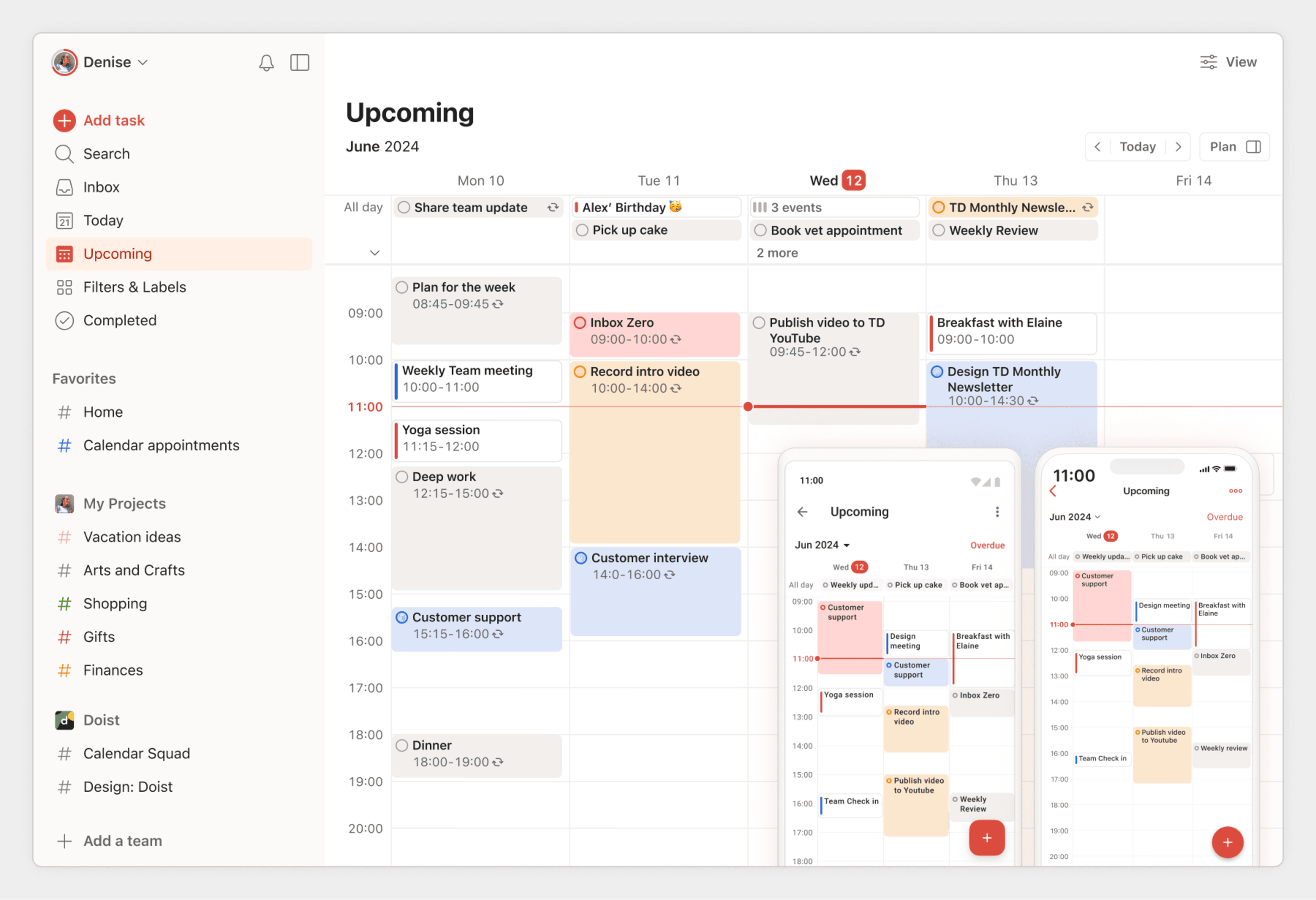
Todoist connects directly to popular email services like Gmail and Outlook. This lets you turn emails into tasks with just a few clicks. You can set due dates and reminders right from your inbox. Calendar sync works with Google Calendar, Outlook Calendar, and others. Your tasks appear alongside your meetings and events. Changes in either Todoist or your calendar update automatically. This keeps your schedule balanced and clear.
Third-party Apps
Todoist works with many third-party apps to boost productivity. Apps like Slack, Zapier, and IFTTT create custom workflows. These apps automate repetitive tasks and send notifications. You can connect Todoist to note-taking apps like Evernote or OneNote. Project management tools such as Trello and Asana also sync with Todoist. These integrations help you stay organized across different platforms and teams.
Credit: www.todoist.com
Customizing Views And Layouts
Customizing views and layouts in Todoist lets you work the way you want. It helps you see tasks in clear formats. You can switch between different views to match your style. This flexibility improves focus and saves time.
List And Board Views
Todoist offers two main ways to view your tasks. The List view shows tasks in a simple, vertical order. It is perfect for seeing all tasks quickly. The Board view arranges tasks into columns. It works well for projects with different stages. Drag and drop tasks between columns easily. Both views help organize tasks clearly and suit different workflows.
Filters And Saved Searches
Filters allow you to find specific tasks fast. You can create filters by date, project, priority, or labels. Saved searches keep your favorite filters handy. Use them to repeat searches without typing again. Filters and saved searches reduce clutter and increase productivity. They help focus on what matters most at any time.
Advanced Tips For Power Users
Power users of Todoist can enhance their productivity by using advanced features. These tips help you save time and manage tasks efficiently. Explore ways to automate your workflow and speed up task entry.
Automation With Templates
Templates let you reuse task lists without recreating them each time. Save complex projects as templates and import them whenever needed. This saves effort and keeps your task structure consistent.
To create a template, export a project as a CSV or use Todoist’s template feature. Import it to start a new project quickly. This is useful for recurring projects or events.
Templates also work well with automation tools like Zapier. Connect Todoist with other apps to add tasks automatically from emails or forms. This reduces manual entry and keeps your list updated.
Keyboard Shortcuts
Keyboard shortcuts speed up task management without reaching for the mouse. Use shortcuts to add, complete, or move tasks fast. This keeps your hands on the keyboard and workflow smooth.
Common shortcuts include “Q” to add a quick task and “Ctrl + Enter” to save it instantly. Navigate between projects using shortcuts like “G” to open the project menu.
Customize shortcuts in settings to fit your work style. Learning these keys takes little time but saves many minutes daily. Efficient navigation helps you focus on what matters.
Choosing Between Free And Paid Plans
Choosing between Todoist’s free and paid plans depends on your task management needs. The free plan covers basic functions suitable for personal use. Paid plans offer more features and support for heavier workloads. Understanding these differences helps you pick the right option.
Features In Free Tier
The free tier lets you create up to five active personal projects. You can add up to five collaborators per project. Task views include list and board layouts. Filters allow three custom filtered views. Activity history is limited to one week. Basic integrations like forwarding emails as tasks are included.
Benefits Of Pro And Business
Paid plans offer unlimited projects and collaborators. You get unlimited activity history and automatic backups. Advanced features include task reminders and calendar views. Pro and Business plans support file uploads and comments without limits. These plans also provide priority support and team management tools for businesses.
Credit: www.subtraction.com
Frequently Asked Questions
Is Todoist For Free?
Yes, Todoist offers a free plan with basic task management, up to five projects, and limited collaboration features.
What Is The 1/3/5 Rule In Todoist?
The 1/3/5 rule in Todoist suggests prioritizing 1 big task, 3 medium tasks, and 5 small tasks daily. It boosts focus and productivity.
Is Todoist Adhd Friendly?
Todoist suits ADHD users with its clean design, natural language input, recurring tasks, and priority settings. It boosts focus and task management effectively.
Is Google Tasks Better Than Todoist?
Todoist offers advanced features, detailed task management, and collaboration tools. Google Tasks is simpler, ideal for basic lists and Google app integration. Choose Todoist for power and flexibility; pick Google Tasks for ease and seamless Google ecosystem use.
What Is Todoist And How Does It Work?
Todoist is a task manager app that helps organize and track your daily tasks easily.
Is Todoist Free To Use Or Does It Require Payment?
Todoist offers a free plan with basic features and paid plans for advanced options.
How Can I Add Tasks Quickly In Todoist?
You can add tasks using natural language, typing deadlines or using voice commands.
Can Todoist Help With Managing Work And Personal Projects?
Yes, Todoist allows you to create multiple projects to separate work and personal tasks.
Does Todoist Support Collaboration With Other Users?
Todoist lets you share projects and assign tasks to up to five collaborators on the free plan.
What Are The Main Features Of Todoist Pro?
Pro includes reminders, unlimited activity history, calendar views, and advanced task filters.
Conclusion
Todoist helps you organize tasks simply and clearly. It works well for both personal and work projects. You can start for free and upgrade if needed. Its features keep tasks easy to track and manage. Many users find it helpful to stay focused every day.
Give Todoist a try to see how it fits your routine. Small steps make big progress with the right tools.





