
Minecraft is more than just a game—it’s a creative playground where millions of players build, explore, and invent. But what if you want to add new features, change game mechanics, or make the world look different? This is where Minecraft mods come in. Mods are custom files that change or add to the game. To use them, you need to understand the Minecraft Mods Folder—where mods are stored, how to manage them, and how to solve problems that can appear.
Many beginners are confused by the mods folder. Questions like “Where is it? “, “Why won’t my mods show up? “, or “How do I organize many mods? ” Are common. This guide will answer these questions and more. You’ll learn not just how to find and use the folder, but also get practical tips that most guides skip.
Let’s dive in and discover how the mods folder can unlock a whole new world in Minecraft.
What Is The Minecraft Mods Folder?
The Minecraft Mods Folder is a special location on your computer. It’s where you place mod files so that the game can use them. When Minecraft starts, it looks inside this folder and loads any compatible mods it finds.
Mods are usually files with a `.jar` extension, but sometimes you’ll see `.zip` or `.litemod` for older versions. For Minecraft Java Edition, the mods folder is created automatically when you run the game with a mod loader like Forge or Fabric.
Why is this folder important? Without it, Minecraft cannot read your mods. Placing mods in the wrong spot will make them invisible or cause errors. Understanding the folder’s role is the first step to a smooth modding experience.
Where To Find The Mods Folder
Finding the mods folder is different depending on your operating system. Here are the usual locations for Minecraft Java Edition:
Windows
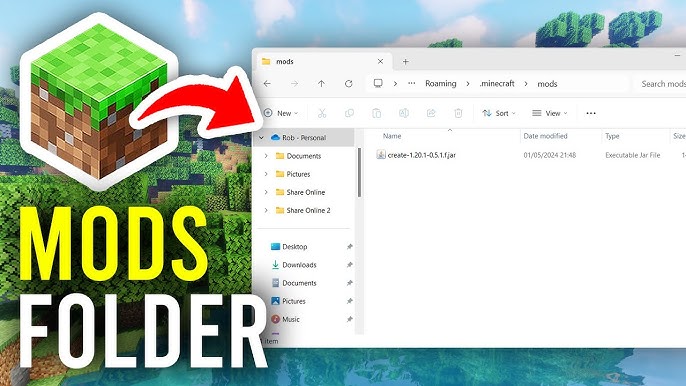
- Press `Windows Key + R` to open the Run dialog.
- Type `%appdata%\.minecraft` and press Enter.
- Inside the `.minecraft` folder, you’ll find a folder named `mods`.
Macos
- Open Finder.
- Press `Command + Shift + G` to open the “Go to Folder” dialog.
- Type `~/Library/Application Support/minecraft` and press Go.
- Look for the `mods` folder.
Linux
- Open your Home directory.
- Go to `.minecraft` (it may be hidden; press `Ctrl + H` to show hidden files).
- Find the `mods` folder inside.
If you don’t see a mods folder, simply run Minecraft once with Forge or Fabric installed. The game creates the folder automatically.
Credit: www.youtube.com
How To Install Mods Using The Mods Folder
Installing mods is simple, but you must follow these steps carefully to avoid problems.
- Install a Mod Loader: Most mods need Forge or Fabric. Download and install the right version for your Minecraft.
- Find Your Mods Folder: Use the steps above for your system.
- Download Mods: Get mods from trusted sites like CurseForge or Modrinth. Always match the mod version to your Minecraft and mod loader.
- Move Mod Files: Drag and drop the `.jar` files into the `mods` folder.
- Start Minecraft: Use the Forge or Fabric profile. If installed correctly, you’ll see your mods in the game.
Example: Installing Just Enough Items (jei)
JEI is a popular mod for viewing crafting recipes.
- Download the correct version of JEI from CurseForge.
- Place the `.jar` file in the mods folder.
- Start Minecraft with Forge. JEI should appear in the game.
What If You Can’t Find The Mods Folder?
Sometimes, the mods folder does not show up. Here are some reasons and solutions:
- Wrong Minecraft Version: Mods only work with Java Edition, not Bedrock.
- No Mod Loader: The folder is created by Forge or Fabric. Make sure you’ve run Minecraft with one of these installed.
- Hidden Files: On Linux and macOS, folders starting with a dot are hidden by default.
- Incorrect Folder: Double-check you are looking in the actual `.minecraft` folder, not a shortcut or copy.
If all else fails, create a new folder named `mods` (all lowercase) inside `. minecraft`.

Credit: gaming.stackexchange.com
How The Mods Folder Works With Different Profiles
Many players use different Minecraft profiles (versions) with their own mods. The mods folder works in a simple way: it loads every mod you put inside, no matter which version you play. This can cause problems if you mix mods for different versions.
To avoid crashes:
- Only keep mods for the profile/version you are using.
- Use a mod manager like MultiMC or Prism Launcher for separate mod folders per profile.
Here’s a quick comparison of standard vs. custom mod folder management:
| Method | Pros | Cons |
|---|---|---|
| Single Mods Folder | Simple, easy to use | Conflicts if using multiple versions |
| Separate Folders (with Launchers) | Organized, avoids conflicts | Needs extra setup |
Organizing The Mods Folder
If you use many mods, things can get messy fast. Here’s how to keep the mods folder organized:
- Create Subfolders for Storage: While Minecraft won’t read mods in subfolders, you can keep backups or old versions in folders like `mods_backup`.
- Name Mods Clearly: Rename mod files to include the version number, like `OptiFine_1.19.2.jar`.
- Use a ReadMe File: Add a text file listing what each mod does.
- Remove Old Mods: Delete or move out mods you’re not using to avoid conflicts.
This extra effort saves time when updating or troubleshooting mods.
Common Mistakes With The Mods Folder
Even experienced players make errors with mods. Here are common mistakes and how to avoid them:
- Wrong Mod Version: Always match the mod, mod loader, and Minecraft version.
- Multiple Mod Loaders: Don’t mix Forge and Fabric mods unless you know what you’re doing.
- Corrupt Downloads: Only download mods from reputable sites.
- Forgetting Dependencies: Some mods need other mods to work. Read the mod’s description for requirements.
- Not Backing Up: Mods can sometimes corrupt your world. Back up your saves before adding new mods.
Mods Folder On Different Minecraft Editions
It’s important to know that the mods folder only applies to the Java Edition of Minecraft. Here’s how it compares with other editions:
| Edition | Mods Folder? | How to Add Mods |
|---|---|---|
| Java Edition | Yes | Place mods in ‘mods’ folder, use Forge/Fabric |
| Bedrock Edition | No | Uses add-ons or behavior packs; different system |
| Education Edition | No | Very limited modding; uses add-ons |
If you play on mobile or console, you cannot use the Java mods folder. You’ll need to use marketplace add-ons or similar tools.
Mod Loader Compatibility And The Mods Folder
Not all mod loaders work the same way with the mods folder.
- Forge: The most popular, creates and uses the `mods` folder.
- Fabric: Also uses the `mods` folder, but mods made for Forge won’t work on Fabric and vice versa.
- Quilt: A newer loader, based on Fabric, also uses the `mods` folder.
Some advanced mods need extra folders, like `config` for settings, but always put the main `. jar` files in `mods`.
Example: Forge Vs. Fabric Mod Support
| Loader | Mods Folder Location | Mod Compatibility |
|---|---|---|
| Forge | .minecraft/mods | Forge mods only |
| Fabric | .minecraft/mods | Fabric mods only |
Pro Tip: If a mod isn’t working, double-check you’re using the right loader.
Troubleshooting Mods Folder Problems
Sometimes, mods won’t load, or Minecraft crashes. Here’s how to fix common issues:
- Game Crashes on Start: Remove recently added mods and try again.
- Mods Not Showing Up: Make sure you placed `.jar` files in the correct `mods` folder, and not in a subfolder.
- Dependency Errors: Some mods require core mods or libraries. Download all required files.
- Version Mismatch: Always check if the mod version matches your Minecraft and mod loader.
If problems continue, try starting Minecraft with only one mod. Add more mods one by one to see which one causes the issue.
Backing Up And Restoring The Mods Folder
Before making big changes, always back up your mods and worlds. Here’s how:
- Copy the entire `.minecraft/mods` folder and paste it somewhere safe.
- Back up your `saves` folder to keep your worlds protected.
- To restore, simply copy your backup back into `.minecraft`.
A backup can save you hours of troubleshooting if something goes wrong.
Updating Mods In The Mods Folder
Mods need updates when Minecraft updates. Here’s a safe process:
- Back up your mods and worlds.
- Remove old mod files from `mods`.
- Download the latest versions of your mods.
- Place the new `.jar` files in the mods folder.
- Start Minecraft and test if everything works.
Don’t mix old and new versions. Mods can change a lot between updates, and mixing files can break your game.
Advanced Mods Folder Management With Launchers
If you use a lot of mods or play with different Minecraft versions, a third-party launcher helps. Tools like MultiMC and Prism Launcher let you create separate profiles, each with its own mods folder.
- MultiMC: Lets you manage different Minecraft instances. Each instance has its own mods, resource packs, and saves.
- Prism Launcher: Similar to MultiMC, but open source and supports more features.
This way, you can play with one set of mods on Minecraft 1. 12 and another on 1. 19, with no conflicts.
Mods Folder And Multiplayer Servers
Using mods on servers is different from single-player. Here’s what you need to know:
- Client-Side Mods: Mods like mini-maps or shaders only affect your game. You can use them even if the server doesn’t have them.
- Server-Side Mods: Mods that change gameplay must be installed on both the server and your client.
- Mod Mismatch: If your mods don’t match the server’s, you may not be able to join.
Always check the server’s mod list before connecting. Some servers require you to use a specific set of mods, and you’ll need to place these in your mods folder.
Security And Safety When Using The Mods Folder
Mods can be risky if you’re not careful. Here’s how to stay safe:
- Trusted Sources Only: Download from official sites like CurseForge or Modrinth.
- Scan for Viruses: Always run a virus scan on downloaded files.
- Check Mod Reviews: Read comments to see if others had problems.
- Avoid Pirated Mods: These can contain malware or break your game.
One less-known risk: some mods can access your computer’s files. Only use mods from developers you trust.
Frequently Overlooked Tips For Mods Folder Success
Many guides miss these important tips:
- Keep a “Clean” Mods Folder: Before adding new mods, make a copy of your working mods folder. If something breaks, you can go back easily.
- Watch File Size: Some mods are huge. If your game loads slowly, remove large mods to test performance.
- Mixing Resource Packs and Mods: Resource packs go in a separate folder (`resourcepacks`), not the mods folder. Mixing them up can cause confusion.

Credit: www.reddit.com
Real-world Example: Setting Up A Modded Minecraft Adventure
Let’s say you want to play a survival adventure with friends using mods like Biomes O’ Plenty, JourneyMap, and Tinkers’ Construct.
- Install Forge: Download the correct version for your Minecraft.
- Create a New Profile: Use MultiMC for a separate mods folder.
- Download Mods: Get each mod and check version compatibility.
- Add to Mods Folder: Place all `.jar` files in your profile’s mods folder.
- Test Game: Start Minecraft. If it loads, you’re ready. If not, remove mods one by one to find the problem.
With this setup, you can easily add or remove mods without affecting your main Minecraft install.
Mods Folder Maintenance: Keeping Things Smooth
Regular maintenance avoids problems:
- Delete Unused Mods: Old mods can slow down the game or cause crashes.
- Update Regularly: Mod developers fix bugs and add features. Stay updated.
- Organize Backups: Use folders like `mods_1.19_backup` to store old setups.
A clean mods folder means less stress and more fun.
How The Mods Folder Impacts Game Performance
Adding mods increases what Minecraft must load. Too many mods can cause:
- Longer Load Times
- More Lag
- Crashes
To improve performance:
- Use only needed mods.
- Allocate more RAM to Minecraft in your launcher.
- Remove heavy mods or use performance mods like OptiFine or Sodium.
Mods Folder And Config Files
Some mods create config files in a separate `config` folder. These files let you change settings without editing the mod itself.
- To edit: Open the `.cfg`, `.json`, or `.toml` files in a text editor.
- Don’t move config files into the mods folder; keep them in `config`.
Changing configs can fine-tune your experience. For example, you can change mob spawn rates or item recipes.
Migrating Mods Folder Between Computers
If you get a new PC, you can move your mods folder:
- Copy the `.minecraft/mods` folder to a USB drive.
- On the new PC, install Minecraft and your mod loader.
- Paste the mods folder into the new `.minecraft` directory.
Remember to also move your `saves` and `config` folders for a seamless experience.
The Future Of The Minecraft Mods Folder
Minecraft’s modding scene keeps growing. Tools and loaders keep improving, making it easier to manage mods. New launchers may let you download and organize mods from inside the game.
But for now, understanding the mods folder is key to unlocking the full power of Minecraft customization.
Frequently Asked Questions
What Is The Mods Folder In Minecraft Used For?
The mods folder is where you put files that change or add features to Minecraft. When you start the game with a mod loader, Minecraft reads this folder and loads all the mods inside, letting you use new items, mechanics, or graphics.
Can I Use The Mods Folder In Minecraft Bedrock Edition?
No, the mods folder is only for Java Edition. Bedrock Edition uses a different system with add-ons and behavior packs, which do not go in the mods folder.
Why Are My Mods Not Showing Up In Minecraft?
This usually happens because of one of these reasons: the mods are not in the right folder, you’re missing a required mod loader, or the mod version doesn’t match your Minecraft version. Double-check all these points if your mods don’t appear.
Is It Safe To Download Mods For The Mods Folder?
It’s safe if you get mods from trusted sites like CurseForge or Modrinth. Always scan files for viruses and read other users’ feedback before using a new mod.
How Do I Manage Multiple Mod Setups For Different Minecraft Versions?
Use third-party launchers like MultiMC or Prism Launcher. These let you create separate profiles, each with its own mods folder. That way, you can play with different sets of mods without conflicts.
For more in-depth technical info, you can visit the official Minecraft Wiki.
Minecraft is all about creativity and freedom, and the mods folder is your gateway to endless new adventures. With the right knowledge, you can install, organize, and enjoy mods with confidence—making your Minecraft world truly your own.





