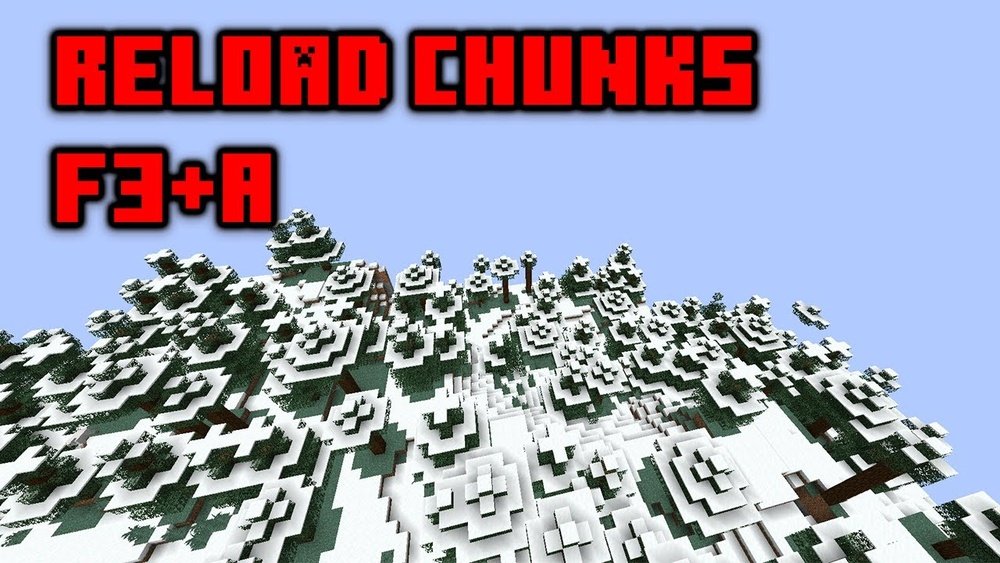
Every Minecraft player has faced strange visual glitches—blocks not updating, invisible walls, or odd lighting. These moments can break your focus and even make the game less fun. But there’s a solution: reloading chunks. This simple action can fix most visual bugs in Minecraft and make your world look fresh again. Many players, especially beginners, don’t know how or why this works. Let’s explore everything about chunk reloading—from what it does, to the right way to do it, and common mistakes to avoid.
What Are Chunks In Minecraft?
In Minecraft, the world is divided into small sections called chunks. Each chunk is a 16 x 16 block area that stretches from the bottom of the world (Y=0) to the top (Y=319 in modern versions). These chunks are the building blocks of the world, and the game loads or unloads them as you move around.
Chunks help Minecraft manage big worlds efficiently. When you walk, the game loads new chunks ahead of you and unloads chunks far behind. This process keeps your computer from using too much memory or slowing down.
If you want to see chunk borders, you can press F3 + G (Java Edition). This shows yellow outlines on the ground, helping you understand how the world is divided.
Why Do Chunks Get Glitched?
Minecraft is a complex game. Sometimes, chunks do not display correctly. You might see:
- Ghost blocks (blocks you can walk through but not see)
- Lighting bugs (dark or bright areas that look wrong)
- Blocks not updating after mining or placing
- Invisible mobs or objects that appear after you relog
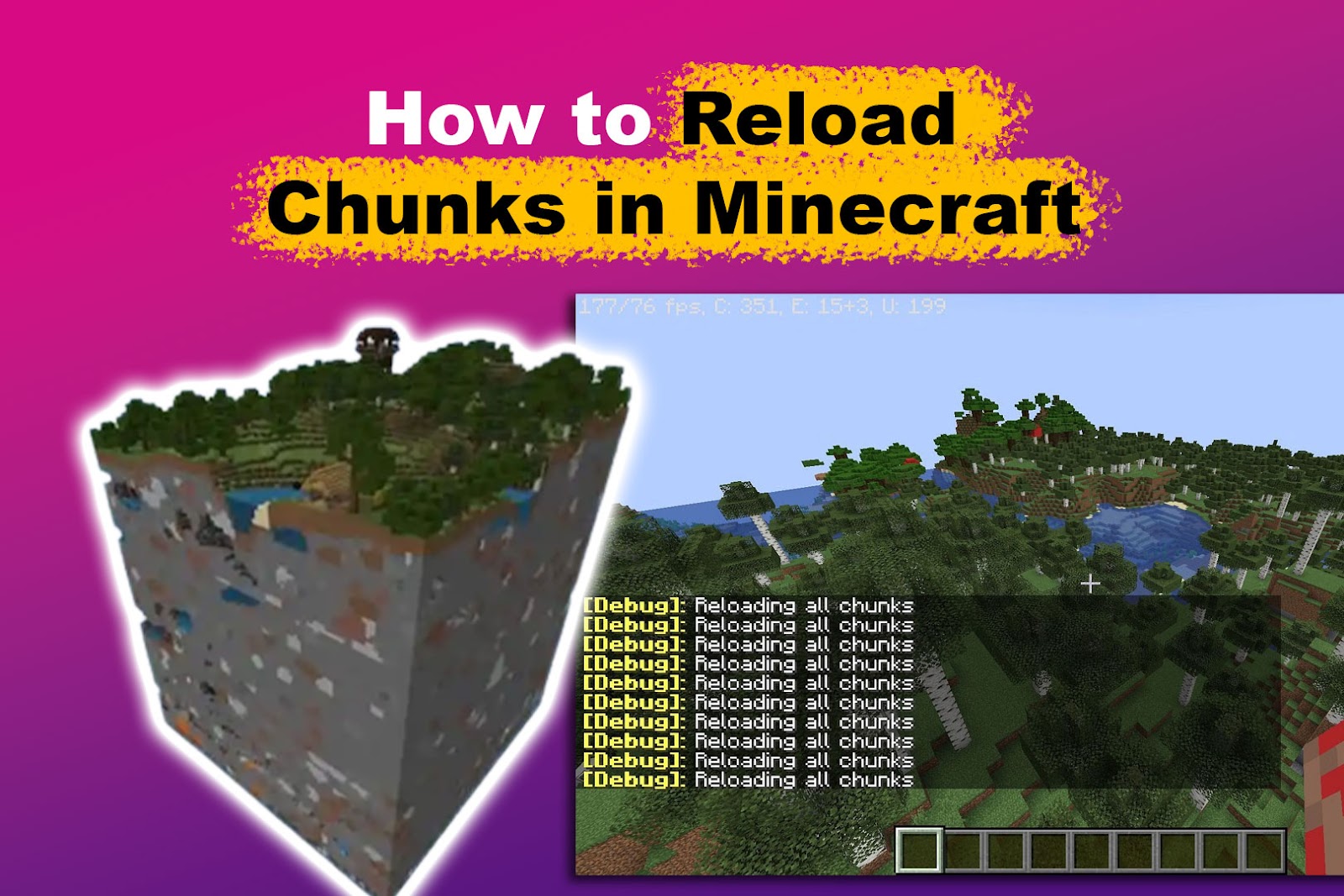
These problems usually happen because the chunk data did not update on your screen. Your computer and the server (or game world) might not “agree” about what should be shown. Reloading the chunks forces the game to redraw the world, fixing most of these problems.
How To Reload Chunks: Main Methods
Reloading chunks is simple, but the method depends on your version of Minecraft. The most common and effective way is only available in Java Edition. Bedrock Edition does not have a direct shortcut, but there are workarounds.
Reloading Chunks In Java Edition
1. Press F3 + A Together:
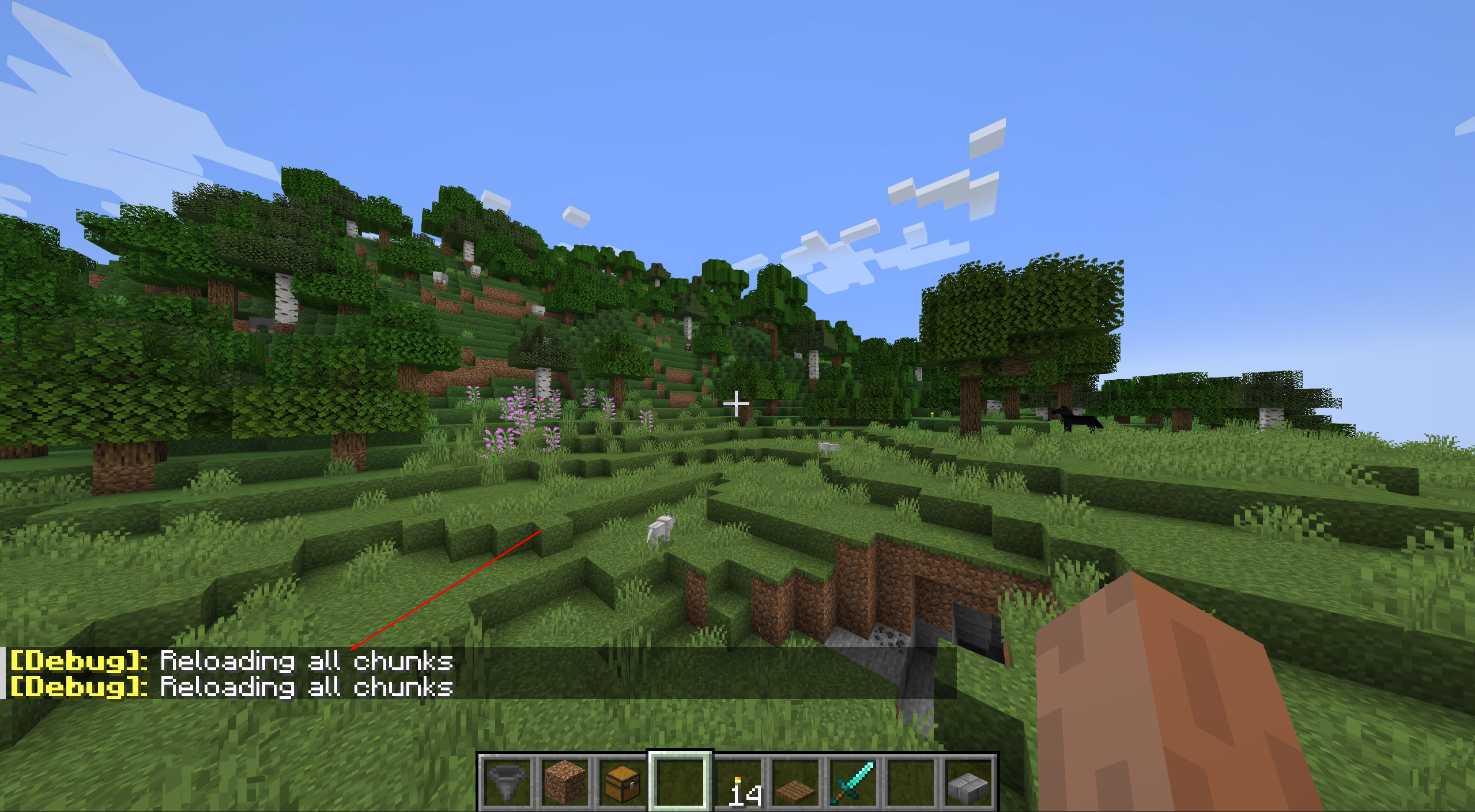
Hold F3 and tap A. The screen might stutter for a second, and then the chunks around you will reload. You’ll see the world flicker and reappear. This command tells Minecraft to reload all visible chunks around the player.
2. What Happens:
The game removes and then redraws every chunk in your view. This fixes visual glitches and updates block data. If you’re on a server, it also helps sync what you see with the server’s data.
- When to Use:
- After breaking or placing blocks that don’t show up correctly
- When you see floating water, lava, or lighting bugs
- If you get stuck on invisible blocks
Reloading Chunks In Bedrock Edition
Bedrock Edition does not support F3 commands. But you can still force a chunk reload using these steps:
1. Leave And Rejoin The World:
Save and exit your world, then join back. This forces the game to reload all chunks near you.
2. Travel Far And Return:
Walk or fly far away from the glitched area (at least 128 blocks), then come back. The game unloads and reloads chunks as you move.
3. Change Render Distance:
Go to settings and change your render distance down and then back up. This can force the game to redraw chunks.
Using Commands (for Advanced Players)
If you have cheats enabled or use server commands, you can use `/forceload` or `/reload`, but these are advanced and not always needed for chunk glitches.
- `/forceload add ~ ~` forces a chunk to always stay loaded.
- `/reload` reloads datapacks and resource packs, not chunks, but sometimes helps with bugs.
Step-by-step Guide: Reloading Chunks In Java Edition
Let’s walk through a practical example for Java Edition—the version most affected by chunk glitches.
1. Stand In The Glitched Area:
Move to the spot where you see the bug (for example, invisible blocks after mining).
2. Press F3 And A Together:
Hold down F3, then press A once. Keep F3 held for a second, then release both keys.
3. Wait For The Chunks To Reload:
The world will flicker and reload. You might see a “Loading Terrain” message if you use mods.
4. Check For Fixes:
Look around. The visual glitches should be gone. If not, repeat the process or try relogging.
5. Try Changing Render Distance:
If the glitch remains, open your video settings. Lower the render distance, wait a few seconds, then raise it again.
6. Relog As A Last Resort:
Save and quit, then rejoin your world.
Troubleshooting Table: Common Chunk Reload Problems
If chunk reloading doesn’t fix the problem, use this quick reference:
| Problem | Solution | Extra Tips |
|---|---|---|
| Ghost Blocks | F3 + A; relog | Check for lag or server delay |
| Lighting Bugs | F3 + A; lower/raise render distance | Use a torch to update lighting |
| Invisible Mobs/Players | Relog; reload chunks | May need server restart |
| Blocks Not Updating | F3 + A; relog | Check for mods or plugins |
Credit: www.namehero.com
When Should You Reload Chunks?
Chunk reloading is not just for fixing glitches. There are smart ways to use it for a better Minecraft experience.
- After Large Builds: When placing many blocks quickly (like building a wall or road), reload chunks to see the full result and catch errors.
- Exploring New Areas: Sometimes, terrain doesn’t generate properly. Reloading ensures you see all structures and landscapes.
- Server Lag: On servers with high ping, chunks can freeze. Reloading helps your client update to the latest world state.
Some players use chunk reloads as a quick check for hidden ores or caves, but this is not reliable (and may be considered cheating).
How Chunk Reloading Affects Performance
Reloading chunks can affect your computer’s performance, especially on weaker machines. Here’s what to watch for:
- Short Freezes: The game might freeze for a second while loading many chunks.
- Resource Usage: RAM and CPU use can spike during a reload.
- Server Load: On multiplayer servers, reloading too often may cause extra lag for others.
Try not to spam F3 + A. Use it only when needed, and warn others on busy servers if you plan to reload large areas.
Performance Table: Before And After Chunk Reload
Here’s a comparison of game performance before and after a chunk reload on a typical laptop:
| Action | Average FPS | CPU Usage (%) | RAM Usage (GB) |
|---|---|---|---|
| Before Reload | 45 | 40 | 2.2 |
| During Reload | 10 | 90 | 2.7 |
| After Reload | 50 | 45 | 2.3 |
*Note: Numbers will vary by hardware and settings. A brief drop in FPS is normal.*
Common Mistakes When Reloading Chunks
Reloading chunks is simple, but beginners often make mistakes that can create more problems. Here are some to watch for:
1. Spamming F3 + A:
Pressing the keys many times in a row can cause Minecraft to freeze or crash, especially with lots of mods.
2. Expecting Game-breaking Fixes:
Reloading chunks only solves visual problems. It doesn’t fix corrupted worlds, missing data, or real gameplay bugs.
3. Using The Wrong Shortcut:
Bedrock players might try F3 + A, but this does nothing. Use the relog or render distance methods instead.
4. Ignoring Performance Warnings:
On older computers, chunk reloads can cause long freezes. Save your game before trying.
5. Reloading On Servers Without Permission:
Some servers block or limit chunk reloads to prevent lag. Always check with admins if you notice frequent chunk errors.
Advanced Chunk Reloading: Modded Minecraft
Players using mods or custom clients may have special tools for chunk management. For example, OptiFine and similar mods add extra chunk control features.
- OptiFine: Adds options to refresh chunks, clear caches, or adjust chunk loading speed.
- MiniMap Mods: Some minimap mods show chunk boundaries or chunk loading status.
- WorldEdit: Lets you reload or regenerate chunks with commands (if you have permission).
Always check mod documentation before using chunk commands, as some can cause world corruption if misused.
How Chunks Are Stored And Loaded
Understanding the backend helps you see why reloads work.
- Chunks are saved as files on your computer or server (one file per chunk).
- The game loads chunks into memory only when you are near.
- When you reload, the game reads the chunk file again and redraws it on your screen.
If the chunk file is damaged, reloading won’t help. You might see missing blocks or holes. In this case, restore from a backup.
Chunk Reloads In Multiplayer Vs Singleplayer
There are important differences:
- Singleplayer: Reloading chunks is fast and only affects you. All data comes from your computer.
- Multiplayer: Your client asks the server for chunk data. If the server is slow or out of sync, chunk reloads can take longer, or show outdated info.
If you see chunk errors on a server, ask others if they see them too. If yes, it’s a server problem, not just your game.
Real-world Examples: Chunk Reload Fixes
Let’s see how chunk reloading solves actual problems.
1. You Mine A Block, But It Doesn’t Disappear:
Press F3 + A. The block vanishes, and you can walk through.
2. You See A Patch Of Floating Water:
Reload chunks, and the water connects to the ground as it should.
3. Lighting Error In A Cave:
After a reload, the cave lights up correctly, and mobs start spawning as expected.
4. Invisible Wall In The Nether:
Reload fixes the wall, and you can walk through safely.
5. Friends See Different Worlds:
On a server, everyone reloads chunks. The world looks the same for all players again.
Tips For Preventing Chunk Glitches
While chunk reloads are helpful, you can also avoid many glitches:
- Keep Minecraft Updated: New versions fix chunk bugs.
- Use Official Launchers: Mods or old launchers can cause chunk errors.
- Don’t Overload the Game: Placing too many blocks at once or running heavy redstone can confuse the game.
- Back Up Your Worlds: If a chunk becomes corrupted, backups let you restore your world.

Credit: www.wikihow.com
How Chunk Reloading Can Help With Lag
Some players notice lag after exploring new areas. Reloading chunks can sometimes improve performance, especially if your computer is overloaded with outdated chunk data. However, it’s not a magic fix for all lag problems. Consider lowering your render distance or closing other programs.
Chunk Reloading And Resource Packs
Changing or updating resource packs can cause chunks to display incorrectly. If you switch packs and see missing textures or wrong blocks, reload chunks. This forces the game to use the correct graphics for every block in view.
Credit: alvarotrigo.com
The Difference Between Reloading, Regenerating, And Forceloading Chunks
These terms can confuse even experienced players. Here’s a simple breakdown:
| Action | What It Does | When to Use |
|---|---|---|
| Reloading | Redraws chunks in memory | Fixes visual glitches |
| Regenerating | Creates a new chunk from seed data | Restores missing or corrupted chunks |
| Forceloading | Keeps chunks loaded always | Keeps farms or machines running far away |
Reloading is safe and quick. Regenerating or forceloading should only be used by advanced users, as they can change or damage your world.
Non-obvious Insights About Chunk Reloading
Most guides just tell you to press F3 + A, but here are two extra insights:
1. Chunk Reloads Can Reveal Server Desync:
If you reload and see blocks disappear or appear, it means your client and the server were out of sync. This can help you spot lag or server issues early.
2. Reloading Can Fix Lighting And Mob Spawning:
Sometimes, mobs won’t spawn in dark areas due to lighting errors. Reloading updates light levels and allows mobs to spawn properly, making mob farms more reliable.
When Chunk Reloading Does Not Work
Some chunk problems are beyond simple reloading:
- Corrupted Chunks: If a chunk won’t load at all, or crashes your game, you need to restore from backup or use a chunk repair tool.
- World Generation Changes: After updating Minecraft, old chunks might not match new ones. Reloading won’t change terrain shape.
- Server Plugins: Some plugins block or change chunk loading. Ask your server admin for help.
Useful Keyboard Shortcuts For Chunk Management
Here are some shortcuts for Java Edition:
- F3 + A: Reload chunks
- F3 + G: Show chunk borders
- F3 + B: Show hitboxes (helpful for finding invisible mobs)
- F3 + T: Reload resource packs
Remember, these only work in Java Edition.
Chunk Reloading And Minecraft Updates
Each new Minecraft update may change how chunks load. For example, the Caves & Cliffs update increased world height, making chunks taller. If you see new chunk glitches after updating, try reloading and check for mod compatibility.
External Resources For More Details
If you want a deep technical dive into chunk management, check out the Minecraft Wiki. This resource explains chunk saving, corruption, and advanced commands in detail.
Frequently Asked Questions
What Does “reloading Chunks” Mean In Minecraft?
Reloading chunks means forcing the game to unload and then redraw the blocks and terrain in your visible area. This fixes visual bugs, missing blocks, and lighting problems without changing your world data.
How Do I Reload Chunks On Minecraft Bedrock Edition?
There is no direct shortcut in Bedrock Edition. You can reload chunks by leaving and rejoining your world, traveling far away and returning, or changing your render distance in the settings.
Does Reloading Chunks Delete My Builds Or Items?
No, reloading chunks only refreshes how the game displays the world. Your builds, items, and progress are safe. However, if your world is already corrupted, reloading won’t fix lost data.
Will Reloading Chunks Fix Server Lag?
Reloading chunks only updates what you see. It won’t fix server lag or network problems, but it can help if your game is out of sync with the server.
Is It Safe To Reload Chunks Often?
Yes, it’s safe for your world and computer, but if you spam the command or use it on a busy server, it may cause short freezes or lag. Use it when needed, not constantly.
Minecraft is a game of creativity and adventure. Knowing how to reload chunks gives you the power to fix visual bugs quickly, enjoy a smoother world, and focus on building and exploring. With the tips and insights above, you’ll never be stuck behind invisible walls or ghost blocks again.
Happy crafting!





