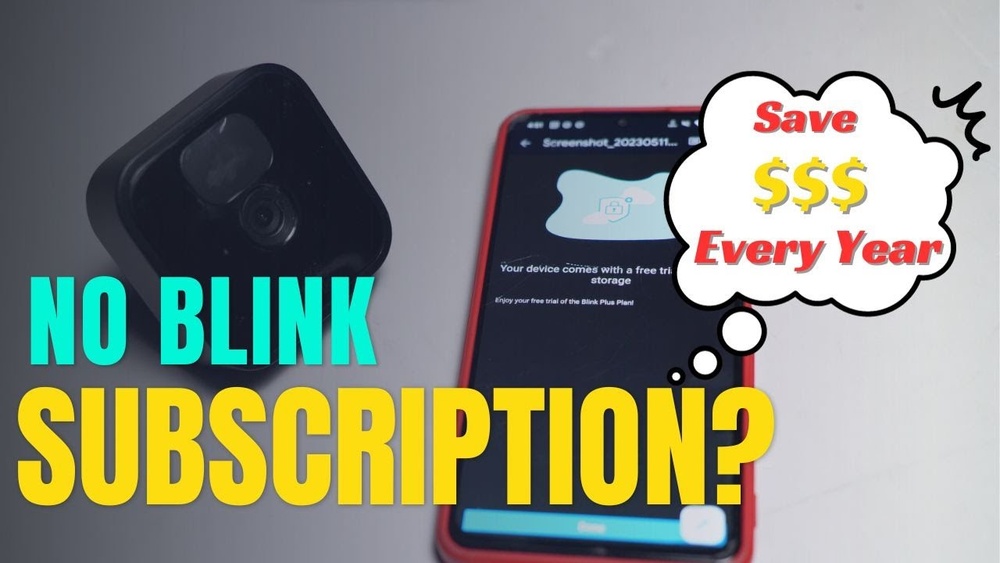
Are you wondering if you can use your Blink security camera without paying for a subscription? The good news is—you absolutely can.
If you want to keep an eye on your home without monthly fees, this guide is for you. You’ll learn which features Blink offers for free, how to save and access your video clips locally, and what limitations you might face without a subscription.
By the end, you’ll know exactly how to make the most of your Blink camera while keeping costs down. Ready to take control of your home security without extra charges? Let’s dive in.

Credit: www.youtube.com
Blink Features Without Subscription
Blink cameras offer several useful features even without a subscription. These features help you monitor your home and stay connected. Using Blink without paying monthly still gives you basic tools for security. You can check your property and get alerts without extra cost.
Live View Access
Live View lets you watch real-time video from your Blink camera. Open the Blink app and see what’s happening anytime. This feature works without any subscription fee. It helps you stay aware of your surroundings instantly.
Motion Alerts
Blink sends notifications to your phone when it detects movement. This keeps you informed about any unusual activity. Motion alerts work automatically and do not require a paid plan. They help you respond quickly to events near your camera.
Two-way Audio
Two-way audio allows you to talk and listen through your Blink camera. Use the app to speak with people or pets at home. This feature is available without a subscription. It adds convenience and lets you communicate remotely.
Credit: www.digitaltrends.com
Saving Clips Locally
Saving clips locally is a great way to use Blink without paying for a subscription. Instead of storing videos in the cloud, you save them directly on a USB drive. This method gives you control over your footage and keeps it safe nearby.
Local storage helps you avoid monthly fees. It also lets you keep videos for as long as you want. This section explains how to save, access, and view your Blink clips without a subscription.
Using Usb Drive Storage
First, plug a USB drive into the Blink Sync Module. The system will save all recorded clips to this drive. Make sure the USB has enough space for your videos.
When motion triggers the camera, the clip is stored on the USB automatically. You do not need internet or cloud storage for this. The USB drive acts as your personal video library.
Accessing Clips In App
Open the Blink app to see your saved clips. Even without a subscription, you can watch videos stored on the USB. The app lets you play, pause, and delete clips easily.
Accessing clips in the app keeps your workflow simple. You can manage videos from your phone without extra software or devices. This makes local saving practical for everyday use.
Viewing Clips On Computer
Remove the USB drive from the Sync Module to view clips on your computer. Plug the USB into your PC or Mac. You will find video files stored in folders on the drive.
Use any video player to watch the clips. You can also copy or back up these files to another device. This method helps you keep a safe copy of important recordings.
Setting Up Blink For Local Recording
Setting up Blink for local recording lets you save videos directly to a USB drive. This method avoids monthly fees by storing footage locally. It also gives you control over your video files without relying on cloud storage.
To start, you need to prepare the system for local recording. This involves arming the system and connecting a USB storage device. Follow these easy steps to set up Blink for local recording.
Arming The System
Begin by opening the Blink app on your smartphone. Find the system you want to arm for local recording. Tap the arm icon to activate motion detection and recording.
Arming the system ensures the camera captures motion events. These events will be saved to your connected USB drive. Make sure the system shows it is armed before leaving the app.
Connecting Usb Storage
Insert a USB drive into the Blink Sync Module. The Sync Module is the hub that manages local video storage. Use a USB drive with enough free space for your recordings.
The Blink app will detect the USB drive automatically. Follow the app prompts to enable local storage. This step allows your camera to save clips directly to the USB device.
Check the app to confirm the USB drive is connected and active. Without this, local recording will not work. Remember to keep your USB drive plugged in for continuous recording.
Limitations Without Subscription
Using Blink cameras without a subscription is possible. Still, there are some important limits to know. These limits affect how you save and manage your videos. They also affect the features you can use. Understanding these limits helps you decide if a subscription fits your needs.
No Cloud Storage
Without a subscription, Blink does not save videos to the cloud. All recordings go directly to your USB drive. This means if the USB drive is lost or damaged, you lose all recorded clips. Cloud storage offers extra safety by keeping videos online.
Missing Advanced Features
Many advanced features need a subscription. For example, person detection and photo capture are unavailable. These features help reduce false alerts and improve security. Without them, your camera only sends basic motion alerts.
Manual Clip Management
You must manage video clips yourself without a subscription. This means deleting clips one by one from the USB drive. It can be time-consuming and less convenient. Automatic clip management and easy access are only with a subscription.
Tips To Maximize Local Storage
Maximizing local storage on your Blink device helps you save more videos without extra costs. Managing space wisely keeps your clips organized and accessible. Proper storage use avoids losing important footage and keeps your system running smoothly.
Regular Clip Deletion
Deleting old clips frees up space for new recordings. Set a schedule to review and remove unnecessary videos. Focus on clips that are no longer useful or duplicates. This habit prevents your storage from filling up quickly. It also helps your device run without interruptions.
Organizing Usb Files
Use clear folder names on your USB drive to sort clips by date or event. This makes finding specific videos easier and faster. Back up important files on another device to avoid data loss. Keeping files organized reduces confusion and saves time. It also improves the overall storage management experience.
Avoiding Subscription Traps
Avoiding subscription traps is key to using Blink cameras without extra costs. Many users get caught in ongoing fees without knowing they can use basic features for free. Understanding what requires payment helps keep your security budget-friendly.
Knowing how to control your subscription settings ensures you only pay for what you want. This section explains how to identify paid features and stop unwanted auto-renewals. Stay informed and keep your Blink system working on your terms.
Recognizing Paid Features
Blink offers both free and paid features. Free features include live view, motion alerts, and two-way audio. Paid features usually involve cloud storage and advanced alerts like person detection.
Check the Blink app for any features labeled as premium or subscription-only. Avoid clicking on those if you want to stay free. Use local storage options like USB drives to save your clips without extra fees.
Disabling Auto-renewals
Subscriptions often renew automatically, causing unexpected charges. To avoid this, open your Blink app and go to the subscription settings. Turn off auto-renewal before your trial or paid period ends.
Check your payment method on file and remove it if you no longer want to subscribe. Set reminders to review your subscription status regularly. This simple step prevents surprise bills and keeps your Blink use cost-free.
Comparing Subscription Plans
Blink offers different subscription plans to fit various user needs. These plans provide extra features beyond basic camera functions. Understanding what each plan includes helps decide if a subscription is worth it. This section breaks down the main differences and costs.
Basic Vs Premium Features
The Basic plan includes essential features like motion alerts and live view. You get notifications when your camera detects movement. Live video streams are accessible anytime through the app.
The Premium plan adds advanced options. It offers cloud storage for video clips, so you never lose footage. Premium users can access person detection, which reduces false alerts. It also supports photo capture and longer video storage.
Without a subscription, you can still use live view, two-way audio, and motion alerts. But cloud storage and smart detection require a paid plan.
Cost Benefits Analysis
The Basic plan is free and suitable for users who want simple monitoring. It saves money by storing clips locally on a USB drive. This method avoids monthly fees but risks losing footage if the drive fails.
The Premium plan costs a monthly or yearly fee. It provides peace of mind with cloud backup and smarter alerts. For frequent users, the cost may be justified by added security and convenience.
Choosing no subscription saves money upfront. Yet, it limits features and storage options. Weigh the cost against your need for video backup and alert accuracy.
Alternative Storage Options
Storing your Blink camera videos without a subscription is possible with alternative options. These options help you save clips locally or on other devices. You avoid monthly fees and keep control over your data. Here are some practical ways to store your Blink videos without paying for cloud storage.
Using Network Drives
Network drives, or NAS (Network Attached Storage), provide a central place for video storage. You can connect your Blink sync module to a NAS device. This allows your camera clips to save directly to the network drive. It works like a private cloud but stays in your home or office.
Network drives offer large storage space and easy access from multiple devices. You can watch or download videos anytime without internet limits. Setting up a network drive requires basic knowledge but saves money over time. Many users prefer this method for local control and data safety.
Third-party Storage Solutions
Using third-party storage apps or devices is another way to keep Blink videos without a subscription. Some apps support USB drives connected to the Blink sync module. Others allow transferring files to your phone or computer automatically.
Cloud services from other providers can also store your videos if you download them first. This method needs manual work but avoids Blink’s monthly fees. Choose reliable services that protect your privacy and offer enough space. Third-party solutions give flexibility and help manage your recordings on your terms.
Troubleshooting Local Storage Issues
Local storage is vital for using Blink cameras without a subscription. It saves motion clips directly on a USB drive connected to the Blink Sync Module. Sometimes, users face problems with local storage. These issues can stop clips from saving or playing correctly. Understanding common problems helps fix them quickly.
Usb Drive Not Recognized
One common issue is the USB drive not showing up in the Blink app. This usually happens if the drive is not formatted correctly. Blink supports only FAT32 or exFAT file systems. Drives with other formats will not work properly.
Make sure the USB drive is fully inserted into the Sync Module. Try removing and reinserting it to confirm a good connection. Also, avoid using USB hubs or extension cables, as they can cause detection problems.
If the drive still does not appear, try a different USB drive. Some drives may not be compatible with Blink hardware. Keep the drive free from errors by running a disk check on your computer.
Clip Playback Problems
Sometimes, clips saved on the USB drive fail to play back in the Blink app. This can happen if the video files get corrupted. Corruption may occur if the drive is removed without safely ejecting it first.
Close the Blink app and restart it to refresh clip playback. Also, check that the Sync Module firmware is up to date. Firmware updates often fix playback bugs and improve performance.
If playback issues continue, copy the clips to a computer and try playing them there. This step helps determine if the problem is with the files or the app. Clearing old clips from the USB drive can free space and prevent playback delays.
Best Practices For Blink Use
Using Blink cameras without a subscription is possible and practical. Following best practices helps you get the most out of your device. Proper care and security ensure your Blink camera works well over time.
Security Tips
Set a strong password for your Blink account. Avoid simple or common passwords. Change your password regularly to protect your data. Enable two-factor authentication if available. This adds an extra layer of security. Keep your app updated to fix security issues. Connect your camera to a secure Wi-Fi network. Avoid public or open networks to prevent hacking. Regularly check your camera’s access logs for unusual activity. Turn off remote access if you do not use it.
Maintaining Device Performance
Place your Blink camera in a location with good Wi-Fi signal. Weak signals reduce video quality and cause delays. Clean the camera lens gently to avoid blurry images. Check battery levels often; replace batteries when low. Use high-quality batteries for longer life. Restart your camera occasionally to refresh its system. Keep your Blink app updated for new features and fixes. Remove old video clips from your USB drive to free space. Avoid exposing the camera to extreme weather conditions. Use protective covers if needed to extend device life.

Credit: blinqblinq.com
Frequently Asked Questions
Can You Use Blink Without A Subscription?
Yes, you can use Blink cameras without a subscription. Live View, motion alerts, and two-way audio remain available. Clips save locally to a USB drive. Without subscription, cloud storage and advanced features like person detection are unavailable. Managing local clips requires manual deletion.
How To View Blink Camera Clips Without Subscription?
To view Blink camera clips without a subscription, arm your system and save clips to the USB drive. Open the Blink app and access saved clips from the home screen. Live view and motion alerts work without a subscription, but cloud storage and advanced features are unavailable.
Can I Use The Blink App For Free?
Yes, you can use the Blink app for free with essential features like live view, motion alerts, and two-way audio. Without a subscription, video clips save locally to a USB drive, but cloud storage and advanced features are unavailable.
What Are The Alternatives To Blink Subscriptions?
Alternatives to Blink subscriptions include local USB storage for saving clips and using basic features like live view, motion alerts, and two-way audio without fees. Some users prefer other brands offering free cloud storage or one-time purchase plans.
Can I Use Blink Camera Without A Subscription?
Yes, Blink cameras work without a subscription but with limited features.
What Features Work Without A Blink Subscription?
Live View, motion alerts, and two-way audio work without subscription.
How Do I Save Video Clips Without Subscription?
Clips save locally to a USB drive connected to Blink Sync Module.
Does Blink Offer Cloud Storage Without A Subscription?
No, cloud storage is only available with a Blink subscription plan.
Can I Review Recorded Videos Without Subscription?
Yes, but only videos saved locally on your USB drive are viewable.
Are Motion Alerts Free Without A Blink Subscription?
Yes, motion detection alerts still notify your phone without subscription.
Conclusion
Using Blink without a subscription keeps basic features accessible. You can watch live video and get motion alerts anytime. Two-way audio lets you communicate through the camera easily. Recording clips to a USB drive saves videos locally without extra cost.
Remember, cloud storage and some smart features require a subscription. Managing local files may need extra effort but still works well. This option suits those wanting simple, no-cost home security. Choose what fits your needs and enjoy Blink’s essential functions.





