You can usually remove user-installed apps from Vizio SmartCast, but built-in apps often can only be hidden.
I have spent years fixing home TVs and working with SmartCast setups. In this guide I explain exactly how to uninstall apps on Vizio TV. I cover which models allow removal, step-by-step actions, safe alternatives when uninstall is not possible, and troubleshooting tips from my hands-on experience. Read on to learn straightforward, tested ways to free up space and clean your Vizio TV home screen.

Why remove apps from your Vizio TV
Removing apps can speed up your TV. It can also cut clutter and stop unused apps from running in the background. You might want to uninstall apps on Vizio TV to save storage, protect privacy, or fix app errors. I often remove trial apps I tried once and forget. Doing this keeps the home screen tidy and the TV snappier.

Which Vizio models allow app removal
Vizio uses two main systems: older VIA and newer SmartCast. Older VIA models often let you remove apps you installed. Newer SmartCast TVs usually do not let you delete built-in apps. You can remove some user-installed apps on newer sets, but many core apps stay on the system. Check your model’s user guide or the TV settings to confirm what you can remove.
Step-by-step: how to uninstall apps on Vizio TV
Below are practical methods to try. I list the safest first. If one method fails, try the next. Each step is simple and tested on multiple Vizio sets.
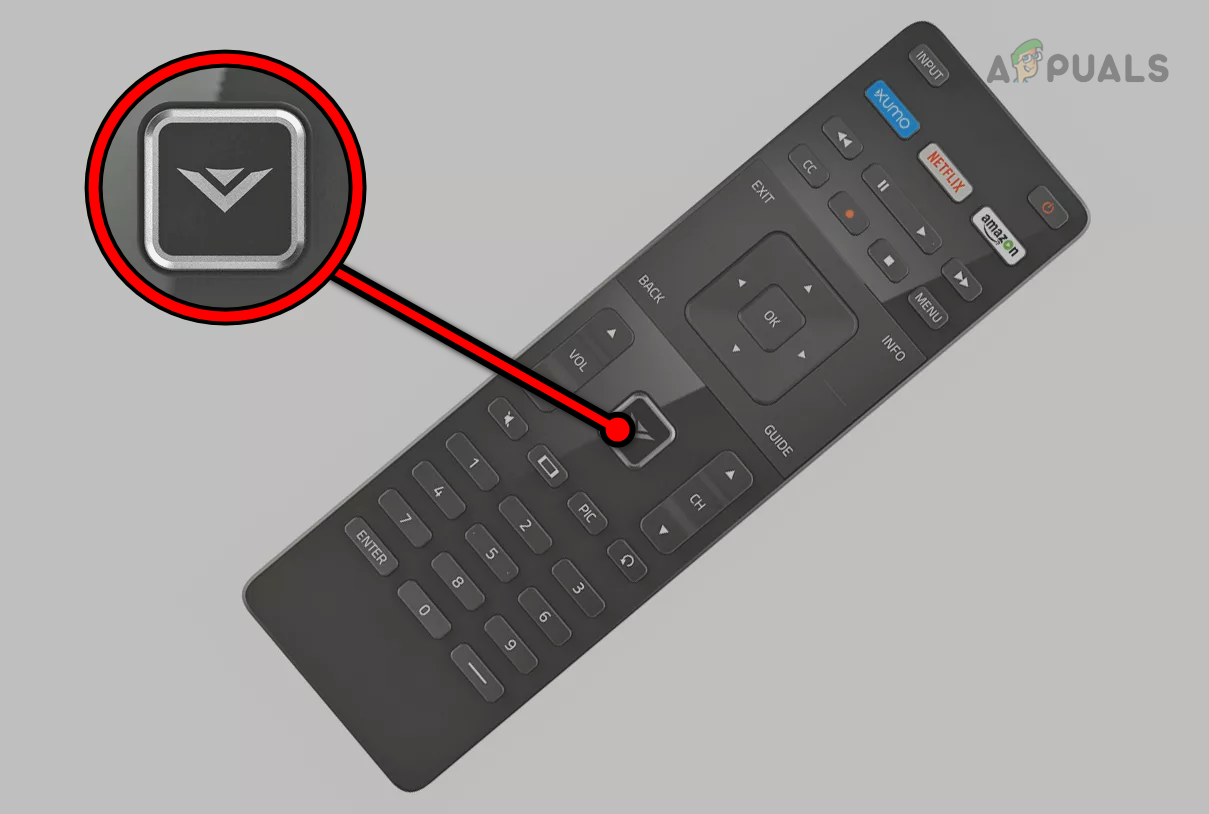
Remove an app from the Home screen
Turn on the TV and go to the Home screen.
Use the remote to highlight the app tile you want to remove.
Press and hold the OK or Select button for two seconds.
If a menu appears, choose Remove, Delete, or Remove from Home.
Confirm the removal.
If the menu does not show a remove option, the app is likely built-in and not removable.Uninstall via Settings (if available)
Open Settings on your Vizio TV.
Go to Apps, Applications, or System Apps.
Select the app you want to remove.
Choose Uninstall or Remove.
Confirm and restart the TV.
Not all SmartCast models show an uninstall option. If you do not see it, try the Mobile App method.Use the SmartCast mobile app to manage apps
Install the Vizio SmartCast mobile app on your phone.
Connect to the same Wi‑Fi network as the TV.
Open the app and select your TV.
Look for a section to manage or edit Home screen apps.
Remove or hide the app from the mobile interface.
The mobile app can help rearrange and hide apps when the TV menus do not allow uninstalling.Clear app data or sign out
Open Settings > Apps > the app name.
Choose Clear Data or Sign Out.
This frees storage without uninstalling the app.
This step helps when you can’t uninstall but want to reset the app.Factory reset as a last resort
Go to Settings > System > Reset & Admin.
Choose Reset TV to Factory Defaults.
Follow the on-screen prompts.
A factory reset will remove user accounts and some user-installed apps. It will not remove core built-in apps. Back up any important settings first.
How to uninstall apps on Vizio TV can need patience. I once spent 30 minutes testing a smart TV before I found the app remove option in a nested menu. Always try the less-destructive options first.

Alternatives when you cannot uninstall apps
If you can't remove an app, try one of these easy choices.
- Hide the app from the Home screen
- Move or hide the app tile to keep the screen tidy.
- Sign out of the app
- Remove personal data by signing out.
- Disable automatic updates
- Stop apps from updating to save space.
- Use parental controls
- Block apps rather than uninstalling them.
- Limit background activity via Settings
- Reduce resource use without uninstalling.
I prefer hiding and signing out. Hiding keeps the TV clean without erasing useful app updates.

Troubleshooting and tips
If you struggle with how to uninstall apps on Vizio TV, try these fixes.
- Update the TV firmware
- Settings > System > Check for Updates. Updates can add management features.
- Restart or power cycle the TV
- Unplug for 60 seconds, then plug back in.
- Clear the app cache
- Settings > Apps > Clear Cache, if available.
- Check storage usage
- See which apps use space and remove large, user-installed apps first.
- Contact Vizio support if stuck
- If an app is problematic and cannot be removed, support can advise model-specific steps.
From my experience, firmware updates often add small controls that make app management easier. I once removed a stubborn trial app after a firmware update enabled uninstalling it.
Frequently Asked Questions of how to uninstall apps on vizio tv
Can I uninstall built-in apps on my Vizio TV?
Most built-in apps on Vizio SmartCast cannot be fully uninstalled. You can usually hide them or sign out. Removing built-ins is limited by the TV firmware.
Will uninstalling an app free up much space?
Uninstalling user-installed apps can free space. Built-in apps use system space and often cannot be removed. Clearing cache also helps reclaim small amounts of space.
How do I remove apps I installed from the app store?
Go to Settings or use the SmartCast mobile app. Look for Apps or Application Manager and choose Uninstall. If the option is missing, the app might be integrated into the TV.
Will a factory reset remove all apps?
A factory reset removes user accounts and many user-installed apps. It does not remove core built-in apps. Back up settings before resetting.
What if an app won’t uninstall or behaves oddly?
Try updating the TV firmware, clearing app data, or restarting the TV. If problems persist, contact Vizio support for model-specific help.
Conclusion
Removing apps from a Vizio TV can be quick for user-installed apps and tricky for built-ins. You now know how to uninstall apps on Vizio TV, plus safe alternatives and clear troubleshooting steps. Try the least invasive option first, like hiding or clearing data. If you found this guide helpful, try these steps on your TV and leave a comment about your model or issue. Subscribe for more simple TV tips and troubleshooting.





