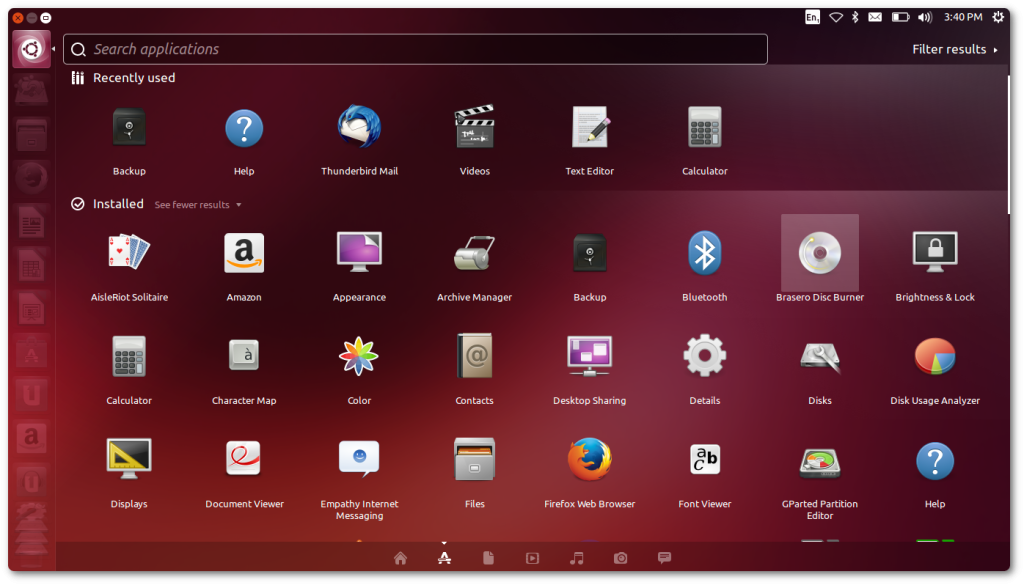
Use the Ubuntu Software app or the terminal (apt, snap, flatpak) to remove apps safely.
I have spent years using Ubuntu on laptops and servers, and I wrote this guide to help you master how to uninstall apps on ubuntu the right way. I will walk you through GUI and terminal methods, explain common pitfalls, show how to clean leftover files, and share real tips I learned the hard way. Read on to remove apps cleanly and reclaim space with confidence.

Why uninstall apps on Ubuntu?
Removing unneeded apps keeps your system fast and secure. Extra packages can use disk space, slow updates, and increase attack surface. Knowing how to uninstall apps on ubuntu helps you free space, simplify the system, and avoid conflicts. This guide covers safe removal steps for standard packages, snaps, and Flatpak apps.

Uninstall apps with the GUI (Ubuntu Software & GNOME)
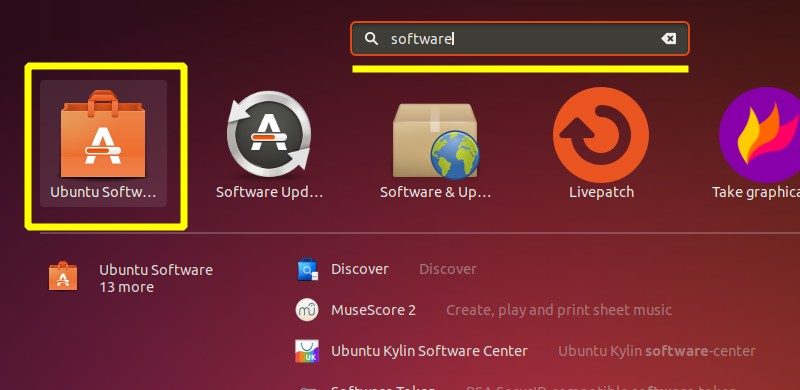
Using a graphical tool is easy for new users. Open Ubuntu Software, find the app, and click Remove. This method is clear and safe for most desktop apps.
How to do it with Ubuntu Software:
- Open Ubuntu Software from the dock or Activities overview.
- Search for the app name or browse Installed.
- Click Remove and enter your password if prompted.
Alternative: GNOME Software or Synaptic
- GNOME Software follows the same steps as Ubuntu Software.
- Use Synaptic for deeper package control: search, mark for removal, then Apply. Synaptic is more powerful but also more complex.
GUI is convenient for occasional removals. For bulk or system packages, the terminal is faster and more precise.
Uninstall apps using the terminal (apt, apt-get, dpkg)
The terminal gives you accuracy and speed. I use it daily for servers and desktops. Below are the core commands you need to know to uninstall apps on ubuntu.
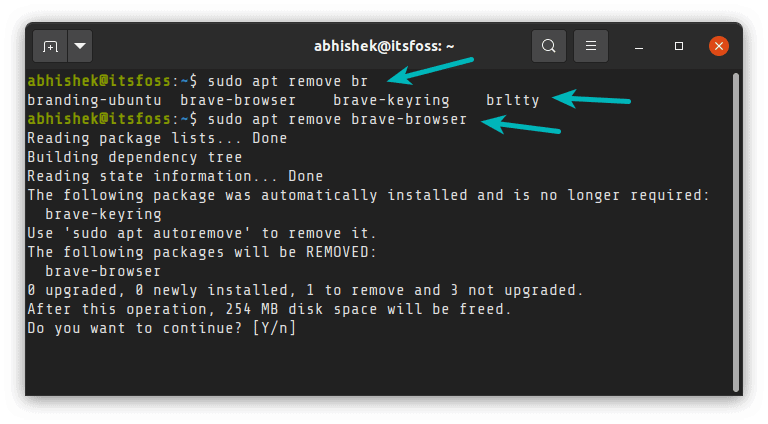
Remove a package with apt:
- To remove an app but keep config files:
sudo apt remove packagename - To remove a package and its config files:
sudo apt purge packagename
Clean up unused packages and cache:
- Remove dependencies no longer needed:
sudo apt autoremove - Clear local cache:
sudo apt clean
Use dpkg for low-level control:
- Remove with dpkg:
sudo dpkg -r packagename - Force removal or examine errors:
sudo dpkg --configure -a
When apt says "package is not installed," check the exact package name with apt list --installed | grep name. Using the terminal helps when GUI tools don’t show system-level packages.

Uninstall snaps and Flatpak apps
Snaps and Flatpak use their own systems. They do not use apt, so you must remove them with their own commands.
Snaps:
- List installed snaps:
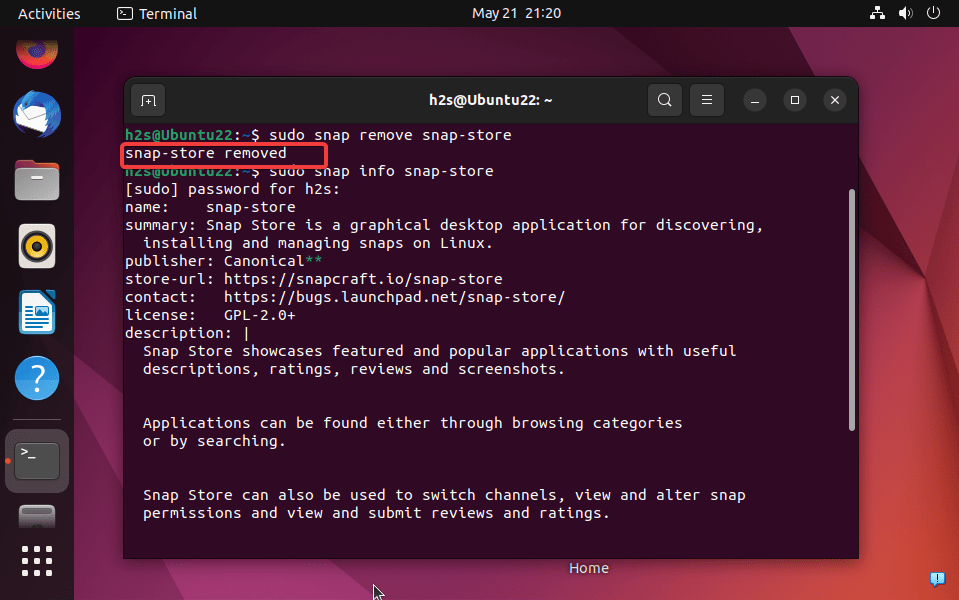
snap list - Remove a snap:
sudo snap remove packagename - If snap refuses due to services, stop it first:
sudo snap stop packagename
Flatpak:
- List installed Flatpaks:
flatpak list - Remove a Flatpak app:
flatpak uninstall --user app.idor for system:sudo flatpak uninstall app.id - Remove unused runtimes:
flatpak uninstall --unused
Note: Snaps keep revisions. Remove old revisions:
sudo snap list --allthensudo snap remove packagename --revision=<rev>or use tools/scripts to auto-clean. Knowing how to uninstall apps on ubuntu includes handling these package systems separately.
Source: itsfoss.com
Clean up leftovers and free space
Removing the main package does not always remove user data or config files. Follow these steps to clean leftovers safely.
Remove config files in home:
- Many apps store data in
~/.config,~/.local/share, or~/.cache. Check and delete only if you are sure:rm -r ~/.config/appname
Remove system config files:
- Purge removes files under
/etcfor packages that tracked them. Still check/etc/appnamemanually.
Free disk space:
- Use
df -hto view free space. - Use
du -sh /pathto inspect large folders. - Remove orphaned packages:
sudo apt autoremove - Clear orphaned snaps and Flatpak runtimes as shown earlier.
Back up before deleting user data. I always archive config folders before deleting them. This avoids accidental data loss and helps you restore settings if needed.

Troubleshooting common issues
Sometimes uninstalling apps on ubuntu fails or leaves problems. Here are solutions to common errors.
Package not found
- Verify the exact package name with
apt list --installedorsnap list. - Some apps are bundles; remove the bundle package, not the visible name.
Broken dependencies
- Fix broken packages:
sudo apt --fix-broken install - Reconfigure packages:
sudo dpkg --configure -a
App still appears in menu
- Remove desktop entry:
rm ~/.local/share/applications/app.desktop - Clear icon cache or log out and back in.
Permission errors
- Use sudo for system-wide removals. If permissions remain odd, check file ownership with
ls -land adjust.
If things go wrong, check logs and the package manager output. I once removed a package needed by another app. The fix was to reinstall the dependency and then purge the unneeded package. That taught me to preview removals first.
Best practices and safety tips
Follow a few rules to avoid trouble when you uninstall apps on ubuntu.
Preview changes
- Use
apt remove --simulate packagenameorapt -s remove packagenameto see what will be removed.
Backup configs
- Archive config folders before purging:
tar -czf appname-config.tar.gz ~/.config/appname
Prefer purge for clean removal
- Use
sudo apt purgeif you want to remove config files too.
Be careful with wildcards
- Avoid commands like
sudo apt remove 'lib*'unless you know exactly what you do.
Regular maintenance
- Run
sudo apt autoremoveandsudo apt cleanmonthly to keep a tidy system.
These steps reduce risk and make recovery easier. I always test commands on a VM before running them on a production machine.

Personal experience and lessons learned
I once had a laptop where disk space was nearly full. I learned the value of checking for snaps and Flatpak runtimes. Removing apps with apt purge and cleaning Flatpak runtimes freed several gigabytes. I also learned to:
- Keep a short list of installed snaps with
snap listand remove old revisions. - Use
duto find unexpected large folders. - Back up
~/.configbefore using purge.
These small habits saved me time and prevented accidental data loss. They form the practical side of how to uninstall apps on ubuntu that I wish someone had told me early on.

Related concepts and tools
Knowing other tools helps when standard methods fail.
Synaptic
- A GUI for apt with advanced options. Good for power users.
Aptitude
- Another terminal tool that can resolve complex dependency problems.
Timeshift
- Create system snapshots before major removals. Good for recovery.
Live USB recovery
- Boot a live USB to repair broken systems or recover files.
Knowing these tools makes uninstalling safer and gives you ways to recover from mistakes.
Frequently Asked Questions of how to uninstall apps on ubuntu
How do I completely remove an app and its settings?
Use sudo apt purge packagename and then remove user config in ~/.config or ~/.local/share. Finally run sudo apt autoremove to clear unused dependencies.
Will removing a package break my system?
Most user-level apps are safe to remove, but removing core libraries can break other apps. Always preview removals with simulation flags or check what other packages will be removed.
How do I remove snapped apps that won’t uninstall?
Stop the snap first with sudo snap stop packagename, then run sudo snap remove packagename. If revisions persist, list all revisions and remove old ones.
How do I delete leftover files in my home folder?
Look in ~/.config, ~/.local/share, and ~/.cache for app folders. Back them up before deleting in case you need to restore settings.
How do I find the exact package name to uninstall?
Use apt list --installed | grep part-of-name, snap list, or flatpak list to find the exact package ID or name. This ensures you remove the correct package.
Conclusion
You now have a clear, practical path for how to uninstall apps on ubuntu using both GUI and terminal tools. Start by previewing removals, back up config files, and clean leftover data to reclaim space safely. Try these steps on a test machine or VM first, and apply them to keep your Ubuntu system tidy and secure. If this guide helped, subscribe for more tips, try the commands yourself, and share your experience or questions in the comments.





