You can unhide apps on Android using the app drawer, launcher settings, or device settings.
I help people fix Android problems every day. I will show clear steps to unhide apps on Android across phones and launchers. This guide explains why apps disappear, multiple ways to restore them, and tips I learned from real troubleshooting. Read on and you’ll be able to find and unhide any app fast.

Why apps get hidden on Android
Apps vanish for a few simple reasons. Some launchers hide apps to reduce clutter. Device makers add privacy features that move apps to hidden folders. You might have disabled or uninstalled an app by mistake. Kids or guests using your phone can hide apps too. Knowing the cause helps pick the right fix for how to unhide apps on Android.

Quick methods to unhide apps on Android
Here are fast, proven ways to unhide apps on Android. Try each method one at a time until you find the app.
- Use the app drawer search. Open the app drawer and type the app name to reveal hidden items.
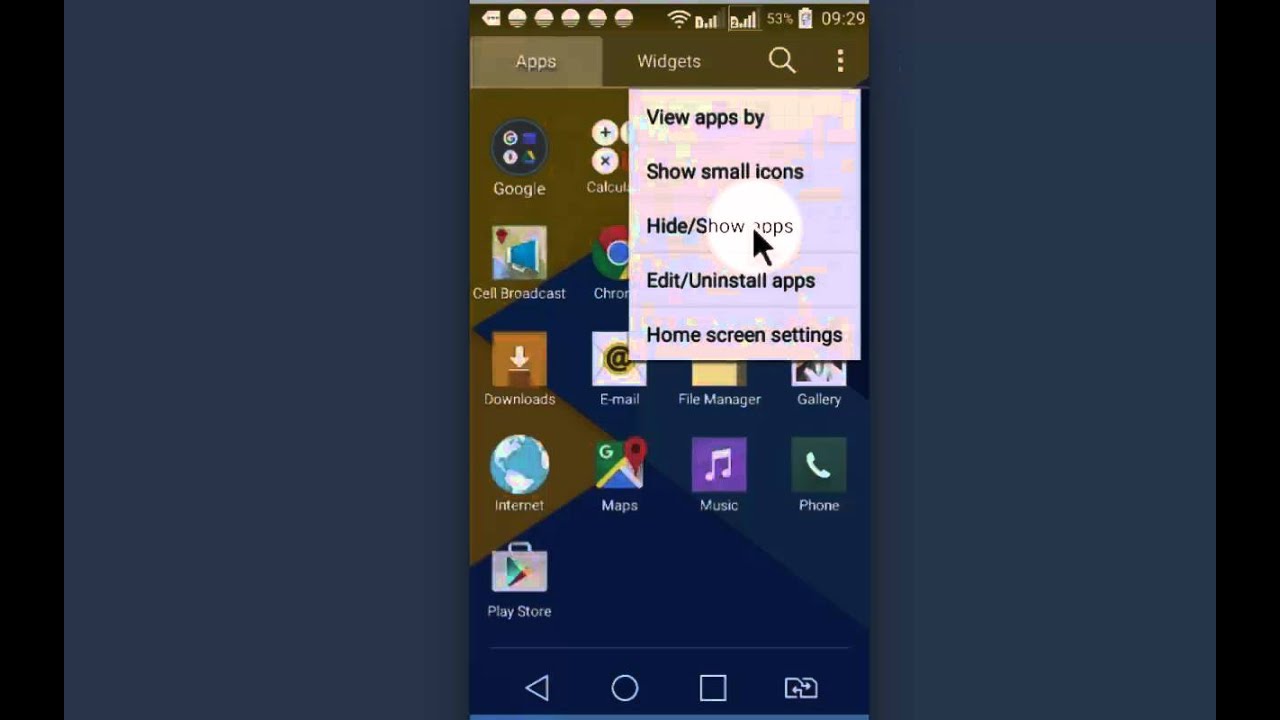
- Check launcher settings. Many launchers have a Hidden apps or Hide apps option. Turn off hiding.
- Look in Settings > Apps. Disabled apps show in the app list. Re-enable the app to restore it.
- Check Secure Folder or Private Space. Move the app back to the main home if needed.
- Reinstall from the Play Store. If the app was uninstalled, reinstalling restores it.
These methods cover most cases of how to unhide apps on Android.
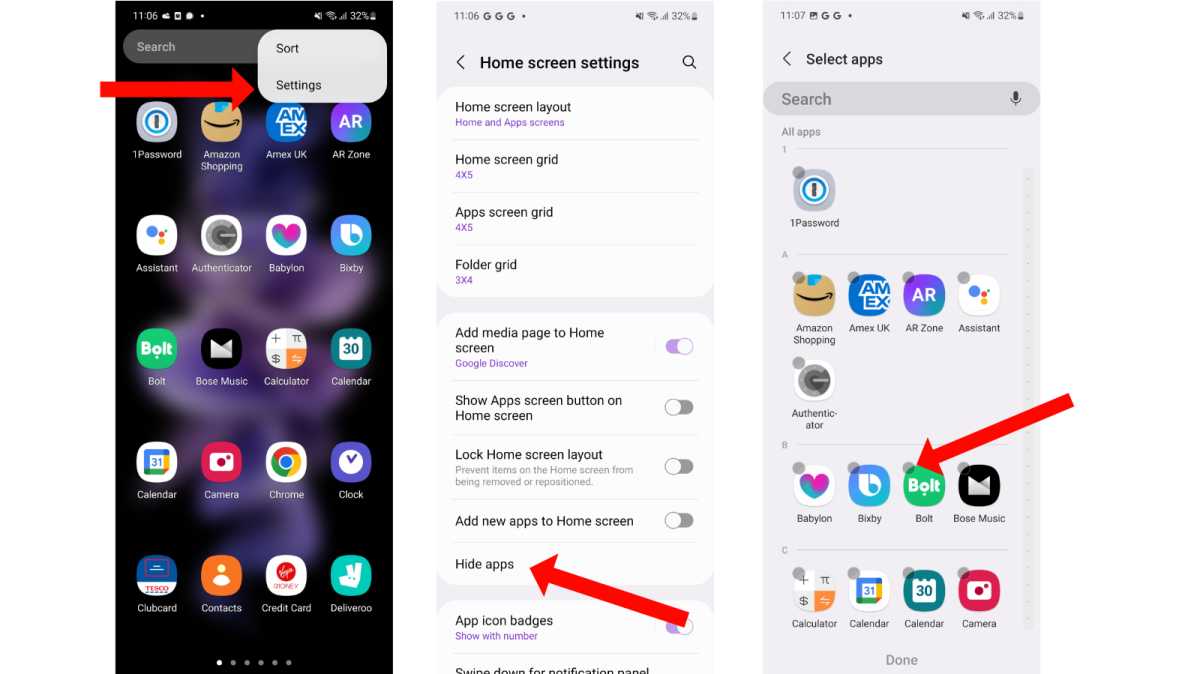
Unhide apps on popular stock and OEM launchers
Different phones use different launchers. Here are short steps for common brands.
Samsung (One UI)
- Long-press the home screen and tap Home screen settings.
- Tap Hide apps.
- Deselect the app and press Done.
Google Pixel (Pixel Launcher)
- Open the app drawer and tap Search.
- If you can’t find it, go to Settings > Apps and check if it’s disabled.
- Re-enable the app.
Xiaomi (MIUI)
- Open the Security app or Home settings.
- Tap App lock or Hidden apps.
- Enter your PIN and unhide the app.
OnePlus (OxygenOS)
- Open Settings > Utilities > App locker or Hidden space.
- Unlock and move the app back to the home screen.
Huawei and Honor
- Open Settings > Home screen & wallpaper > Hide apps.
- Remove the app from the hidden list.
Each device names the option slightly different. These steps help you unhide apps on Android across brands.

Unhide apps hidden by third-party launchers
Third-party launchers like Nova, Apex, or Microsoft Launcher have their own hide features. Here’s how to handle them.
Nova Launcher
- Open Nova Settings > App & widget drawers.
- Tap Hide apps.
- Uncheck the apps you want visible.
Microsoft Launcher
- Open Settings > Personalization > Hide apps.
- Turn off hide for chosen apps.
Apex and others
- Look for Hidden apps or App drawer settings in the launcher menu.
- Toggle the app visibility.
If you use a third-party launcher and still can’t find the app, try switching to your phone’s default launcher temporarily. This helps confirm if the launcher is the issue. These tips explain how to unhide apps on Android when a custom launcher is involved.
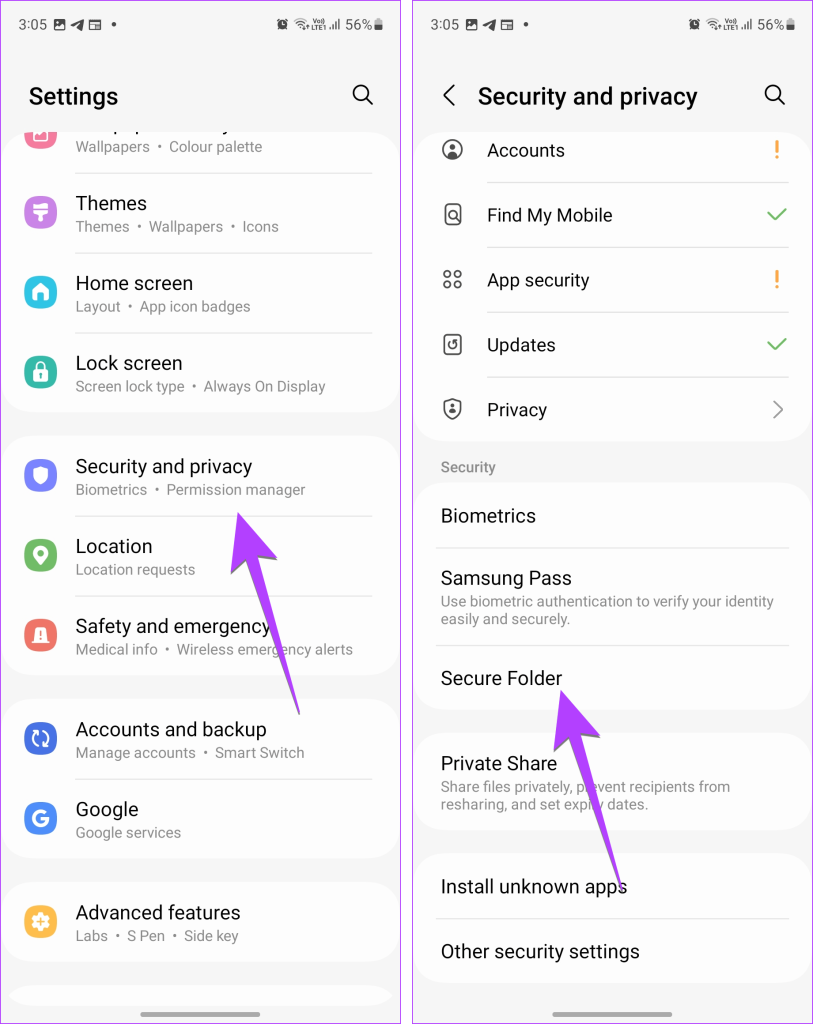
Unhide disabled or uninstalled apps via Settings and Play Store
Sometimes apps are not truly hidden. They are disabled or removed. Here is how to fix that.
Re-enable a disabled app
- Open Settings > Apps & notifications > See all apps.
- Tap the three-dot menu and choose Show system or Show disabled apps if needed.
- Find the app and tap Enable.
Reinstall an uninstalled app
- Open Play Store and search the app name.
- Install or Restore the app.
- Open it to confirm it appears in the app drawer.
These steps are standard ways to unhide apps on Android that aren’t visible because they were disabled or removed.

Apps hidden in Secure Folder, Private Space, or Guest mode
Some phones create separate secure areas. Apps put there don’t show up on the main screen.
Secure Folder (Samsung)
- Open Secure Folder and enter your credentials.
- Move the app out or add a shortcut to the home screen.
Private Space or App Twin (Huawei/Xiaomi)
- Open the private space app area.
- Transfer or uninstall from that space to restore visibility.
Guest or Secondary Users
- Swipe down and tap user icon to switch back to the main user.
- Hidden apps may be visible only for certain users.
If an app lives in a secure or private container, you must open that container to move it back. This explains another common route to unhide apps on Android.

Troubleshooting and best practices
If the app still won’t show, try these steps. They are from real repair sessions I’ve done.
- Restart the phone. A quick reboot often fixes UI glitches.
- Clear launcher data. Open Settings > Apps > [launcher] > Storage > Clear data. This resets launcher settings.
- Update the launcher and system. New updates can fix hidden-app bugs.
- Check parental controls and work profiles. Admins or profiles can block app access.
- Backup and reset home layout as a last resort. This restores defaults but you lose layouts.
I once spent 30 minutes finding a hidden email app. A restart and a launcher data clear solved it. Don’t panic. Work step-by-step to unhide apps on Android.
Frequently Asked Questions of how to unhide apps on android
How can I find a hidden app quickly?
Search the app drawer. If it does not appear, check Settings > Apps to see if it’s disabled or in a private folder.
What if my app is in a Secure Folder?
Open the Secure Folder with your PIN or biometrics. Move the app back to your main home or add a home shortcut.
Can a virus hide apps on Android?
Malware can alter visibility, but it is rare. Run a trusted security scan and remove suspicious apps to be safe.
Will uninstalling a launcher unhide apps?
Removing a third-party launcher returns you to the default launcher. Hidden apps may reappear, but you may need to reconfigure icons and layout.
How do I unhide system apps?
Go to Settings > Apps, enable Show system, find the app, and tap Enable if it is disabled.
Conclusion
You now have clear, step-by-step ways to unhide apps on Android. Try app drawer search, launcher settings, app settings, and secure folders in that order. If the app still hides, use my troubleshooting tips like restarting and clearing launcher data. Take action now: check your app list, follow the right method for your phone, and restore the apps you need. If this guide helped, leave a comment or share your own tip below.