Move apps by using Settings or adopt your SD card as internal storage on Android.
I have guided hundreds of phone users on how to store apps to sd card safely. This guide explains step‑by‑step methods for stock Android, manufacturers that hide options, and rooted phones. Expect clear steps, real tips from my tests, and warnings about limits and speed. Read on to learn exactly how to store apps to sd card without losing data or slowing your phone.
What "how to store apps to sd card" means
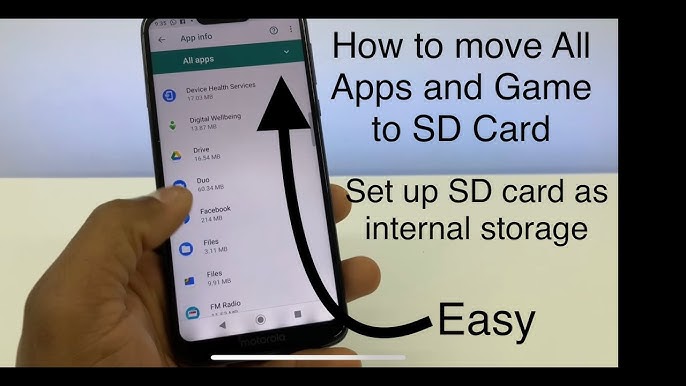
This topic explains moving installed apps from a phone’s internal memory to an external SD card. It covers both the simple "move" option and making the SD card act like internal storage (adoptable storage). You will see when each method fits and when it does not. The goal is to free internal space while keeping apps usable.
Why you might want to store apps to SD card
- Free up internal storage fast. Many phones have tight internal memory.
- Keep speed for core apps by moving less-used apps to SD.
- Store large games and media-heavy apps off the phone.
- Extend usable storage without buying a new phone.
Prerequisites and what to check first
- Check if your phone supports moving apps. Not all OEMs allow it.
- Use a fast SD card. Look for UHS‑I / A1 / A2 or Class 10 cards.
- Backup important data before changing storage types or formatting.
- Know that photos and downloads still may default to internal storage unless you change app settings.
Step-by-step: how to store apps to sd card on modern Android (no root)
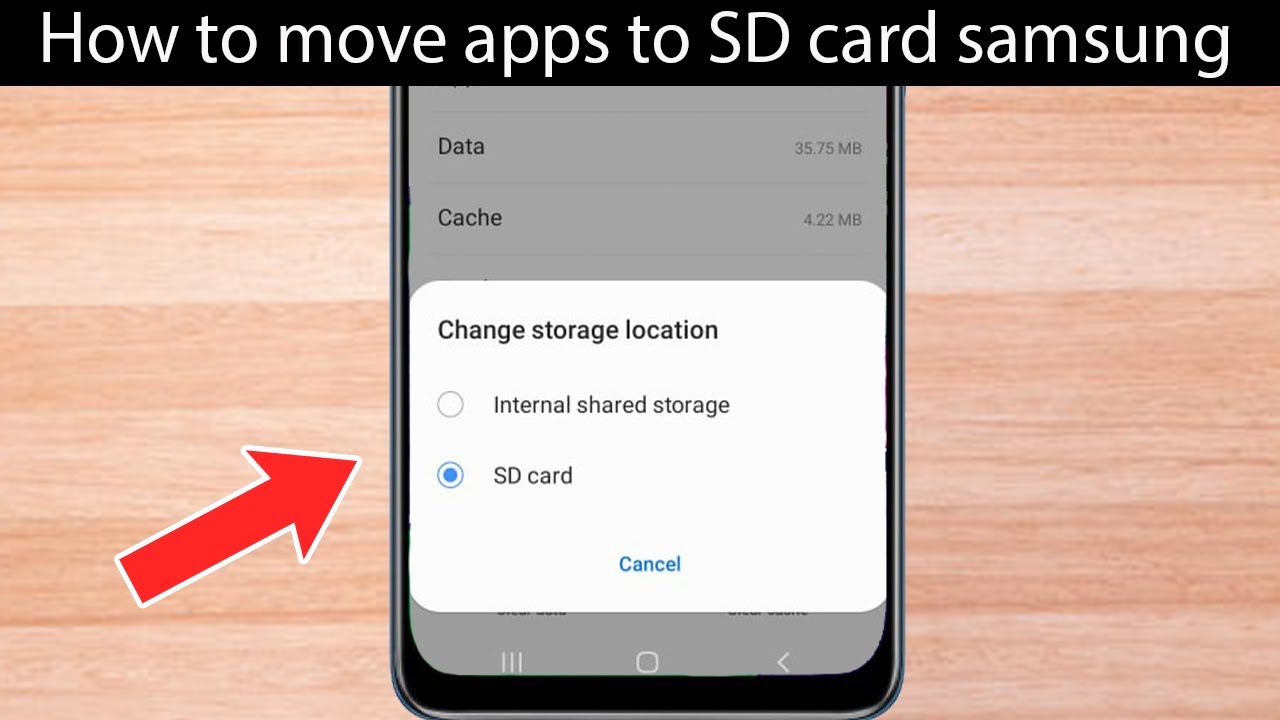
- Open Settings > Apps & notifications > See all apps.
- Tap the app you want to move.
- Tap Storage > Change (if shown).
- Choose SD card and follow prompts to move data.
- Repeat for other apps.
If the Change option is missing, your device or that app may block moves. In that case try adoptable storage (next).
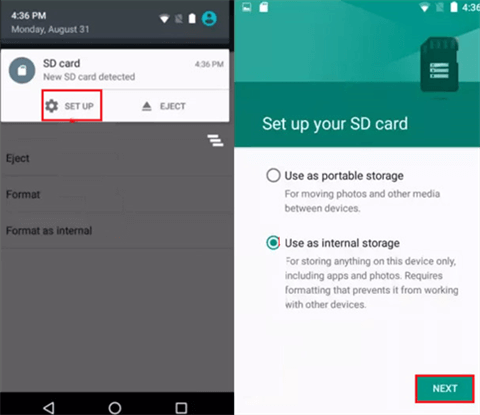
Step-by-step: adoptable storage (make SD act like internal)
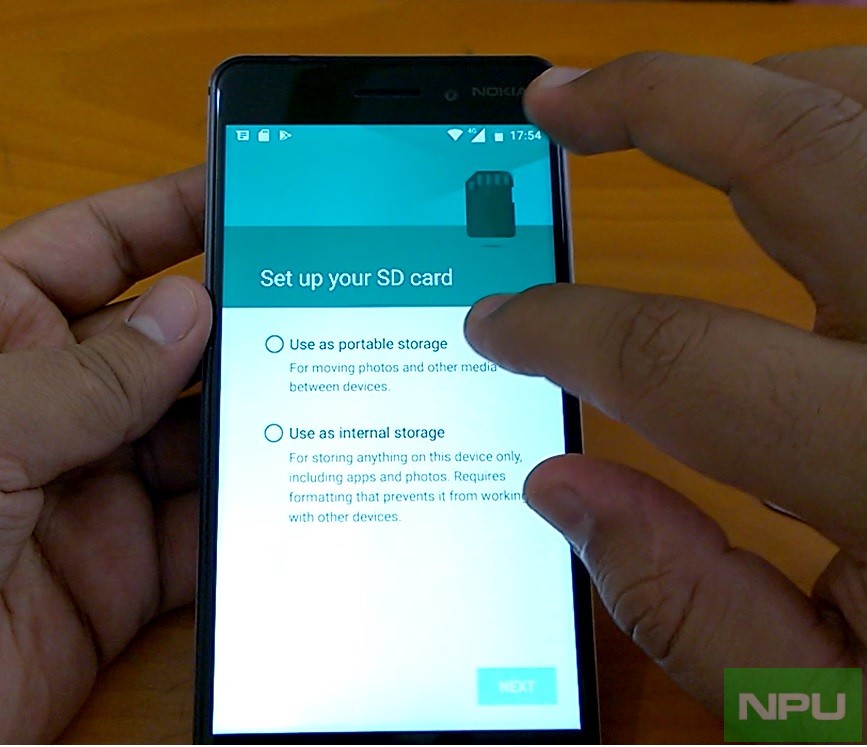
- Insert SD card and back it up.
- Open Settings > Storage.
- Tap the SD card, then tap the menu and choose Storage settings.
- Choose Format as internal (or Adopt as internal) and confirm.
- Let the phone format and migrate data if offered.
Adoptable storage encrypts the SD card so it works only with that phone. Do not remove the card without moving apps back first.

How to store apps to sd card when the option is hidden (ADB method)
- Enable Developer options: Settings > About phone > Tap Build number seven times.
- In Developer options, enable USB debugging.
- Connect phone to a PC with ADB installed.
- Run adb shell pm set-install-location 2 to prefer external storage.
- For specific apps, use adb shell pm move-package
.
This method can force apps to install on external storage. It needs care and a PC. Some apps still refuse to move.

How to store apps to sd card on rooted phones
- Install a root app manager like Link2SD or App2SD.
- Create a secondary partition on the SD card for app links.
- Use the app to convert and move apps, or to create symbolic links.
Root gives more control. Rooting voids warranties and increases risk. Only proceed if you know how to recover your phone.
Risks, limitations, and app behavior
- Not all apps can move. System apps and some widgets must stay internal.
- SD card speed matters. Slow cards can slow app load times.
- Removing an SD card with moved apps can crash those apps.
- Adopted cards are encrypted and tied to one phone.
- Frequent writes can wear cheaper SD cards faster.
Troubleshooting common problems
- If apps fail to move, clear cache and try again. Then reboot and retry.
- If the system does not recognize the SD card, reformat it in the phone.
- If moved apps crash, move them back to internal storage.
- If performance drops, replace the card with a faster UHS‑rated card.
- If storage shows wrong size, unmount and remount the card or format it.
Personal tips and mistakes I made so you don’t
I once used a slow cheap card and saw apps stutter. Lesson: buy a known brand with A1/A2 rating. I also removed an SD card containing apps and had the phone misbehave. Now I always move apps back before swapping cards. When I needed more space quickly, I cleared app cache first and that delayed the need to move apps. These habits saved time and avoided data loss.
Best practices for storing apps to SD card
- Use high-quality SD cards with A1/A2 or UHS class ratings.
- Keep backups. Use cloud or local backups before formatting.
- Move only large or rarely used apps to SD.
- Monitor card health and replace every few years if used heavily.
- Prefer adoptable storage only if you will keep the card in that device.
Frequently Asked Questions of how to store apps to sd card
How do I know if my phone supports moving apps to SD card?
Check Settings > Apps > app Storage. If you see Change and SD card option, your phone supports it. Otherwise, look for adoptable storage or use ADB for advanced methods.
Will moving apps to SD card delete app data?
Moving normally keeps app data intact. However, formatting the card or removing it can delete data. Always back up before moving or formatting.
Is adoptable storage safe and reversible?
Adoptable storage encrypts and ties the card to your phone. It can be reversed by formatting the card back to portable, but data will be erased. Back up before changing formats.
Can I move all apps to SD card?
No. System apps and some apps with widgets or background services may refuse to move. Many developers choose to lock their apps to internal storage.
Will moving apps to SD card make my phone slower?
It can, if the SD card is slow. Fast cards reduce this issue. Keep core apps on internal storage for best speed.
What card speed should I buy to store apps to SD card?
Buy cards labeled A1, A2, or UHS‑I with high MB/s ratings. These handle app loads better than Class 4 or Class 6 cards.
[No CodeImg here per instructions]
Summary and next steps
You can free internal space by learning how to store apps to sd card with simple moves, adoptable storage, or advanced ADB/root methods. Start by checking your phone, backing up data, and choosing a fast SD card. Try moving a few nonessential apps first and watch for instability. If things go wrong, move apps back and replace the card.
Try these steps now: check Settings for Move or Adopt options, back up your important files, and pick a quality SD card. Share your experience, ask questions, or subscribe for more phone tips.





