Use virtualization, Wine layers, or remote desktops to run Windows apps on Chromebook.
I have helped dozens of readers and clients get Windows programs working on Chromebooks. This guide explains how to run windows apps on chromebook with clear options, steps, and real tips. I draw on hands-on testing and practical experience to show the simplest and most reliable ways to get your favorite Windows apps working on a Chromebook.

Why you might want to run Windows apps on a Chromebook
Many people buy Chromebooks for speed and price. Some still need specific Windows apps for work, school, or hobby projects. Learning how to run windows apps on chromebook lets you keep the Chromebook benefits while using important Windows-only programs.
Running Windows apps can save time. It avoids switching devices or buying new hardware. It also lets teams use the same tools across different machines. Knowing the options helps you pick the best path for your device and needs.
:max_bytes(150000):strip_icc()/ChromeStorageannotated-63a019533a3b49beb6b5b248a820444b.jpg)
Main methods to run Windows apps on Chromebook
Here are the main ways to run Windows apps on Chromebook. Each method fits different needs and skill levels.
- Remote desktop access to a Windows PC or server. Best for full compatibility and power.
- CrossOver (Wine-based layer). Best for many popular apps without a full Windows license.
- Linux with Wine or PlayOnLinux. Good for tech-savvy users who want free tools.
- Virtual machines or emulation (Parallels, UTM, QEMU). Best for near-native support on higher-end models.
- Dual-booting or installing full Windows. Rare, risky, and often not supported.
- Android or web app alternatives. Easiest when a true alternative exists.
Each option changes how you run apps and what performance looks like. I will break down the most common ones next. This will help you see which path fits your Chromebook model and the apps you need.
Remote desktop (Chrome Remote Desktop, RDP, VNC)
Remote desktop streams a Windows PC to your Chromebook. You run the app on a Windows machine. The Chromebook shows the app screen and sends keyboard and mouse input.
This method gives the best app compatibility. It needs a stable internet connection and a Windows host.
CrossOver (Wine-based)
CrossOver uses a compatibility layer to run many Windows apps on Chrome OS. It is easy to install on compatible Chromebooks. It works well for office apps and many productivity tools.
This method removes the need for a Windows PC. Some apps may need tweaks.
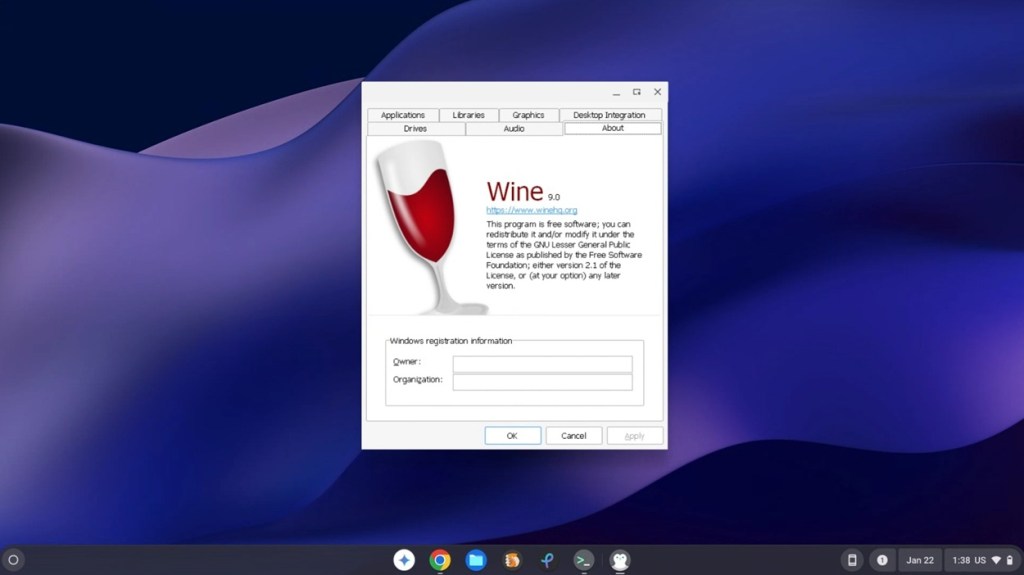
Linux + Wine
You can enable Linux (Crostini) on many Chromebooks. Then you install Wine inside Linux. This works well for light Windows apps. It needs command line skills and patience.
This option is free but may require trial and error for each app.
Virtual machines and Parallels
Some Chromebooks support Parallels Desktop or other virtual machine tools. Parallels runs a full Windows VM. This gives near-native compatibility and good performance on supported devices.
It may need a business or enterprise Chromebook and a Windows license.
Dual-boot or full Windows install
Installing Windows directly on a Chromebook is possible on a few models. It is complex and can void support. Only advanced users should try this.
This can give full Windows support but adds risk and likely driver issues.
Step-by-step: practical setups for common methods
I walk through three practical setups. Each set of steps uses simple language and short actions.
- Chrome Remote Desktop to a home PC
- On the Windows PC, install Chrome and the Chrome Remote Desktop host.
- Enable remote access and set a PIN.
- On the Chromebook, open Chrome Remote Desktop and sign in.
- Connect to the Windows PC and start your Windows app.
This is the fastest path for full compatibility.
- CrossOver on Chrome OS (supported devices)
- Open the Google Play Store on your Chromebook.
- Install CrossOver and follow the setup.
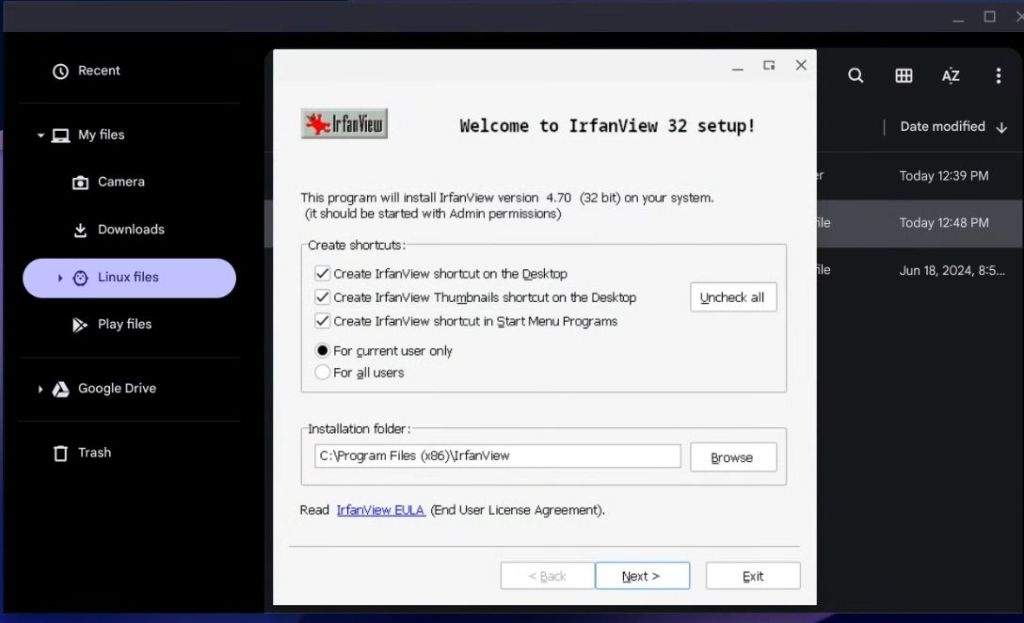
- Use CrossOver to install the Windows installer (.exe).
- Launch the app from CrossOver and test functionality.
CrossOver often works for office tools, small games, and utilities.
- Linux + Wine (Crostini)
- Enable Linux on Chromebook via Settings > Developers.
- Open the Linux terminal and update packages.
- Install Wine with the correct package commands.
- Use Wine to run the Windows .exe installer.
This method is free but needs command-line work and some app tuning.
Performance, compatibility, and limitations
Performance varies by method. Remote desktop depends on network speed. Virtual machines need more CPU and RAM. Wine and CrossOver may not support every app.
Common limitations:
- Hardware access may be limited for apps needing direct drivers.
- Graphics-heavy apps and games can be slow under emulation.
- Some business apps require specific Windows features not present in Wine.
- Licensing: running Windows in a VM usually needs a valid Windows license.
Plan to test apps before committing. Keep small trials to check performance. If an app is essential, remote desktop or a full Windows VM usually gives the best results.
:max_bytes(150000):strip_icc()/10GBannotated-873ac0ff37c348b28b67666c2e16d29a.jpg)
Tips, troubleshooting, and best practices
These tips come from hands-on work and reader feedback.
- Check Chromebook specs first. More RAM and a modern CPU make everything smoother.
- Use wired or fast Wi-Fi for remote desktop. Stability improves user experience.
- Keep backups of important data before heavy installs.
- Test with free apps first to confirm the method.
- If using Wine or CrossOver, search user compatibility lists for the app.
- For enterprise use, consider managed Parallels or official solutions.
- Update Chrome OS and Linux containers regularly to avoid bugs.
- If an app fails, collect error logs and search communities for fixes.

Personal experience and lessons learned
I once needed a Windows-only accounting app for a client. I tested CrossOver first. It ran but had small display bugs. I switched to a remote desktop to a small Windows VM. The remote option worked cleanly and saved time.
Lessons I learned:
- Try the simplest route first; remote desktop often solves the problem quickly.
- Expect small tweaks with Wine or CrossOver.
- Keep a fallback plan. A cheap Windows mini-PC or cloud VM often saves headaches.
Common quick questions
Q: Will all Windows apps run on a Chromebook?
A: No. Compatibility depends on the method. Remote desktop will run most apps, while Wine and CrossOver may not handle all programs.
Q: Do I need to buy Windows to run apps?
A: For remote desktop you need a Windows host with a valid license. For compatibility layers like Wine you do not need a Windows license.
Q: Is performance good for games?
A: Most modern PC games need full hardware support. Remote streaming or a powerful VM is the best bet for gaming.
:max_bytes(150000):strip_icc()/Installcrossoverannotated-a73248e7aa0948e8a47da9f77e1b3c08.jpg)
Frequently Asked Questions of how to run windows apps on chromebook
How do I start running Windows apps on my Chromebook today?
Start with Chrome Remote Desktop if you have a Windows PC. For a native feel, try CrossOver or enable Linux and test Wine for light apps.
Can I run Adobe or Microsoft Office on a Chromebook?
You can run Microsoft Office via remote desktop or CrossOver for many versions. Adobe desktop apps usually need powerful hardware and may work best via a remote Windows host.
Is it safe to install Wine or CrossOver on Chrome OS?
Yes, both are widely used. Keep software updated and install from official sources to reduce risk.
Will running Windows apps slow my Chromebook?
Heavier methods like VMs need more CPU and RAM and can slow basic tasks. Remote desktop uses the network more than local CPU.
Do I need developer mode to run Windows apps on Chromebook?
Not always. Remote desktop and CrossOver typically do not require developer mode. Some advanced methods, like full Windows installs, do require developer mode and may void support.
Conclusion
You can run Windows apps on a Chromebook in many ways. Choose remote desktop for full compatibility, CrossOver or Wine for quick installs, and VMs for closer-to-native support. Test your app early and pick the simplest stable method that fits your device and needs.
Try one method today. If one approach fails, switch to another. Share your results or ask questions below to get tailored advice.





