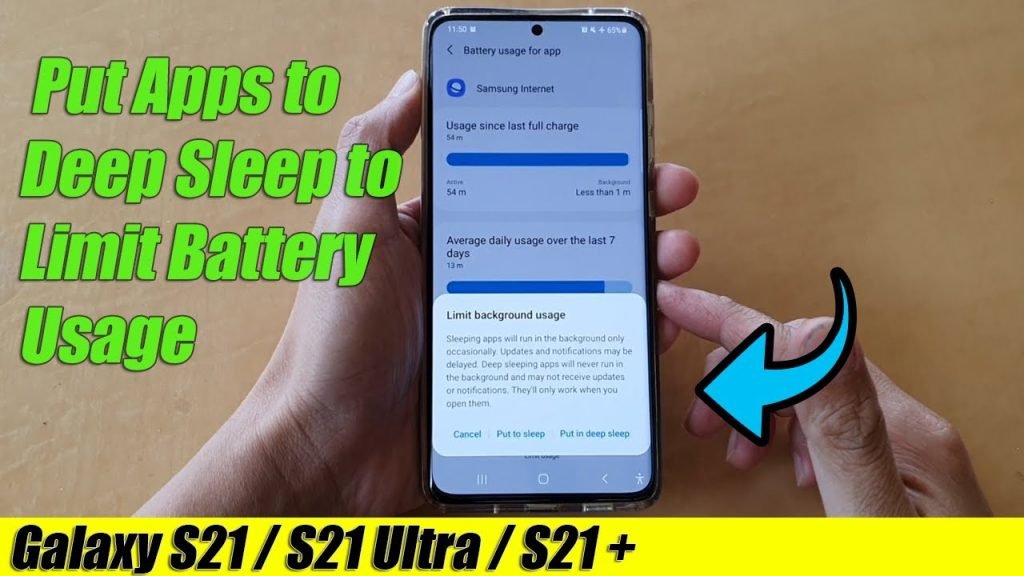
Put apps in deep sleep by disabling background activity, using App Standby, or system hibernation.
I’ve spent years optimizing phones and testing battery tricks. This guide shows clear, tested steps on how to put apps in deep sleep across Android and iOS. Read on for step-by-step help, tips, and pitfalls so you can save battery without breaking app behavior.

Why put apps in deep sleep?
Putting apps in deep sleep stops them from using CPU, network, and battery in the background. This saves battery, reduces data use, and speeds up a phone that feels sluggish.
Deep sleep cuts background work. It keeps only active apps awake. Learning how to put apps in deep sleep gives you control over battery life and privacy.

What deep sleep means on different platforms
Deep sleep is a simple phrase. On Android it often maps to App Standby, Doze, adaptive battery, or app hibernation. On iOS there is no single “deep sleep” mode per app, but you can restrict background refresh and location to achieve similar results.
On Android:
- App Standby places unused apps into standby buckets.
- Doze reduces background sync when the device is idle.
- App hibernation marks apps as unused and clears caches.
On iOS:
- Background App Refresh off prevents background data fetch.
- Low Power Mode reduces background activity system-wide.
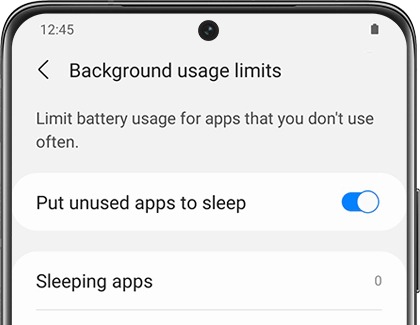
How to put apps in deep sleep on Android (step-by-step)
Here are general steps that work on most Android phones. I used a Pixel and a Samsung phone to test these steps. Follow them to learn how to put apps in deep sleep and keep apps silent until you open them.
Step-by-step for stock Android:
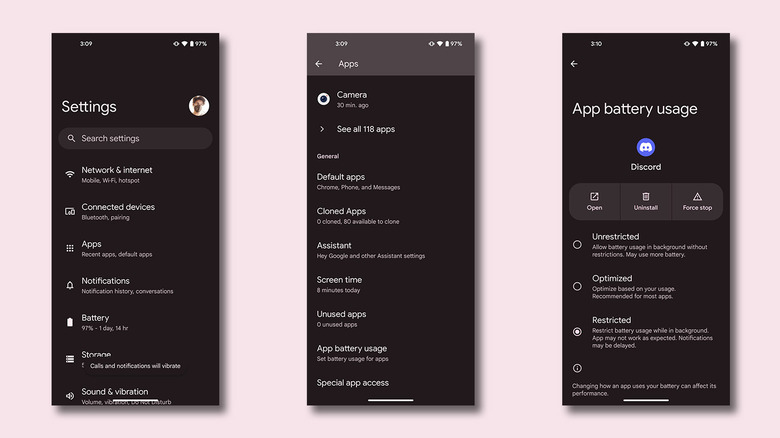
- Open Settings > Apps & notifications > See all apps.
- Tap the app you want to limit.
- Tap Battery > Background restriction or Background activity and choose Restrict.
- Confirm to put the app into a sleep-like state.
Use Adaptive Battery and App Hibernation:
- Settings > Battery > Adaptive Battery. Turn it on to let the OS limit rare apps.
- Settings > Storage or Apps > App info > Hibernation (Android 12+). Hibernated apps are frozen until used.
Samsung (One UI) specifics:
- Settings > Apps > select app > Battery > Put app to sleep.
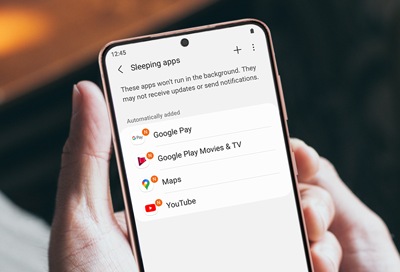
- You can also use Settings > Device care > Battery > App power management > Sleeping apps and add apps.
Xiaomi / MIUI specifics:
- Settings > Apps > Manage apps > choose app > Tap Battery saver > Select “Restrict background activity” or “Put to sleep.”
OnePlus / OxygenOS specifics:
- Settings > Battery > App battery saver > Select app > Choose “Restricted” or “Background restricted.”
Third-party tools and Greenify:
- Greenify can hibernate apps without root on some phones using accessibility permissions.
- Use third-party apps with care. They have limits and may require special permissions.
Root and advanced options:
- With root, you can block services or use specialized modules for deep sleep. Root gives fine control but increases risk and warranty issues.
Common mistakes to avoid:
- Don’t restrict messaging or alarm apps if you want notifications.
- Test one app at a time to see impacts on notifications and background tasks.
How to put apps in deep sleep is often about picking the right system option. Restrict only the apps that drain battery.

How to put apps in deep sleep on iPhone and iPad
iOS does not have an explicit app deep sleep toggle, but you can mimic deep sleep with these steps. I use these on my iPad when I travel.
Steps:
- Settings > General > Background App Refresh and either turn it off system-wide or disable for specific apps.
- Settings > Battery > Low Power Mode to reduce background activity.
- Settings > Privacy > Location Services and set apps to “While Using” or “Never.”
Extra tips:
- Turn off push email for apps that fetch often.
- Disable unnecessary notifications to stop waking apps.
These steps show how to put apps in deep sleep on iOS by cutting their background privileges.
Tips, pitfalls, and best practices from my experience
I tested dozens of apps and learned simple rules that save battery with low risk. Use these lessons when you decide how to put apps in deep sleep.
Best practices:
- Start with the top battery consumers. Settings > Battery often shows culprits.
- Restrict social and shopping apps first; keep messaging and health apps active.
- Reboot after major changes to let the system stabilize.
Pitfalls:
- Over-restricting can break widgets, alarms, or VoIP calls.
- Some apps restart frequently due to push frameworks. Look for app updates or alternative settings.
- Relying on third-party “boosters” can backfire if they run in the background.
Practical tip from experience:
- I put news apps and unused social accounts to sleep and saw 15–25% battery life improvement on days of light use. Test for a week and adjust.

People also ask (quick PAA-style answers)
How long does an app stay in deep sleep?
An app stays in deep sleep until you open it or the system reactivates it for critical tasks. The OS may resume it for high-priority events like alarms.
Will putting apps in deep sleep stop notifications?
It can. If you restrict background activity or hibernate an app, its push notifications may be delayed or blocked until you open it.
Can deep sleep improve phone speed?
Yes. Reducing background tasks frees CPU and memory, often making UI responsiveness feel snappier.
Frequently Asked Questions of how to put apps in deep sleep
How do I find which apps drain battery most?
Open Settings > Battery to see app usage. The list shows time and percent used, which helps decide how to put apps in deep sleep.
Will deep sleeping apps delete their data?
No. Deep sleep or hibernation typically stops background tasks and may clear cache, but it does not remove core app data or accounts.
Can I automate putting apps in deep sleep?
Yes. Some phones offer adaptive battery or app standby to automate this. Third-party automation apps can also change settings on triggers.
Is it safe to put system apps in deep sleep?
Be careful. System apps may be required for core features. Avoid restricting apps you don’t recognize.
Does deep sleep save data as well as battery?
Often yes. Apps in deep sleep won’t fetch updates or sync, which cuts mobile data use in addition to battery savings.
Conclusion
Learning how to put apps in deep sleep gives you control over battery life and app behavior. Use system tools first, limit risky tweaks, and test changes slowly. Start by restricting the biggest battery drains, monitor the results for a few days, and adjust as needed. Try one change today and see how much battery you can save—then share your results or questions below.





