Struggling to add subscripts in Google Sheets? You’re not alone.
Unlike some other programs, Google Sheets doesn’t offer a simple button for subscript formatting. But don’t worry—there are easy tricks you can use to get the job done. Whether you want to write chemical formulas like H₂O or add footnotes, learning how to insert subscripts will make your spreadsheets clearer and more professional.
You’ll discover straightforward methods to add subscripts using Unicode characters and handy functions. Keep reading, and you’ll master subscripts in Google Sheets in no time!
Subscript Basics In Sheets
Subscript text appears smaller and slightly below the normal line. It is useful for chemical formulas, mathematical expressions, and footnotes. Google Sheets does not have a direct subscript button like Google Docs.
Still, you can add subscripts using simple methods. These basics help you understand how to add subscript characters in your spreadsheets.
What Is Subscript In Google Sheets?
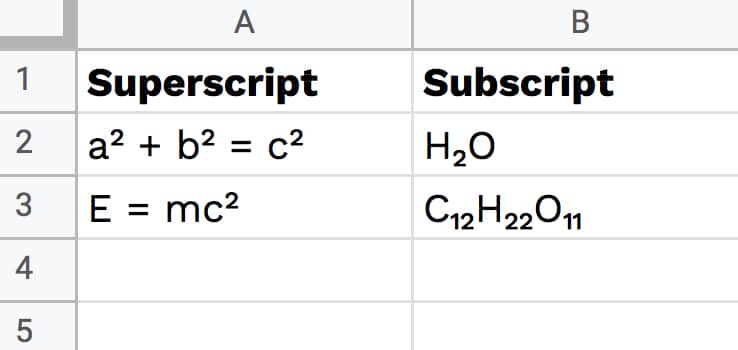
Subscript shows text in a smaller size below the regular line. For example, in H2O, the “2” is a subscript. It helps present data clearly in science and math.
Limitations Of Subscript Formatting In Sheets
Google Sheets lacks a built-in subscript format button. You cannot directly format a part of the text as subscript inside a cell. The entire cell content shares the same style.
To work around this, use special characters or formulas. These methods create the effect of subscript in your data.
Common Methods To Add Subscript
One way is to copy subscript characters from online sources and paste them into cells. Another is using the CHAR() function with Unicode numbers for subscripts.
Both methods let you insert subscript numbers and some letters. These are simple and work well for basic needs.
Using Unicode Characters
Using Unicode characters offers a simple way to add subscript text in Google Sheets. Since Google Sheets lacks a direct subscript formatting option, Unicode symbols fill this gap.
Unicode includes many subscript numbers and letters that you can insert into your cells. These characters appear smaller and lower than the normal text, mimicking subscript style.
Finding Subscript Symbols
Many websites list Unicode subscript characters for easy access. You can find subscript digits like ₀, ₁, ₂, and letters such as ₐ, ₑ, ₓ.
Unicode charts or special character websites help locate the exact symbol you need. Copying these symbols allows you to use them anywhere in your sheet.
Copy And Paste Method
First, select the subscript symbol from a trusted Unicode character website. Then click the desired cell in Google Sheets.
Paste the symbol directly into the cell or the formula bar. The symbol will display as subscript text.
This method works well for simple entries like chemical formulas or footnotes. For example, paste H₂O to show water’s chemical formula with the subscript 2.
Char Function For Subscripts
The CHAR function in Google Sheets helps create subscripts using Unicode characters. This function returns a character based on a number code. You can use it to display subscript numbers in cells. Since Google Sheets lacks direct subscript formatting, CHAR is a useful tool.
By using the right Unicode codes, CHAR can show subscript digits. It works well with formulas and text strings. This method makes your data clearer and easier to understand.
Subscript Unicode Codes
Each subscript character has a unique Unicode number. For example, subscript 0 is 8320, subscript 1 is 8321, and subscript 2 is 8322. These codes let you use CHAR to display subscripts.
Here are some common subscript codes:
- 0: 8320
- 1: 8321
- 2: 8322
- 3: 8323
- 4: 8324
- 5: 8325
- 6: 8326
- 7: 8327
- 8: 8328
- 9: 8329
Using these numbers with CHAR shows the subscript digits inside cells.
Combining Char With Text
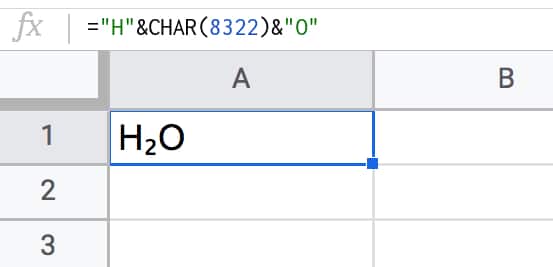
You can join normal text and subscripts with the ampersand (&) symbol. For example, type = "H" & CHAR(8322) & "O" to write H₂O.
This method works well for formulas needing subscripts. You can also chain several CHAR functions to add multiple subscripts. For instance, to write CO₂, use = "CO" & CHAR(8322).
Combining text and CHAR makes your spreadsheet data easier to read. It also avoids confusing formats or extra steps.
Formula Examples
Formulas in Google Sheets allow the creation of subscripts using Unicode characters and functions. Simple and complex examples demonstrate how to insert subscripts effectively. These formulas help display chemical formulas, mathematical expressions, and other text with subscripts.
Simple Subscript Formula
Use the CHAR() function to add a single subscript character. Each subscript has a unique Unicode number. For example, the subscript 2 uses Unicode 8322.
To write “H₂O” with a subscript 2, enter this formula:
= "H" & CHAR(8322) & "O"This formula joins the letter H, the subscript 2, and the letter O. The ampersand & combines text and the subscript character.
Complex Subscript Formulas
For multiple subscripts, combine several CHAR() functions. This method works for formulas with multiple subscript characters.
Example: To write “C₆H₁₂O₆” with subscripts, use:
= "C" & CHAR(8326) & "H" & CHAR(8321) & CHAR(8332) & "O" & CHAR(8326)Each CHAR() calls a different Unicode number for subscripts 6, 1, 2, and 6 again. This formula builds the chemical formula with proper subscripts.
You can mix normal text and subscripts in any order using this technique. It works well for small formulas or text that needs subscript formatting.
Limitations Of Subscripts
Using subscripts in Google Sheets can enhance the clarity of your data, especially for scientific or mathematical content. Despite its usefulness, Google Sheets has some restrictions that users should know. These limitations may affect how easily you can apply subscripts in your spreadsheets.
No Built-in Subscript Button
Google Sheets does not include a direct subscript button in its toolbar. Unlike Google Docs or Microsoft Excel, there is no simple way to format text as subscript with a single click. This means users must use workarounds like Unicode characters or formulas. These methods can be less intuitive and slower for frequent use.
Letter Subscripts Challenges
Using letter subscripts presents extra difficulties. Unicode offers many subscript numbers but few subscript letters. This limits the ability to represent complex chemical formulas or variables with letter subscripts. Users often cannot easily insert letter subscripts without copying from external sources or using special scripts. This makes formatting more time-consuming and less flexible.
Alternatives To Subscript
Google Sheets does not offer direct subscript formatting like other programs. This limitation means users must explore other methods. These alternatives still allow you to display subscript text clearly. They are simple and work well for most needs.
Using Superscript Characters
You can use Unicode superscript characters as a substitute. These are special characters that appear smaller and raised. For example, ¹, ², ³ are common superscript numbers. Copy these characters from a website and paste them into your sheet.
This method works best for simple subscripts like numbers or single letters. It does not support long text or formulas. Still, it offers a quick way to show subscripts without extra steps.
Formatting Workarounds
Another option is to format text outside the cell and then insert it as an image. You can create subscript text in a word processor or graphic editor. Save it as an image and place it in your sheet.
You may also use text boxes or drawing tools inside Google Sheets. These allow more control over text size and position. Though less flexible, this workaround helps when you need clear subscripts in reports or presentations.
Pasting As Values
Pasting as values helps keep subscript text visible and fixed in Google Sheets.
When you paste normally, formulas or formatting may change the display.
Using “Paste as values” replaces the formula with the actual text or symbol.
This method is important when you use Unicode or CHAR() functions for subscripts.
Pasting Subscript Characters From External Sources
Copy subscript characters from websites or documents.
Click the target cell in Google Sheets.
Use “Paste special” and select “Paste values only.”
This ensures the subscript character stays as text, not a formula.
How To Use Paste As Values With Formulas
Enter your subscript formula using CHAR() in a cell.
Select the cell and copy it.
Right-click the destination cell.
The formula converts to visible subscript text.
Benefits Of Pasting As Values For Subscripts
Prevents accidental formula changes.
Improves spreadsheet speed by removing formulas.
Keeps subscripts visible on all devices.
Makes sharing easier without formula errors.
Credit: www.benlcollins.com
Keyboard Shortcuts
Using keyboard shortcuts can save time and improve your workflow in Google Sheets. However, subscripting text is not as straightforward here as in word processors. Google Sheets lacks built-in keyboard shortcuts for subscript formatting.
This means you cannot directly press a key combination to turn text into subscript. Understanding this limitation helps explore alternative methods to add subscripts efficiently.
No Direct Shortcut
Google Sheets does not offer a direct shortcut for subscript text. Unlike Google Docs or Microsoft Word, there is no Ctrl or Command key combination for subscripts here.
Users must rely on other options such as formulas or manual copying to achieve subscript effects. This makes keyboard shortcuts alone insufficient for adding subscripts in cells.
Using External Tools
External tools or websites can generate subscript characters. You can copy these special characters and paste them directly into Google Sheets cells.
This approach works well with keyboard shortcuts for copying and pasting, making the process quicker. Unicode subscript characters cover numbers and some letters, offering simple subscript solutions.
Common Use Cases
Subscripts in Google Sheets help present data clearly and professionally. They make certain information easier to read and understand. Many fields use subscripts for precise communication. Here are some common cases where subscripts are essential.
Chemical Formulas
Chemists use subscripts to show the number of atoms in molecules. For example, water is written as H2O. The “2” is smaller and below the line to show two hydrogen atoms. Writing formulas correctly avoids confusion in chemical equations. Google Sheets users often need to display these formulas in reports or data sheets.
Mathematical Expressions
Subscripts also appear in math to label variables or elements. For example, x1 and x2 represent different values of x. They help distinguish parts of an equation or a sequence. Using subscripts in math makes formulas easier to follow and reduces mistakes. Google Sheets can show these expressions clearly using subscript characters.
Credit: www.benlcollins.com
Troubleshooting Tips
Troubleshooting common issues helps you use subscripts in Google Sheets smoothly. Problems usually involve character display or formula mistakes. Solving these keeps your sheets clear and accurate.
Incorrect Characters
Sometimes subscripts show wrong or strange symbols. This happens if you paste from a source with incompatible fonts. Use Unicode characters that Google Sheets supports. Check the character code before pasting to avoid errors. Also, ensure the font in your sheet supports subscripts. Switching fonts may fix the issue quickly.
Formula Errors
Formula mistakes stop subscripts from showing right. Forgetting the ampersand (&) when joining text and CHAR() breaks the formula. Always use & to combine normal text and subscript characters. Double-check Unicode numbers in CHAR() to match the needed subscript. Missing or extra parentheses cause errors too. Review your formula carefully before pressing Enter.

Credit: zapier.com
Frequently Asked Questions
Is There Subscript In Google Sheets?
Google Sheets lacks a direct subscript format option. Use Unicode subscript characters or the CHAR() function to add subscripts. Copy-paste subscripts or combine text with CHAR() codes to display subscripted text in cells.
How Do I Add A Subscript In A Sheet?
Add subscript in Google Sheets by copying subscript Unicode characters or using CHAR() with Unicode numbers in formulas. Paste or combine text and CHAR() to display subscripts.
How To Make A Sub Cell In Google Sheets?
To make a subscript in Google Sheets, copy subscript Unicode characters and paste them into a cell. Alternatively, use =CHAR(unicode_number) in formulas. Google Sheets lacks direct subscript formatting, so these methods create subscript effects. Combine text and subscripts with the & operator in formulas.
How Do I Put A Lower Subscript In Google Docs?
To add a subscript in Google Docs, highlight the text, click Format > Text > Subscript, or press Ctrl + , (Windows) or Cmd + , (Mac).
How Can I Add Subscript Text In Google Sheets?
Google Sheets lacks direct subscript formatting. Use Unicode characters or the CHAR() function instead.
What Is The Easiest Way To Insert Subscripts In Sheets?
Copy subscript characters from a website and paste them into your cell or formula bar.
Can I Create Subscripts Using Formulas In Google Sheets?
Yes, combine text with CHAR() function and ampersand (&) to display subscript numbers.
Which Unicode Numbers Represent Subscript Characters?
Common subscripts use Unicode numbers like 8320 for ₀, 8321 for ₁, up to 8329 for ₉.
Is There A Keyboard Shortcut For Subscript In Google Sheets?
No built-in shortcut exists; subscripts require pasting characters or using formulas.
Can I Write Letter Subscripts In Google Sheets?
Limited letter subscripts exist as Unicode, but many letters are not supported as subscripts.
Conclusion
Subscripts in Google Sheets add clarity to your data and formulas. Using Unicode characters or the CHAR() function works well. These simple methods let you display subscripts without extra tools. Practice a few times to get comfortable with the steps.
Now, your spreadsheets can look more precise and professional. Keep experimenting to find what fits your needs best.