
How to close apps on Google TV: open the app switcher, highlight an app, and swipe it away.
I’ve used Google TV devices for years and helped friends fix slow boxes. This guide shows clear, tested steps for how to close apps on google tv, why it matters, and smart tips to keep your device fast. I explain remote methods, the Settings route, when to force stop apps, and simple troubleshooting. Read on for step-by-step help you can use right now.
Why close apps on Google TV
Background apps use memory and CPU. Closing them frees resources and can fix stutter, app crashes, and audio glitches. Knowing how to close apps on google tv gives you control over performance and battery on some devices.

How to close apps on Google TV — step-by-step methods
Below are the common ways to close apps. Try the simple switcher first. Use Settings or a restart for stubborn apps.
Method 1: Use the app switcher with the remote
- Press the Home button on your Google TV remote once.
- Navigate to the app row and press the Up button to open the app switcher.
- Highlight the app you want to close.
- Press the OK or Select button, then press the Back button or use the swipe gesture on remotes that support it to remove the app from view.
This method is fast and works on most Google TV remotes.
Method 2: Close from Settings (force stop)
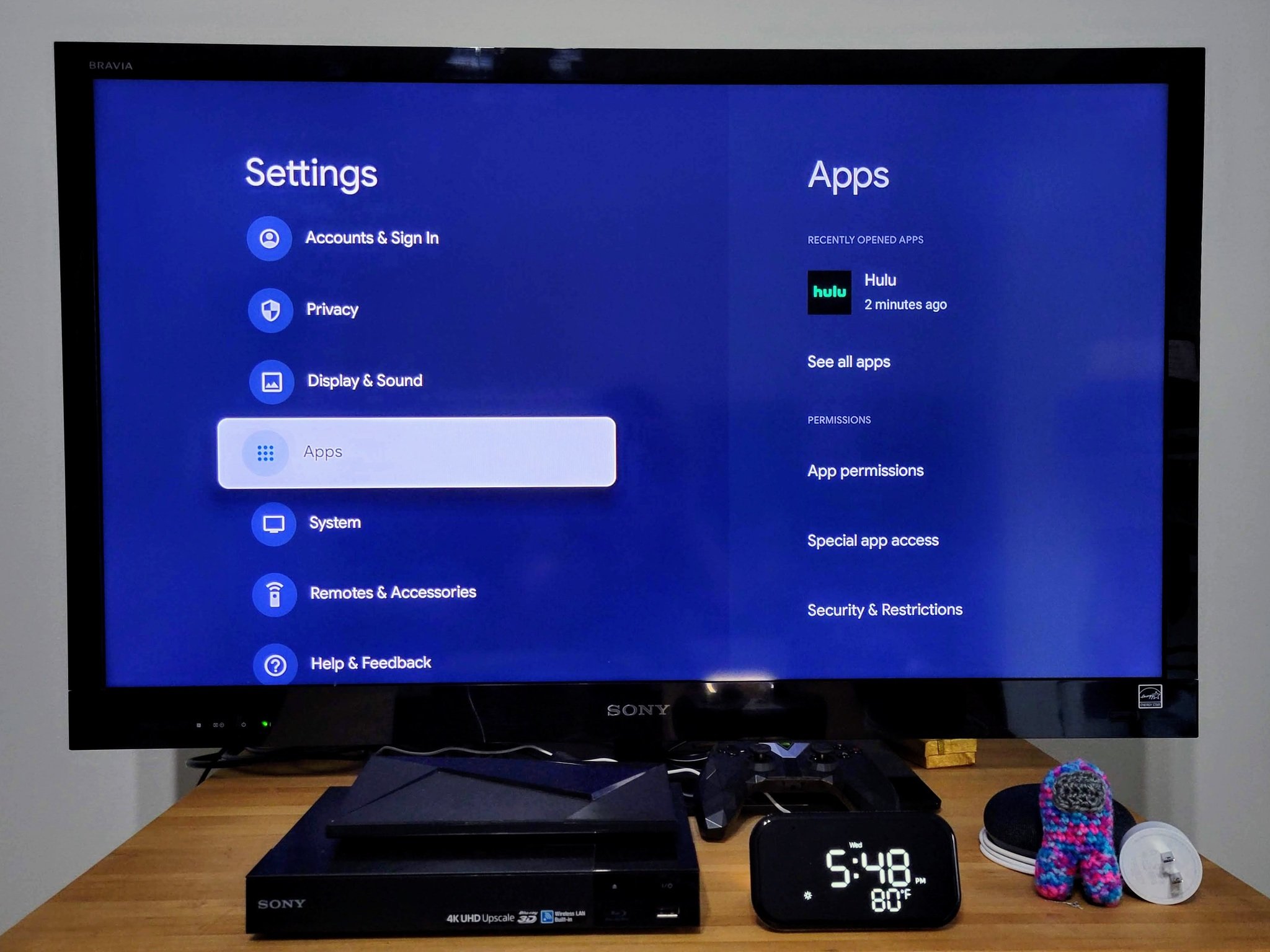
- Open Settings from the top-right or the gear icon on the home screen.
- Go to Apps, then See all apps.
- Select the app you want to close.
- Tap Force stop, then confirm.
Use this when the app is frozen or not responding.
Method 3: Use app info from the home screen
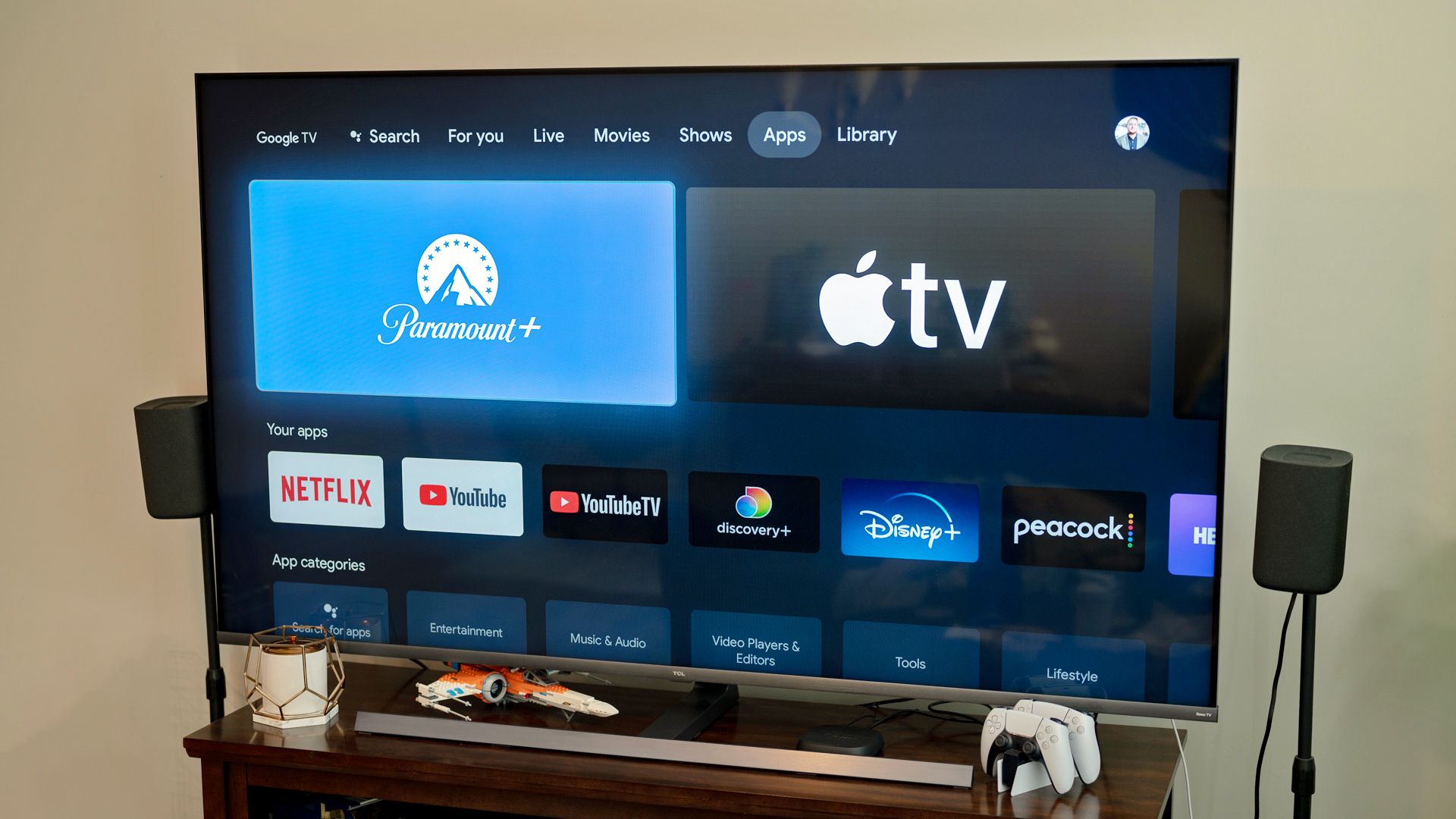
- Highlight the app in Your Apps or the home row.
- Press and hold the OK/Select button to open a quick menu.
- Choose App info.
- Tap Force stop or Clear cache if needed.
This is a shortcut to the Settings path.
Method 4: Restart the device
- Press the power button on the remote or open Settings > System > Restart.
- Confirm restart.
Restarting closes all apps and often fixes persistent problems quickly.
When to force stop an app vs just close it
Close apps from the switcher for regular cleanup. Force stop when an app freezes, drains battery, or misbehaves. Force stop ends the app process immediately. Use it sparingly, because apps may lose unsaved data.

Tips to manage apps and improve performance
Keep things simple. Try these steps to keep Google TV smooth.
- Uninstall apps you do not use to free space and reduce background processes.
- Disable auto-start for apps that run in the background when possible.
- Clear cache for apps that lag after long use.
- Keep the system and apps updated. Updates often fix memory leaks.
- Reboot your device weekly to clear stray processes.
These tips help reduce the need to repeatedly close apps and improve long-term performance.
Troubleshooting common issues when closing apps on Google TV
If an app won’t close or restart, try these checks.
- App still appears after closing: Force stop the app in Settings and clear cache.
- Remote won’t open switcher: Replace batteries and try a restart.
- App crashes on launch: Update the app or uninstall and reinstall it.
- Slow device after closing apps: Check storage space and uninstall rarely used apps.
If problems continue, a factory reset can help but back up settings first. Note that a reset erases apps and accounts.

Personal experience and practical tips
Years of testing Google TV boxes taught me to start simple. I once tried force stopping every app at once and caused short glitches. Lesson learned: close only what you need and reboot when many apps misbehave. When helping family, I found that uninstalling three unused streaming apps freed enough space to fix playback issues. Keep a small list of apps you use most. That helps you decide what to close or remove.

Frequently Asked Questions of how to close apps on google tv
How do I open the app switcher on Google TV?
Press the Home button on the remote, then press Up to reveal the app switcher. Highlight an app and remove it with the Back button or a swipe gesture.
Will closing apps improve streaming quality?
Closing heavy background apps can free memory and reduce stutter. It may help when the device lacks free RAM, but internet speed also matters.
Does force stopping an app delete my data?
Force stopping only ends the app process. It does not usually delete user data, but unsaved in-app work can be lost.
Can I close apps automatically on Google TV?
Google TV does not include a built-in automatic app closer. Use system updates and keep fewer apps installed to reduce background activity.
What if an app won’t respond to force stop?
Try clearing the app cache, uninstalling and reinstalling the app, or restarting the device. If issues persist, a factory reset may be needed.
Conclusion
You now have clear, tested ways to close apps on google tv and tips to keep your device fast and stable. Start with the app switcher for quick closes, use Settings for stubborn apps, and reboot when many apps misbehave. Try the steps now to see an immediate improvement. Share your experience, ask questions, or subscribe for more practical Google TV tips.





