
You can add subscript in Google Sheets by using Unicode characters, CHAR() formulas, Docs paste, or a script.
I’ve worked with spreadsheets for years and helped teams present chemical formulas, footnotes, and product codes clearly. This guide on How to Add Subscript in Google Sheets explains every practical method, step-by-step examples, and real-world tips so you can pick the approach that fits your workflow. Read on to learn quick fixes, formula options, automation with Apps Script, and the trade-offs of each technique.

Source: golayer.io
Why add subscript in Google Sheets?
Subscript makes data readable. It shows chemical formulas, units, version numbers, and footnotes in a compact way. Knowing How to Add Subscript in Google Sheets helps your reports look professional and prevents misreading of values like H2O, CO2, or isotope labels.
People expect clean output. Using subscript correctly keeps your sheet clear. I often use subscript for chemistry notes and technical IDs. It improves clarity and reduces interpretation errors for readers.

Source: zapier.com
Methods to add subscript in Google Sheets
You have four main options to add subscript in Google Sheets. Each fits different needs and limits.
- Use Unicode subscript characters for quick manual text.
- Use CHAR() in formulas to insert subscript characters programmatically.
- Format text in Google Docs and paste rich text into Sheets (works in many cases).
- Run a Google Apps Script that converts characters to subscript Unicode automatically.
I’ll show step-by-step instructions and examples for each method. You’ll also learn pros, cons, and accessibility notes for each approach.
Source: golayer.io
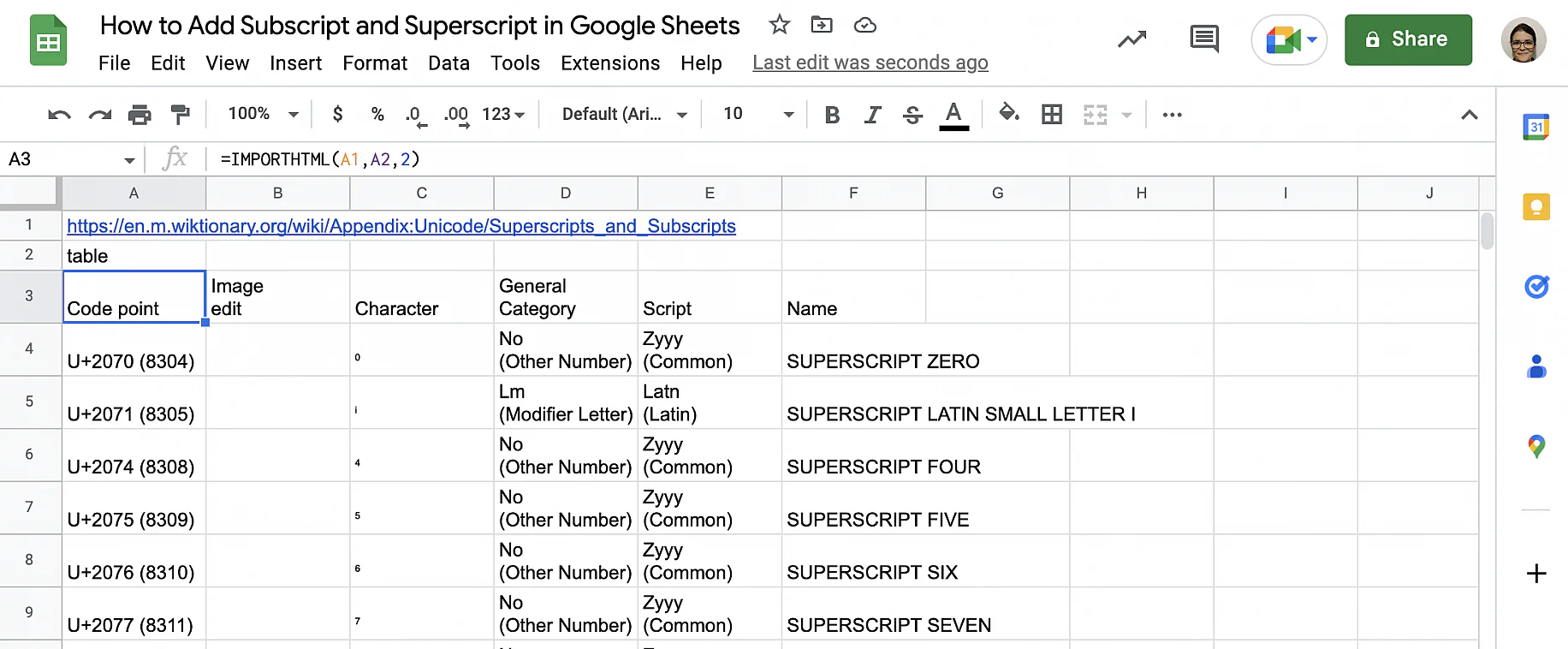
Method 1: Use Unicode subscript characters
This is the fastest method for single cells or small edits. Unicode includes many subscript digits and a few letters.
Steps:
- Click the cell you want to edit.
- Enter text and replace characters with Unicode subscript characters. Example: type H₂O by inserting the subscript 2 character.
- Use copy-paste from a character map or insert from another app.
Common subscript characters (use copy-paste):
- ₀ ₁ ₂ ₃ ₄ ₅ ₆ ₇ ₈ ₉
- ₊ ₋ ₌ ₍ ₎
Limitations:
- Not all letters have subscript forms in Unicode. You may need workarounds for letters.
- These characters are text. Cells using them are no longer numeric for calculations.
- Search and sorting behave differently since the characters are text.
Real tip from experience:
- I keep a small “symbols” sheet in each workbook. It stores common subscripts I paste from. That saves time when writing repeated formulas or labels.
Source: benlcollins.com
Method 2: Use CHAR() and Unicode codes in formulas
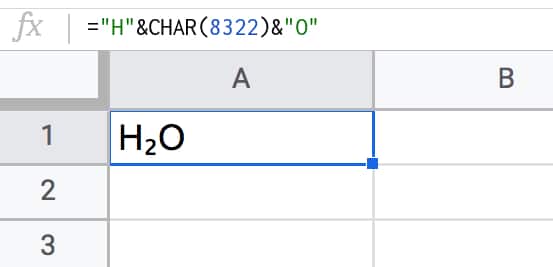
Use CHAR() to generate subscript characters inside formulas. This is good when building labels from other cells.
Examples:
- To make H₂O from pieces: = “H” & CHAR(8322) & “O”
- To append a subscript number from A1: = “X” & CHAR(8320 + A1) (if A1 is 0–9)
Useful Unicode decimal codes:
- ₀ = 8320
- ₁ = 8321
- ₂ = 8322
- ₃ = 8323
- ₄ = 8324
- ₅ = 8325
- ₆ = 8326
- ₇ = 8327
- ₈ = 8328
- ₉ = 8329
Practical formula example:
- If A1 contains 2, use = “H” & CHAR(8320 + A1) & “O” to show H₂O.
Limitations and notes:
- CHAR() supports decimal Unicode codes in Google Sheets. It’s reliable for digits and a few symbols.
- Like Unicode typing, results become text. They don’t act as numbers.
- For multi-digit subscripts, build strings by concatenating each digit converted with CHAR().

Source: businessinsider.com
Method 3: Use Google Docs and paste rich text
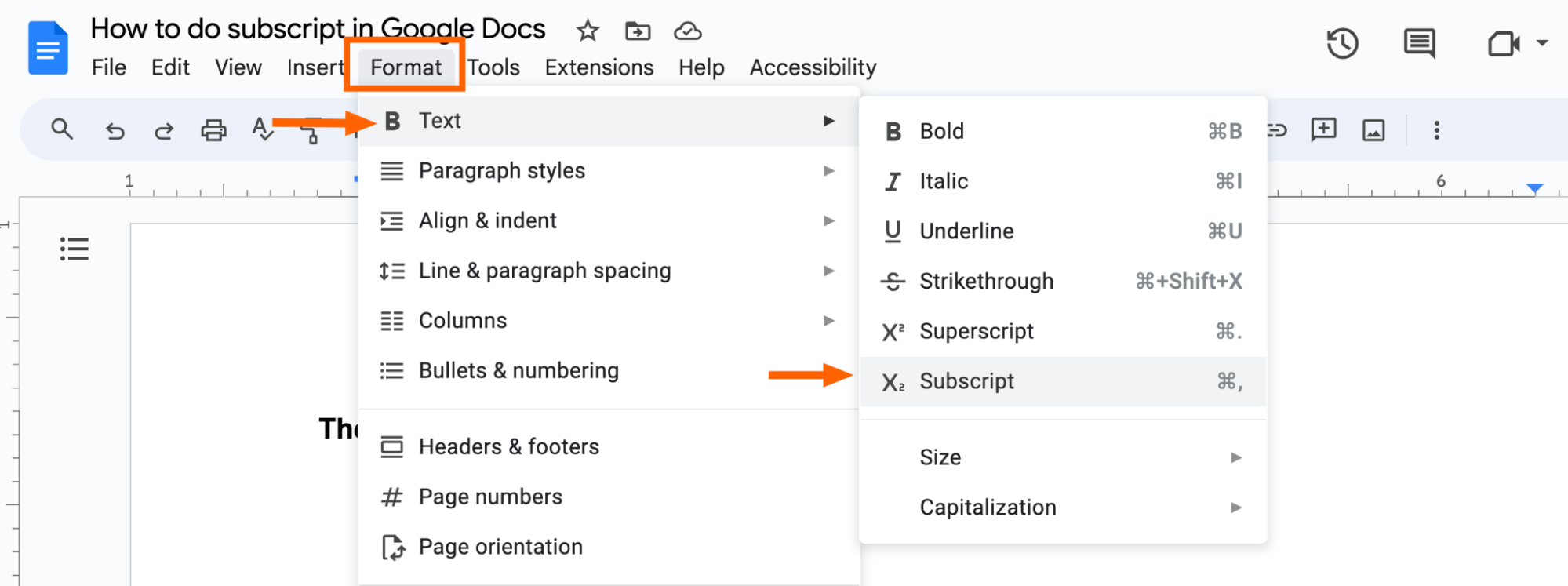
Google Docs lets you set subscript formatting in rich text. You can sometimes carry that formatting into Sheets.
Steps:
- Open Google Docs and type your text.
- Select the portion to subscript and go to Format > Text > Subscript.
- Copy the formatted text.
- Paste into a Google Sheets cell.
What I’ve seen in practice:
- Pasting a single formatted cell often keeps the subscript in Sheets as rich text.
- Pastes into multiple cells or bulk ranges sometimes convert to plain text. Behavior can vary by browser and Sheets updates.
When to use this method:
- When you need visual formatting rather than functional subscript characters.
- For presentation-ready sheets where the look matters more than calculations.
Caveats:
- Formatted text may not be searchable the same way as regular text.
- Some exports (CSV, older Excel versions) will lose the formatting.
Source: zapier.com
Method 4: Use Google Apps Script to convert characters to subscript
If you need to convert many cells at once, use Apps Script to replace characters with subscript Unicode. This automates manual work and ensures consistency.
Sample script (simple converter that maps digits to subscript digits):
- Open Extensions > Apps Script in your Google Sheet.
- Paste this function and run it, selecting the target range first.
function convertRangeDigitsToSubscript() {
  var ss = SpreadsheetApp.getActiveSpreadsheet();
  var sheet = ss.getActiveSheet();
  var range = sheet.getActiveRange();
  var values = range.getValues();
  var map = {
    '0':'₀','1':'₁','2':'₂','3':'₃','4':'₄',
    '5':'₅','6':'₆','7':'₇','8':'₈','9':'₉'
  };
  for (var r=0; r<values.length; r++) {
    for (var c=0; c<values[r].length; c++) {
      var s = String(values[r][c]);
      var out = '';
      for (var i=0; i<s.length; i++) {
        var ch = s.charAt(i);
        out += map[ch] ? map[ch] : ch;
      }
      values[r][c] = out;
    }
  }
  range.setValues(values);
}
Benefits:
- Fast bulk conversion.
- Reproducible in many sheets.
- You can expand mapping to letters and special symbols where Unicode exists.
Limitations:
- Converts to text values. Numeric calculations need a separate numeric column.
- Requires permission to run scripts in the sheet.
Personal note:
- I created a small Apps Script once to convert product IDs with subscripted version numbers for a catalog. It saved hours and avoided manual mistakes.

Source: youtube.com
Tips, limitations, and accessibility
Tips:
- Keep an original numeric column if you convert values to text for display. That preserves calculations.
- Use CHAR() in helper columns to build labels while preserving raw data.
- Maintain a legend or note in the sheet explaining where and why subscript is used.
Limitations:
- Most subscript Unicode covers digits and a few symbols. Full alphabet subscripts are not available.
- Subscript characters are text. Sheets won’t treat them as numbers.
- Copying to CSV or older apps may lose formatting or convert characters.
Accessibility:
- Screen readers may read Unicode subscript characters awkwardly. If accessibility matters, add plain-text alternatives or notes.
- For data intended for computation, avoid replacing numeric cells directly with subscript characters.
PAA-style questions
Can I use subscript in formulas?
Yes. Use CHAR() to insert Unicode subscript characters in text built by formulas. But resulting cells are text, so they won’t act as numeric values for arithmetic.
Is there a built-in subscript button in Google Sheets?
No dedicated subscript button exists in Sheets’ toolbar for all users. Use Unicode, Docs paste, CHAR(), or Apps Script as workarounds.
Will subscript affect sorting and filtering?
Yes. Subscript characters make the cell text. Sorting and filtering operate on text values, which can change order compared to numeric sorts.

Source: spreadsheetpoint.com
Frequently Asked Questions about How to Add Subscript in Google Sheets
How do I type subscript 2 in Google Sheets?
Use the subscript 2 character (₂) by copying it into the cell or using =CHAR(8322) in a formula to generate it programmatically.
Can I keep numeric value and show subscript at the same time?
Not in the same cell. Subscript characters convert content to text. Keep the numeric value in a separate hidden column for calculations.
Does pasting from Google Docs always keep subscript formatting?
Not always. Pasting single formatted cells usually works, but bulk pastes or some browsers may strip the format and leave plain text.
Are all letters available as subscript in Google Sheets?
No. Unicode provides many subscript digits and a few symbols, but most letters do not have standardized subscript forms.
Can I automate subscript conversion for many cells?
Yes. Use Google Apps Script to map characters to Unicode subscript equivalents and update ranges automatically.
Conclusion
You now have a clear set of options for How to Add Subscript in Google Sheets. Use Unicode for quick edits, CHAR() for formula-built labels, Docs paste for visual formatting, and Apps Script for bulk automation. Keep raw numeric data separate when calculations matter, and test copy/paste behavior before finalizing reports.
Try one method on a sample sheet today. If you work with subscripts often, automate the conversion with a small script to save time. Share your results or questions below, or subscribe for more practical spreadsheet tips.