Open the app drawer's settings, enable "Show hidden apps," or use Settings and a launcher.
I’ve spent years fixing phones and helping friends find apps they thought vanished. This guide explains exactly how to access hidden apps android devices use — step-by-step, safe, and beginner-friendly. I’ll show methods that work on Samsung, Pixel, OnePlus, and many other phones, plus advanced options like ADB and root only if you need them. Read on to get the app back in view and understand why it went hidden in the first place.
:max_bytes(150000):strip_icc()/002_find-hidden-apps-on-android-phones-4178932-f4ffed4e63334891a43b1ab53191fad7.jpg)
Why apps are hidden on Android and what "hidden" means
Apps can be hidden for privacy, parental control, or by mistake. Some launchers include a hide feature. Some device makers add secure folders or app lockers. Other times apps look hidden because they are disabled, have no launcher icon, or live only as system services.
Understanding how to access hidden apps android starts with knowing where the hiding happens:
- Launcher-level hiding: The app is still installed but not shown in the app drawer.
- System-level hiding: The app is disabled or placed in a secure folder.
- File-level hiding: The app package or shortcut is placed in an unusual folder.
- User-level hiding: Parental controls, profiles, or third-party app lockers block visibility.
Knowing the cause guides the fix. If it’s a launcher feature, you can toggle a setting. If it’s disabled, you re-enable it. If it’s hidden by an app locker, you need the locker’s credentials.

Easy ways to access hidden apps android on most phones
Below are the fastest, low-risk ways to find hidden apps. Start here before trying advanced tools.
Check the app drawer settings
- Open your app drawer and tap the three dots or settings icon. Look for "Hide apps," "Hidden apps," or "Hide apps & apps settings." Disable the hide option. This is the most common fix on phones with built-in hide features.
Use the Settings app (Apps list)
- Open Settings > Apps or Apps & notifications > See all apps. Browse or search for the app name. If it appears, tap it and choose "Enable" or "Open." This shows apps even if the launcher hides them.
Use the app search bar
- Swipe to app search in the drawer or use the Pixel/Android search. Type the app name and open it. Launching an app this way often adds a visible shortcut again.
Look for disabled apps
- Settings > Apps > Filter or menu > Show system apps. Disabled apps show an "Enable" button. Re-enable the app to restore normal visibility.
Check secure folders and app lockers
- Samsung Secure Folder, OnePlus Private Space, or third-party lockers can hide apps. Open those apps and enter your PIN or biometrics. Move the app out if you want it visible again.
Try a different launcher
- Install a trusted launcher like Nova or Lawnchair. These launchers will show installed apps unless you manually hide them. This helps when the stock launcher is the issue.
These steps cover most cases of how to access hidden apps android users encounter. Try them in order for the safest outcome.
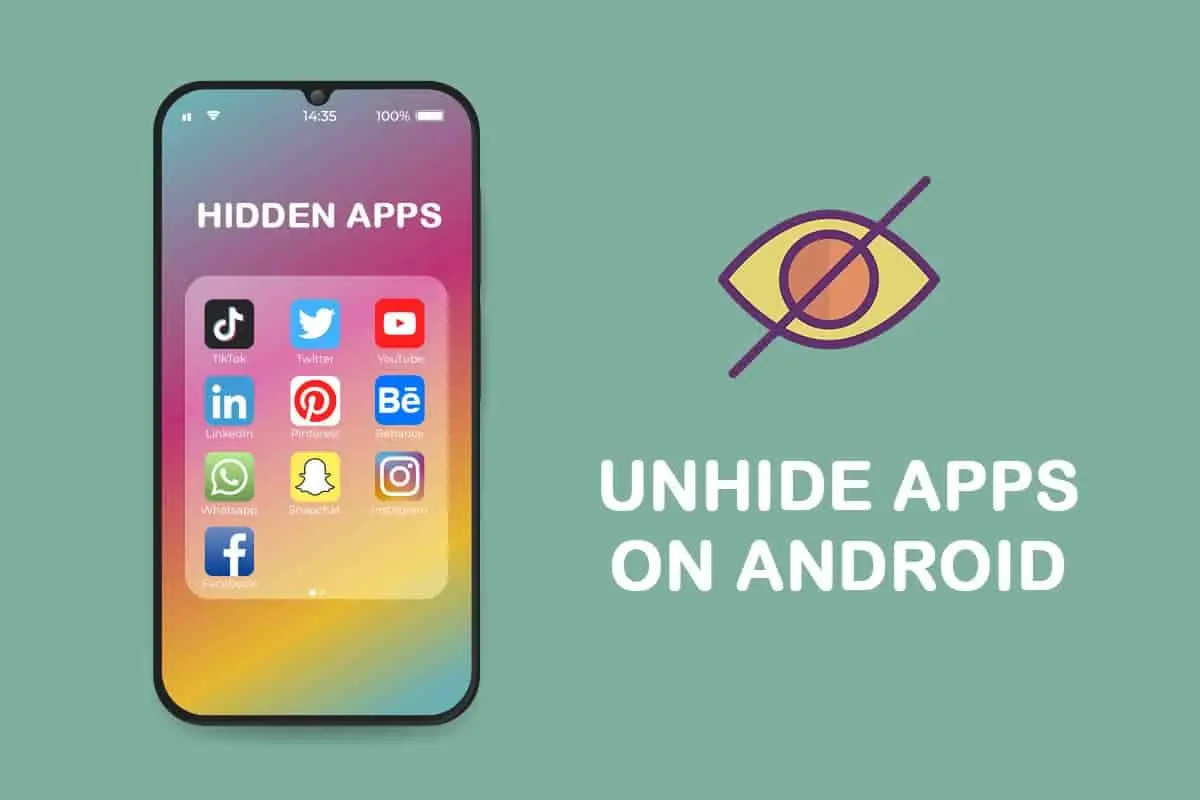
Step-by-step: How to access hidden apps android on Samsung, Pixel, and OnePlus
Below are short, device-targeted steps. Follow the one for your phone.
Samsung (One UI)
- Open the app drawer. Tap the three dots > Settings > Hide apps. Remove items from the hidden list. Or open Settings > Apps > Show system apps and re-enable disabled apps.
Pixel & stock Android
- Open Settings > Apps & notifications > See all apps. Use search or scroll. If you can’t find the app, try the app drawer search or install a different launcher.
OnePlus (OxygenOS)
- Open the app drawer > swipe right to Hidden Space or tap the icon for Hidden apps. Enter your PIN and move apps back. Also check Settings > Apps for disabled packages.
These device steps show practical ways to access hidden apps android depends on manufacturer UI choices. If you can’t find a hide menu, use Settings > Apps as a universal approach.

Advanced methods: ADB, Safe Mode, and root-level access
If easy ways fail, try these advanced options. They carry more risk, so back up data and read carefully.
Use Safe Mode
- Booting into Safe Mode disables third-party launchers and app lockers. Hold the power button, then long-press Power off > Reboot to safe mode. In safe mode, open Settings > Apps to find and remove hidden apps or app lockers.
Use ADB (no root)
- Connect your phone to a computer with USB debugging enabled. Use adb shell pm list packages to find packages. Use adb shell cmd package resolve-activity –brief
to locate launcher activity or adb shell pm enable to re-enable a disabled app. ADB is powerful and safe when used correctly.
- Connect your phone to a computer with USB debugging enabled. Use adb shell pm list packages to find packages. Use adb shell cmd package resolve-activity –brief
Root-only methods
- If your device is rooted, you can access system directories, modify package files, or remove app lockers at file level. Root gives control but voids warranties and increases risk. Proceed only if you understand root implications.
Advanced methods help when apps are hidden by system settings, corrupted launchers, or stubborn app lockers. Be cautious and document each step.

Security, privacy, and ethical considerations
Accessing hidden apps android carries privacy and legal implications. Respect device ownership and privacy.
- If the device is yours, proceed with the methods above.
- If the device belongs to someone else, ask permission first. Bypassing locks can be illegal.
- Be wary of third-party tools that promise to reveal hidden apps. They can contain malware or harvest data.
- Keep Play Protect enabled and install apps only from trusted sources.
- Consider why an app was hidden. It may be private for good reason.
Transparency helps you choose the right method without harming trust or security.
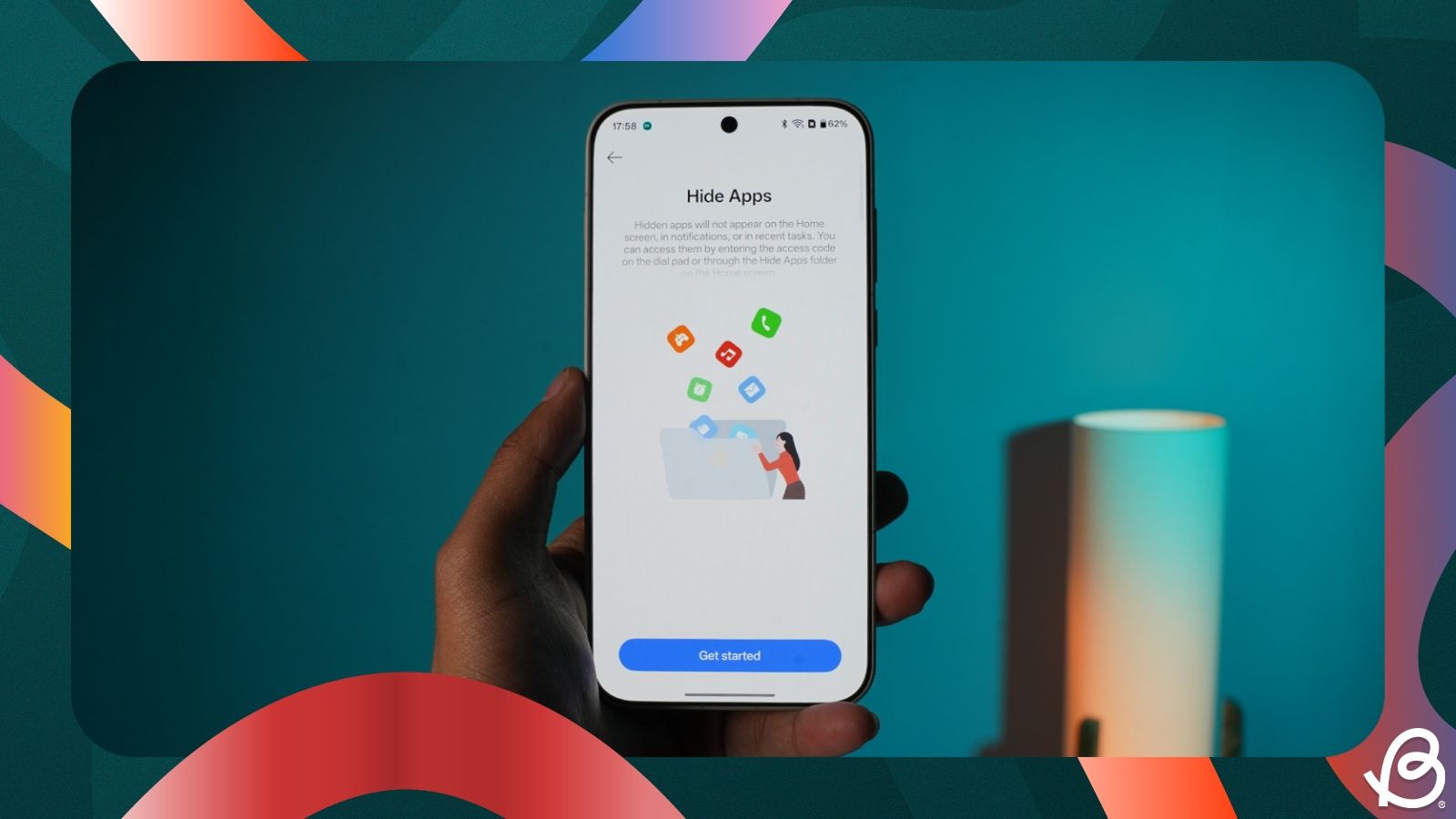
Personal tips, common mistakes, and lessons learned
I’ve helped friends recover apps many times. Here are practical tips from real fixes.
- Always try Settings > Apps first. It works more than half the time.
- Don’t install shady "app hider reveal" tools. One friend lost data using such a tool.
- Keep a list of app package names. It speeds ADB searches and helps when apps lack icons.
- When using Safe Mode, remember some features are turned off. Reboot normally after changes.
- Backup before trying root or ADB commands. I once bricked a test phone by skipping a backup.
These real-world lessons will save time and prevent avoidable errors when you try to access hidden apps android.
:max_bytes(150000):strip_icc()/003_find-hidden-apps-on-android-phones-4178932-9cd1cb328bac45f7801138f5a221f9f0.jpg)
Common quick questions (PAA-style)
Can hidden apps be dangerous?
Hidden apps themselves are not always dangerous, but hidden malware is a risk. Scan with Play Protect and reputable antivirus.
Will uninstalling a hidden app delete data?
Uninstalling deletes app data unless the app stores data in the cloud. Back up if data matters.
Can a factory reset show hidden apps again?
A factory reset removes third-party apps and settings, which reveals only system apps. Back up data before resetting.

Frequently Asked Questions of how to access hidden apps android
How do I find hidden apps on Android without root?
Open Settings > Apps, use the app drawer search, or install a trusted launcher. Safe Mode also reveals many hidden apps.
Why can’t I see some apps in my app drawer?
They may be hidden by the launcher, disabled in Settings, placed in a secure folder, or protected by an app locker.
How do I unhide apps on Samsung?
Open the app drawer, tap the three dots > Settings > Hide apps, then remove apps from the hidden list. Also check Secure Folder.
Can ADB reveal hidden apps?
Yes. With USB debugging enabled, use adb commands to list, enable, or launch packages without root.
Is it safe to use third-party launchers to find hidden apps?
Trusted launchers are generally safe and effective. Avoid unknown apps that request excessive permissions.
What if an app is hidden by parental controls?
You need the parental control app or account that set the restriction to revert it. Ask the account owner or use recovery options.
Does hiding an app delete its data?
No. Hiding typically only hides the icon. Data remains unless the app was uninstalled or sandboxed by a secure folder.
Conclusion
You now have clear, safe ways to access hidden apps android devices use. Start with Settings > Apps and app drawer options. Use Safe Mode and ADB only when needed. Respect privacy and back up before any advanced steps. Try these tips and share what worked for you or ask questions below. If this guide helped, consider subscribing for more hands-on Android tips and troubleshooting.





