
Are you tired of struggling with complicated software just to make simple changes to your PDF files? Imagine being able to edit your PDFs quickly, easily, and without spending a dime.
Whether you need to add text, insert images, sign documents, or rearrange pages, the right free online PDF editor can make your life so much easier. You’ll discover the best free online PDF editors that put powerful editing tools right at your fingertips.
Keep reading to find the perfect tool that fits your needs and saves you time and frustration!
Top Free Pdf Editors
Top free PDF editors offer essential tools for editing documents without cost. These editors allow users to modify text, add images, sign forms, and rearrange pages easily. They support multiple platforms, including Windows, Mac, and web browsers.
Using free PDF editors helps save money and avoid complicated software. They are ideal for students, teachers, and professionals needing quick edits. Many free editors have user-friendly interfaces and do not require downloads.
Adobe Acrobat Online Pdf Editor
Adobe Acrobat’s free online editor lets you add text, highlight, and sign PDFs. It requires a free account for access. The editor is reliable and works directly in your browser. Perfect for basic edits without installing software.
Pdfescape Online Pdf Editor
PDFescape offers free PDF editing with features like form filling and annotation. It works in any web browser and does not need registration for files under 10 MB. Users can add links, whiteout text, and create basic edits.
Smallpdf Pdf Editor
Smallpdf provides a simple interface for editing PDFs quickly. It supports adding text, shapes, and drawings. The free version allows two tasks per day. It also integrates well with cloud storage services.
Sejda Pdf Editor
Sejda is a free PDF editor with many tools, including text editing and page management. It allows files up to 50 MB and 200 pages. The editor works fully online and keeps your files private.
Pdf Candy Online Editor
PDF Candy offers a free, easy-to-use PDF editor for text and image changes. It supports drag-and-drop uploads and converts files between formats. No registration is needed for basic tasks.
Adobe Acrobat Online
Adobe Acrobat Online offers a simple way to edit PDF files without software installation. It runs entirely in your web browser. This makes it accessible on any device with internet access.
The free version allows users to add text, highlight content, and insert signatures. Signing in or creating a free Adobe account is necessary to use these features.
Add Text And Comments
You can easily add new text to your PDF. The toolbar also supports sticky notes and highlights. These tools help you mark up documents for review or study.
Sign Pdf Forms
Adobe Acrobat Online lets you sign documents digitally. This is useful for contracts, agreements, and official forms. Signing is quick and secure, with no need to print or scan.
Upload And Download Files
Upload PDFs by clicking the upload button or dragging files into the window. After editing, download the updated PDF immediately. The process is fast and user-friendly.
Advanced Tools With Free Trial
Adobe offers a free trial of Acrobat Pro. This trial unlocks extra tools like editing images and rearranging pages. It is a good option for users needing more than basic edits.
Google Docs For Pdfs
Google Docs offers a simple way to work with PDF files without extra software. It is not a full PDF editor but lets users make basic changes. This tool works well for quick edits and small tasks.
Uploading a PDF to Google Docs converts it into a text document. You can then edit text, add images, or rearrange content easily. After editing, save the file back as a PDF to keep the format.
How To Upload Pdfs To Google Docs
First, open Google Drive and click the New button. Choose File upload and select your PDF file. Wait for the upload to finish before moving on.
Opening Pdfs In Google Docs
Right-click the uploaded PDF file in Google Drive. Hover over Open with and select Google Docs. The PDF will open as a Google Docs document ready for editing.
Editing Pdfs In Google Docs
Edit text by clicking inside the document. Add or delete words as needed. Insert images or change formatting using Google Docs tools.
Saving Edited Pdfs
After editing, click File in the menu bar. Select Download, then choose PDF Document. The edited file will save as a new PDF on your device.
Limitations Of Using Google Docs For Pdfs
Google Docs may alter the original layout and fonts. Complex PDFs with many images or forms might not convert well. It works best for simple text-based PDFs.
Credit: www.youtube.com
Pdfgear Features
PDFgear offers a strong set of tools for editing PDF files online. It lets users handle PDFs without installing any software.
The platform supports many common editing tasks. It is easy to use for beginners and fast for quick edits.
Editing Text And Images
Users can add, delete, or change text inside PDF documents. Images can be inserted, moved, or removed easily. This helps customize PDFs for many needs.
Page Management Tools
PDFgear allows users to reorder, rotate, or delete pages. Extracting pages for separate use is also possible. These features improve document organization.
Annotation And Markup Options
Adding comments, highlights, and drawings is simple with PDFgear. These tools help explain or emphasize parts of the document clearly.
File Conversion And Compression
It converts PDFs to other formats like Word or images. Compressing files to reduce size is also supported. This makes sharing files easier.
Security Features
Users can add passwords to protect PDFs from unauthorized access. This keeps sensitive information safe and private.
Ai Chatbot Assistance
PDFgear offers an AI chatbot for quick help. It answers questions and guides users through editing tasks smoothly.
Xodo Pdf Editor
Xodo PDF Editor is a popular free tool for editing PDF files online. It offers a simple and fast way to work with PDFs without needing any software installation. The editor supports many features that help users manage their documents easily.
With Xodo, you can view, annotate, and sign PDFs. It works smoothly on both desktop and mobile devices. The interface is clean and easy to use, making it a good choice for beginners and casual users.
Xodo Pdf Editor Features
Xodo lets you highlight text, add comments, and draw shapes on your PDFs. You can also fill out forms and add signatures. The tool supports merging multiple PDFs into one file. It allows you to rotate, delete, or reorder pages quickly.
Ease Of Use And Accessibility
Xodo works directly in your web browser. No downloads or sign-ups are needed for basic editing. The editor loads files fast and saves changes instantly. It syncs with cloud services like Google Drive and Dropbox for easy access to files.
Collaboration And Sharing
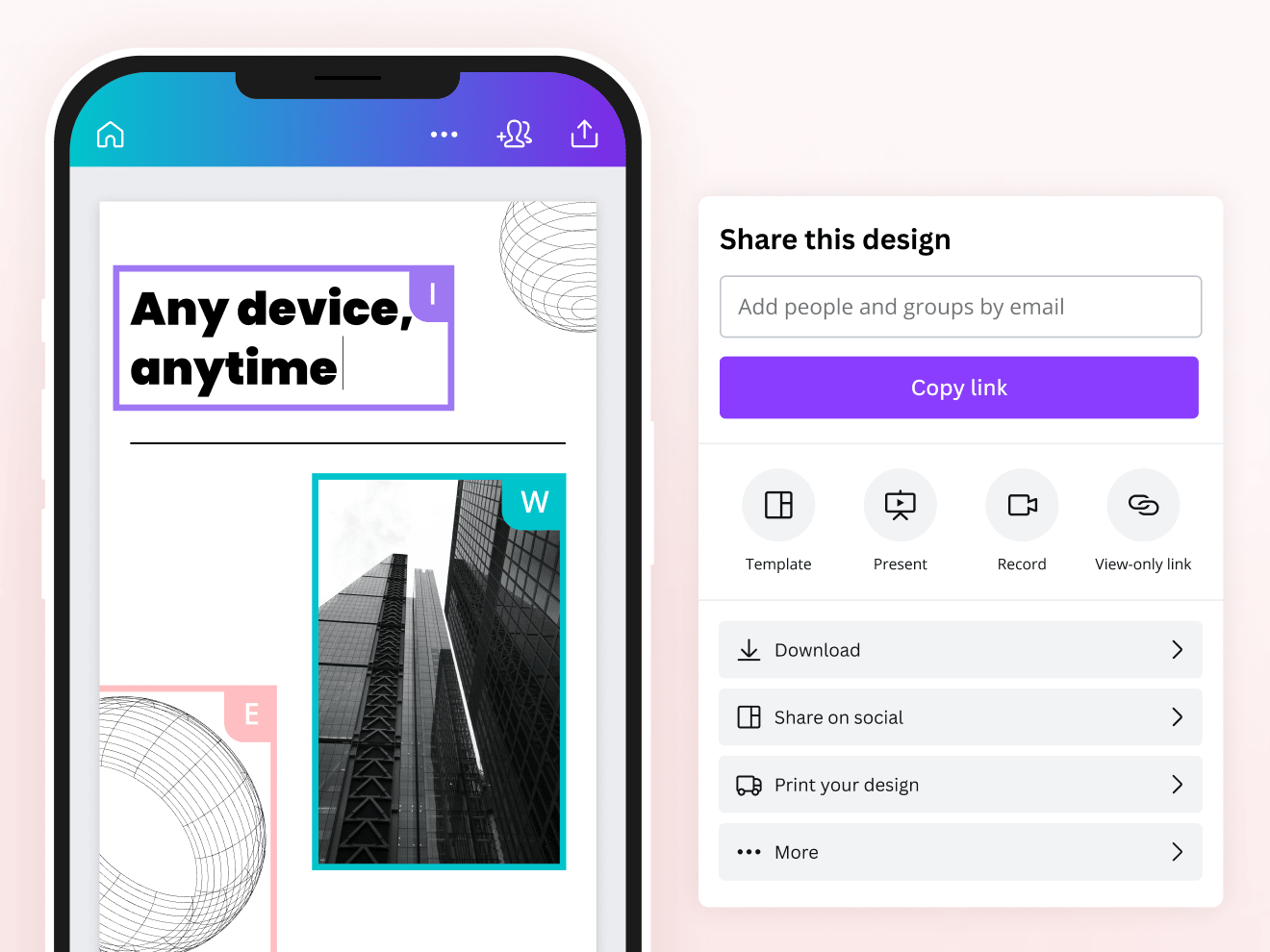
The platform supports real-time collaboration. Multiple users can annotate the same document simultaneously. After editing, you can share the PDF via email or a direct link. This makes teamwork on documents simpler and faster.
Chrome Extensions For Pdf Editing
Chrome extensions offer quick ways to edit PDFs directly in your browser. They save time by avoiding extra software installs. These tools work smoothly with Google Chrome and provide essential editing features for free.
Many extensions support text editing, highlighting, annotating, and signing PDFs. Some also allow page rearrangement and form filling. They are ideal for casual users and professionals needing simple edits on the go.
Pdf Editor For Chrome
This extension lets you add text, shapes, and signatures easily. It supports highlighting and commenting on PDF files. You can upload files from your computer or cloud storage. The interface is simple and user-friendly for fast edits.
Smallpdf Chrome Extension
Smallpdf offers multiple PDF tools in one place. You can edit, convert, compress, and merge PDFs. The Chrome extension integrates these features seamlessly. It also supports drag-and-drop for quick file uploads.
Adobe Acrobat Pdf Editor Extension
Adobe’s Chrome extension provides reliable PDF editing capabilities. It allows text modification, annotation, and form filling. Users can also add digital signatures. A free account is needed to access basic features.
Pdfescape Free Pdf Editor
PDFescape is a popular free tool for editing PDFs online. The Chrome extension offers access to editing features without leaving the browser. You can add text, images, and form fields easily. It supports saving files back to your device.
Editing Text In Pdfs
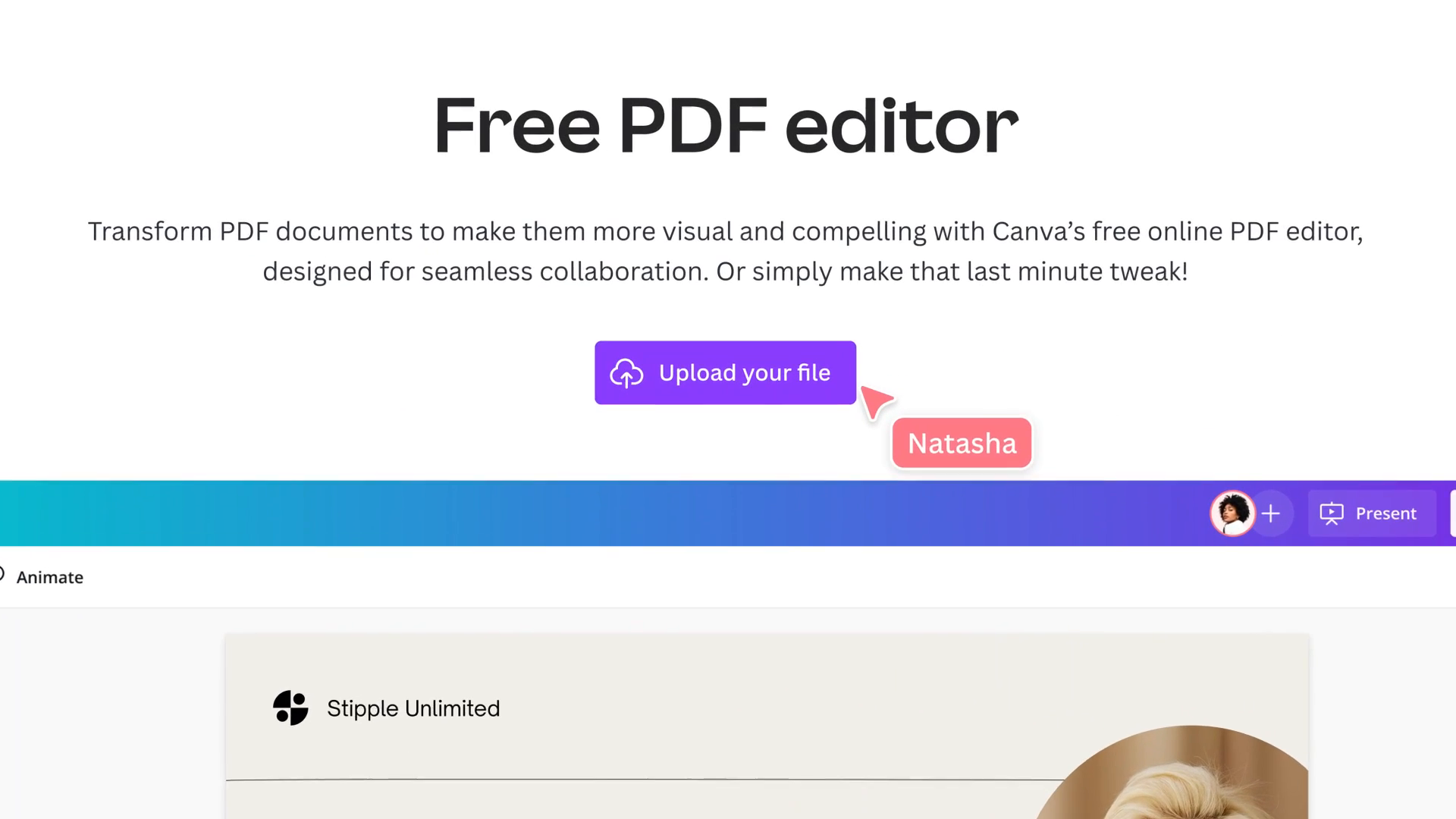
Editing text in PDFs is often necessary for many tasks. PDFs are usually read-only, but some tools let you change the text easily. Free online PDF editors make this possible without software installation. These editors allow quick corrections and updates directly in your browser.
Editing text in PDFs can mean fixing typos, adding new words, or removing old content. The best free editors keep the original format intact while you edit. They support common fonts and styles for seamless changes. This section highlights how to edit text using top free online PDF editors.
How Free Online Pdf Editors Handle Text Editing
Most free editors let you click on text to start editing. You can delete, add, or modify words instantly. Some editors also let you change font size and color. This keeps your document looking consistent and professional.
Limitations To Expect When Editing Pdf Text For Free
Free tools may have limits on file size or page numbers. Complex formatting or scanned PDFs might not edit well. Some editors add watermarks unless you upgrade. Still, they work well for simple text edits on most PDFs.
Steps To Edit Text In Pdfs Online For Free
Start by uploading your PDF file to the editor’s website. Select the text tool, then click the text you want to change. Make your edits and save the file back to your device. No software download or account may be needed.
Adding Annotations And Comments
Adding annotations and comments to PDF files improves collaboration and understanding. It helps highlight important information or clarify points. Many free online PDF editors offer tools for this purpose. These tools are easy to use and require no software installation.
Annotations include highlights, underlines, and shapes. Comments allow you to insert notes or feedback directly on the PDF. This makes reviewing documents faster and clearer for everyone involved.
Adding Highlights And Underlines
Highlighting text draws attention to key sections. Underlining emphasizes important phrases. Most free editors let users select text and apply these styles instantly. These features help readers focus on essential information quickly.
Inserting Sticky Notes
Sticky notes allow adding short messages or reminders. They appear as small icons on the page. Clicking the icon opens the note to read or edit. This tool is useful for sharing thoughts without changing the original text.
Drawing Shapes And Markups
Shapes like rectangles, circles, and arrows help point out parts of the document. Users can draw freehand or use preset shapes. These markups guide the reader’s eye and add visual context to comments.
Replying To Comments
Many editors support threaded comments. This means you can reply directly to a comment. It creates a conversation within the PDF. This feature is helpful for group reviews and detailed discussions.
Managing Pdf Pages
Managing PDF pages is a key feature of free online PDF editors. It helps users organize documents easily. You can add, delete, reorder, or rotate pages within your PDF files.
These tools save time and improve workflow. They allow quick adjustments without extra software. Users can keep their documents clear and professional.
Adding And Deleting Pages
Most free PDF editors let you add new pages to your file. This feature is useful for inserting extra content or blank pages. Deleting unwanted pages is just as simple. You select the page and remove it in one click.
Reordering Pdf Pages
Changing the order of pages is easy with drag-and-drop tools. This helps arrange information logically. You can move pages up or down quickly. It keeps your PDF organized and easy to read.
Rotating And Extracting Pages
Sometimes pages appear upside down or sideways. Online editors let you rotate pages to the correct view. Extracting pages means saving some pages as a new PDF. This is helpful for sharing only parts of a document.
Credit: www.canva.com
Converting And Saving Pdfs
Converting and saving PDFs is a key feature of free online PDF editors. It allows users to change PDFs into other file types or save edited documents in various formats. This process makes sharing and editing easier.
Many free editors offer quick conversion to formats like Word, Excel, or images. Users can also save PDFs with changes without losing quality. These tools help maintain document layout and text accuracy.
Converting Pdfs To Editable Formats
Free PDF editors often convert PDFs into Word or text files. This lets users edit the content easily. The conversion keeps the original text and images intact. Some tools also support batch conversion for multiple files.
Saving Edited Pdfs Securely
Saving PDFs after editing is simple and fast. Editors allow saving in the original PDF format or as new files. Some tools offer options to compress files for smaller sizes. Users can also add passwords for document security.
Exporting Pdfs To Other File Types
Exporting PDFs to formats like JPG, PNG, or Excel is common. This helps users use the content in other applications. Free editors provide clear options to select the desired output format. The export process usually keeps the document’s quality high.
Credit: www.canva.com
Frequently Asked Questions
Is There A 100% Free Pdf Editor Online?
Yes, some online PDF editors offer 100% free basic editing without watermarks or limits. Examples include PDFgear and Adobe Acrobat online with a free account.
How Do I Edit A Pdf File Online For Free?
Upload your PDF to a free online editor like Adobe Acrobat or PDFgear. Edit text, add comments, and save the file easily.
Can I Get A Pdf Editor For Free?
Yes, free PDF editors are available online. Adobe Acrobat offers a free editor with sign-in. Google Docs also lets you edit PDFs by converting them. Many free third-party apps and browser extensions provide basic PDF editing features.
Does Google Have A Free Pdf Editor?
Google does not offer a dedicated free PDF editor. You can edit PDFs by opening them in Google Docs via Google Drive. This converts PDFs into editable documents. Alternatively, free PDF editor apps and extensions are available in the Google Workspace Marketplace and Chrome Web Store.
What Is The Best Free Online Pdf Editor Available?
PDFgear and Adobe Acrobat Online are top free editors with easy tools for editing PDFs.
Can I Edit Pdf Text Without Downloading Software?
Yes, many free online editors let you edit PDF text directly in your browser.
How Do Free Pdf Editors Handle Images In Pdfs?
Most allow adding, removing, or resizing images inside your PDF quickly and easily.
Are There Any Limits On File Size For Free Pdf Editors?
Yes, some free editors limit file size, usually around 10-20 MB per upload.
Can I Add Signatures Using Free Online Pdf Editors?
Yes, free editors like Adobe Acrobat Online let you insert electronic signatures.
Is It Safe To Upload Pdfs To Free Online Editors?
Reputable sites use encryption, but avoid sensitive documents to stay safe online.
Conclusion
Choosing the right free online PDF editor saves time and effort. These tools help you edit text, add images, and sign documents easily. Many require no downloads or installations. Some offer extra features like compressing or converting files. Keep in mind, complex edits might need advanced software.
Test a few editors to find one that fits your needs best. Simple tools can handle most everyday PDF tasks well. Editing PDFs online has never been easier or more accessible.





