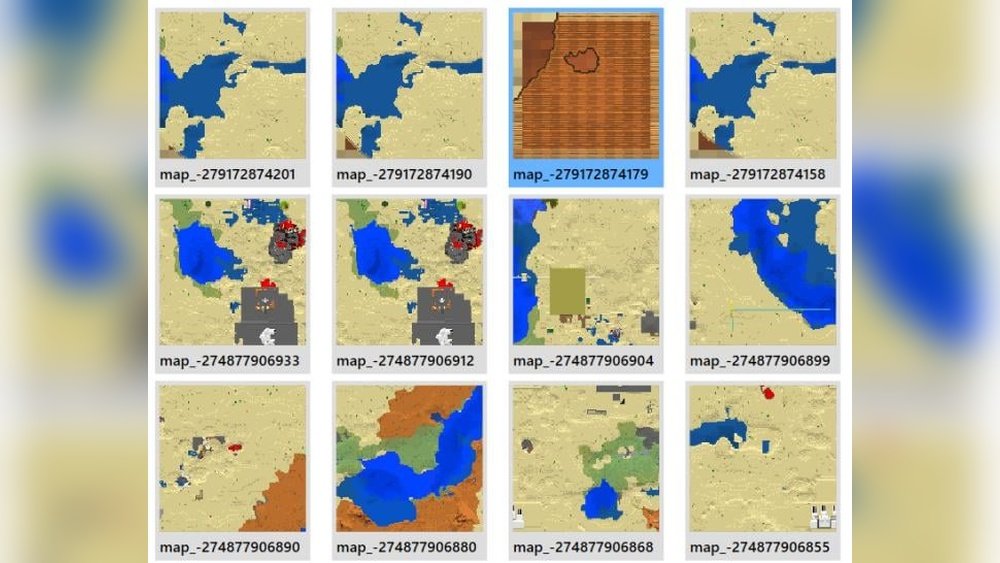
Minecraft offers endless possibilities for creativity, exploration, and technical mastery. One of the most powerful features for players who love to control their worlds is the command system. Among these commands, the fill command stands out as a tool that can transform landscapes, build structures instantly, or clear vast areas in seconds. But when it comes to mapping, especially in large survival or creative projects, many players wonder: How can you use Minecraft commands to fill and reveal the entire map? Let’s dive deep into the Minecraft fill map command, explore its true meaning, real uses, limitations, and clever ways to automate map revealing using both vanilla commands and external tools.
What Is The Fill Command In Minecraft?
The fill command in Minecraft is a built-in feature that allows players to quickly fill a selected area with a specific block. It’s a command-line tool, meaning you type it in the chat or command block. The basic syntax is:
/fill
This command fills all blocks in the area between two corners (x1, y1, z1) and (x2, y2, z2) with your chosen block. For example, you can instantly create a giant wall of stone, clear out a region by filling it with air, or build floors, houses, or even entire mountains.
But there’s a common confusion: The fill command does NOT fill Minecraft maps directly. Instead, it fills space in the world with blocks. Filling a map—in the sense of revealing all terrain on a map item—requires a different approach. Still, understanding the fill command is essential because it’s the foundation of many advanced mapping and world-editing techniques.
The Difference Between Filling Blocks And Filling A Map
Many beginners think using the fill command will reveal the entire area on a Minecraft map. However, the game’s map item works differently. When you hold a map in Minecraft, it only reveals (or “fills in”) the parts of the world you have visited. The fill command doesn’t interact with map items directly.
Here’s what happens:
- The fill command edits blocks in the world. For example, you can build a castle instantly.
- The map item only updates as you physically move through the world with the map in your hand (or off-hand).
- To “fill” a map (as in, reveal all its terrain), you must travel across the map’s area or use automation tricks.
Understanding this difference is the first step to mastering map-filling in Minecraft.
Why Fill A Map In Minecraft?
Filling a map is about more than just looks. Here’s why players want to reveal entire maps:
- Exploration Tracking: A filled map shows everywhere you’ve been.
- Navigation: Revealed maps make it easier to find your way back home.
- Base Planning: Knowing the terrain helps you choose the best building spots.
- Server Events: Some servers require fully revealed maps for competitions or treasure hunts.
- World Documentation: Map walls look amazing and tell the story of your world’s development.
But covering a large map by foot is slow and tedious. That’s where commands and creative automation come in.
How Minecraft Maps Work
To fill a map, you need to understand how map items function:
- Each map item represents a square area of the world (128×128 blocks at default zoom).
- The map starts blank, except for your current location.
- As you walk, the map fills in visible terrain (surface blocks only).
- Maps don’t update for underground or covered areas.
- You can zoom maps out (up to 2048×2048 blocks) using a cartography table.
- Filling the entire map requires visiting every part of its area.
For large projects, players often want to automate this process. Unfortunately, Minecraft does not have a single “fill map” command, but there are creative workarounds.

Credit: www.youtube.com
Common Misconceptions About The Fill Command And Maps
It’s easy to misunderstand the capabilities of Minecraft commands. Here are some things the fill command cannot do:
- Directly reveal map areas: The fill command cannot make a map show unexplored terrain.
- Fill multiple maps at once: Each map item updates only with the player’s movement.
- Bypass world loading limits: Even with commands, the game only loads and reveals areas near the player or certain entities.
Many tutorials get this wrong, so it’s important to use the right approach.
Using Commands To Help Fill A Map
While there is no direct command to fill a map, you can use commands to automate the process or speed it up. Here are the most useful methods:
1. Using The /tp Command
The /tp command (teleport) lets you move instantly to any coordinates. By teleporting in a grid across the map area, you can reveal it quickly.
Example:
/tp @p 100 64 100
Teleport yourself to the center of the map, then to each corner, and along the edges. Hold the map in your hand as you do this so new areas are revealed.
2. Using The /fill Command For Clearing Or Building Landmarks
While not for map filling, you can use /fill to clear obstacles (like trees or mountains) that block your view, making the map update easier.
/fill 90 64 90 110 80 110 air
This clears a 20x16x20 area, making it easier to see the ground on your map.
3. Summoning Entities To Load Chunks
Minecraft only loads and reveals map areas near active players or entities. By summoning entities (like armor stands or villagers) around the map with commands, you can force chunks to load as you teleport.
Example:
/summon armor_stand 120 64 120
Teleport to each entity with the map in hand to reveal the area.
4. Using Command Blocks For Automation
For large maps, manually teleporting is slow. Instead, set up a series of command blocks to move you (or a minecart with a map) around the area automatically.
- Place command blocks at regular intervals.
- Use /tp or /spreadplayers to move yourself or entities.
- Hold the map to reveal each area as you pass through.
This method requires some setup but can fill a whole map in minutes.
Step-by-step: Filling A Map Using Teleport And Commands
Here’s a practical guide to revealing a full map quickly using commands. This method works in both Creative and Survival (with cheats enabled):
Step 1: Get A Blank Map
Craft or take a blank map item.
Step 2: Find The Map Center
Right-click (use) the map at your starting point. The map’s center is set to your current location.
Step 3: Calculate Key Coordinates
A standard map covers a 128×128 block area. Write down the four corners:
- NW: (centerX – 64, centerZ – 64)
- NE: (centerX + 64, centerZ – 64)
- SW: (centerX – 64, centerZ + 64)
- SE: (centerX + 64, centerZ + 64)
Step 4: Teleport To Each Corner And Edge
Hold the map and use /tp to teleport to each corner and along the edges. Walk a short distance at each point to trigger the map update.
Example commands:
/tp @p 70
Repeat for all corners and midpoints between corners.
Step 5: Fill In The Gaps
Teleport in a grid pattern (e. g. , every 32 blocks) across the map area. This ensures all squares are revealed.
Step 6: Double-check For Missed Spots
Look for any missing areas (gray or blank) on the map. Teleport to those spots and walk a few blocks to update.
Pro Tip
Placing a glowstone floor or flat colored blocks before revealing the map can create custom pixel art or patterns on the finished map!
Automating Map Filling With Redstone And Command Blocks
For larger projects, automation is key. Here’s how you can use command blocks and simple redstone to auto-fill maps:
- Set up a grid of command blocks in the area you want to fill.
- Each command block should teleport you (or a minecart holding a map) to a specific coordinate.
- Use a redstone clock or button to activate each command block in sequence.
- Move through the area with the map in your hand.
Some players build flying machines or minecart rails to move through the area, but command blocks are faster and more precise.

Credit: www.reddit.com
Map Filling In Minecraft Bedrock Edition
The Bedrock and Java editions of Minecraft handle commands a bit differently. In Bedrock:
- The /fill command works the same way for blocks.
- The /tp command is available but has slightly different syntax.
- Map items function the same, requiring physical movement.
- You can use command blocks for automation, but some advanced Java tricks may not work.
Always check the command syntax for your version.
Using Third-party Tools To Fill Maps
Some players use external tools or mods to automate map revealing:
- WorldEdit (Java Edition only): Lets you copy, paste, and fill areas instantly. You can use it to clear or build terrain, but it doesn’t fill map items.
- MCEdit: A powerful world editor for offline use. It can edit maps, but not reveal map items automatically.
- Map Art Programs: Some tools let you design map art and generate the blocks you need to place.
For actually revealing the map item, you still need to move a player or entity across the area in-game.
Data Table: Comparison Of Map Filling Methods
Here’s a look at the main methods for filling a Minecraft map and how they compare.
| Method | Speed | Requires Commands? | Works in Survival? | Best For |
|---|---|---|---|---|
| Walking | Slow | No | Yes | Survival players |
| /tp Command | Fast | Yes | No (unless cheats enabled) | Quick filling |
| Command Blocks Grid | Very Fast | Yes | No | Large projects |
| External Tools | Instant (for world) | No (but requires mods) | No | Editing world files |
Hidden Map Filling Techniques Most Players Miss
Here are two clever techniques experienced players use:
1. Map Cloning And Scaling
You can clone a filled map using a cartography table or crafting grid. This lets you share revealed maps with friends instantly. You can also scale maps to cover larger areas, though you’ll need to reveal new parts at each zoom level.
2. Using Flying Machines Or Boats
If you don’t want to use commands, building a simple flying machine or using a boat to cross the map in straight lines can speed up the process. Boats are especially useful on large ocean biomes.
Common Mistakes When Filling Maps
Even advanced players make errors that waste time:
- Not holding the map: You must have the map in your main or off-hand for it to update.
- Missing corners or edges: Teleporting only to the center leaves gaps around the map.
- Trying to fill multiple maps at once: Each map item is unique and must be filled separately.
- Covering the ground with non-solid blocks: Only the top solid block is shown on the map. Carpet, snow, or transparent blocks may not display as expected.
- Confusing world edit and map filling: World editing changes the terrain, but not the map item’s display.
Advanced: Filling Maps With Multiple Players
On servers, dividing the area among several players is the fastest way to fill large maps. Give each player a blank map and assign grid sections. When everyone finishes, combine the maps on a wall for a full view. This cooperative method is both efficient and fun.
Data Table: Map Item Vs. Fill Command
Understanding the difference between map items and the fill command helps avoid confusion.
| Feature | Map Item | Fill Command |
|---|---|---|
| Reveals terrain on map | Yes, with player movement | No |
| Edits world blocks | No | Yes |
| Works in Survival | Yes | No (unless cheats enabled) |
| Automation possible | Limited | Yes (with command blocks) |
| Best for map art | Yes | Yes (for terrain creation) |
Tips For Creating Custom Map Art With The Fill Command
Many builders use the fill command to create giant pixel art that appears on a map. Here’s how:
- Plan your art on graph paper or using an online tool.
- Use the fill command to lay down colored blocks (wool, concrete, terracotta) in the correct spots.
- Keep the artwork within the map’s 128×128 area.
- Reveal the area with a map to see your design.
This process makes it possible to create huge murals, logos, or even secret messages.
When Not To Use The Fill Command
Sometimes, using the fill command can cause problems:
- On survival worlds: Using /fill disables achievements and can ruin your sense of accomplishment.
- On low-powered devices: Filling large areas can cause lag or crashes.
- On multiplayer servers: Unapproved use may be considered griefing. Always ask first!
Alternatives To The Fill Command For Map Revealing
If you can’t use commands, here are safe alternatives:
- Use horses or elytra to travel faster across the area.
- Make ice boat roads for quick map revealing.
- Ask friends to help fill sections.

Credit: www.youtube.com
Real-world Example: Filling A Map For A Server Event
On a large server, admins wanted a fully revealed map for a scavenger hunt. They divided the map area into 16 sections, assigned each to a different staff member, and used /tp commands to move quickly. Each staffer held a copy of the map, walked the grid, and after 10 minutes, the event had a perfect map for everyone to use.
Data Table: Map Zoom Levels And Area Covered
Map scaling is important for big projects. Here are the details:
| Zoom Level | Area (blocks) | Map Size |
|---|---|---|
| Level 0 | 128 x 128 | Smallest |
| Level 1 | 256 x 256 | Small |
| Level 2 | 512 x 512 | Medium |
| Level 3 | 1024 x 1024 | Large |
| Level 4 | 2048 x 2048 | Largest |
Safety And Performance Tips For Using /fill
- Never fill more than 32,768 blocks at once—this is Minecraft’s hard limit.
- Filling large areas can crash your game if your computer is slow.
- Always back up your world before using /fill on big projects.
- Test on a small area first before applying commands to your main world.
Final Insights: The Real Power Of The Fill Command
The fill command is a world-editing tool, not a map-revealing shortcut. But by combining fill, teleport, and automation, you can create amazing landscapes and instantly reveal them on your maps for planning, art, or navigation. Understanding the difference between editing the world and revealing maps will save you hours of frustration and help you get the most out of Minecraft’s commands.
If you want to master even more command tricks, the official Minecraft Wiki is a great place to dive deeper.
Frequently Asked Questions
What Is The Fastest Way To Fill A Map In Minecraft?
The fastest method is to use the /tp command to teleport in a grid across the map’s area while holding the map in your hand. For full automation, set up command blocks to move you through all needed coordinates.
Can I Use The Fill Command To Reveal A Map Instantly?
No, the fill command only changes blocks in the world. It does not interact with map items. To reveal a map, you must move through the area with the map in your hand.
How Big Of An Area Can The Fill Command Affect?
The maximum area is 32,768 blocks in a single command. If you try to fill more, the command will fail. For larger areas, break the task into smaller sections.
Is There A Way To Fill Maps In Survival Mode Without Cheats?
You must physically travel across the map area. Use fast travel methods like horses, boats, or elytra. Multiple players can help cover the area faster, but no commands are available without cheats.
Does The Fill Command Work Differently In Bedrock And Java Editions?
The basic /fill command works similarly in both editions for editing blocks. However, some command syntax and automation methods differ. Always check the correct format for your version.
Filling a Minecraft map is both an art and a science. With the right techniques, you can reveal your world’s secrets in minutes and create stunning map walls or art projects that impress everyone who visits your server.





