Install apps from your Hisense TV’s app store (Roku, Google TV/Android TV, or VIDAA), or sideload on Android models.
I’ve set up dozens of Hisense TVs across Roku, Android TV, Google TV, and VIDAA platforms, so I know where people get stuck. This guide walks you through how to add apps to a Hisense TV step by step, explains platform differences, shows safe sideloading options, and gives practical troubleshooting tips I’ve used in real installs.

Which Hisense TV do you have and why it matters
Hisense sells TVs that run different operating systems. Each system adds and manages apps differently. Knowing your TV’s platform makes adding apps easy.
Common Hisense platforms
- Roku TV: Simple app store and search. Most popular for easy app installs.
- Android TV / Google TV: Uses Google Play Store. Offers sideloading and a wider app library.
- VIDAA OS: Hisense’s own system. Stores vary by region and model.
How to identify your TV
- Check the startup splash screen for Roku, Android TV, Google TV, or VIDAA.
- Open Settings and look for System or About to see the OS name.
- Model number on the back often tells you the platform; a quick web search of the model reveals it.
I always check the OS first when I install apps. It saves time and prevents trying the wrong steps for the wrong system.
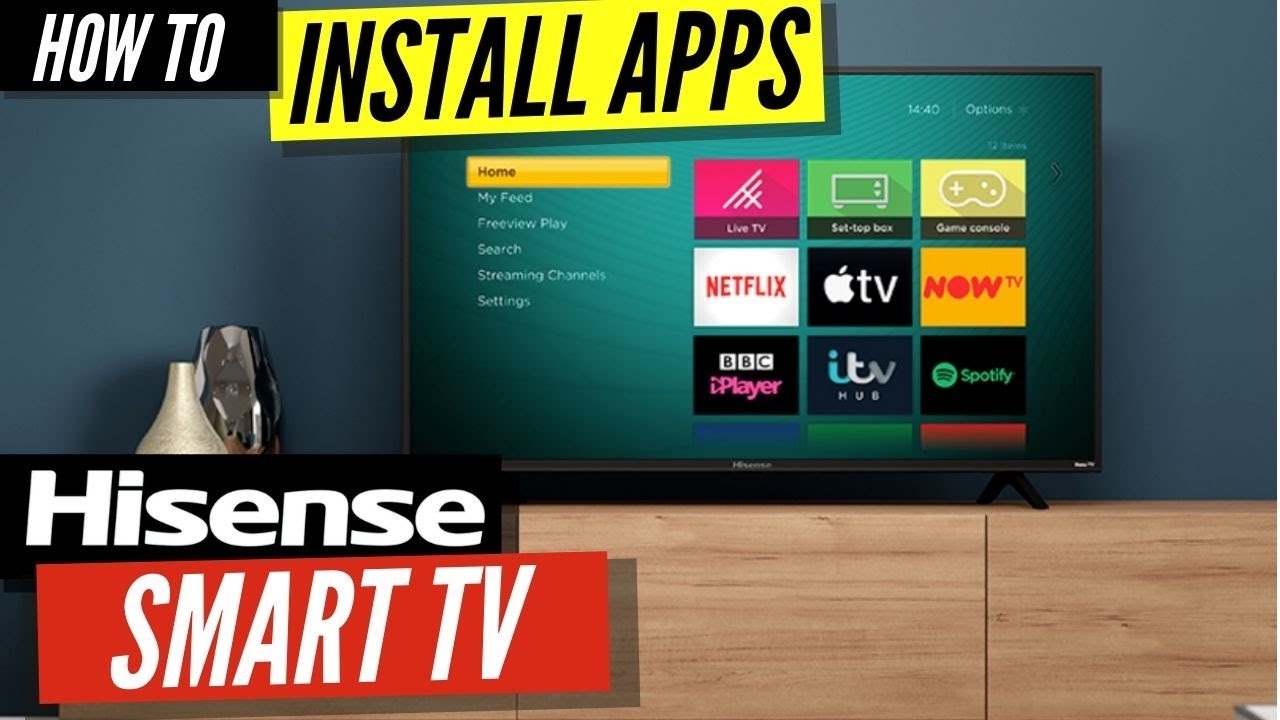
How to add apps to a Hisense TV — Step-by-step by platform
Below are clear steps for each major platform. Follow the section for your Hisense TV type.
Roku Hisense TV
- Turn on the TV and press the Home button on the remote.
- Select Streaming Channels to open the Channel Store.
- Search for the app name using Search Channels or browse categories.
- Select the app and choose Add Channel. Wait for download and return to Home.
- Sign in to the app if required.
Tips for Roku
- Use the mobile Roku app to search and add channels from your phone.
- If an app is region-locked, consider checking your Roku account country settings.
Android TV / Google TV Hisense TV
- Open the Google Play Store from the apps row or Settings.
- Use the search field to find the app, or browse categories like Movies & TV.
- Select Install. Allow any permissions if prompted.
- After install, open the app and sign in.
Tips for Android/Google TV
- You can use voice search with the remote to find apps fast.
- Link your Google account to sync purchases and installed apps.
VIDAA OS Hisense TV
- Press the Home button; open the App Store or Vidaa Store tile.
- Browse categories or use the search icon for the app name.
- Select Install or Download and wait for completion.
- Open the app and log in as needed.
Notes on VIDAA
- VIDAA catalog depends on region and model. Some apps may not be available.
- Firmware updates sometimes add new apps or restore store options.
I’ve added apps on all three platforms. Roku is fastest. Android TV gives the largest app library. VIDAA can be limited by region, so I often check for firmware updates first.

Sideload apps on Hisense Android TV safely
Sideloading is installing an app from an APK rather than the Play Store. Only Android TV / Google TV models support this method.
When to sideload
- An app isn’t available in your region.
- You need a specific older version of an app.
- A specialized app isn’t in the Play Store.
Safe sideload steps
- Enable Unknown Sources for the app (Settings > Security & Restrictions or Apps).
- Download the APK on your phone or PC from a trusted source.
- Transfer the APK via USB or use a file manager app and local network transfer.
- Open the APK with a file manager on the TV and install.
- Revoke Unknown Sources after install for safety.
Risks and precautions
- Only install APKs from reputable sources to avoid malware.
- Sideloaded apps may not update automatically. Check for updates manually.
- Some sideloaded apps may not work well with TV remotes.
From my experience, sideloading solved regional app limits, but I avoid it for streaming services that require DRM checks.

Add apps using an external streaming device
If your Hisense TV platform blocks apps you want, an external device is a simple solution. Devices include Amazon Fire TV Stick, Roku Streaming Stick, Apple TV, and Chromecast with Google TV.
How to use an external device
- Plug the streaming stick or box into an HDMI port.
- Switch TV input to that HDMI port.
- Set up the device and sign in to the device’s app store.
- Install the apps you want on the external device.
Why choose an external device
- Expands app options regardless of TV OS.
- Often gets more frequent app updates and features.
- Works as a fallback when internal app store is limited.
I recommend an external device as the easiest fix when you can’t get a desired app on your Hisense TV. It also improves performance on older TVs.
Troubleshooting common issues when you add apps to a Hisense TV
Here are typical problems and quick fixes based on hands-on installs.
App not found in store
- Check that your TV’s OS is up to date and your region settings match your account.
- Try searching for the app on the web to confirm availability.
App won’t install or keeps failing
- Free up storage by removing unused apps and clearing cache.
- Restart the TV and try again. Check your internet connection.
App won’t open or crashes
- Force stop the app and clear app data in Settings.
- Uninstall and reinstall the app. If persistent, check for firmware updates.
Sign-in errors or playback issues
- Verify username/password and account subscriptions on another device.
- If streaming content won’t play, check for HDCP or DRM restrictions.
Remote won’t control the app
- Some sideloaded apps need a mouse or keyboard. Use a USB or Bluetooth input.
- Re-pair the remote or update remote firmware.
If you still can’t solve the issue, trying an external streaming stick or contacting Hisense support can help. In my installs, firmware updates often fixed odd app behavior.

Best apps to add to a Hisense TV
Choose apps that match your viewing habits. Below are categories and examples to consider.
Entertainment and streaming
- Netflix, Hulu, Prime Video, Disney+, HBO Max, Peacock
Free and ad-supported
- Pluto TV, Tubi, Crackle
Live TV and sports
- YouTube TV, Sling TV, ESPN apps
Music and podcasts
- Spotify, Pandora, TuneIn
Utility and media players
- VLC, Plex, Kodi (sideload often on Android TV)
Educational and kids
- PBS Kids, YouTube Kids, Khan Academy Kids
I often install a mix: one paid streaming app, one free ad-supported app, and a media player to play local files. That mix covers most needs.

Tips, maintenance, and security when you add apps to a Hisense TV
Keep your TV running smoothly and secure for app use.
Maintenance tips
- Check for system firmware updates monthly.
- Remove apps you no longer use to free storage.
- Restart the TV occasionally to refresh memory.
Security tips
- Use strong passwords for app and streaming accounts.
- Avoid unknown APKs and revoke Unknown Sources after sideloading.
- Enable parental controls when children use the TV.
Practical habit I follow
- After every major update I open core streaming apps and sign in to ensure nothing broke. This habit saved me from surprises before weekend movie nights.

Frequently Asked Questions of how to add apps to a hisense tv
How do I know which app store my Hisense TV uses?
Check the TV startup screen or Settings > System > About. The OS name (Roku, Android TV, Google TV, or VIDAA) determines the app store.
Can I install apps not available in my country?
On Android TV you can sideload apps carefully. For Roku and VIDAA, region limits are harder to bypass; using an external device is easier.
Will sideloaded apps update automatically?
Usually no. Sideloaded apps often require manual updates or reinstallation when a new version is needed.
What if my Hisense TV runs out of storage when adding apps?
Uninstall unused apps, clear app cache, or use an external device for more app options. Some models also support USB storage for media.
Is it safe to install apps from third-party sources?
Only install APKs from trusted, reputable sources. Sideloaded apps can carry risks, so use caution and remove Unknown Sources when done.
Can I use my phone to add apps to my Hisense TV?
Yes. Roku and Google TV let you add apps from companion mobile apps or the web store, which then install on the TV remotely.
Conclusion
Adding apps to a Hisense TV is straightforward once you know the platform and steps. Whether your TV runs Roku, Android TV/Google TV, or VIDAA, follow the platform-specific steps above, keep software updated, and use safe sideloading practices if needed. Try installing one app at a time, test playback, and keep backups of important account info. Start now: check your TV’s OS, update firmware, and add your favorite streaming apps. If this guide helped, leave a comment or subscribe for more TV setup tips and troubleshooting.