
Your WordPress Admin Dashboard is the heart of your website. It’s where you control everything—from creating pages and posts to customizing how your site looks and works.
But if you’re new to WordPress or just want to get more out of your dashboard, it can feel overwhelming. Imagine having a simple, clear guide that helps you master this powerful tool step by step. You’ll discover how to easily access your dashboard, navigate its key features, and unlock tricks to make managing your site faster and more effective.
Ready to take full control of your WordPress site? Let’s dive in!
Accessing The Dashboard
Accessing the WordPress Admin Dashboard is the first step to managing your website. This dashboard acts as the control center. It lets you add posts, manage pages, install plugins, and customize themes. Understanding how to reach and use the dashboard helps you keep your site updated and secure.
Login Steps
To access the dashboard, start by opening your web browser. Enter your website’s login page URL. Usually, this is yoursite.com/wp-login.php or yoursite.com/wp-admin. On the login page, enter your username and password. Click the “Log In” button. After logging in, you will see the WordPress Admin Dashboard.
Url Structure
The URL for the dashboard follows a simple pattern. Add “/wp-admin” to your website address. For example, example.com/wp-admin. This URL directs you to the admin login page or dashboard. Use this link to access your site’s backend quickly. Remember, the URL may change if you use security plugins.
User Roles And Permissions
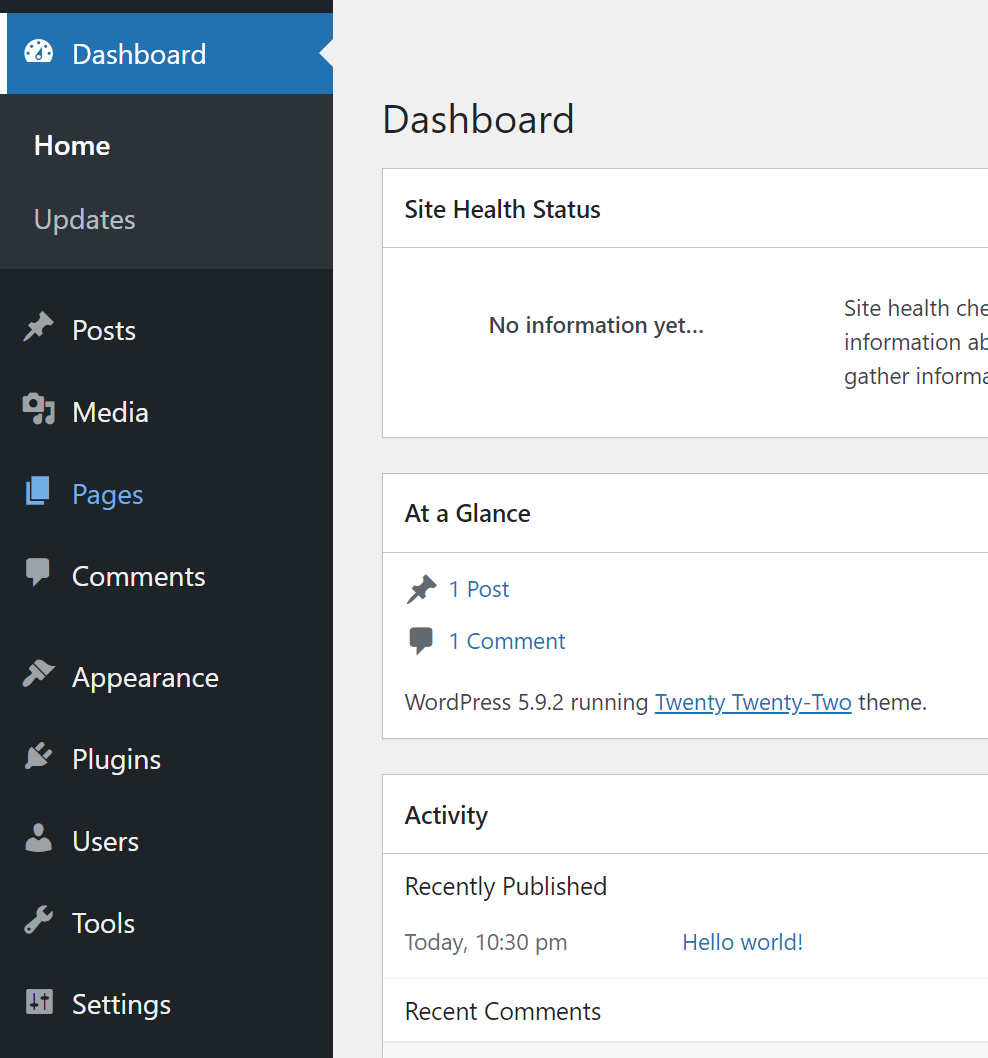
WordPress assigns roles to control access to the dashboard. Common roles include Administrator, Editor, Author, Contributor, and Subscriber. Each role has different permissions. Administrators have full access to all features. Editors can manage content but not site settings. Users see only what their role allows. This system keeps your site secure and organized.
Credit: jetpack.com
Dashboard Layout
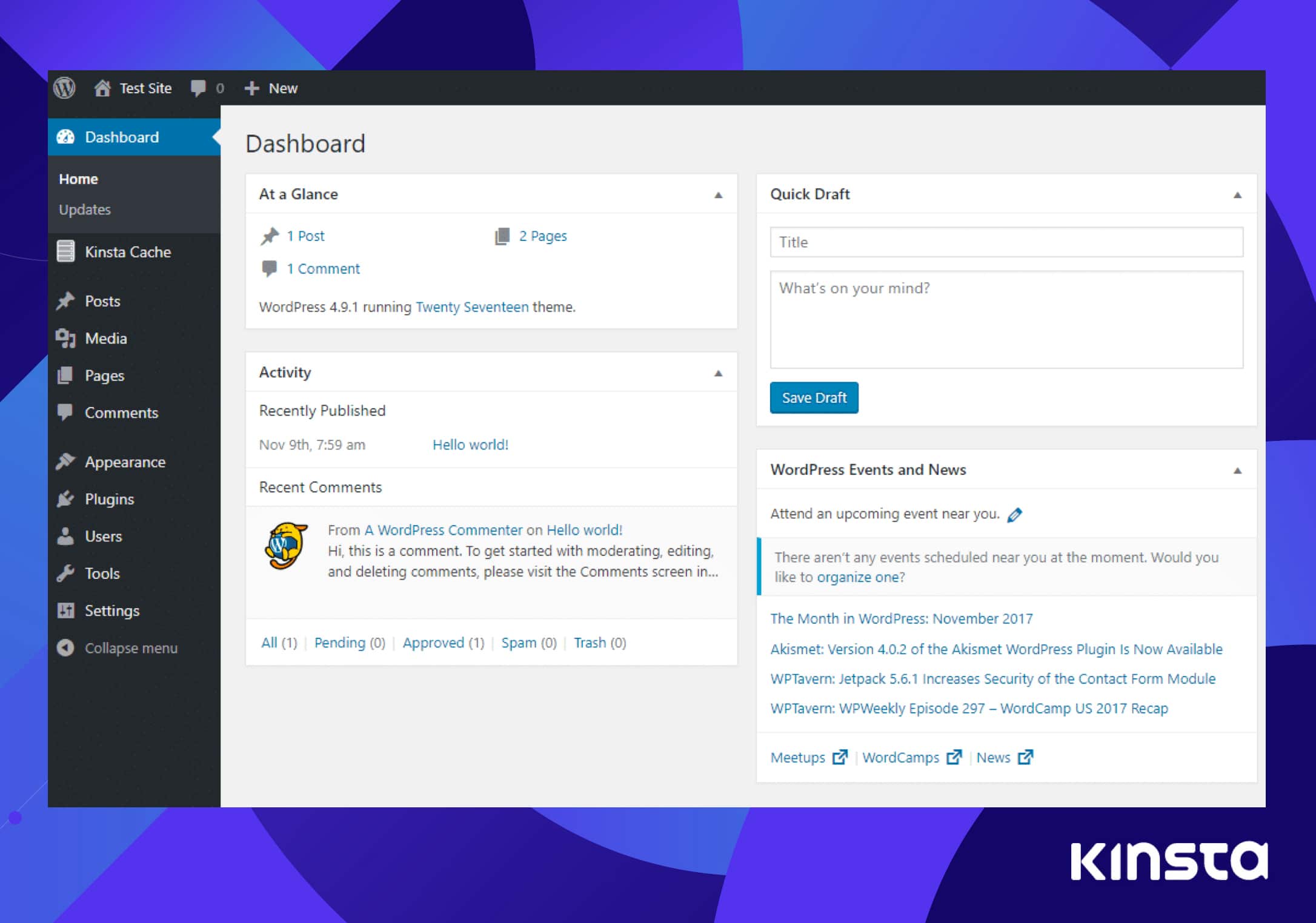
The WordPress Admin Dashboard is the control center of your website. It shows all the tools and settings you need in one place. The layout is designed for easy access and quick management of your site.
Understanding the layout helps you work faster and with less confusion. The Dashboard has several key parts that you will use daily.
Main Menu Overview
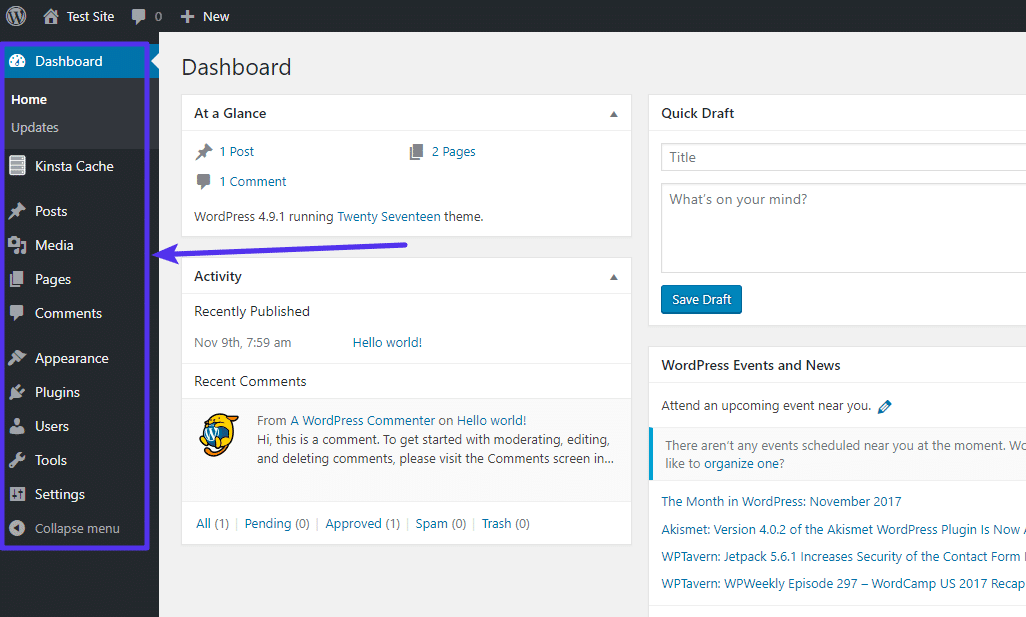
The Main Menu is on the left side of the Dashboard. It lists important sections like Posts, Pages, Media, and Plugins. Each item opens a submenu with more options. This menu stays visible as you move through the Dashboard. It helps you switch tasks without searching for tools.
Admin Bar Functions
The Admin Bar runs across the top of the screen. It shows quick links to common tasks and notifications. From here, you can add new posts, visit your site, or log out. The Admin Bar is always visible, making it easy to jump to important areas fast. It also shows alerts for updates and comments.
Screen Options
Screen Options is a small tab at the top right of the Dashboard. It lets you customize what you see on each page. You can show or hide boxes and choose how many items to display. This helps you focus on the tools you use the most. Adjusting Screen Options makes the Dashboard cleaner and easier to use.
Customizing The Dashboard
The WordPress Admin Dashboard is the control center of your website. Customizing this dashboard can help you work faster and more comfortably. Tailoring it to your needs makes managing your site easier.
Customizing the dashboard means changing what you see and how it looks. You can add, remove, or move elements to suit your workflow. This section explains how to manage widgets, personalize layout, and use plugins to improve your dashboard.
Widgets Management
Widgets are small blocks that show useful information. You can add or remove widgets to see what matters most. Drag and drop widgets to arrange them in any order. This helps keep your dashboard clean and focused.
Some widgets show site stats, recent comments, or quick links. Removing widgets you don’t use reduces clutter. Adding new widgets can bring helpful tools right to your dashboard.
Personalizing Layout
The dashboard layout is flexible. You can change the number of columns to fit your style. Move sections around to put important items front and center. This makes your workspace more efficient and less distracting.
You can also hide panels you don’t need. This creates a simple and clear view. A personalized layout helps you find what you need quickly.
Using Dashboard Plugins
Plugins extend the dashboard’s features. Some add new widgets or improve existing ones. Others let you customize colors, fonts, or add shortcuts. Choose plugins that fit your work habits and goals.
Installing dashboard plugins is easy. They offer tools that save time and enhance productivity. Use plugins to create a dashboard that fits your unique needs perfectly.
Credit: kinsta.com
Managing Content
The WordPress Admin Dashboard offers a simple way to manage your website’s content. It helps you control everything from writing articles to organizing images. Managing content is easy and clear, even for beginners. This section covers the main tools you will use daily.
Posts And Pages
Posts are for blog updates or news. Pages are for static content like About or Contact. You can add new posts or pages quickly from the dashboard. Editing is simple, with a built-in editor to format text and add images. You can also schedule posts to publish later. Organize posts with categories and tags for better structure.
Media Library
The Media Library stores all images, videos, and files you upload. It is easy to add new media or reuse old files. You can edit image details like title, caption, and alt text. This helps improve SEO and accessibility. The library keeps your media organized for smooth content creation.
Comments Moderation
Comments allow visitors to interact with your content. The dashboard shows all comments in one place. You can approve, reply, or delete comments quickly. Moderation helps keep the site clean and friendly. It also protects against spam and inappropriate messages. Managing comments keeps your community engaged and safe.
Theme And Appearance
The Theme and Appearance section in the WordPress Admin Dashboard controls the look and feel of your website. It lets you choose styles, colors, and layouts. This section helps make your site unique and attractive.
Theme Selection
The Theme Selection area shows all available themes. You can browse free and premium themes here. Each theme changes your site’s design and layout. Pick a theme that fits your website’s purpose. Activate it with one click to see the changes live.
Customizer Tools
The Customizer Tools let you personalize your theme easily. Change colors, fonts, and background images. Adjust site identity settings like logo and title. Preview changes in real-time before saving. These tools provide a simple way to refine your site’s style.
Menu Setup
Menu Setup manages your site’s navigation menus. Create custom menus with pages, posts, and links. Drag and drop items to reorder them. Assign menus to different locations like header or footer. Clear menus improve user experience and site navigation.
Plugin Control
The WordPress Admin Dashboard offers a simple way to manage plugins. Plugins add new features to your site without coding. Controlling plugins helps keep your website secure and fast.
Through plugin control, you can install, update, and remove plugins. Each action is easy and done directly from the dashboard. Managing plugin settings lets you customize how they work.
Installing Plugins
To add a new plugin, go to the “Plugins” section in your dashboard. Click “Add New” to search the WordPress plugin library. Find the plugin you want and click “Install Now.” After installation, activate the plugin with one click. This process adds new tools to your website quickly.
Updating And Removing
Keep your plugins updated to improve security and performance. Updates appear in the “Plugins” menu with a notification. Click “Update Now” to install the latest version. To remove a plugin, deactivate it first. Then click “Delete” to remove it from your site. Removing unused plugins reduces clutter and risk.
Plugin Settings
Many plugins offer settings to adjust their features. Access these settings under the “Plugins” menu or in a new dashboard tab. Change options to fit your website’s needs. Save changes to apply them immediately. Proper settings control improves site functionality and user experience.
User Management
User management in the WordPress Admin Dashboard helps control who can access your site. It allows adding new users, assigning specific roles, and customizing user profiles. Managing users properly keeps your website secure and organized. You can give different permissions to different users based on their roles. This makes teamwork easier and prevents unauthorized changes.
Adding Users
Adding users is simple in WordPress. Go to the Users section in the dashboard. Click on “Add New” to create a new user account. Enter the username, email, and password for the new user. You can also send the new user an email about their account. This process lets you grow your team quickly and safely.
Assigning Roles
Roles define what users can do on your site. WordPress offers default roles like Administrator, Editor, Author, Contributor, and Subscriber. Assign roles based on the tasks users will perform. For example, an Editor can manage content, but a Subscriber can only read it. Correct role assignment keeps your site secure and runs smoothly.
User Profile Settings
Users can edit their profile settings from the dashboard. They can update their name, email, password, and contact information. Users can also add a bio and change their display name. Profile settings help personalize accounts and improve communication within your team.
Site Settings
The Site Settings section in the WordPress Admin Dashboard lets you control key parts of your website. It holds options that shape your site’s identity, how visitors read your content, and how your pages appear in search results. Adjusting these settings helps your site run smoothly and look professional.
General Settings
General Settings allow you to set your site’s title and tagline. You can also update your WordPress address and email. These settings control basic information about your website. They help visitors know what your site is about. You can choose your timezone and date format here too. These details ensure your site shows the correct time and date.
Reading And Writing Options
The Reading and Writing options decide how content is created and displayed. You can set your homepage to show recent posts or a static page. This controls what visitors see first. Writing settings let you choose default post categories and formats. You can also enable email posting to add content via email. Reading settings include how many posts show on one page. These options shape your visitor’s experience and content flow.
Permalinks Configuration
Permalinks Configuration sets the URL structure for your site’s pages and posts. Clean, simple URLs are easier to read and remember. You can choose from common formats or create a custom one. This improves your site’s SEO and helps search engines find your content. Proper permalinks also make sharing links more user-friendly. Changing permalinks affects how your links appear across the web.
Security Features
The WordPress Admin Dashboard offers vital security features to protect your website. These features help keep your site safe from threats. They guard against unauthorized access and data loss. Using the dashboard’s security tools strengthens your site’s defenses. Below are key security aspects to understand and use.
Login Security
Login security protects your site from unauthorized access. WordPress allows strong passwords and two-factor authentication. Limiting login attempts stops hackers from guessing passwords. Captchas add extra protection against bots. Regularly updating login credentials keeps accounts safe.
Backup Solutions
Backup solutions save copies of your website data. These backups restore your site after a crash or hack. WordPress supports automated backups via plugins and hosting services. Store backups in secure, off-site locations. Frequent backups reduce data loss risks and downtime.
Monitoring Tools
Monitoring tools track your website’s activity and security status. They alert you to suspicious behavior or malware infections. WordPress offers plugins that scan files and monitor traffic. Real-time alerts help you respond quickly to threats. Regular monitoring keeps your website secure and reliable.
Efficiency Tips
Improving efficiency in the WordPress Admin Dashboard saves time and reduces effort. Small changes can make daily tasks smoother. Focus on tools and methods that speed up your workflow.
Keyboard Shortcuts
Keyboard shortcuts help you work faster without using a mouse. They let you jump between sections quickly. For example, pressing “Ctrl + S” saves your work instantly. Learning a few key shortcuts boosts productivity. It reduces clicks and keeps your hands on the keyboard.
Quick Access Tools
Quick access tools let you reach important settings with one click. The admin bar at the top is a great example. It includes links to create new posts, pages, or view comments. You can customize this bar to add your favorite tools. This cuts down the time spent searching menus.
Automation Plugins
Automation plugins handle repetitive tasks for you. They can schedule posts, update plugins, or backup your site automatically. Using these plugins frees up your time for creative work. Choose plugins that fit your website’s needs. Make sure they are reliable and easy to use.
Credit: kinsta.com
Frequently Asked Questions
How Do I Get To My WordPress Admin Dashboard?
Access your WordPress admin dashboard by visiting yoursite. com/wp-admin. Enter your admin username and password to log in. This panel lets you manage content, plugins, and themes easily.
What Is A WordPress Admin Dashboard?
The WordPress admin dashboard is the control panel for managing your website’s content, plugins, themes, and settings easily.
How To Create An Admin Dashboard On WordPress?
Log in to your WordPress site. Navigate to yoursite. com/wp-admin. Use plugins like Admin Menu Editor to customize your admin dashboard easily.
Where Is The WordPress Dashboard Located?
The WordPress dashboard is located at yoursite. com/wp-admin. Log in there with your admin username and password to access it.
What Is The WordPress Admin Dashboard?
The WordPress Admin Dashboard is the main control panel to manage your website’s content and settings.
How Do I Access My WordPress Admin Dashboard?
Visit yoursite. com/wp-admin and enter your username and password to log in.
What Features Are Available On The WordPress Dashboard?
You can create posts, manage plugins, customize themes, and view site stats.
Can I Customize The WordPress Admin Dashboard?
Yes, you can add widgets, rearrange sections, and install plugins for customization.
How Do I Create New Content From The Dashboard?
Click “Posts” or “Pages,” then select “Add New” to start writing.
Is The WordPress Dashboard Mobile-friendly?
Yes, the dashboard adapts to mobile devices for easy management on the go.
Conclusion
The WordPress Admin Dashboard helps you manage your website easily. It lets you add posts, install plugins, and change settings. You can control everything in one place without needing coding skills. Spending time learning the dashboard improves your site’s efficiency.
Keep exploring its features to create a better website. This tool makes website management simple and clear for everyone.





