
Have you ever felt overwhelmed trying to keep your work, ideas, and life organized all in one place? That’s exactly where Notion comes in.
Whether you’re managing projects, taking notes, or planning your day, Notion offers a simple yet powerful way to bring everything together. Imagine having a tool that adapts to your unique style, helps you focus, and saves you time—all without juggling multiple apps.
Curious how Notion can transform your productivity and creativity? Keep reading to discover how you can make the most of this versatile platform and take control of your tasks like never before.
Getting Started With Notion
Starting with Notion is simple and rewarding. This all-in-one workspace helps you organize notes, tasks, and projects in one place. Its clean design makes it easy to use for beginners and experts alike.
Notion works on computers, tablets, and phones. You can access your work anytime, anywhere. The app adapts to your needs, whether for school, work, or personal projects.
Creating Your First Page
Begin by opening Notion and signing up for a free account. Once logged in, click the “New Page” button. This opens a blank page where you can add text, images, and other content.
Each page acts like a digital notebook. You can title it and start typing immediately. Use simple commands to add headings, lists, or tables. This keeps your information clear and organized.
Using Templates For Easy Setup
Notion offers many templates to jumpstart your work. Templates include to-do lists, project trackers, and personal journals. Choose one that fits your needs and customize it.
Templates save time and provide structure. They are perfect if you want quick results without building pages from scratch. Edit the text and sections to fit your style.
Adding Blocks To Build Content
Notion uses blocks to create content. Blocks can be text, images, checklists, or even databases. Click the “+” sign or type “/” to see block options.
Blocks make pages flexible and easy to rearrange. Drag and drop blocks to change your page layout. This helps keep your workspace neat and tailored to you.
Key Features For Productivity
Notion offers a variety of tools designed to improve productivity. These tools help organize tasks, notes, and projects all in one place. The features are easy to use and flexible. They fit different styles of work and personal needs.
Task Management
Notion lets you create to-do lists and track tasks easily. You can set deadlines and reminders for each task. Tasks can be organized by priority or project. This helps you stay focused and meet goals on time.
Customizable Templates
The platform provides many templates for notes, project plans, and calendars. You can customize these templates to match your workflow. This saves time and keeps your work consistent. Templates also help beginners start quickly without confusion.
Database Functionality
Notion’s databases allow you to store and manage information efficiently. You can create tables, lists, or boards to organize data. Filters and sorting options make it easy to find what you need. This feature is great for managing complex projects and information.
Collaboration Tools
Notion supports teamwork by letting users share pages and work together. You can comment on tasks and mention teammates. Real-time updates keep everyone informed. This makes group projects smoother and reduces miscommunication.
Note-taking And Document Creation
Notion provides a clean space for writing notes and documents. You can add images, links, and files to enrich your notes. The editor supports simple formatting to keep your content clear. Notes are easy to organize and search later.
Creating And Organizing Pages
Creating and organizing pages in Notion helps keep your work neat and easy to find. Pages act like digital notebooks where you store all your ideas and projects. You can create as many pages as you want and arrange them in a way that fits your workflow.
Notion allows you to build a clear structure by nesting pages inside other pages. This makes it simple to group related information together. With good organization, you save time and reduce stress when searching for notes or documents.
Creating New Pages
Start by clicking the “New Page” button in the sidebar. Give your page a clear title so you know what it contains. You can choose a blank page or select from ready-made templates. Templates can help you start faster with layouts for tasks, journals, or meeting notes.
Pages can include text, images, checklists, tables, and more. Add blocks easily by clicking the plus icon or typing a slash command. This flexibility lets you build pages that suit your needs perfectly.
Organizing Pages With Hierarchies
Drag and drop pages inside other pages to create a hierarchy. This way, you group similar content under one main topic. For example, create a main page called “Work” and nest project pages inside it.
Use the sidebar to see your page structure at a glance. You can collapse or expand pages to keep the view clean. A well-planned hierarchy makes your workspace more efficient and less cluttered.
Using Tags And Links For Easy Navigation
Add tags to pages to label and categorize content. Tags help you find pages quickly by filtering. You can also link pages together inside your notes. This creates a web of information that is easy to explore.
Links and tags improve navigation and connect ideas across your workspace. This way, you build a personal knowledge base that grows with your work.
Using Templates Efficiently
Using templates efficiently in Notion saves time and keeps work organized. Templates provide a ready-made structure for various tasks. They help maintain consistency across pages and projects.
Choosing the right template matches your needs quickly. Customizing templates makes them fit your style and workflow. Reusing templates avoids starting from scratch on similar projects.
Creating Custom Templates
Create templates that suit your daily tasks. Start with a blank page or modify an existing template. Add headings, checklists, and tables to build your layout. Save this page as a template for future use.
Custom templates reduce repetitive work and improve speed. Keep templates simple and clear for easy updates. Share your templates with teammates for better collaboration.
Organizing Templates For Easy Access
Group templates in folders or a dedicated page. Use clear names to find templates fast. Tag templates with keywords to filter by purpose or project type. This keeps your workspace neat and efficient.
Adapting Templates Over Time
Review templates regularly to ensure they meet your needs. Update templates based on feedback and new workflows. Remove outdated templates to reduce clutter. Continuous improvement keeps your work organized and smooth.
Managing Tasks And Projects
Managing tasks and projects effectively is key to staying organized and productive. Notion offers a flexible workspace that helps track your work and deadlines in one place. It allows you to customize your workflow to fit your needs.
You can create simple to-do lists or complex project boards. Notion’s tools keep everything clear and easy to update. It helps reduce stress by showing all your tasks and progress clearly.
Creating And Organizing Task Lists
Start by making task lists to capture your daily work. Notion lets you add checkboxes to mark completed tasks. You can group tasks by priority or category to stay focused.
Use headings and subpages to organize tasks by project or date. This structure keeps your workspace neat and easy to navigate. You can also set reminders to keep deadlines visible.
Using Kanban Boards For Project Tracking
Kanban boards help visualize project stages. Notion’s drag-and-drop boards let you move tasks through steps like “To Do,” “In Progress,” and “Done.”
Each card can hold notes, files, and due dates. This method shows team members what’s happening at a glance. It simplifies tracking progress and spotting delays early.
Collaborating With Teams On Projects
Notion supports real-time collaboration, so teams work together smoothly. You can assign tasks to members and leave comments on items.
Shared pages keep everyone updated and reduce emails. Teams can track changes, add feedback, and update tasks instantly. This keeps projects moving without confusion.

Credit: community.coda.io
Collaborating With Teams
Collaborating with teams in Notion is simple and clear. It helps team members work together in one place. Everyone can share ideas, tasks, and files easily. This saves time and avoids confusion.
Notion’s tools are built for teamwork. You can assign tasks, leave comments, and track progress. The team stays organized and connected, even if members work remotely. This makes projects flow smoothly.
Real-time Editing
Notion allows multiple users to edit pages at the same time. Changes appear instantly for everyone. This feature helps teams write and plan together. No more waiting for updates or merging files.
Task Assignment And Tracking
Assign tasks to team members with clear deadlines. Notion shows who is responsible for each task. You can see progress and mark tasks as done. This keeps the team accountable and on schedule.
Comments And Feedback
Teams can leave comments directly on pages or tasks. This keeps all feedback in one place. It is easy to ask questions or give suggestions. Everyone stays informed and involved in decisions.
Shared Workspaces
Create shared spaces where the whole team can access information. Organize documents, notes, and plans in one spot. This reduces emails and lost files. Team members always find what they need fast.
Integrations With Other Tools
Notion connects with popular apps like Slack and Google Drive. This helps teams use their favorite tools together. Files and messages link directly inside Notion pages. It creates a smooth workflow without switching apps.
Integrating Notion With Other Tools
Notion works well with many other apps and tools. Integrating Notion with these tools improves your workflow. It helps you save time and stay organized.
Connecting Notion with other apps lets you automate tasks. You can sync data and avoid switching between platforms. This makes your work smoother and faster.
Using Zapier To Connect Notion
Zapier links Notion with hundreds of apps. It creates automatic actions called Zaps. For example, you can save new emails to a Notion page. This keeps your information in one place.
Zapier works without coding skills. You choose triggers and actions easily. This tool helps you build custom workflows that fit your needs.
Integrating Notion With Google Calendar
Syncing Google Calendar with Notion keeps your schedule visible. You can see events and deadlines inside Notion pages. This integration prevents missing important dates.
Using third-party tools, you can add calendar events to Notion databases. This setup helps you track meetings and plan your day better.
Connecting Notion With Slack
Slack and Notion integration improves team communication. You can send Notion updates directly to Slack channels. This keeps everyone informed without leaving Slack.
It also allows creating tasks in Notion from Slack messages. This speeds up task management and collaboration in your team.
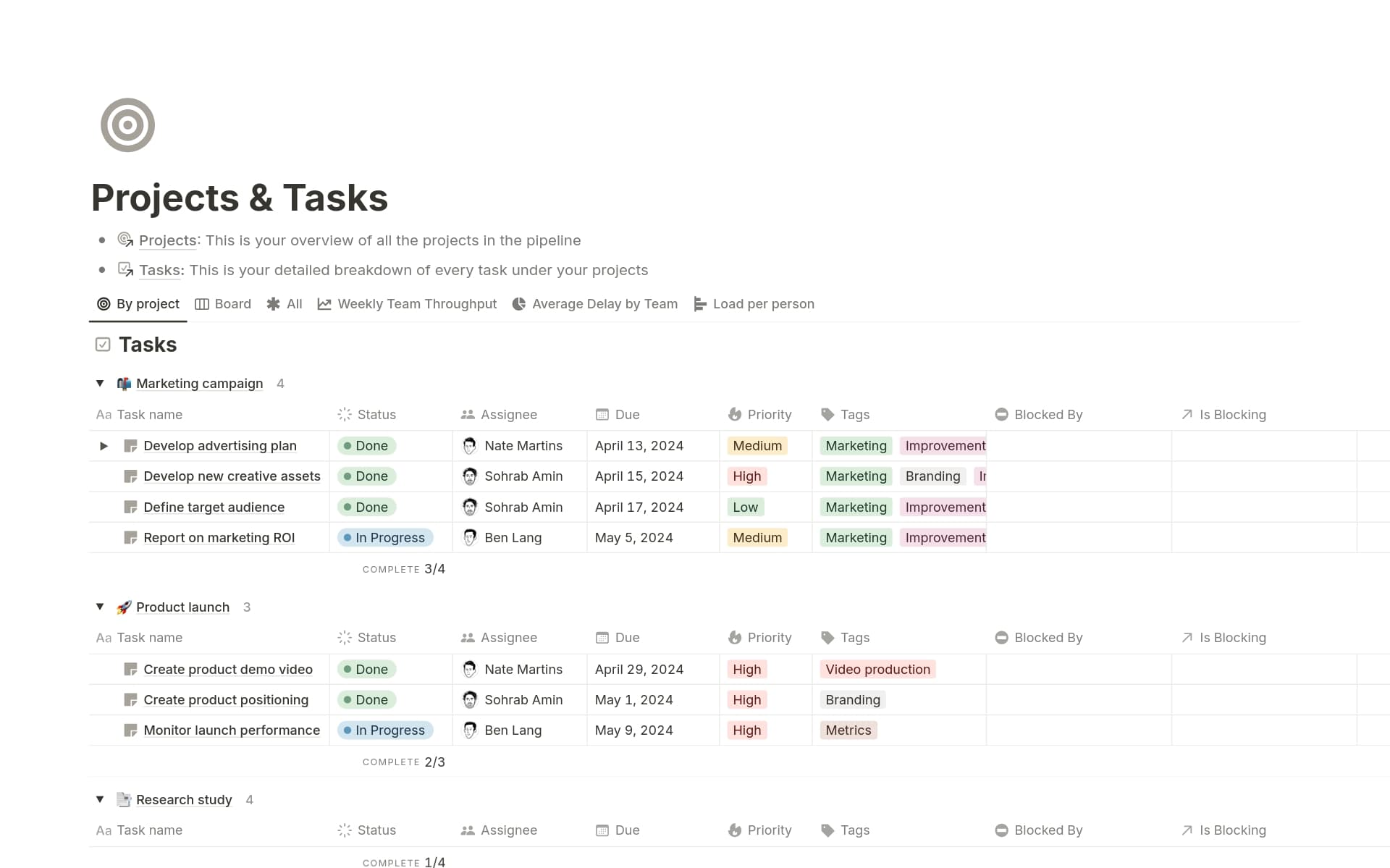
Credit: www.notion.com
Customizing Workspaces
Customizing workspaces in Notion helps you create a personal and efficient environment. You can adjust pages, layouts, and tools to fit your needs. This flexibility makes managing tasks and projects easier. Tailoring your workspace improves focus and productivity.
Creating Custom Pages
Start by adding new pages for different tasks or projects. Use templates or build pages from scratch. Each page can hold text, images, tables, and more. Organizing pages by topic keeps your workspace neat and clear.
Using Widgets And Embeds
Enhance pages with widgets like calendars, clocks, or weather updates. Embedding videos, maps, or documents adds extra value. These elements keep important information visible without switching apps.
Changing Themes And Colors
Choose colors and themes that suit your style. Light or dark modes reduce eye strain. Color coding pages helps identify sections quickly. These small changes make your workspace welcoming and easy to use.
Organizing With Databases
Databases in Notion help sort information efficiently. Use tables, lists, or boards to track progress. Filters and sorts display only relevant data. This structure saves time and reduces clutter.
Setting Up Quick Access
Add favorite pages to the sidebar for fast navigation. Use links and shortcuts to jump between sections. Quick access reduces the time spent searching for information.
Advanced Tips And Shortcuts
Notion is a powerful tool for organizing work and life. Many users know the basics. Advanced tips and shortcuts help save time and work smarter.
Using shortcuts speeds up your workflow. Advanced features bring more control and flexibility. This section shares easy ways to get more from Notion.
Using Keyboard Shortcuts To Navigate Quickly
Keyboard shortcuts reduce mouse use and speed up tasks. Press Ctrl + / (or Cmd + / on Mac) to see all shortcuts. Jump between pages with Ctrl + P. Move blocks with Ctrl + Shift + ↑ or ↓. These shortcuts help you work faster.
Creating Templates For Repeated Tasks
Templates save time on tasks you do often. Create a page or block you want to reuse. Click “Create Template” to save it. Use templates for meeting notes, project plans, or daily journals. This keeps your work consistent and quick.
Using Database Views For Better Organization
Databases organize information in many ways. Use table, board, list, calendar, or gallery views. Switch views easily to see data differently. Filter and sort items to find what you need fast. Views make large data easy to manage.
Applying Advanced Filters And Formulas
Filters show only the data you want. Combine multiple filters for precise results. Formulas calculate values automatically inside databases. Use simple math or text formulas. Formulas improve data analysis without leaving Notion.
Troubleshooting And Best Practices
Troubleshooting and best practices help you use Notion smoothly. They fix common issues fast. Following smart habits keeps your workspace clean and efficient. This section shares easy tips and solutions. Learn to solve problems and stay organized.
Identifying Common Issues
Sometimes Notion pages load slowly or fail to save changes. Check your internet connection first. Clear your browser cache to improve performance. Log out and log back in to refresh your session. If a page does not open, try a different browser. Use the Notion desktop app for better stability.
Organizing Your Workspace
Create clear page titles for easy navigation. Use folders and subpages to group related content. Avoid clutter by archiving old or unused pages. Use tags and databases to track tasks and notes efficiently. Keep your workspace simple and tidy to find information fast.
Backing Up Data Regularly
Export your Notion pages as PDFs or Markdown files often. Use the built-in export feature in Notion settings. Store backups on cloud drives or external storage. Regular backups prevent data loss from accidental changes or app errors. Make it a habit to back up your work weekly.
Using Keyboard Shortcuts
Learn common keyboard shortcuts to speed up your work. Use Ctrl+Shift+L to toggle dark mode. Press Ctrl+P to search for pages quickly. Master shortcuts for creating lists, toggles, and headings. Shortcuts save time and reduce mouse clicks.
Collaborating Effectively
Set clear permissions for team members on shared pages. Use comments and mentions to communicate within Notion. Avoid editing conflicts by assigning tasks clearly. Review changes regularly to keep content accurate. Good collaboration keeps projects moving smoothly.

Credit: www.notion.com
Frequently Asked Questions
What Is A Notion?
A notion is a general idea, belief, or understanding about something. It can also mean a sudden desire or a small sewing item. People use “notion” to express opinions, vague concepts, or spontaneous thoughts clearly and simply.
What Do We Mean By Notion?
Notion means an idea, belief, or vague understanding about something. It can also mean a sudden desire or a small sewing item. The meaning varies by context but often refers to a concept or opinion someone holds.
Is Notion Still Free?
Notion offers a free plan with essential features for individuals. Advanced features require paid subscriptions.
What Does Notion Do Exactly?
Notion is an all-in-one workspace for notes, tasks, databases, and collaboration. It organizes work efficiently and boosts productivity.
What Is Notion Used For?
Notion is used for note-taking, project management, and organizing information in one place.
How Does Notion Help With Productivity?
Notion helps organize tasks and ideas, making work clearer and easier to manage daily.
Can Beginners Use Notion Easily?
Yes, Notion has simple templates and tools suitable for users new to digital organization.
Is Notion Free To Use?
Notion offers a free plan with basic features and paid plans for more advanced use.
Can I Collaborate With Others On Notion?
Yes, Notion allows real-time collaboration with teams, sharing pages and editing together.
What Devices Support Notion?
Notion works on Windows, Mac, iOS, and Android devices, syncing data across all platforms.
Conclusion
Notion offers a simple way to organize your thoughts and tasks. It helps keep ideas clear and easy to find. Anyone can use Notion to plan, write, or track work. The tool adapts well to different needs and styles. Try it step by step, and you will see its value.
Notion can make daily work smoother and more focused. Give it a chance to improve your productivity today.





