Are you tired of Meta AI popping up on your favorite apps and interrupting your experience? Whether it’s on Facebook, Instagram, WhatsApp, or Snapchat, sometimes you just want to take control and turn it off.
The good news is, you don’t have to live with it if you don’t want to. In this guide, you’ll learn simple and effective ways to mute, avoid, or even delete Meta AI’s memory across different platforms. Keep reading to regain your privacy and enjoy your apps on your terms.
:max_bytes(150000):strip_icc()/Settings-Posts-Allow-Summaries-6acc27258c794351bf95491f3a4580ce.jpg)
Credit: www.lifewire.com
Mute Meta Ai On Facebook
Muting Meta AI on Facebook stops its notifications and messages without deleting your account. This option helps control interactions with the AI chatbot. You keep using Facebook without constant AI prompts or replies.
This guide explains how to mute Meta AI on Facebook indefinitely. Follow simple steps to silence the chatbot easily.
Accessing The Ai Chat
Open the Facebook app on your phone or computer. Tap the search bar and type “Meta AI” or look for the blue-gradient circle icon. This icon represents the AI chatbot.
Tap the icon to open the chat window with Meta AI. You will see recent messages or a welcome message if it is your first time.
Steps To Mute Indefinitely
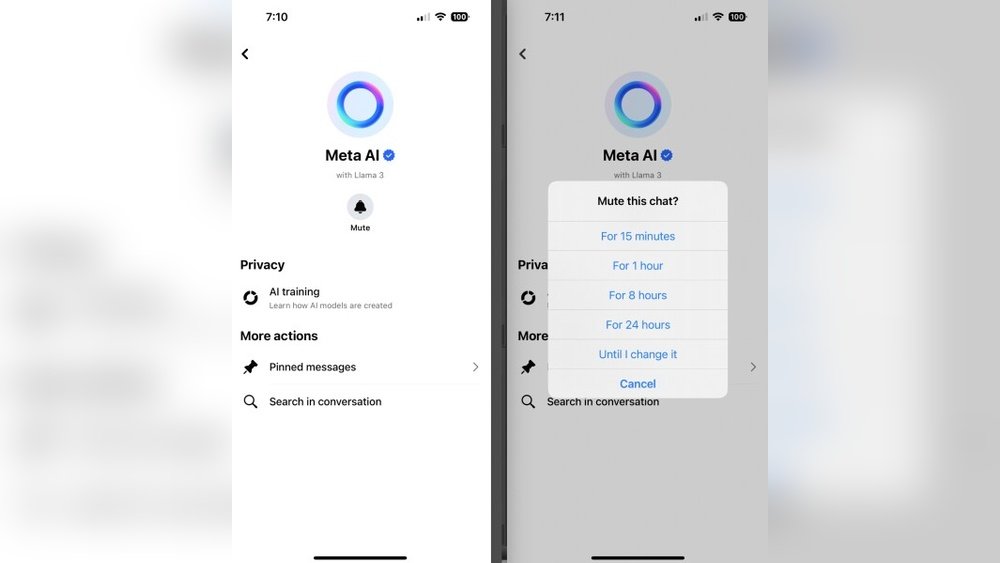
Inside the Meta AI chat, find the “i” icon or info button at the top right corner. Tap it to open chat settings.
Look for the “Mute” option in the settings menu. Select “Until I change it” to mute the AI indefinitely.
Once muted, you will not receive any notifications or messages from Meta AI until you unmute it manually.
Disable Meta Ai On Instagram
Meta AI on Instagram offers helpful features but not everyone wants it active. You can disable it easily to stop receiving AI suggestions and responses. This helps keep your experience simple and focused on your content.
Follow these easy steps to turn off Meta AI and control how it interacts with you on Instagram.
Using The Blue-gradient Circle
Open the Instagram app on your phone. Look for the blue-gradient circle icon. This icon represents the Meta AI feature.
Tap the blue-gradient circle to open the AI chat or suggestions. Next, tap the “i” or info icon usually found at the top right corner.
In the info menu, find the option to mute or disable the AI. Select “Mute” and choose “Until I change it.” This stops Meta AI from sending you messages or suggestions.
Muting Options
Muting Meta AI is a quick way to stop notifications without deleting anything. Go to the Instagram search or chat section and find the AI chatbot.
Tap the info icon near the AI chat. Select “Mute” and confirm your choice. This keeps Meta AI silent until you decide to turn it back on.
You can also avoid interacting with Meta AI by not opening its chat or suggestions. This helps keep your Instagram feed free from AI interruptions.
Turn Off Meta Ai In Whatsapp
Turning off Meta AI in WhatsApp helps protect your chat privacy and control AI interactions. WhatsApp offers simple options to mute or limit Meta AI’s presence in your conversations. These steps ensure a smoother chat experience without unwanted AI interruptions.
Opening Ai Chat
Start by opening WhatsApp on your device. Navigate to any chat where Meta AI is active. Tap the chat to open it fully. At the top of the chat screen, locate the “i” or info icon. Tap this icon to access chat settings. Here, you can find options related to Meta AI. This step is necessary before you disable or mute the AI.
Enabling Advanced Chat Privacy
Go back to WhatsApp settings from the main screen. Find the “Privacy” section in the menu. Look for an option called “Advanced chat privacy.” Turn on this feature to block Meta AI mentions. This setting helps stop AI from engaging in your chats. Note that this feature may not appear in all WhatsApp versions yet. Keep your app updated to access the latest options.

Credit: smart.dhgate.com
Remove Meta Ai From Snapchat
Meta AI on Snapchat can feel intrusive for some users. Removing it helps keep your chat feed clean. Snapchat offers options for both Snapchat+ subscribers and free account holders. These options allow you to control how Meta AI interacts with you. Follow the steps below to remove or block Meta AI effectively.
Clearing Ai Chat For Snapchat+ Users
Snapchat+ users have the option to clear Meta AI from their chat feed. Press and hold the “My AI” chat in your chat list. Then select “Chat Settings” from the menu. Choose “Clear from Chat Feed” to remove all AI messages. This action hides AI chats without deleting your entire conversation history. It is a simple way to keep your feed free of AI clutter.
Blocking Ai On Free Accounts
Free Snapchat users cannot clear AI chats like Snapchat+ users. However, you can block “My AI” from appearing in your Stories. Open the Stories section and locate “My AI.” Tap the options and select “Block.” This prevents Meta AI from sending messages or appearing in your feed. You may also check chat settings to clear any saved data related to AI. Blocking keeps your account free from unwanted AI interactions.
Delete Meta Ai Memory
Deleting Meta AI’s memory helps remove stored data from your interactions. This process clears the information Meta AI has saved about you. It enhances your privacy and gives you more control over your data.
Meta AI stores memories to improve its responses. You can view and delete these memories anytime. Managing stored data keeps your experience secure and private.
Viewing Stored Information
Start by opening a chat with Meta AI in the app. Look for the “Memory” section within the chat interface. Tap “View All” to see everything Meta AI remembers.
This list shows individual pieces of data collected during your chats. Reviewing stored information helps you decide what to keep or remove. It gives insight into how much Meta AI knows about you.
Deleting Individual Or All Memories
To delete a single memory, tap and hold it. Then select the trash can icon to remove it. This lets you erase specific data without affecting other memories.
To clear all memories, tap the three-dot menu in the memory section. Choose “Delete All” to erase everything at once. This action resets Meta AI’s knowledge of your past chats.
Deleting memories regularly helps protect your privacy. It stops Meta AI from using old data in future interactions. Keep your data safe by managing memory often.
Use Simplified Facebook Version
Using a simplified Facebook version is a straightforward way to avoid Meta AI features. This version offers a basic, text-only interface that removes advanced AI elements. It provides a cleaner and faster experience for users who want less distraction and more control.
Switching to the simplified version helps you bypass Meta AI without changing app settings. It works well on mobile and desktop browsers. The next sections explain how to access this version and why it benefits users.
Accessing Mbasic.facebook.com
To use the simplified Facebook, open your browser and go to mbasic.facebook.com. This site loads a minimalistic version of Facebook. It shows only essential features like posts, messages, and notifications in plain text.
Login with your usual Facebook credentials. The page looks like an old-style web page but is fully functional. You can browse your feed, send messages, and check notifications without AI interruptions.
Benefits Of Text-based Interface
The text-based interface runs faster and uses less data. It eliminates auto-generated content from Meta AI. This helps users avoid AI chatbots and suggestions.
It also improves privacy as fewer scripts run in the background. The interface is easy to navigate and ideal for low-end devices or slow internet connections. Using this version reduces distractions and keeps your Facebook experience simple.
Avoid Interacting With Meta Ai
Avoiding interaction with Meta AI helps you control your digital space. When you limit contact, the AI stops learning from you. This reduces its presence and influence in your apps. Staying clear of Meta AI also means fewer distractions and notifications.
Taking simple steps can make a big difference. It helps keep your experience more private and less automated. Avoiding Meta AI is not about fear but about choice and comfort.
Tips To Prevent Ai Engagement
Mute Meta AI chats on Facebook, Instagram, or WhatsApp. Use the mute option to stop messages until you decide otherwise. Avoid clicking on AI prompts or suggestions that pop up. Do not start new conversations with the AI bot. Use the mbasic.facebook.com site to use Facebook without AI features. Clear AI memory by deleting stored information in its chat settings.
Managing Notifications
Turn off notifications from Meta AI in your app settings. This stops alerts that prompt you to interact with the AI. Check notification controls regularly to ensure no new AI alerts appear. Use app privacy settings to limit AI access to your data. Silence AI notifications on all devices where you use Meta apps. This keeps your focus on real human interactions.

Credit: apnews.com
Manage Ai Notifications
Managing AI notifications helps control interruptions from Meta AI. Notifications can become distracting during work or leisure. Adjusting these settings lets you decide when and how Meta AI alerts you.
Controlling notifications improves your app experience. You stay focused without missing important messages. Meta AI notifications can be tailored to suit your needs.
Adjusting Notification Settings
Open the app where Meta AI is active, like Facebook or Instagram. Go to the search or chat area and find the Meta AI icon. Tap the “i” or info button to open settings. Select “Mute” to stop notifications temporarily or until you change it. This stops alerts without removing AI completely.
You can also customize sound and vibration in your phone’s settings. Lowering these helps reduce sudden alerts. Some apps allow scheduling quiet hours for AI notifications.
Reducing Ai Interruptions
Use the simplified version of Facebook at mbasic.facebook.com to avoid AI features. This version removes AI chat entirely. Avoid chatting with Meta AI to minimize notifications. If you must chat, mute the AI afterward.
On WhatsApp, mute AI chats by tapping the “i” icon and selecting “Mute.” Enable “Advanced chat privacy” to block AI mentions in group chats. Snapchat+ users can clear AI from their chat feed in settings. Free users can block AI from Stories.
Deleting AI memory also reduces notifications. Open the AI chat, go to “Memory,” and remove stored data. This stops AI from sending reminders based on past interactions.
Update App Settings Regularly
Regularly updating your app settings is a key step to control Meta AI features. App developers often add new privacy options. These updates help you manage AI interactions better. Staying current with app settings ensures your preferences are respected.
Checking For New Privacy Options
Apps like Facebook and Instagram release privacy updates often. These updates may include new ways to mute or limit Meta AI. Check the settings menu after each app update. Look for sections named “Privacy,” “Security,” or “AI settings.” New options might help you turn off or reduce AI activity. Enable any settings that protect your privacy and limit AI use.
Keeping Apps Updated
Always install the latest version of your app. Updates fix bugs and add features, including privacy controls. Use automatic updates on your device to avoid missing important changes. Open your device’s app store and confirm apps are up to date. Running the latest app version gives you the best tools to manage Meta AI. Without updates, you miss out on new privacy settings and improvements.
Consider Alternative Apps
Considering alternative apps offers a smart way to reduce reliance on Meta AI. Many users want control over their digital experience. Choosing other platforms can help regain privacy and simplicity.
Switching to apps without AI features brings a more straightforward user interface. These platforms focus on core functions without complex AI interactions. You get more control over your data and fewer distractions.
Exploring Non-ai Platforms
Non-AI platforms provide basic social networking without AI tools. They allow easy communication, photo sharing, and messaging. These apps often use less data and run faster on older devices.
Examples include apps that focus solely on messaging or photo sharing without AI chatbots. Users can find many options in app stores that respect simplicity. These platforms usually avoid collecting excessive user data.
Privacy-focused Social Apps
Privacy-focused apps prioritize user data security and minimal tracking. They avoid AI features that collect and analyze personal data. This helps users feel safer online.
Many privacy apps offer encrypted messaging and limited data sharing. They often do not use AI to monitor conversations or suggest content. Choosing these apps reduces exposure to unwanted AI tools.
Frequently Asked Questions
How Do I Get Rid Of Meta Ai?
Mute Meta AI in Facebook, Instagram, or WhatsApp by tapping the info icon and selecting “Mute. ” Delete its memory via chat settings. Avoid AI by using mbasic. facebook. com for a simpler, AI-free experience. Snapchat users can clear or block “My AI” in chat or story settings.
How Do I Disable Meta On Facebook?
To disable Meta AI on Facebook, open the app, tap the AI chat icon, select the “i” info button, then choose “Mute” until you change it. Alternatively, use mbasic. facebook. com to avoid AI features entirely. Delete AI memory by accessing its “Memory” and selecting “Delete All.
“
How Do I Opt Out Of Meta Ai Settings?
To opt out of Meta AI settings, open the app, tap the AI icon, select “Mute,” and choose “Until I change it. ” You can also delete its memory in chat settings or use mbasic. facebook. com to avoid AI features.
How Do I Turn Off Meta Ai Summary On Facebook?
To turn off Meta AI summary on Facebook, open the chat with Meta AI. Tap the “i” icon, select “Mute,” and choose “Until I change it. ” This stops AI notifications and summaries from appearing. Alternatively, use mbasic. facebook. com to avoid AI features entirely.
What Is Meta Ai And Why Turn It Off?
Meta AI is an artificial intelligence feature on Meta apps. Some users want to disable it for privacy or simplicity.
How Do I Mute Meta Ai On Facebook?
Open Facebook, tap the AI icon, then tap “i” and select “Mute” > “Until I change it. “
Can I Turn Off Meta Ai On Instagram?
Yes, open Instagram, find the AI chat, tap “i,” then choose “Mute” to stop notifications.
How To Delete Meta Ai Memory On Messenger?
Start a chat with Meta AI, go to “Memory,” tap “View All,” then select “Delete All. “
Is There A Way To Avoid Meta Ai Completely?
Use mbasic. facebook. com, the simplified Facebook version, which does not include Meta AI features.
How To Mute Meta Ai On Whatsapp?
Open the AI chat, tap the “i” icon, choose “Mute,” and select “Until I change it. “
Conclusion
Turning off Meta AI is simple and quick to do. You can mute it anytime in the app settings. Deleting its memory keeps your data private. Using mbasic. facebook. com helps avoid the AI entirely. These steps give control over your Meta AI experience.
Stay aware of updates for new options. Take charge of your social apps today.





