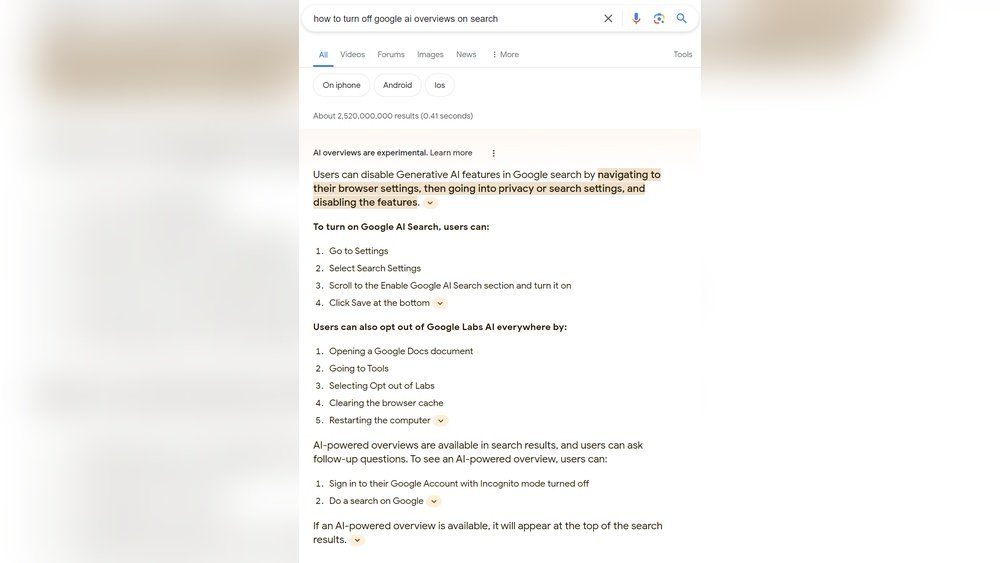
Are you tired of seeing AI-generated summaries every time you search on Google? You’re not alone.
Many users find the AI overview distracting or prefer to see the traditional list of links instead. The good news is, while Google doesn’t offer a simple “off” switch, there are clever ways you can reduce or bypass these AI overviews on both desktop and mobile.
You’ll discover easy, step-by-step methods to take back control of your search experience—so you get the results you want, exactly how you want them. Keep reading to learn how to turn off AI overviews on Google and make your searches cleaner and faster.
:max_bytes(150000):strip_icc()/hide-google-ai-overview-063757b8931b4a97b9fa614a08428abb.png)
Credit: www.lifewire.com
Disable Ai Overview Temporarily
Disabling the AI Overview temporarily on Google can help you focus on traditional search results. This option is useful when you want to avoid AI-generated summaries for a short time. It allows you to see the usual links and snippets without the AI’s input.
The process is simple and can be done directly from the search results page. You do not need to change any permanent settings or install anything. Just a quick action can hide the AI Overview for that search.
Use The Web Filter To Hide Ai Overview
After you perform a search, look below the search bar. Find the “Web” filter option and click it. This action removes the AI Overview for that specific search result page. It returns your results to the classic Google search style.
Open Chrome settings by typing chrome://settings/searchEngines in the address bar. Under “Site search,” click on “Add” to create a new search engine.
- Enter Name: Google Web
- Enter Shortcut: @web
- Enter URL with %s as query:
https://www.google.com/search?q=%s
Next, find the “Google Web” entry in your list. Click the three-dot menu next to it and select “Make default.” This setting helps bypass AI Overviews on your searches.
Install A Browser Extension
Go to the Chrome Web Store and search for extensions like “Hide Google AI Overviews.” Install the extension to your browser. It will block AI-generated summaries automatically during your searches.
Other Temporary Methods
- Add
-aiat the end of your search query. This stops the AI Overview from appearing for that search. - If you have access to Google Labs, open the Labs menu (beaker icon) and toggle off “AI in Search.”
- For Gmail AI summaries, go to Settings > See all settings > Smart features, then turn off the AI summaries.
Use Web Filter On Search Page
Using the Web filter on the Google search page helps remove AI Overviews temporarily. This filter shows only traditional search results without AI summaries. It is a simple way to avoid AI-generated content for each search.
The Web filter option appears below the Google search bar after you perform a search. Clicking it changes the view to standard web links. This method does not disable AI Overviews permanently but works well for one-time searches.
How To Access The Web Filter On Google Search
After typing a query and pressing Enter, look for the filter options below the search bar. Click on the option labeled “Web” to switch to classic search results. This instantly hides the AI Overview for that search.
Benefits Of Using The Web Filter
The Web filter keeps search results simple and easy to scan. It removes extra AI text that might confuse or distract users. This is helpful for people who prefer plain links and descriptions without AI summaries.
Limitations Of The Web Filter Method
This filter only works per search and resets with each new query. You must click the Web filter every time you want to remove AI Overviews. For a lasting solution, other options like custom search engines or extensions are better.
Create Custom Search Engine In Chrome
Creating a custom search engine in Chrome lets you control how Google shows search results. This method helps avoid AI Overview features that appear in regular Google searches. You get cleaner, simpler results focused on traditional links.
Setting up a custom search engine is easy and quick. It changes how Chrome handles your search queries. Instead of using the default AI-powered results, it shows standard web results. This is useful for users who want to turn off AI Overview on Google.
Create A New Custom Search Engine
Open Chrome and go to chrome://settings/searchEngines. Scroll down to the “Site search” section. Click the “Add” button to start creating a new search engine.
Enter a name like “Google Web” for your custom engine. Use @web as the shortcut. In the URL field, add this:
This URL bypasses the AI Overview feature and loads traditional search results.
Set Your Custom Search Engine As Default
Find the “Google Web” entry in the list under “Site search.” Click the three-dot menu next to it. Choose “Make default” from the options.
Now Chrome uses your custom search engine for all searches. You won’t see AI Overview results by default. Searches stay simple and focused on classic links.
Use The Custom Search Engine In Chrome
To search with your new engine, type @web in the address bar. Add your search term after it. Press Enter to see results without AI Overviews.
This method works well on desktop Chrome. It gives a consistent way to avoid AI features in Google search. Easy to use and reverses anytime by changing default settings.

Credit: smart.dhgate.com
Install Browser Extensions
Installing browser extensions offers a simple way to turn off AI Overview on Google. Extensions modify how your browser shows search results. They block or hide AI-generated content easily. This lets you focus on traditional links.
Extensions work across multiple searches. They give a consistent experience without extra steps. Many are free and quick to add. They fit well for users who want control over search results.
Find A Suitable Extension
Search the Chrome Web Store or Firefox Add-ons for AI-blocking tools. Use keywords like “hide Google AI overview” or “remove AI from Google search.” Check ratings and reviews to pick a reliable extension. Look for frequent updates and good user feedback.
Install And Enable The Extension
Click “Add to Chrome” or “Add to Firefox” to install the extension. Follow the browser prompts to confirm. Once installed, enable the extension if needed. Some require you to refresh Google Search pages for changes to take effect.
Configure Extension Settings
Open the extension’s options page. Customize it to block AI Overviews on Google searches. Some extensions allow toggling on or off with a click. Adjust settings to match your browsing habits and preferences.
Test The Extension
Perform a Google search after installing the extension. Notice if the AI Overview box is hidden or removed. If it still appears, try restarting your browser. Review the extension’s help page for troubleshooting tips.
Add Query Modifiers To Search
Adding query modifiers to your Google search helps control the results. It can reduce or remove the AI Overview box that appears at the top. These modifiers tell Google to focus on specific content types or exclude certain features.
Using query modifiers is a simple way to get clearer, more traditional search results. It works well for users who prefer to see standard links instead of AI-generated summaries.
Add “-ai” At The End Of Your Query
Type your search phrase as usual. Then add -ai at the end. This signals Google to avoid showing the AI Overview for that search. It is a quick method for one-time searches.
Use The “web” Filter After Searching
Perform your search normally. Below the search bar, click the Web filter. This filter hides the AI Overview and shows only traditional links. It works for that specific search session.
Try Adding Quotation Marks
Put your search terms inside quotation marks. This tells Google to find exact matches. It can sometimes prevent AI summaries from appearing, as Google focuses on precise results.
Exclude Keywords With The Minus Sign
Add a minus sign before words you want to exclude. For example, search term -overview removes results containing “overview.” This can reduce AI-generated content in the results.
Turn Off Ai In Google Labs
Google Labs offers experimental features, including AI-powered tools. Sometimes, users want to disable AI overviews to see traditional search results. Turning off AI in Google Labs is a direct way to control these features.
This section explains how to turn off AI within Google Labs. It helps you remove AI summaries and see classic search results instead.
Access Google Labs
Open Google Search on your desktop browser. Look for the beaker icon at the top right corner. This icon represents Google Labs. Click on it to open the Labs settings page.
Find The Ai In Search Option
Inside Google Labs, locate the “AI in Search” feature. It controls the AI overview in your search results. The option usually appears as a toggle switch next to the feature name.
Toggle Off Ai In Search
Click the toggle switch to turn off AI in Search. The switch will slide to the left or change color, indicating it is disabled. This action removes AI-generated summaries from your search results.
Save Changes And Refresh
After disabling AI in Search, save your settings if prompted. Refresh the Google Search page. Your future searches will no longer show AI overviews. You will see the regular search links only.
Disable Ai Summaries In Gmail
Disabling AI summaries in Gmail helps keep your inbox simple and free from automated content. AI summaries show a brief overview of email content. Some users find these summaries distracting or prefer to read emails fully. Turning off this feature gives you control over how your messages appear.
Open Gmail Settings
Start by opening your Gmail account on a desktop browser. Click the gear icon at the top right corner. This opens the quick settings menu. Then, click on “See all settings” to open the full settings page.
Locate Smart Features Section
Scroll down the settings page until you find the “Smart features and personalization” section. This area controls AI-powered tools in Gmail. Look for the option related to AI summaries or smart features.
Turn Off Ai Summaries
Find the toggle or checkbox for AI-generated summaries. Click to disable or turn off this feature. This stops Gmail from showing automatic email summaries in your inbox.
Save Your Changes
Scroll to the bottom of the settings page. Click the “Save Changes” button. Gmail will update your preferences and stop showing AI summaries in your emails.
Switch To Alternative Search Engines
Switching to alternative search engines offers a simple way to avoid AI overview results on Google. These search engines focus on traditional results without AI-generated summaries. This change lets you control the kind of information you receive. It also helps maintain your preferred search experience.
Many alternative search engines value user privacy and do not use AI overviews. They provide clean, straightforward search results. This approach suits users who want clear and direct answers without AI interpretations.
Choose Privacy-focused Search Engines
Search engines like DuckDuckGo and Startpage protect your privacy. They do not track your searches or show AI summaries. This keeps your data safe and your results simple.
Explore Niche Or Specialized Search Engines
Try search engines that focus on specific topics or regions. Examples include WolframAlpha for computations or Ecosia for eco-friendly searches. These engines avoid AI overviews and offer unique content.
Adjust Your Browser Settings For Default Search
Set your chosen search engine as the default in your browser. This ensures every search uses the alternative engine. Avoid Google AI overviews by making this small change.
Use Lightweight Or Minimalist Search Engines
Consider minimalist search tools like Qwant or Swisscows. These provide basic search results without AI-generated content. They help keep searches fast and distraction-free.
Manage Ai Features On Mobile Devices
Mobile devices often show AI summaries in Google search results. These AI Overviews can change how you find information. Managing these features helps control your search experience.
You can adjust settings to limit or turn off AI-generated content on your phone. This keeps results simple and easy to read. Follow the steps below to manage AI features on your mobile device.
Use The Web Filter To Hide Ai Overviews
After a search, look under the search bar for filter options. Tap the Web filter to remove AI Overviews temporarily. This shows only regular links for that search.
Open Chrome on your mobile device and go to chrome://settings/searchEngines. Add a new search engine with these details:
- Name: Google Web
- Shortcut: @web
- URL: https://www.google.com/search?q=%s
Set this as your default search engine. This setup blocks AI Overviews by default.
Install Browser Extensions To Block Ai Features
Use mobile browsers that support extensions like Kiwi or Yandex. Search for extensions such as Hide Google AI Overviews in their stores. Install the extension to prevent AI summaries on searches.
Disable Ai Features In Google Labs And Apps
Open the Google app and tap the Labs icon (beaker symbol). Toggle off the “AI in Search” option if available. This turns off AI features on your device.
For Gmail on mobile, go to Settings > Smart features. Turn off AI-based summaries for emails and messages.

Credit: mashable.com
Tips For Avoiding Ai Overviews
Many users prefer to avoid AI overviews on Google search results. These summaries may not always fit what you need. Avoiding AI overviews can help you see traditional search results clearly. Use simple methods to control your search experience.
Use The Web Filter To Remove Ai Overviews
After performing a search, find the filter options below the search bar. Click on the “Web” filter to hide AI-generated summaries. This action shows only the standard list of links. The filter works for that specific search only. Repeat for new searches as needed.
Open Chrome settings and go to the search engines section. Add a new search engine with these details:
- Name: Google Web
- Shortcut: @web
Find the new entry, click the menu icon, and choose “Make default.” This setting bypasses AI overviews in future searches. It offers a longer-term solution than the web filter.
Install Browser Extensions To Hide Ai Overviews
Visit the Chrome Web Store and find extensions like “Hide Google AI Overviews.” Add the extension to your browser. It blocks AI summaries automatically while you search. This method saves time and effort.
Other Simple Tricks To Avoid Ai Overviews
Add “-ai” at the end of your search query. This stops AI overviews from appearing for that search. If you use Google Labs, turn off “AI in Search” via the Labs icon. For Gmail, disable AI summaries in settings under “Smart features.”
Frequently Asked Questions
How Do I Disable Ai Overview In Google?
You cannot permanently disable AI Overview in Google Search. Use the “Web” filter after searching to hide it temporarily. For a lasting solution, create a custom Chrome search engine or install browser extensions that block AI summaries. Adding “-ai” to queries may also prevent the overview from showing.
How Do I Remove The Ai Search Bar?
To remove the AI search bar, click the “Web” filter below the search bar after searching. Alternatively, use a Chrome extension like “Hide Google AI Overviews” or create a custom search engine to bypass AI results.
Why Did Google Add Ai Overview?
Google added AI Overview to deliver faster, concise answers, enhancing user search experience with clear, relevant information instantly.
How Do I Turn Off Ai Overview On Google Reddit?
You cannot permanently turn off AI Overview on Google. Use the “Web” filter below the search bar to hide it temporarily. Alternatively, create a custom Chrome search engine or install browser extensions to block AI summaries. Adding “-ai” to queries may also prevent AI overviews from appearing.
What Is Ai Overview On Google Search?
AI Overview is a summary box powered by AI that appears atop Google search results.
Can I Turn Off Ai Overview On Google Permanently?
Google does not offer a direct permanent off switch for AI Overviews yet.
How To Temporarily Disable Ai Overview In Google Search?
Click the “Web” filter below the search bar after searching to hide AI Overviews.
Does Using The “web” Filter Remove Ai Overview Always?
The “Web” filter removes AI Overview only for the current search session.
Can I Use A Custom Search Engine To Avoid Ai Overview?
Yes, setting a custom Google Web search engine in Chrome helps bypass AI Overviews.
How To Create A Custom Google Search Engine In Chrome?
Go to chrome://settings/searchEngines, add a new engine named “Google Web,” then set it default.
Conclusion
Turning off AI Overview on Google is simple and quick. Use the Web filter to see regular search results. Setting a custom search engine in Chrome helps avoid AI summaries longer. Browser extensions also block AI Overviews instantly. Adding “-ai” to your search stops the AI box for that query.
These easy steps give you more control over your Google searches. Choose the method that fits your needs best. Enjoy searching without AI interruptions anytime you want.





