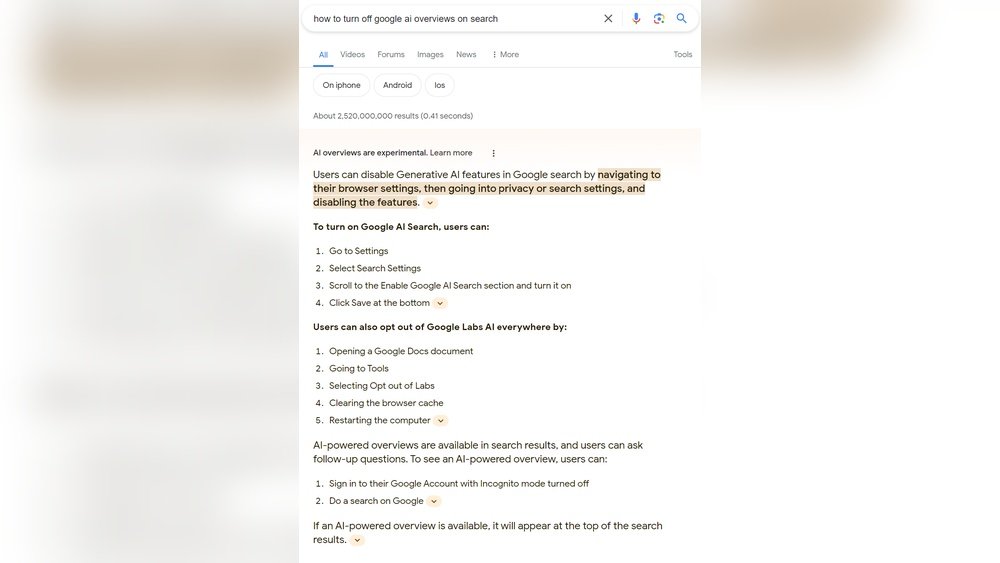
Are you feeling overwhelmed by Google’s AI features popping up everywhere? Whether it’s the AI overviews in your search results or Google Assistant responding when you don’t want it to, sometimes you just want to take back control.
You’re not alone. Many users want a simpler, distraction-free experience without AI constantly influencing their apps and searches. Luckily, turning off AI on Google is easier than you might think. You’ll discover clear, step-by-step ways to disable AI features on both desktop and mobile devices.
Keep reading, and you’ll learn exactly how to switch off AI on Google so your experience feels just the way you want it.

Credit: mashable.com
Disable Ai In Google Search Labs
Disabling AI features in Google Search Labs helps users return to a simpler search experience. This option is useful for those who prefer classic Google search results without AI-generated summaries or suggestions. Google Search Labs allows users to test new features and toggle AI tools on or off.
Turning off AI in Search Labs is straightforward. It requires a Google account and a few clicks to manage your preferences. This section explains how to disable AI in Google Search Labs step-by-step.
Access Google Search Labs
First, open your browser and go to the Google Search Labs page. Make sure you are signed in with your Google account. Signing in is necessary to access the labs and manage AI settings.
Navigate To Ai In Search Settings
On the Search Labs page, look for the section called “AI in Search.” This section controls the experimental AI features in your search results. Find the toggle switch that turns AI on or off.
Turn Off Ai In Search Labs
Click the toggle switch next to “AI in Search” to turn it off. The switch changes from blue to gray, indicating the feature is disabled. This action will stop AI summaries and suggestions from appearing in your search results.
Confirm Changes And Refresh
After toggling off AI, refresh your Google search page. The AI features should no longer appear. You can always return to Search Labs to turn AI back on if you want to try it again later.
Turn Off Google Assistant On Android
Disabling Google Assistant on an Android device stops the AI from listening or responding. This can help save battery life and reduce distractions. Turning off Google Assistant is simple and quick to do. Follow these steps to regain control over your phone’s voice features.
Open The Google App On Your Android
Locate the Google app on your device. It usually has a colorful “G” icon. Tap to open it. This app controls many Google services, including Assistant.
Access Google Assistant Settings
Tap your profile picture in the top right corner. Choose “Settings” from the menu. Scroll down and select “Google Assistant.” This opens the assistant’s options.
Turn Off Google Assistant
Find the “General” section inside Assistant settings. There is a toggle switch for “Google Assistant.” Slide it to the off position. This disables the assistant on your device.
Confirm Assistant Is Disabled
Press and hold the home button or say “Hey Google.” The assistant should no longer activate. Your phone will stop responding to voice commands.
Manage Google Assistant On Smart Speakers
Google Assistant on smart speakers listens for your voice commands. It helps with tasks, answers questions, and controls smart home devices. Some users want to disable it for privacy or personal reasons. Managing Google Assistant settings on your devices is simple.
This section explains how to turn off Google Assistant on your smart speakers. Follow easy steps to control its activity and maintain your privacy.
Turn Off Google Assistant Using Google Home App
Open the Google Home app on your smartphone. Select the smart speaker you want to manage. Tap on Settings to access device options. Scroll to find More settings and select it.
Locate the Assistant option. Toggle off the switch to disable Google Assistant on that device. This stops the speaker from responding to voice commands.
Mute The Microphone On Smart Speakers
Most smart speakers have a physical mute button. Press this button to turn off the microphone. The device stops listening until you unmute it. This is a quick way to pause Google Assistant without changing app settings.
Disable Voice Match For Personalized Responses
Voice Match allows Google Assistant to recognize individual voices. Open the Google Home app and select your device. Go to Assistant settings and choose Voice Match. Turn off Voice Match to stop personalized responses.
This reduces data Google Assistant collects about your voice and activity.

Credit: xfanatical.com
Remove Ai Mode From Google Search Widget
The Google Search widget on Android devices often includes an AI mode. This feature uses artificial intelligence to provide quick answers and summaries. Some users prefer a simpler search experience without AI suggestions. Removing AI mode from the Google Search widget helps restore the classic look and function. The process is straightforward and requires only a few steps on your device.
Access The Google Search Widget Settings
Start by unlocking your Android phone. Find the Google Search widget on your home screen. Press and hold the widget until a menu appears. Tap on the “Settings” or “Edit” option if available. This opens the widget settings where you can manage its features.
Disable Ai Mode In The Widget
Look for an option labeled “AI Mode” or “AI Overviews.” This option may be under advanced or experimental settings. Toggle the switch off to disable AI mode. If you do not see this option, the AI feature might be controlled elsewhere.
Remove The Widget And Re-add It Without Ai
Press and hold the Google Search widget again. Drag it to the “Remove” or “Delete” area on your screen. Next, tap and hold on an empty space on the home screen. Choose “Widgets” from the menu. Find the Google Search widget and add it back. The new widget will load without AI mode enabled.
Use Google Search Labs To Turn Off Ai Features
Open your browser and go to the Google Search Labs page. Sign in to your Google account if needed. Find the “AI in Search” option in Labs. Toggle it off to disable AI features across Google Search. This change affects both the widget and search results.
Change Search Engine Settings In Chrome
Changing the search engine settings in Chrome helps control your search experience. This step can affect how AI features appear while browsing. Adjusting these settings lets you choose a search engine without AI enhancements.
It is a simple way to reduce AI influence on your search results. Chrome allows quick switching between different search engines. This section explains how to change these settings easily.
Access Chrome Settings
Open the Chrome browser on your computer. Click the three dots at the top right corner. Select “Settings” from the dropdown menu. This opens the main settings page.
Navigate To Search Engine Section
In Settings, find the “Search engine” option on the left side. Click it to view search engine preferences. Here, you can see the current default search engine.
Choose A Different Search Engine
Click the dropdown menu next to “Search engine used in the address bar.” Pick a search engine without AI features. Options like Bing or DuckDuckGo can be good choices. This change stops Google AI from influencing your searches.
Manage Search Engines
Click “Manage search engines” under the dropdown. Remove or disable search engines that use AI tools. Add new search engines by clicking “Add” and entering details. This keeps your search clean and AI-free.
Restart Chrome To Apply Changes
Close and reopen Chrome after changing settings. This ensures the new search engine is active. Your searches now run without Google AI assistance. Enjoy a simpler, AI-free browsing experience.
Use Browser Extensions To Hide Ai Features
Browser extensions offer a simple way to hide AI features on Google. They work by blocking or modifying elements related to AI in your browser. This lets you enjoy a cleaner, AI-free Google experience.
Extensions are easy to install and use. Most are free and available in Chrome Web Store or Firefox Add-ons. They help disable AI summaries, suggestions, or chatbots that appear during searches.
Choosing The Right Browser Extension
Select an extension designed to block Google AI features. Look for ones with good ratings and recent updates. Popular options include “Bye Bye, Google AI” for Chrome and “Hide Google AI Overviews” for Firefox.
Check the extension’s description. It should clearly state it hides AI features on Google Search. Avoid extensions that ask for unnecessary permissions.
Installing And Activating The Extension
Go to your browser’s extension store. Search for the chosen extension by name. Click “Add to Chrome” or “Add to Firefox” to install it.
Once installed, the extension icon appears near the address bar. Click the icon and follow any setup instructions. Usually, it works automatically to hide AI content on Google pages.
Managing And Updating Your Extensions
Keep your extensions updated to ensure they work properly. Visit the browser’s extension page to check for updates. Turn off or remove extensions if they cause issues.
You can disable the extension anytime by clicking its icon and selecting “Pause” or “Remove.” This flexibility lets you control when AI features appear.
Disable Ai In Gmail And Other Services
Disabling AI features in Gmail and other Google services helps control how much automation you want. Some users prefer fewer AI suggestions and automated replies. Turning these off can make your experience simpler and more private. Below are simple steps for key Google services.
Disable Smart Compose And Smart Reply In Gmail
Open Gmail on your desktop or mobile device. Click the gear icon to open Settings. Select “See all settings” from the menu. Scroll to the “Smart Compose” section. Toggle off “Writing suggestions on” to stop AI from suggesting text while you write. Next, scroll to “Smart Reply” and turn off “Smart Reply on” to stop AI from suggesting quick replies. Save your changes at the bottom.
Turn Off Ai-powered Email Categorization
Gmail sorts emails into categories like Primary, Social, and Promotions using AI. To disable this, go to Gmail Settings. Click the “Inbox” tab. Under “Categories,” uncheck all boxes except “Primary.” This stops Gmail from sorting emails automatically. You will see all emails in one list without AI sorting.
Disable Google Assistant In Google Apps
Google Assistant uses AI to help across apps. To turn it off, open the Google app. Tap your profile picture, then select “Settings.” Choose “Google Assistant” and go to “General.” Find the toggle for Google Assistant and switch it off. This stops AI from running voice commands and suggestions.
Turn Off Ai Features In Google Docs And Sheets
Google Docs and Sheets use AI to suggest edits and formulas. Open a document or sheet. Click “Tools” in the menu bar. Select “Preferences.” Uncheck options like “Show Smart Compose suggestions” or “Automatically detect links.” This stops AI from giving automatic suggestions while you work.
Manage Ai Settings In Google Photos
Google Photos uses AI for automatic albums and face grouping. Open the Google Photos app. Tap your profile icon and choose “Photos settings.” Select “Group similar faces” and switch it off to disable face grouping. To stop automatic creations, go to “Assistant cards” and turn off suggestions. This limits AI’s role in organizing your photos.
Turn Off Ai Features On Android Devices
Android devices come with built-in AI features designed to improve user experience. These features include smart assistants, camera enhancements, and personalized suggestions. Some users prefer to disable these AI functions for privacy or simplicity. Turning off AI on Android devices is straightforward and can help you regain control over your device’s behavior.
Disable Galaxy Ai
Samsung Galaxy phones use AI to optimize performance and battery life. To turn off Galaxy AI, open Settings on your device. Scroll to Device care or Battery and device care. Tap on Battery and find the Power mode option. Disable any AI-based optimization or adaptive features. This stops the phone from automatically adjusting settings based on your usage.
You can also check under Settings > Advanced features. Look for options like Adaptive Battery or Adaptive brightness. Turn these off to reduce AI control over your device’s performance and display.
Turn Off Camera Ai Mode
Many Android phones include AI modes in their camera apps. These modes automatically enhance photos by recognizing scenes and adjusting settings. To disable this, open your Camera app. Look for an AI mode icon or setting, often labeled as Scene Optimizer or AI Enhancements. Tap the icon to turn it off.
If you cannot find it, go to the camera’s Settings. Locate options like Scene optimizer, Smart AI, or Auto Enhancement. Disable these to stop the camera from using AI to change your photos automatically. This way, you get more control over how your pictures look.
Limit Ai Suggestions Across Apps
Limiting AI suggestions across Google apps helps control the automated prompts you receive. It reduces distractions and keeps your experience simple and focused. You can adjust settings in each app to turn off or limit AI assistance. This step-by-step guide covers common Google apps where AI suggestions appear.
Limit Ai Suggestions In Google Search
Open Google Search on your desktop or mobile device. Click your profile picture, then select “Settings.” Look for “Search Settings” or “AI in Search.” Toggle the AI suggestions or overviews off to stop automatic AI content from showing.
Disable Ai Prompts In Google Assistant
Launch the Google app on your phone. Tap your profile icon and go to “Settings.” Find “Google Assistant” and open “General Settings.” Turn off the Google Assistant toggle to stop AI responses and suggestions.
Turn Off Ai Features In Google Chrome
Open Chrome browser and click the three dots menu. Choose “Settings,” then go to “Search engine.” Select “Google Web” or disable AI-related options to prevent AI-powered search results. You can also remove AI widgets from your home screen by long pressing and deleting them.
Manage Ai Suggestions In Gmail
Open Gmail and click the gear icon for settings. Navigate to “See all settings,” then to the “General” tab. Scroll to the “Smart Compose” or “AI writing suggestions” section. Disable these features to stop AI-generated email drafts and replies.
Use Browser Extensions To Block Ai Suggestions
Install extensions like “Bye Bye, Google AI” for Chrome or “Hide Google AI Overviews” for Firefox. These tools block AI suggestions across Google services, giving you full control over your browsing experience.
:max_bytes(150000):strip_icc()/hide-google-ai-overview-063757b8931b4a97b9fa614a08428abb.png)
Credit: www.lifewire.com
Control Ai Settings Without Signing In
Controlling AI settings on Google without signing in helps protect your privacy. It lets you manage AI features without linking actions to your Google account. This is useful on shared or public devices. You can disable AI overviews and assistants temporarily or permanently using simple steps.
These controls work on desktop and mobile browsers. You do not need to access your account to limit Google’s AI functions. This gives you quick control over AI without the hassle of signing in.
Disable Ai Overviews In Google Search
Open your browser and go to google.com. Perform any search you want. Look for the AI overview section on the results page. Click the three dots near the overview. Choose the option to hide or turn off AI overviews. This stops AI summaries from showing in your search results.
Turn Off Google Assistant On Mobile
Open the Google app on your phone. Tap the menu icon or three dots. Go to Settings, then Google Assistant. Find the toggle switch for Google Assistant. Slide it off to disable the assistant. This stops voice commands and AI responses without signing in.
Remove Ai Widgets From Home Screen
On Android devices, press and hold the AI widget on your home screen. Drag the widget to the Remove or Delete area. This removes AI shortcuts without changing account settings. It clears AI features from your device’s main screen easily.
Frequently Asked Questions
How Do I Disable Ai On Google?
To disable AI on Google, open Google Search Labs, click “Manage,” then toggle off “AI in Search. ” For Google Assistant, go to the Google app settings and turn off the Assistant toggle. Use browser extensions like “Bye Bye, Google AI” to remove AI features in Chrome or Firefox.
Can You Turn Ai Off On Your Phone?
You cannot disable all AI on your phone at once since it’s built into many features. Disable specific AI functions like Google Assistant or AI suggestions via individual app or system settings.
Why Is Google Pushing Ai?
Google pushes AI to enhance user experience, improve search accuracy, and stay competitive in technology innovation. AI drives smarter, faster results.
How Do I Remove Myself From The Google Search Engine?
Remove yourself from Google search by deleting or restricting content on websites you control. Use Google’s URL removal tool for outdated info. Contact site owners to remove unwanted pages. Adjust privacy settings on social profiles. Remember, complete removal is difficult if others publish your info.
How Do I Disable Ai In Google Search Labs?
Sign in to Google Search Labs, click “Manage,” then toggle off “AI in Search. “
Can I Turn Off Google Assistant On My Phone?
Yes, open Google app, go to Settings > Google Assistant > General, then switch it off.
How To Disable Ai On Google Home Devices?
Use the Google Home app, select your device, go to Settings > More settings > Assistant, and turn it off.
Is There A Way To Remove Ai Overviews From Mobile Search?
Open Chrome, search, tap three dots > Settings > Search engine, then select “Google Web” to disable AI overviews.
Can I Remove The Ai Mode Button From My Android Home Screen?
Press and hold the Gemini widget, then drag it to “Remove” to delete the AI Mode button.
Are Browser Extensions Available To Block Google Ai Features?
Yes, extensions like “Bye Bye, Google AI” for Chrome and “Hide Google AI Overviews” for Firefox can help.
Conclusion
Turning off AI features on Google is simple and quick. Follow the steps for your device carefully. You control what Google AI can do for you. Disabling AI can improve your privacy and browsing experience. Remember to check settings regularly for any updates.
Stay informed and adjust your preferences as needed. This way, you keep your Google experience just how you want it.





