
Is your device’s battery draining faster than you’d like? You’re not alone.
Many apps quietly consume a lot of energy, leaving your phone or laptop struggling to keep up. But what if you could easily spot which apps are the biggest energy hogs and stop them from draining your battery? Imagine having more power throughout your day without constantly hunting for a charger.
You’ll discover simple, effective ways to identify and stop apps from using significant energy—so you can enjoy longer battery life and better device performance. Keep reading to take control of your device’s energy use right now!
Identify High Energy Apps
Apps that use too much energy can drain your device quickly. Identifying these apps is the first step to saving battery life. Knowing which apps consume significant energy helps you manage power better.
Most devices have built-in tools to check energy use. These tools show which apps use the most power. Let’s explore how to find high energy apps on different devices.
Check Energy Usage On Mac
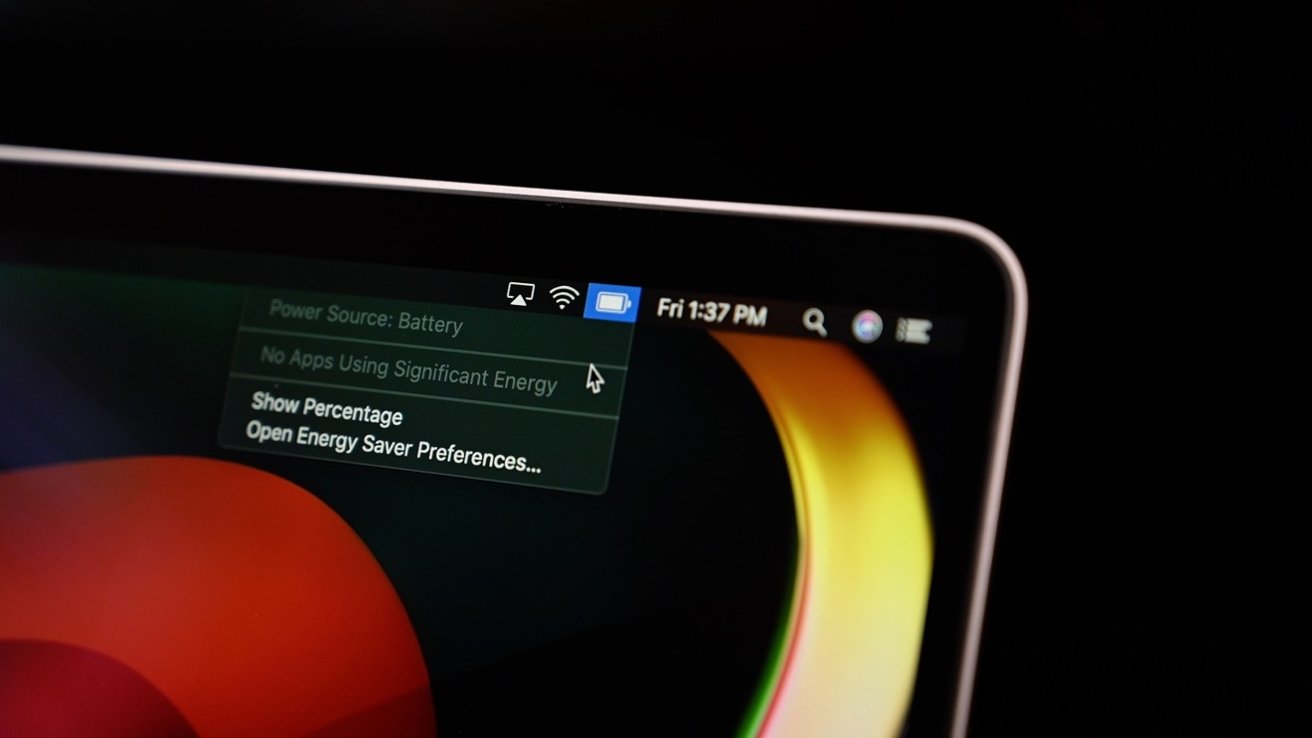
Click the battery icon in the menu bar. A list of apps using significant energy appears. This list updates in real time. Quit apps you do not need to save power.
Find High Energy Apps On Iphone
Open Settings and tap Battery. Scroll to see battery usage by app. Apps with high percentages use more energy. Consider limiting use or closing these apps.
Identify Power-hungry Apps On Android
Go to Settings and select Battery. Tap Battery Usage to see app details. High usage apps drain battery faster. Force stop or uninstall apps if needed.
Use Battery Settings
Using battery settings helps find which apps use the most energy. This tool shows apps that drain your battery quickly.
You can check battery usage by app and take action. This stops apps from running in the background and saves power.
Access Battery Settings On Your Device
Open your device’s settings menu. Find the “Battery” or “Power” section. This area shows detailed battery usage data.
Look for the list of apps and their energy consumption. The highest users are shown at the top.
Identify Apps Using Significant Energy
Check which apps use the most battery power. Apps with high energy use often run in the background.
Notice if any app uses more power than usual. These apps may need to be closed or limited.
Limit Or Close High Energy Apps
Tap on apps using significant energy. Choose to restrict background activity or force stop them.
This reduces battery drain and extends your device’s battery life.
Enable Battery Saver Mode
Turn on battery saver or low power mode. This setting limits app activity and background processes.
The device automatically reduces energy use, helping your battery last longer.
Manage Background Activity
Apps running in the background often use a lot of energy. This drains your device’s battery faster. Managing background activity helps save power and improve performance.
Stopping unnecessary apps from running quietly reduces energy use. You can control which apps stay active when not in use. This keeps your battery lasting longer throughout the day.
Identify Apps Using Background Energy
Check your device’s battery or energy settings. Look for apps that consume power while in the background. Most devices show a list of apps using significant energy.
Spot apps with high background usage. These apps keep working even when you do not open them. Identifying these apps is the first step to saving battery.
Restrict Background Activity For Specific Apps
Access your device’s app settings. Find the option to limit background activity or background refresh. Turn off this feature for apps that don’t need to run all the time.
This prevents apps from updating or sending data when you are not using them. It stops unwanted energy consumption and extends battery life.
Use Battery Saver Or Low Power Mode
Activate battery saver or low power mode on your device. This mode automatically reduces background activity. It lowers energy use by pausing less important app processes.
Battery saver helps during long days without charging. It balances performance and power by managing background tasks smartly.
Credit: www.reddit.com
Adjust App Permissions
Adjusting app permissions helps control how apps use your device’s resources. Many apps request access to features they do not need all the time. By limiting these permissions, you can reduce energy consumption significantly. This simple step can extend your device’s battery life and improve performance.
Start by reviewing which permissions each app has. Focus on those that run in the background or use location, camera, or microphone. Restricting unnecessary permissions stops apps from running tasks that drain energy without your knowledge.
Check App Permissions In Settings
Open your device’s settings and find the app permissions section. Here, you see all the permissions given to each app. Look for permissions like location, camera, microphone, and background activity. Turn off permissions that the app does not need to function properly.
Limit Background Activity
Some apps run in the background and use energy even when not open. Disable background activity for apps you don’t use often. This prevents them from refreshing data or sending notifications constantly, saving battery life.
Manage Location Access
Apps with location access can drain battery quickly. Change location permissions to “While Using” or “Never” if the app does not need constant access. This reduces GPS usage and saves significant energy over time.
Review Permissions Regularly
App updates can change permission settings without notice. Check app permissions regularly to keep control. Remove permissions that are no longer necessary. This keeps apps from using more energy than needed.
Optimize System Preferences
Optimizing your system preferences helps reduce app energy use effectively. It adjusts settings to save battery life and improve performance. Small changes in system preferences can lower the power apps consume.
Focus on settings that control energy use and background activity. This way, you keep apps from draining your battery unnecessarily. Let’s explore key areas in system preferences that help limit energy use.
Adjust Energy Saver Settings
Open Energy Saver in System Preferences. Set the computer to sleep after a short period of inactivity. Enable “Put hard disks to sleep when possible” to save power. These options reduce energy use when apps run in the background.
Manage Battery Usage
Click the Battery tab in System Preferences. Review which apps use the most energy. Close or quit apps that consume significant power but are not in use. This simple step lowers overall battery drain.
Limit Background App Refresh
Disable background app refresh for apps that do not need to update constantly. This stops apps from running unnecessarily and using energy. You can find this option in the system or app-specific settings.
Control Notifications
Turn off non-essential notifications in System Preferences. Notifications can wake your computer or phone, using extra energy. Reducing alerts helps conserve battery life by limiting app activity.

Credit: numberblocks.fandom.com
Regular Maintenance Tips
Regular maintenance helps keep your device running smoothly. It reduces energy use by apps. Simple habits can lower battery drain and improve performance.
Follow easy steps often to keep apps from using too much power. These tips save energy and extend device life.
Keep Apps Updated
App updates fix bugs and improve efficiency. Outdated apps may use more energy. Check for updates regularly in the app store. Install updates to reduce energy consumption.
Close Unused Apps
Apps running in the background use battery power. Close apps not in use to save energy. Double-click home or use task manager to quit apps. This stops unnecessary energy use.
Clear Cache And Data
Cached files can slow apps and increase power use. Clear cache regularly in settings to boost speed. Removing excess data helps apps run better and use less energy.
Limit Background Activity
Many apps run in the background and drain battery. Disable background refresh for apps you rarely use. Go to settings and turn off background activity. This lowers energy use effectively.
Restart Your Device Often
Restarting clears temporary files and resets apps. It stops apps from consuming energy unnecessarily. Restart your device every few days for best results.
Credit: appleinsider.com
Frequently Asked Questions
How To Stop Apps From Using Significant Energy On A Mac?
Open the battery icon in the menu bar to identify high-energy apps. Quit or uninstall apps consuming significant energy. Adjust Energy Saver settings in System Preferences to optimize power use. Restart your Mac to refresh system resources and reduce energy drain.
How Do I Restrict Apps With High Battery Use?
Open your device’s battery settings to identify high-usage apps. Then, restrict their background activity or uninstall unused apps to save battery.
Why Does My Mac Keep Saying This Webpage Is Using Significant Energy?
Your Mac shows “this webpage is using significant energy” when the site consumes high CPU or battery resources. Close or refresh such pages to save power.
How To Stop Apps From Using So Much Data?
To stop apps from using so much data, restrict background data in settings, disable auto-updates, and limit app permissions. Use Wi-Fi whenever possible and monitor data usage regularly.
What Does “using Significant Energy” Mean On My Device?
It means an app is consuming a large amount of your device’s battery or power. This can cause your device to run slower or heat up.
How Can I Find Which Apps Use The Most Energy?
Check your device’s battery or energy settings to see a list of apps and their energy use. This helps identify power-hungry apps quickly.
Why Do Some Apps Drain Battery Faster Than Others?
Apps that run in the background, use location services, or play videos consume more power. Heavy graphics or constant syncing also increase energy use.
Can Closing Apps Reduce Energy Consumption Effectively?
Yes, quitting apps that run in the background stops them from using CPU and battery. But some apps restart automatically, so disable background activity if possible.
How Do I Stop Apps From Running In The Background?
Go to your device’s settings, find the app list, and turn off background activity or background refresh for specific apps. This reduces energy use.
Does Updating Apps Help Reduce Energy Usage?
Yes, app updates often include bug fixes and optimizations that improve battery efficiency. Keeping apps updated can reduce unexpected energy drain.
Conclusion
Stopping apps from using significant energy helps your device last longer. Check battery or energy settings often to find heavy users. Close or uninstall apps you don’t need running in the background. Adjust app settings to reduce their power use.
Simple steps save battery and improve device speed. Keep an eye on energy use to maintain performance. Small changes make a big difference in daily device life.