Use Ubuntu Software, apt, snap, or flatpak commands to remove apps quickly and safely.
I’ve spent years managing Ubuntu systems for work and home. This guide shows exactly how to remove apps in Ubuntu using the GUI and terminal. You will learn safe commands, how to clean leftover files, and how to fix common uninstall errors. Read on to remove apps with confidence and avoid common pitfalls when removing applications on Ubuntu.
Why you might need to remove apps
Removing unused apps frees disk space, reduces background tasks, and keeps your system tidy. Some apps conflict with others or bring unwanted services. Knowing how to remove apps in Ubuntu helps you reclaim resources and avoid future headaches.
Ways to remove apps in Ubuntu
There are several ways to remove apps in Ubuntu. Choose the method that fits the package type and your comfort with the terminal. Common methods include:
- Ubuntu Software (graphical)
- apt and dpkg (Debian package manager)
- snap (Snap packages)
- flatpak (Flatpak apps)
- manual cleanup of config files and PPAs
Below are short PAA-style questions you may search for. Each answer is concise and practical.
How do I tell if an app is a snap or an apt package?
Most system apps installed from the Ubuntu store are snaps or apt packages. Run snap list to see snaps and apt list –installed to find .deb packages.
Will removing a snap free as much space as removing a .deb package?
Not always. Snaps bundle dependencies and can take more space. Use du -sh ~/snap and sudo du -sh /var/snap to check snap data.
Can I safely remove apps installed from a PPA?
Yes if you remove the package and then remove the PPA. Remove the package first, then use sudo add-apt-repository –remove ppa:NAME and sudo apt update.
Remove apps using Ubuntu Software (GUI)
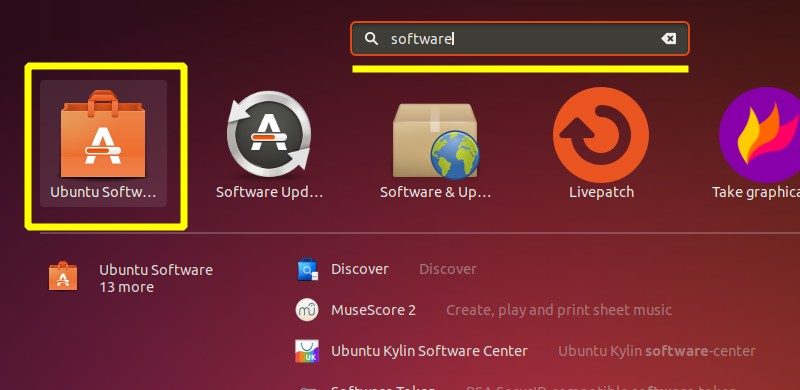
Ubuntu Software is the easiest way to remove apps for most users.
- Open Ubuntu Software from the dock or Activities menu.
- Click Installed to see your apps.
- Locate the app you want to remove and click it.
- Click Remove and confirm with your password.
This method is friendly and safe for standard desktop users. It handles both snaps and .deb-managed apps shown in the store. If an app doesn’t appear, try the terminal commands below.

Remove apps from Terminal: apt and dpkg
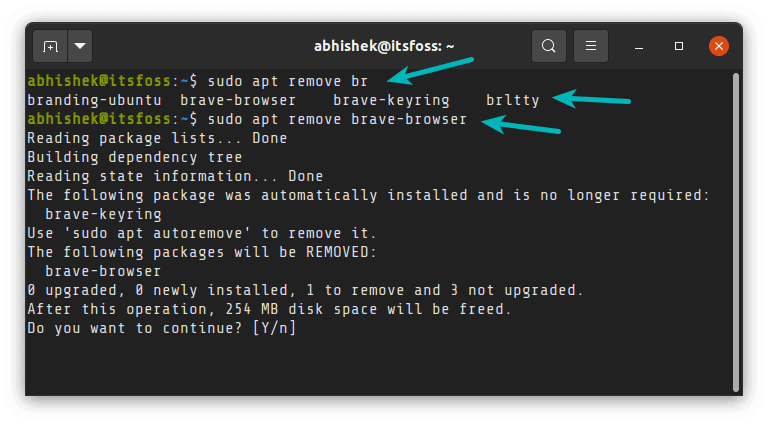
Terminal removal is fast and precise for .deb packages. Use sudo with care.
- Update package lists: sudo apt update
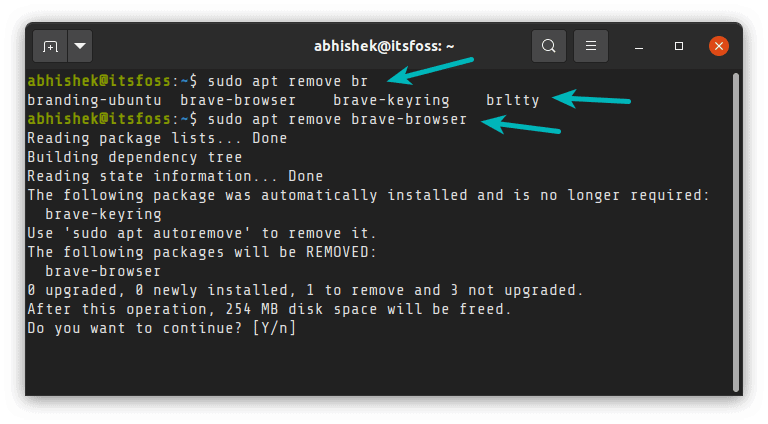
- Remove a package but keep config files: sudo apt remove package-name
- Remove package and config files: sudo apt purge package-name
- Remove unused dependencies: sudo apt autoremove
- If apt fails, you can use dpkg: sudo dpkg –remove package-name or sudo dpkg –purge package-name
Tip: I once removed a broken media player with sudo apt purge then sudo apt autoremove to free 400 MB. Keep a note of packages you purge so you can reinstall if needed.

Removing Snap packages
Snaps are common on Ubuntu. Use snap commands to list and remove them.
- List snaps: snap list
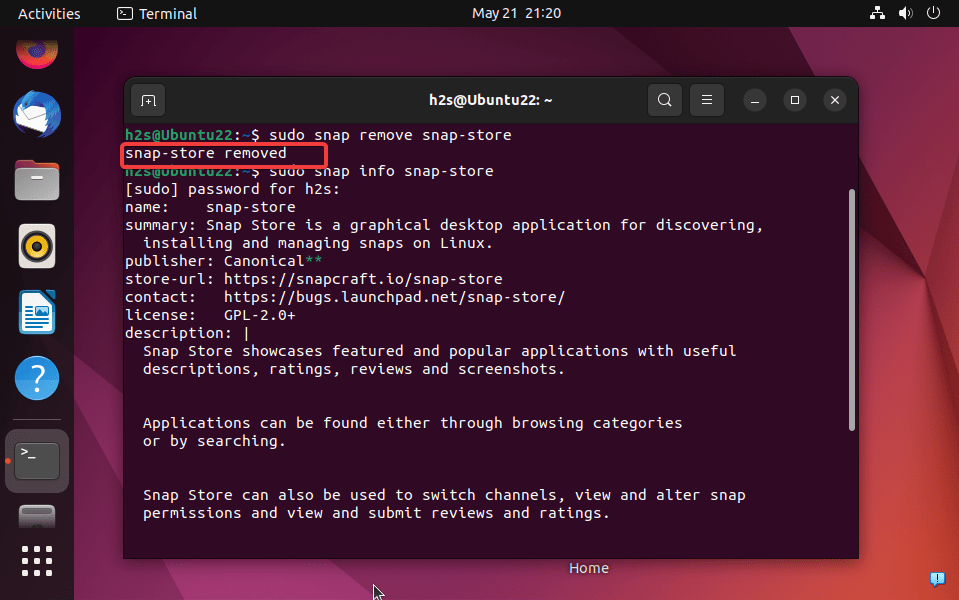
- Remove a snap: sudo snap remove package-name
- Remove a snap and keep no data: sudo snap remove –purge package-name
- Clean leftover snap data in your home folder: rm -rf ~/snap/package-name
Snaps can keep old revisions. To remove old revisions, run sudo snap set system refresh.retain=2 and use sudo snap remove –revision=NUMBER if needed. I’ve seen snap data occupy gigabytes; check ~/snap and /var/snap after removal.

Remove Flatpak apps
Flatpak is another sandbox system. Use these commands:
- List flatpaks: flatpak list
- Uninstall a flatpak: flatpak uninstall package-name
- Uninstall and delete data: flatpak uninstall –delete-data package-name
- Remove orphaned runtimes: flatpak uninstall –unused
Flatpak stores data in ~/.var/app and can leave caches. Clean them if space is a concern.
Remove PPAs and external repositories
Third-party PPAs can leave packages behind. Remove both packages and the repo.
- Remove the package: sudo apt purge package-name
- Remove the PPA: sudo add-apt-repository –remove ppa:repository/name
- Update: sudo apt update
- Optionally remove leftover keys or source files in /etc/apt/sources.list.d
If you plan to keep a package, don’t remove its PPA. I once removed a PPA too early and had to reinstall from the official repo.

Cleaning leftover files and dependencies
After uninstalling, clean files and caches to free space and avoid clutter.
- Remove unused packages: sudo apt autoremove
- Clean package cache: sudo apt clean
- Remove orphaned config files for a removed package: dpkg -l | grep '^rc' lists orphaned configs; sudo dpkg –purge package-name removes them
- Clean user config: check ~/.config, ~/.local/share, and ~/snap for leftover folders and remove them if safe
Always back up important configs before deleting them. I learned this after losing an app’s custom settings—now I copy configs before purging.

Troubleshooting and tips
If an uninstall fails, try these steps.
- Repair broken installs: sudo apt –fix-broken install
- Reconfigure packages: sudo dpkg –configure -a
- Force removal of a stuck .deb: sudo dpkg –remove –force-remove-reinstreq package-name
- Use logs to find issues: journalctl -xe or tail -n 200 /var/log/apt/history.log
If a snap refuses to remove, stop related services first. If in doubt, search the package name plus error text. My rule: try the least forceful option first, then escalate.
Best practices and safety tips
Follow these simple rules for safe uninstalls.
- Backup important data and configs before major removals.
- Prefer purge when you want no config files left.
- Check which packages will be removed with apt remove –simulate package-name
- Keep a list of manual installs so you can restore them later
Being cautious saves time. I keep a small text file with names of apps I install manually. It helps when I change laptops or reinstall Ubuntu.
Frequently Asked Questions of how to remove apps in ubuntu
How do I remove preinstalled apps without breaking the system?
Remove only user-level apps. Avoid removing core packages like ubuntu-desktop. Use sudo apt purge package-name and check apt's list of related packages before confirming.
Will purge remove my personal settings and files?
Purge removes package config files in system directories. It usually does not delete files in your home directory unless the app stored data there. Back up any app-specific folders in your home before purging.
How do I find what package provided a command or file?
Use dpkg -S /path/to/file or apt-file search command-name to find the package that owns a file or command. Install apt-file and run apt-file update if needed.
Why does sudo apt autoremove remove many packages?
Autoremove removes orphaned dependencies. If a package you installed pulled many libraries, autoremove can clean those. Always review the list before confirming.
Can I recover an app after purge?
Yes. Reinstall the app with sudo apt install or snap install. Config files removed by purge are gone, so you may need to reconfigure the app after reinstalling.
Conclusion
You now have clear, practical steps for how to remove apps in Ubuntu using both GUI and terminal methods. Use apt purge for full removal, snap remove for snap packages, and flatpak uninstall for flatpak apps. Clean leftover files and PPAs to keep your system tidy. Try these steps on a noncritical app first to build confidence, and keep backups when removing large or system-related packages. Take action now: remove one unused app, run apt autoremove, and reclaim space — then share your result or questions in the comments.





